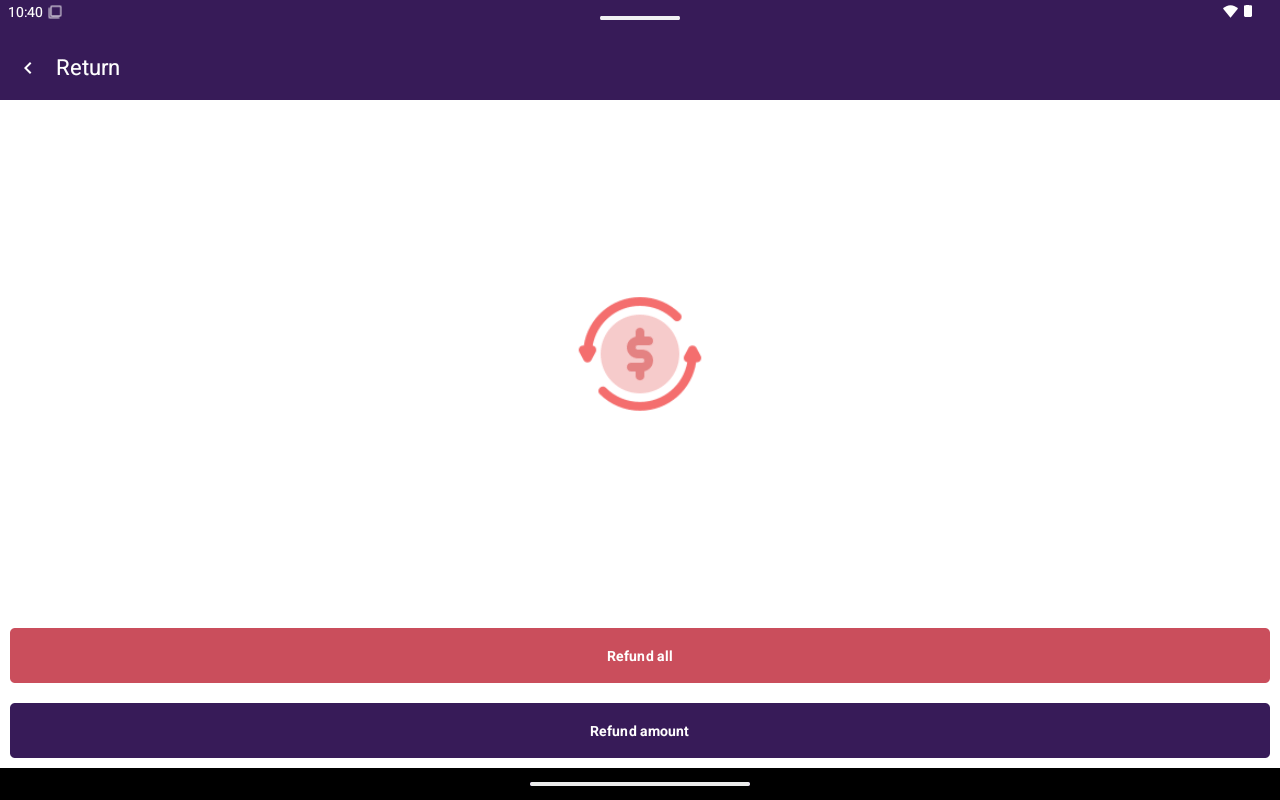
Refund options — Full Refund, Partial Refund (Itemized), Partial Refund (Enter Amount).
Before you start
- You need permission to manage transactions.
- Return appears when the payment is eligible (for example settled/captured with a remaining refundable amount, or partially refunded already).
- Partial refund options are hidden for table orders — use Full Refund in that case.
- If Return is missing, the payment may already be fully refunded/voided, or your role cannot manage transactions.
Start a return
1
Open the payment
Go to Home → Transactions and open Transaction Details.
2
Tap Return
Tap Return.
3
Choose a refund option
On Please select a refund option: choose one of the paths below.
Full refund
- Tap Full Refund.
- On the Customer screen, enter the customer’s name when prompted.
- Tap Refund and complete any terminal prompts.
- Taliup POS processes the return and typically reprints a merchant copy before returning to the list.
Partial refund (itemized)
Available when the linked order has line items (and is not a table order).1
Choose Partial Refund(Itemized)
Tap Partial Refund(Itemized).
2
Select items
Use Select All or select individual items, then tap Next.
3
Enter customer and refund
Enter the customer name on the Customer screen, then tap Refund.
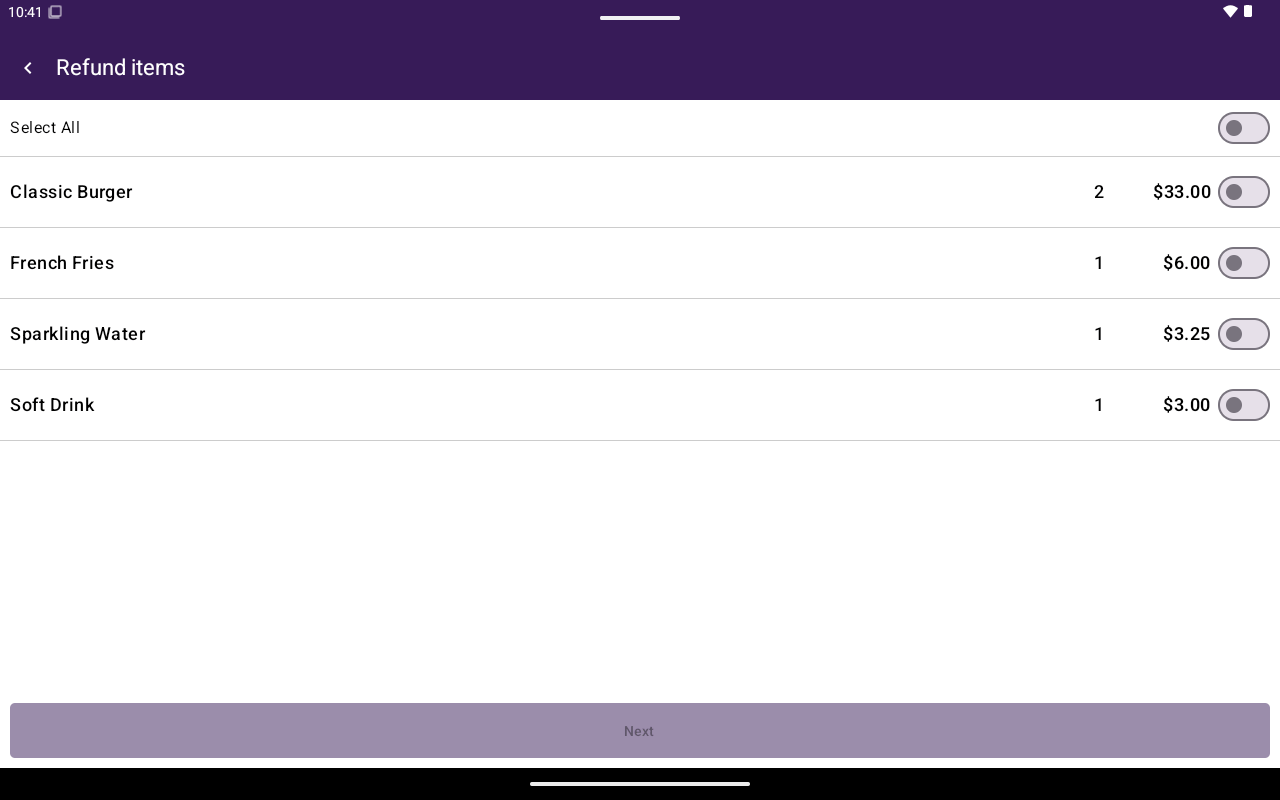
Itemized refund item picker with Select All.
Partial refund (enter amount)
Shown when itemized refund is not available (for example no line items).1
Choose Partial Refund(Enter Amount)
Tap Partial Refund(Enter Amount).
2
Enter the amount
Enter an amount greater than zero and not more than the remaining refundable total. The helper shows Transaction Amount; the amount turns red if it is too high. Tap Next.
3
Enter customer and refund
Enter the customer name, then tap Refund.
Troubleshooting
Related
- Void — for unsettled cancellations
- Transaction details
- Reprint