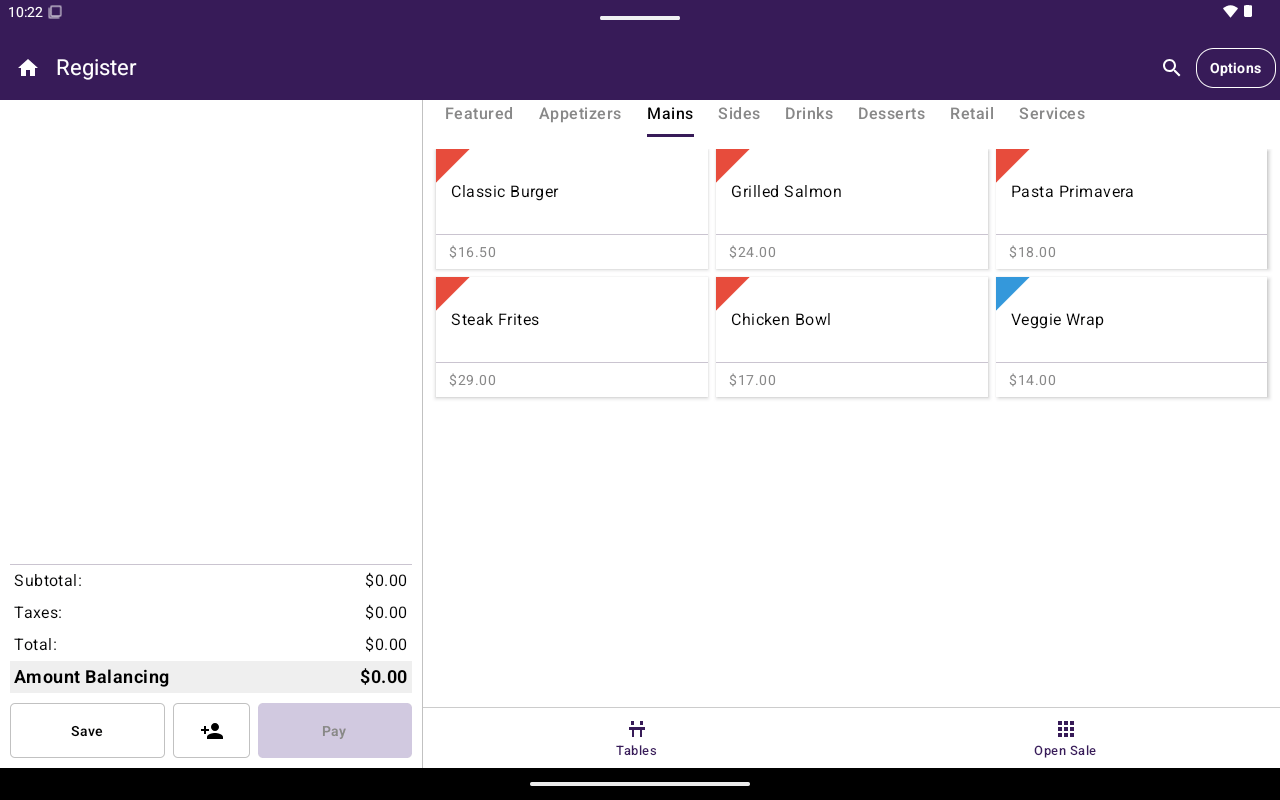
Register Menu/Catalog tab with Categories and Featured.
How to get here
- From Home, tap Register.
- Select Menu or Catalog in the bottom navigation.
Browse and add items
1
Choose Categories or Featured
Use Categories to browse by group, or Featured for highlighted items.
2
Search (optional)
Tap the search icon in the app bar, type a name, then select a result.
3
Tap an item
What happens next depends on the item:
- Fixed price, no modifiers → added to the cart immediately
- Open price → a custom price popup appears
- Has modifiers → the add-to-cart screen opens
- Weighable + Enter weight in Settings (default) → a weight sheet appears; the line total is catalog price × weight
- Weighable + Scale labels → Register asks you to scan the sticker instead of adding quantity 1
4
Configure on add-to-cart (if shown)
Choose required modifiers, optional modifiers, quantity, and an optional note. Required modifier groups must be completed before you can continue. Tap Apply to add the item.
5
Review and pay
Open the cart, then tap Pay. See Take payment.
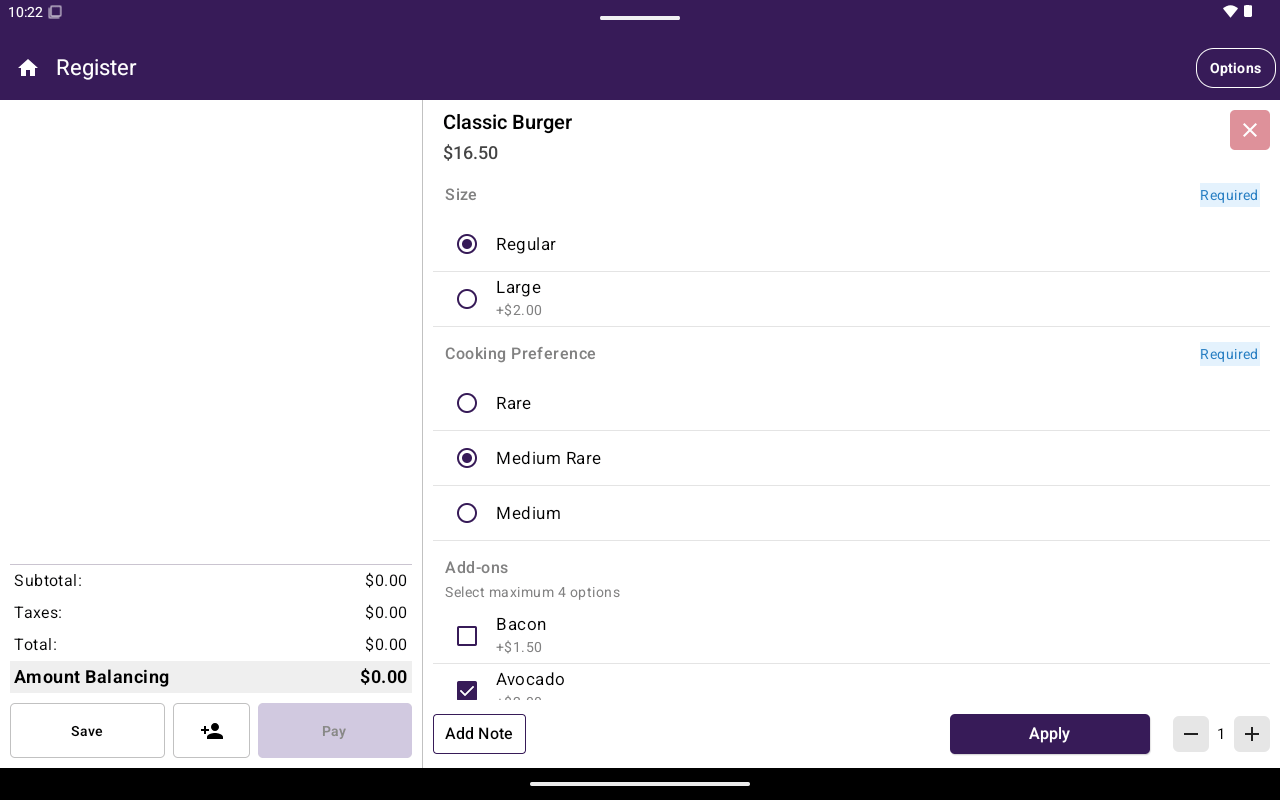
Add-to-cart screen with modifiers, quantity, and Apply.
Table orders
On table orders, guest chips (Whole Table / guests) appear while you add items. Use Save to keep the open order without paying yet.Manage the catalog itself
Creating categories, products/items, taxes, discounts, and fees is done from Home → Menu / Catalog, not inside the Register picker. See Menu / Catalog.Related
- Cart
- Scale barcodes
- Options side menu — Add Custom Item, discounts, fees