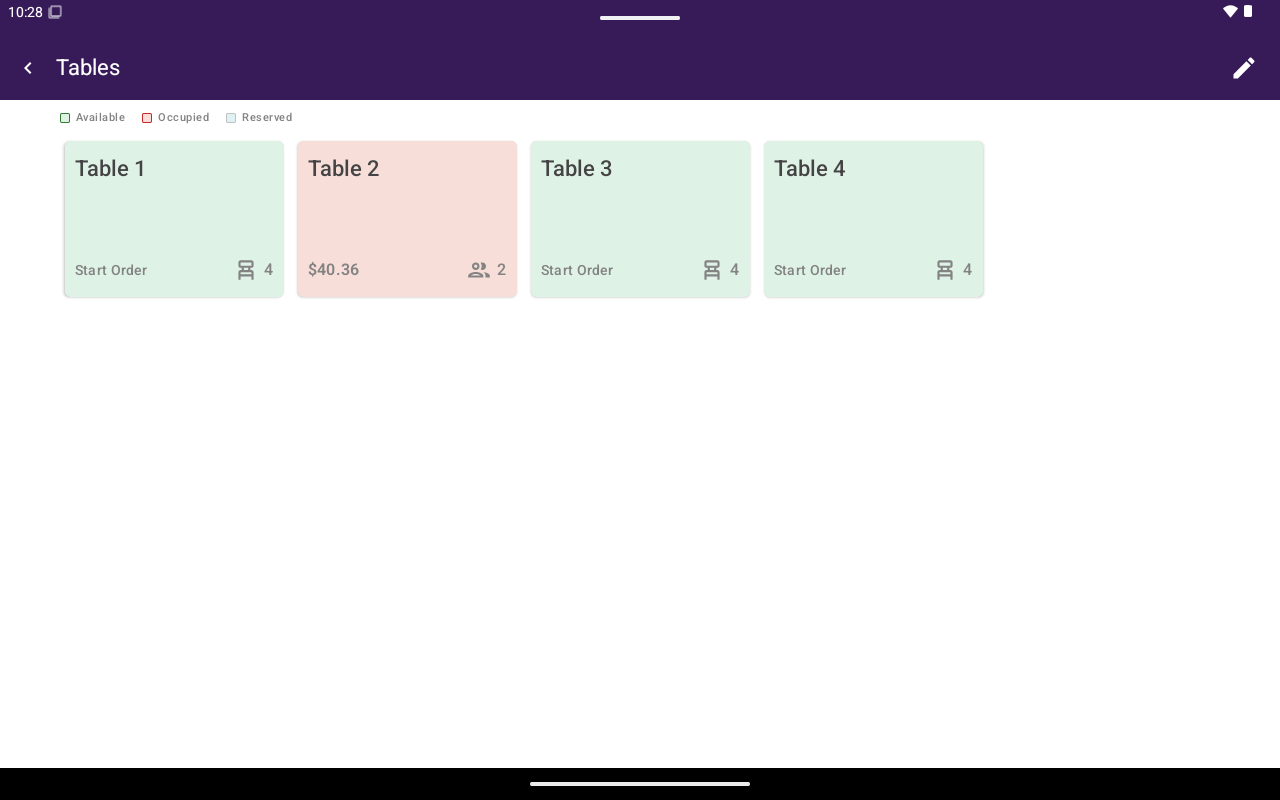
Tables floor grid with Available / Occupied cards.
How to get here
From Home, tap Tables.Floor overview
Each table card shows the table name, status, and capacity or party size.
Pull down to refresh the floor. Empty state: No tables found.
Start a table order
1
Select an available or reserved table
Tap Start Order (Available) or Check In (Reserved). You can also use New Order from the table actions dialog.
2
Enter party size
In Enter Party Size, enter the number of guests and confirm.
3
Continue in Register
Taliup POS opens Register for that table so you can add items and take payment.
Table actions
Long-press a table (or use the card actions) to open status-specific options:
Occupied cards with a linked order open that order in Register when tapped. Occupied cards may also show remaining balance and server / seated-at details in dialogs.
Orders on a table
From an occupied table you can open that table’s orders screen (Orders with the table name). Overflow options can include:- New Order
- Group by Guest
- Split Order
- Merge Orders
- Open In Register
- Move Order
- Cancel Order
Move, split, merge
Canceling an open order asks you to confirm: Please confirm you want to cancel this open order?
Many of the same table tools also appear in Register under Options while a table order is open.
Edit the floor plan
Use the edit (pencil) control on Tables to manage the layout.- Create Table / Edit Table
- Fields: Table name, Capacity (optional), Width, Height, Shape (Rectangle / Square / Circle), size presets (Small / Medium / Large), Description (optional)
- Delete Table — only Available tables can be edited or deleted
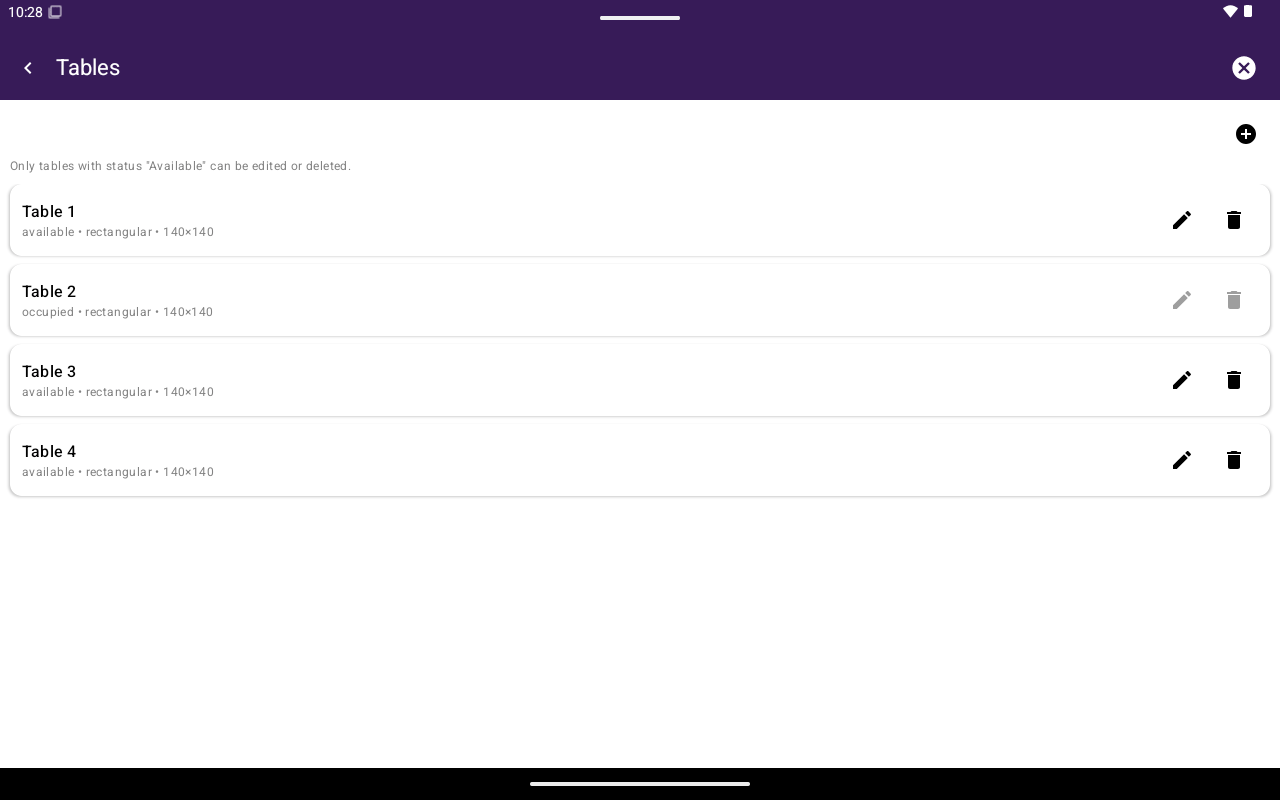
Create/Edit Table form.