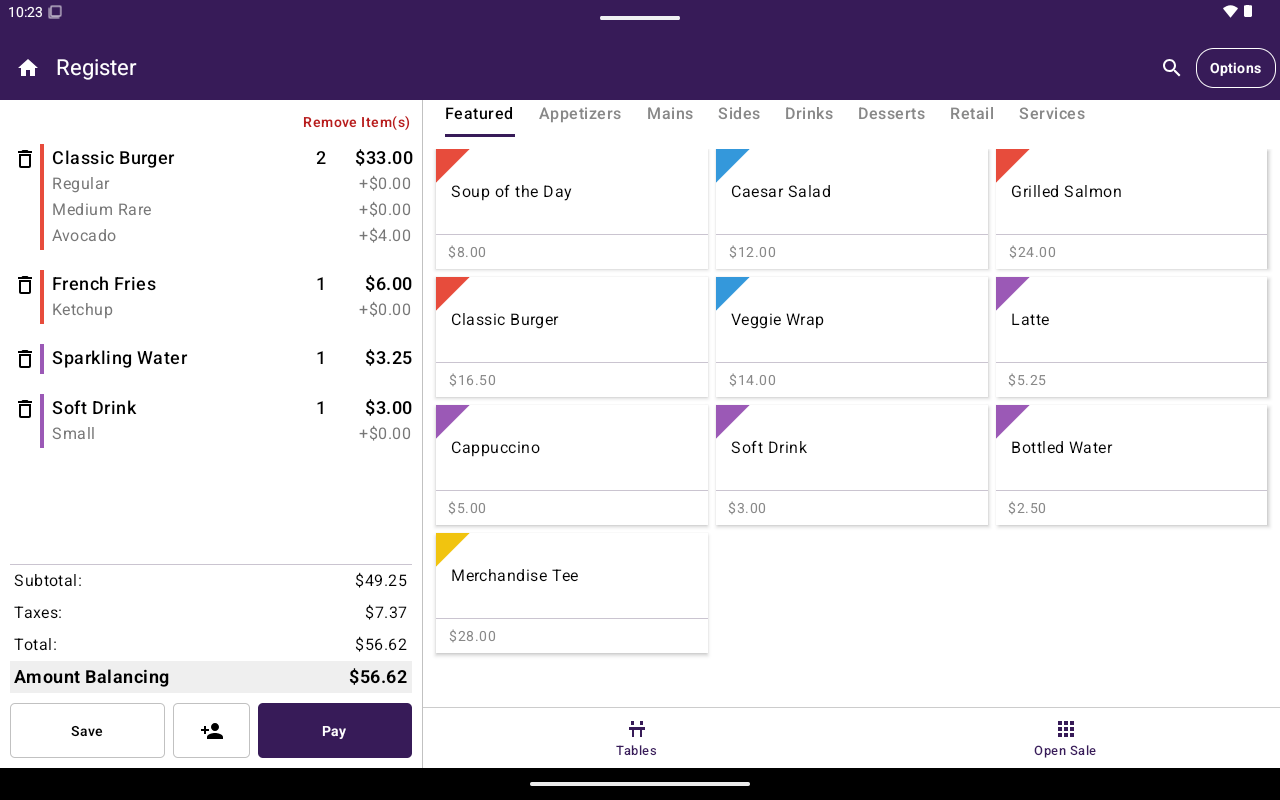
Register cart with line items, totals, Save, and Pay.
How to get here
- Portrait: tap Cart in the Register bottom navigation (badge shows item count).
- Landscape: the cart panel is often already visible beside Open Sale or Menu/Catalog.
- After adding items, review the cart before tapping Pay.
What the cart shows
Typical summary rows include:- Subtotal
- Taxes
- Discounts
- Fees
- Surcharge (when configured for the merchant)
- Total
Edit the cart
Table guests
On table orders, use the guest header to open guest options:
If you try to act on a guest with no items, Taliup POS shows that the guest has no items.
Paying a single guest opens the same payment screen scoped to that guest’s balance. See Take payment.
Bottom actions
For print, discounts, kitchen, cancel, and other tools, open Options. See Options side menu.