Create an appointment
1
Open a day
From Calendar, tap a day, then tap New Appointment.
2
Fill in details
On New Appointment, complete the fields below.
3
Save
Tap Add New.
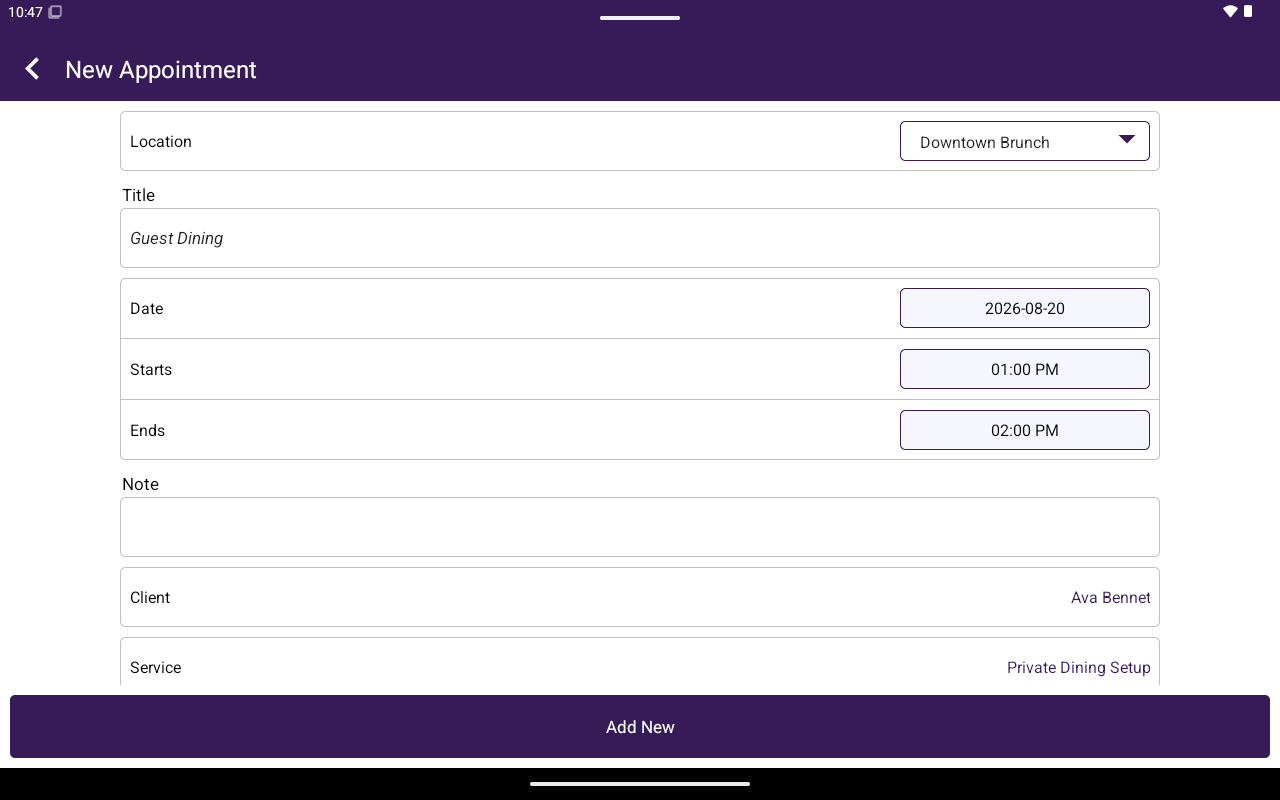
New Appointment form.
Documentation Index
Fetch the complete documentation index at: /llms.txt
Use this file to discover all available pages before exploring further.
Create, edit, and delete calendar appointments in Taliup POS.
Open a day
Fill in details
Save

New Appointment form.
| Field | Notes |
|---|---|
| Location | Required location for the appointment |
| Title | Required |
| Date | Appointment date |
| Starts / Ends | Start must be before end |
| Note | Optional |
| Client | Select Client |
| Service | Select service (needs Services / catalog_services) |
| Employee | Spinner including None |
| Send Reminder? | YES / NO |
| Allow Client To Confirm The Appointment? | YES / NO |
| Allow Client To Cancel The Appointment? | YES / NO |
| Action | How |
|---|---|
| Save changes | Tap Save |
| Delete | Tap Delete Appointment → confirm Please confirm you want to delete this appointment? |