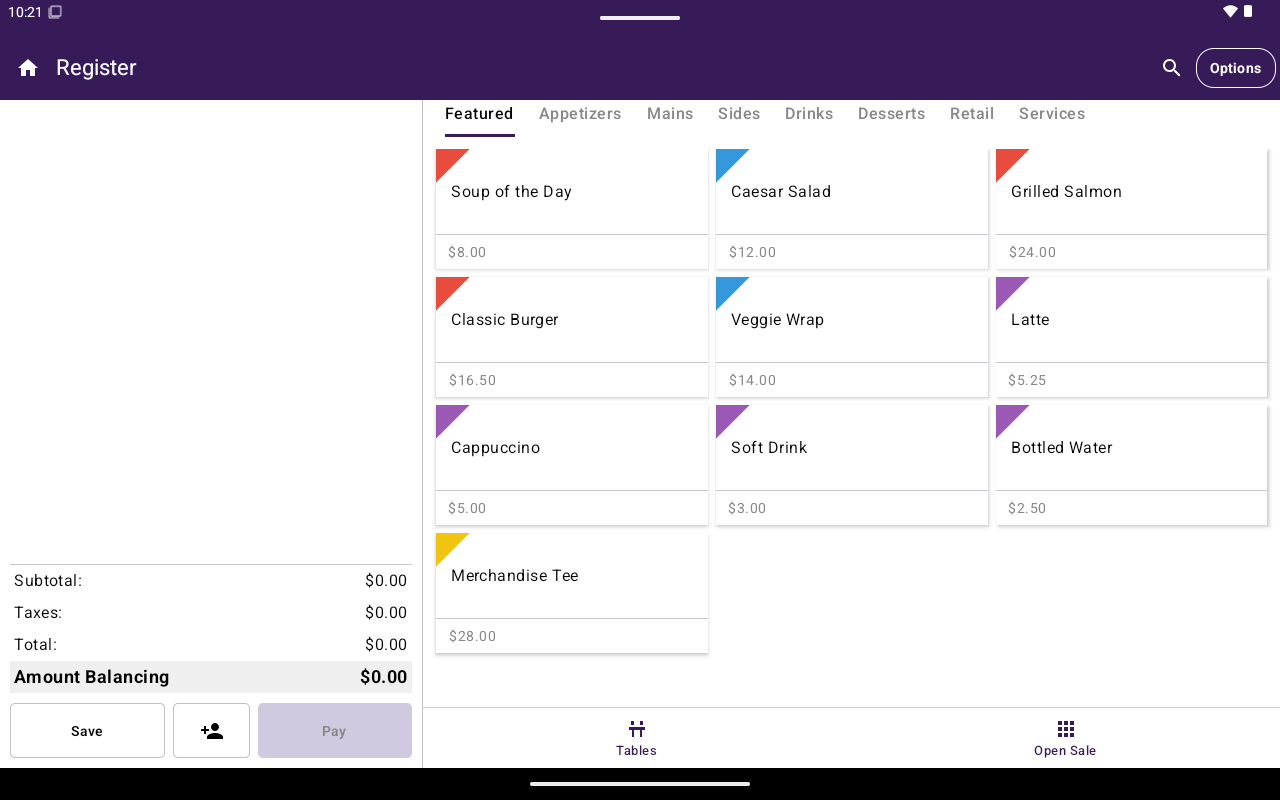
Register main screen (Open Sale or Menu/Catalog with cart).
What’s on the screen
Restaurants see Menu; other industry types see Catalog. If the catalog feature is not available for the merchant, Register stays on Open Sale only.
Layout notes
- In portrait, use the bottom navigation to switch views and open Cart or Pay.
- In landscape, the cart often stays visible beside the keypad or item picker.
- Switching between Open Sale and Menu/Catalog while the cart has items shows a warning that the cart will be cleared.
Typical paths
1
Open Sale (amount only)
Enter an amount on the keypad → Pay → choose card or cash. See Open a sale and Take payment.
In this section
Open a sale
Charge a custom amount from the keypad.
Add items
Add Menu or Catalog items to the cart.
Scale barcodes
Scan a price or weight sticker from a counter scale.
Cart
Edit items, guests, and totals before payment.
Take payment
Pay Full or Split Amount — card, cash, and more.
Customer receipt
Choose No Receipt, Paper, or Email after payment.
Options side menu
Print bills, auth, refund, discounts, save order, kitchen, scanner.