Taliup POS acts as a sales recording system (SRS / MEV) for Revenu Québec’s WEB-SRM. A Québec merchant cannot bill on a device until that device is enrolled and the signed-in user is registered with the WEB-SRM. Revenu Québec requires both steps. Repeat them on every device.
If the merchant is already taking sales on Taliup POS and you are turning WEB-SRM on now, start with Start using WEB-SRM on an existing merchant. That page covers the app update and the required log out / log in before enrolment.

Before you start

If HQ is not configured, Taliup POS shows This business has no WEB-SRM configuration from Taliup HQ. Finish WEB-SRM settings before you continue.

Enrol this device

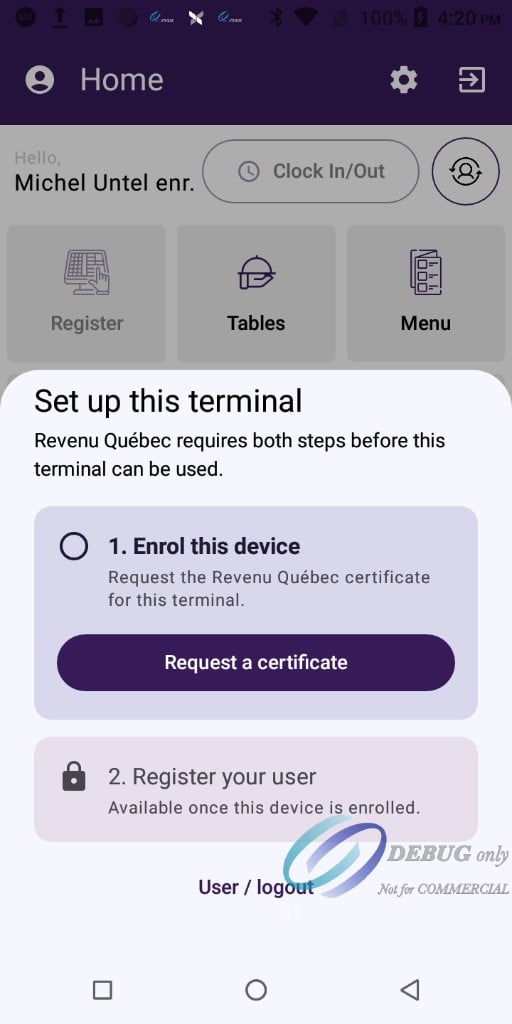
After you log in, Enrol this device blocks Register, Tables, and Menu until both steps are complete.
1

Log in

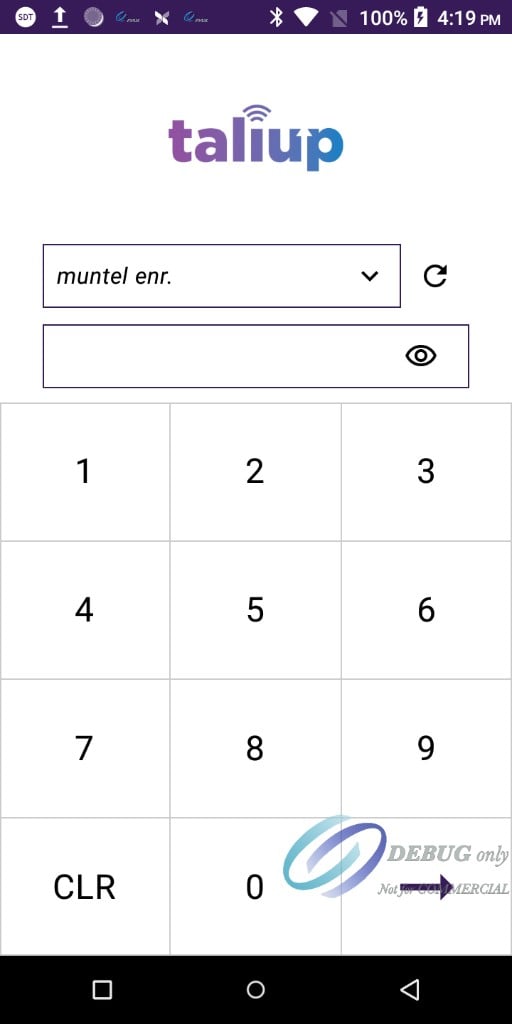
Open Taliup POS and enter the employee’s six-digit passcode.
Taliup POS login screen with employee selector, passcode field, and numeric keypad

Taliup POS login screen. Select the employee, then enter their passcode.

2

Open the certificate request

On Enrol this device, tap Request a certificate.Step 2, Register your user, stays locked until the device is enrolled.
Set up this terminal modal with Enrol this device active and Register your user locked

Set up this terminal. Step 1 is Enrol this device. Step 2 is locked until the certificate is installed.

3

Name the certificate

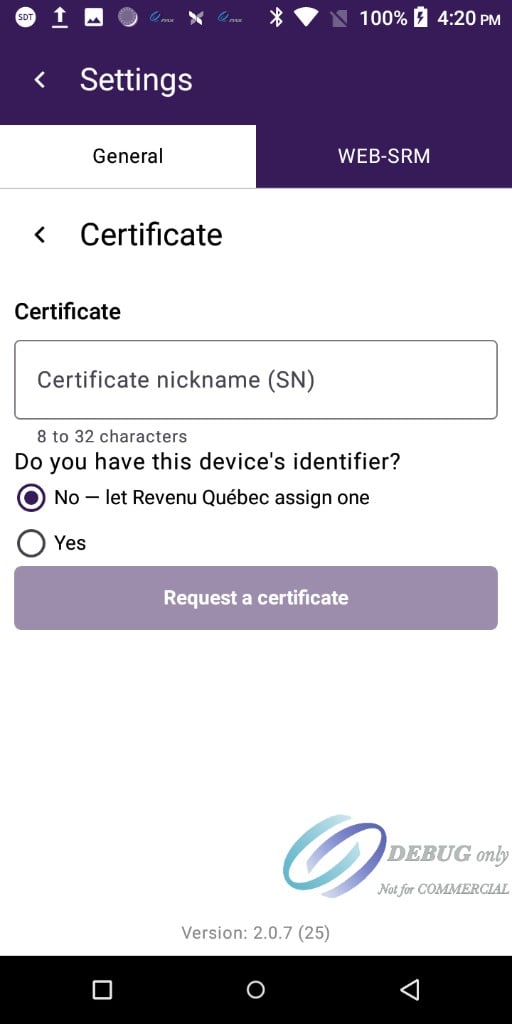
Enter a Certificate nickname (SN) of 8 to 32 characters. Use a name you can recognize later on this device.
Certificate screen with nickname field, device identifier radio buttons, and Request a certificate button

Certificate form under Settings. Enter a nickname, then choose how the device identifier is assigned.

4

Choose the device identifier

Under Do you have this device’s identifier?:
  • First-time enrolment: tap No — let Revenu Québec assign one.
  • Restoring a device that already has an identifier: tap Yes, then enter the identifier in the format XXXX-XXXX-XXXX.
5

Request the certificate

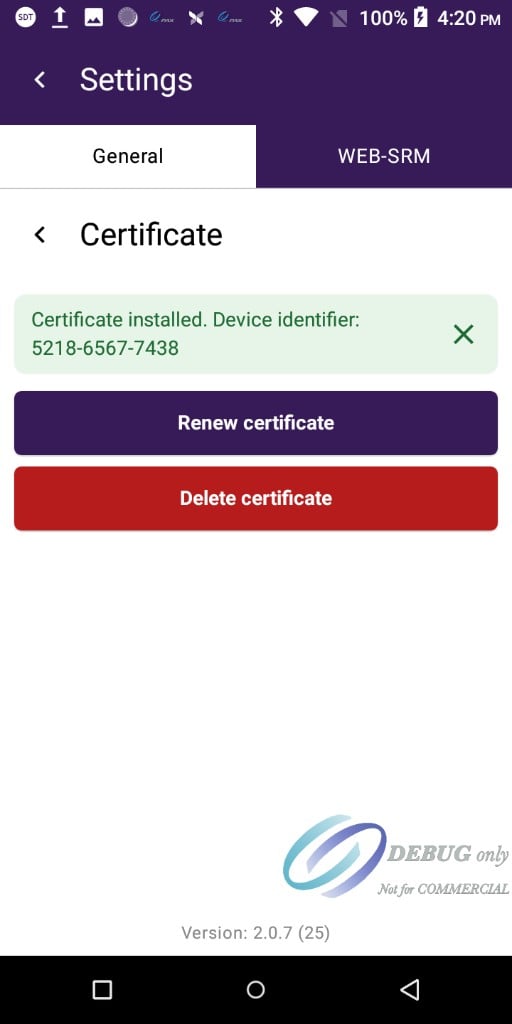
Tap Request a certificate. Wait until the POS shows Certificate installed and a Device identifier.
WEB-SRM Certificate screen showing Certificate installed with Renew certificate and Delete certificate actions

Certificate installed. The green banner shows the device identifier assigned by Revenu Québec.

6

Register your user

Return to the WEB-SRM setup sheet. Step 2 is now available. Tap Register to record the signed-in employee with the WEB-SRM.The device can bill only after this step succeeds.
Enrolment is complete when the signed-in user is registered and Register, Tables, and Menu are available on Home.

Verify enrolment

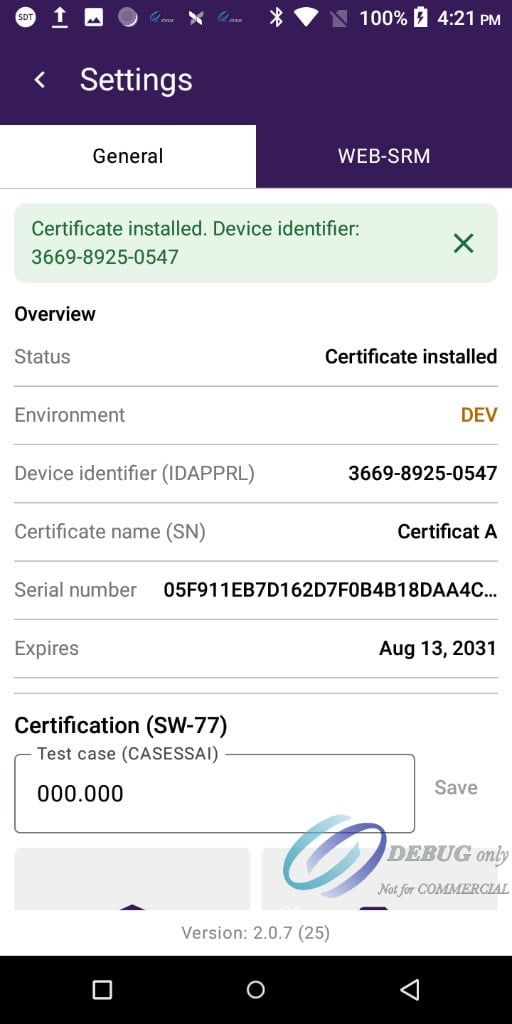
Go to SettingsWEB-SRM. The Overview card should show:
WEB-SRM Overview showing Certificate installed, device identifier, certificate name, serial number, and expiry date

WEB-SRM Overview after a successful enrolment, including device identifier, certificate name, serial number, and expiry.

Keep a record of the Device identifier. You need it if you restore this device and choose Yes on the certificate form.

Renew the certificate

Renew when Taliup POS warns that the certificate is expiring, or when the WEB-SRM setup sheet asks you to renew because the certificate is expired or not yet valid.
1

Open Certificate

Go to SettingsWEB-SRMCertificate.
2

Renew

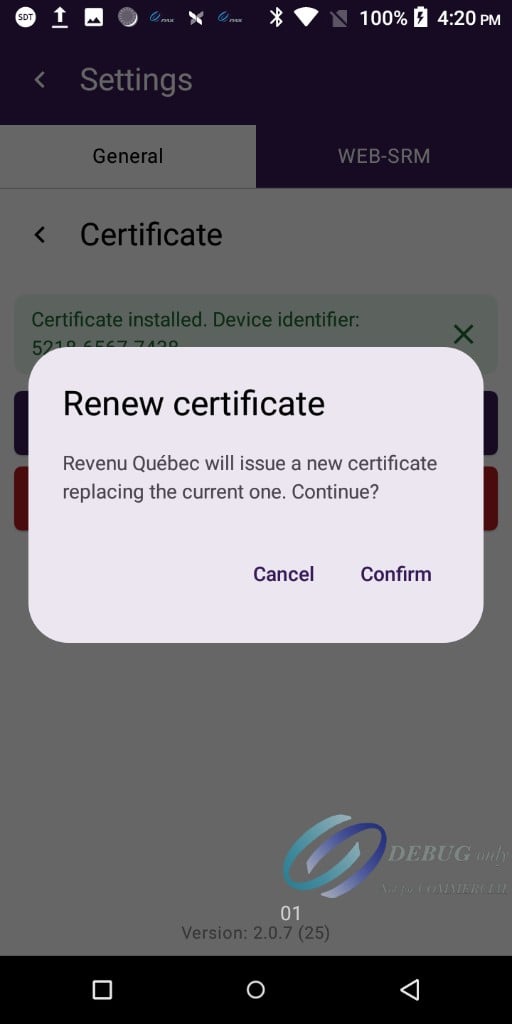
Tap Renew certificate.
3

Confirm

Confirm that Revenu Québec will issue a new certificate replacing the current one.
Renew certificate dialog asking to continue with Cancel and Confirm actions

Renew certificate confirmation. Revenu Québec replaces the current certificate.

The device identifier stays the same after a successful renewal.

Delete the certificate

Delete only when you are decommissioning the device or starting enrolment over.
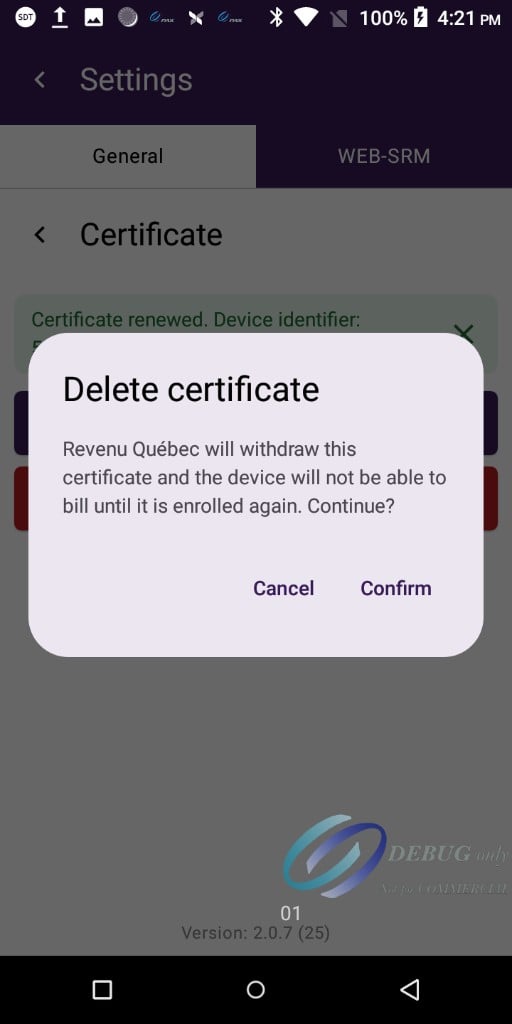
Revenu Québec withdraws the certificate. The device cannot bill until you enrol it again.
1

Open Certificate

Go to SettingsWEB-SRMCertificate.
2

Delete

Tap Delete certificate.
3

Confirm

Confirm the withdrawal.
Delete certificate dialog warning that the device will not be able to bill until it is enrolled again

Delete certificate confirmation. Billing is blocked on this device until you enrol again.

After deletion, the WEB-SRM setup sheet returns. Request a new certificate, then register the signed-in user.

Troubleshooting