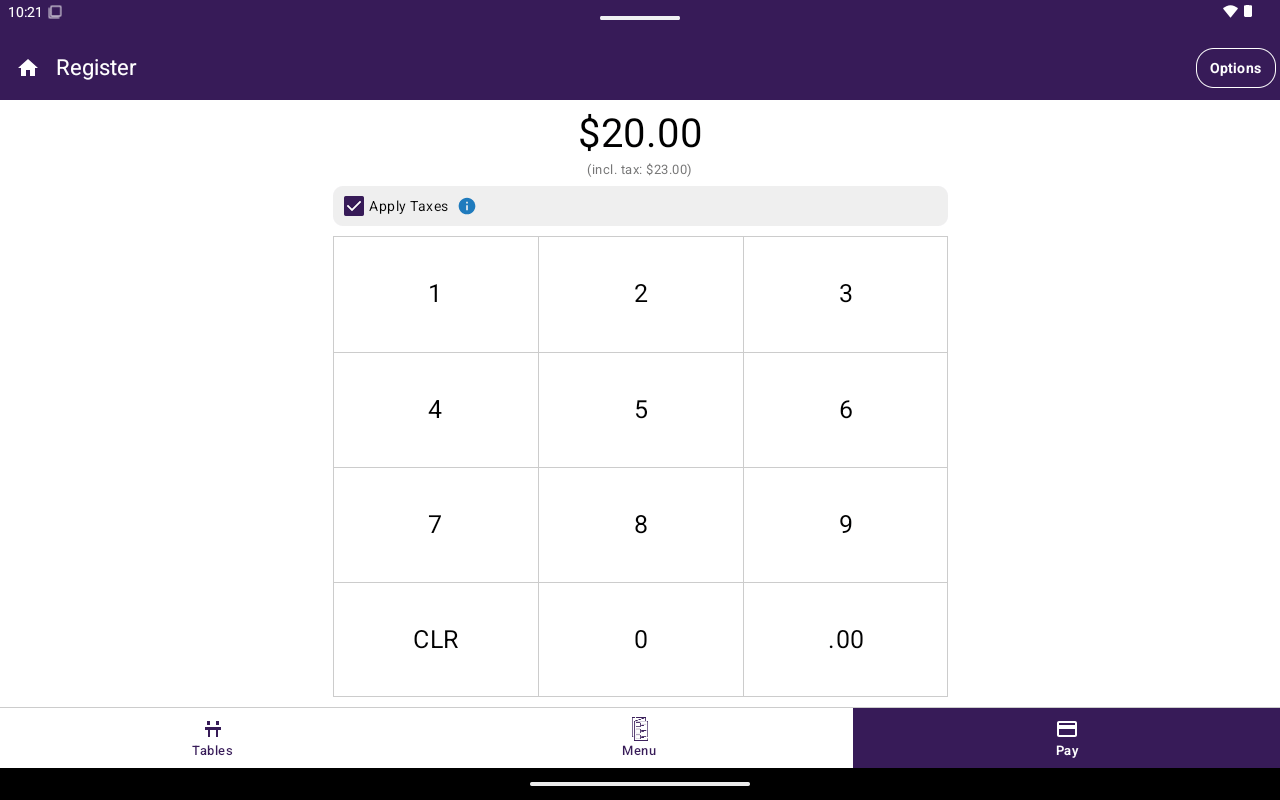
Open Sale keypad with an amount entered and Pay available.
How to get here
- From Home, tap Register.
- Select Open Sale in the bottom navigation (or use it as your default Register view).
Charge an amount
1
Enter the amount
Use the number pad to enter the sale amount. Use CLR to clear. You can append
.00 with the decimal shortcut when available.2
Apply taxes (optional)
In payment mode, turn on Apply Taxes if the amount should include tax. When enabled, the keypad shows the amount including tax.
3
Pay
Tap Pay. Taliup POS adds the amount to the cart as a Custom Item and opens the payment screen.
4
Collect payment
Choose card, cash, or another available method. See Take payment.
Table orders on Open Sale
If you opened Register from a table:- Guest chips appear (for example Whole Table and individual guests).
- Use Save to keep the open order without taking payment yet.
What Open Sale does not show
Many Options side menu actions are hidden while you are on the Open Sale tab (for example print entire bill, add custom item, save order, send to kitchen, open scanner). Switch to Menu/Catalog or work from a saved order when you need those tools.Related
- Add items
- Take payment
- Settings → General — default Register view