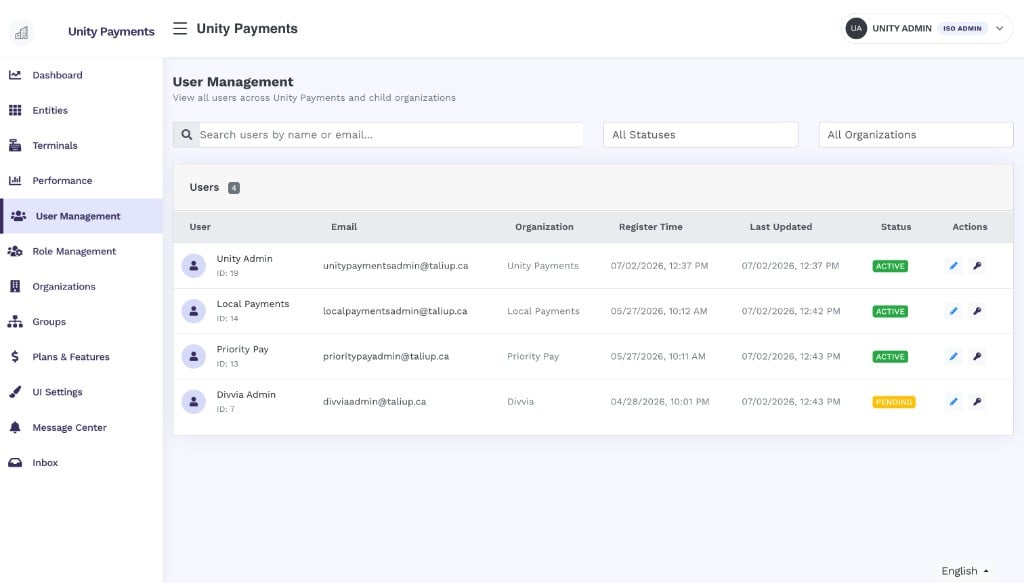
The User Management page showing all users across Unity Payments and its child organizations.
This page requires the User Management permission. Users without an ISO association receive a 403. You can only view and manage users who belong to your ISO or a child ISO — users from outside your hierarchy are not accessible.
Filters

The filter bar showing the Search, Status, and Organization controls.
User table
The table lists 20 users per page, newest first. Each row shows:Creating a user
New admin users are created through the Role Management page using the Invite User flow. You cannot create a user directly from this page. When you invite a user, you assign them a role at the time of creation. The new account is created with a Pending status and the user receives an invitation email with a secure link to set their password and activate their account.Inviting a user
Step-by-step instructions for creating a new user and assigning them a role.
Editing a user
Click the pencil icon on any user row to open the Edit User Profile page.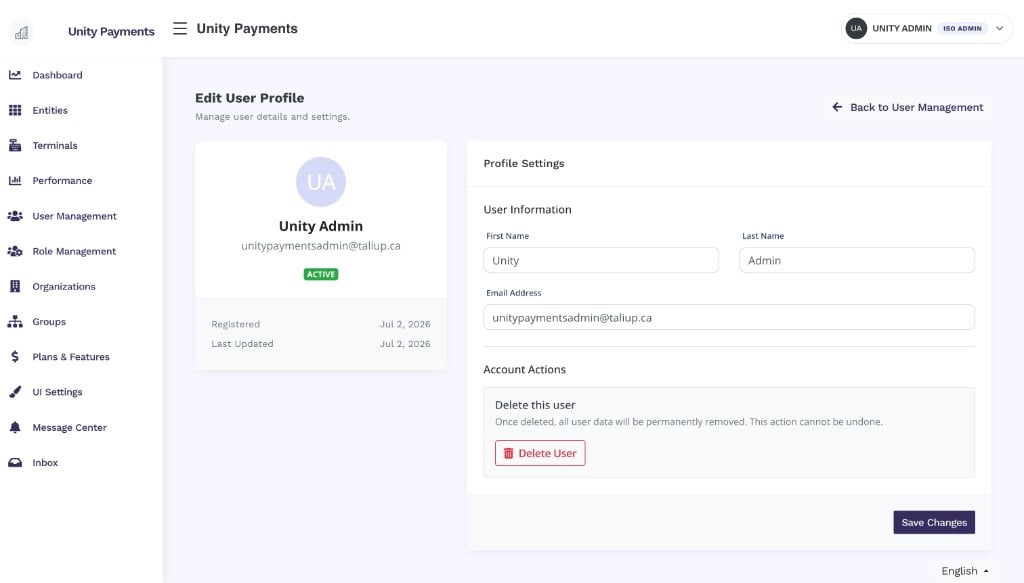
The Edit User Profile page showing the user's profile card, editable User Information fields, and the Account Actions section.
User information
Click Save Changes to apply. On success you are returned to the User Management list.
Deleting a user
The Account Actions section at the bottom of the edit page contains the Delete User button.Sending a password reset
Click the key icon on any user row to open the Send Password Reset Invitation modal.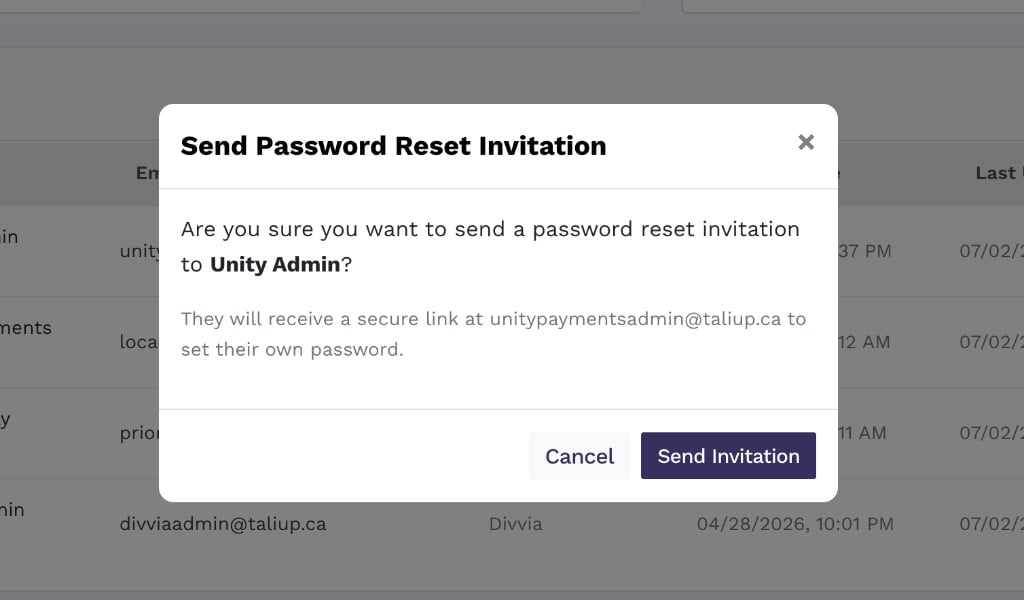
The Send Password Reset Invitation modal confirming the recipient and explaining that a secure link will be emailed to them.
If the email fails to send (for example, due to a mail configuration issue), an error message is shown and no changes are made to the user’s account.
Organization user management
Clicking into a specific organization from the Organizations section opens an organization-level user management view. This view has two tabs:Users tab
Lists the users assigned to that specific organization. From here you can manage individual user assignments, roles, and access within the scope of that organization.Admin Role Permissions tab
Configures which permissions are granted to the Admin role for that organization. Changes here affect all users holding the Admin role within the organization immediately.The organization-level user management view is separate from the ISO-wide User Management page. Use the ISO-wide page for a cross-organization overview, and the organization-level view when you need to manage users or permissions scoped to a single child organization.