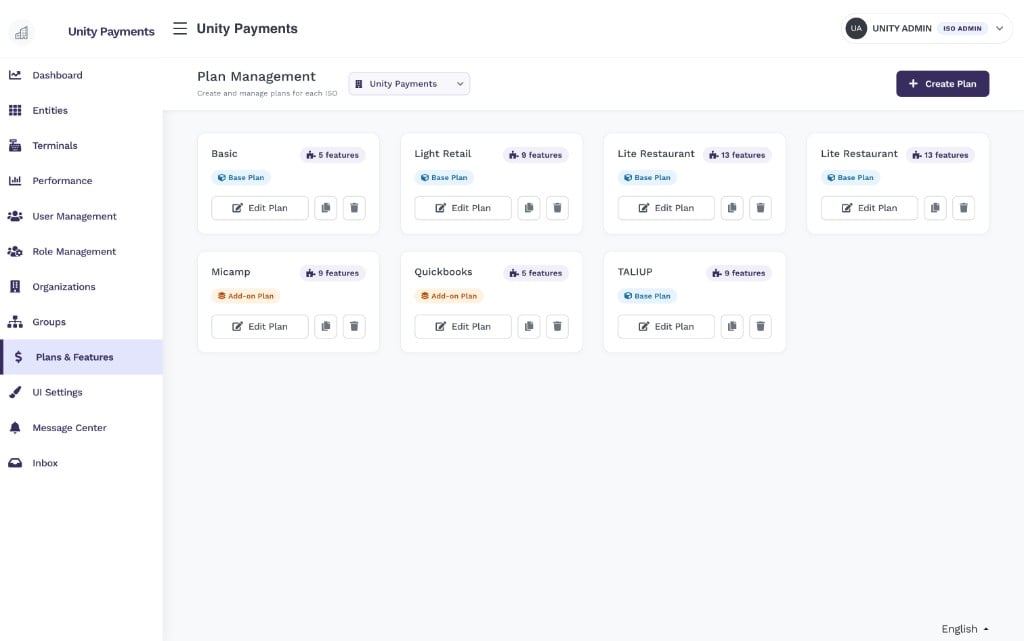
The Plan Management page showing seven plans across two rows, each displayed as a card with its feature count and plan type badge.
Plan types
Plan Management list
The index page shows all plans for the selected ISO as a card grid. Each card displays:- Plan name — unique within the ISO
- Feature count badge — total number of features enabled on the plan
- Plan type badge — Base Plan or Add-on Plan
- Actions — Edit Plan, Copy to another ISO, Delete
Creating a plan
Click + Create Plan to open the creation form. The form has three sections: Plan Details, Features, and Software Subscription.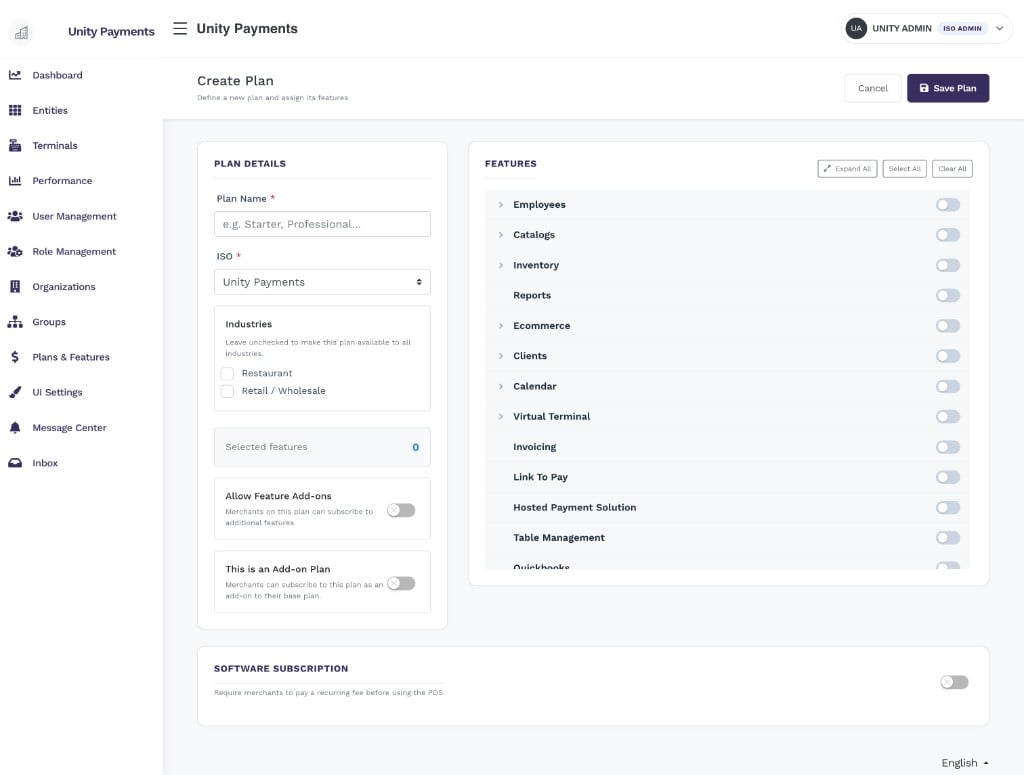
The Create Plan page with a Plan Details panel on the left and a Features panel on the right showing toggles for Employees, Catalogs, Inventory, and more. A Software Subscription section appears below.
Plan details
Features
The Features panel lists all available POS features, organized hierarchically. Use the toolbar controls to manage selections quickly:- Expand All — expand all feature groups to show sub-features
- Select All — enable every feature in the list
- Clear All — disable every feature in the list
Software subscription
The Software Subscription section lets you require merchants to agree to and pay a recurring fee before they can use the POS. This gate is shown to the merchant on first login.Editing a plan
Click Edit Plan on any plan card to open the edit form.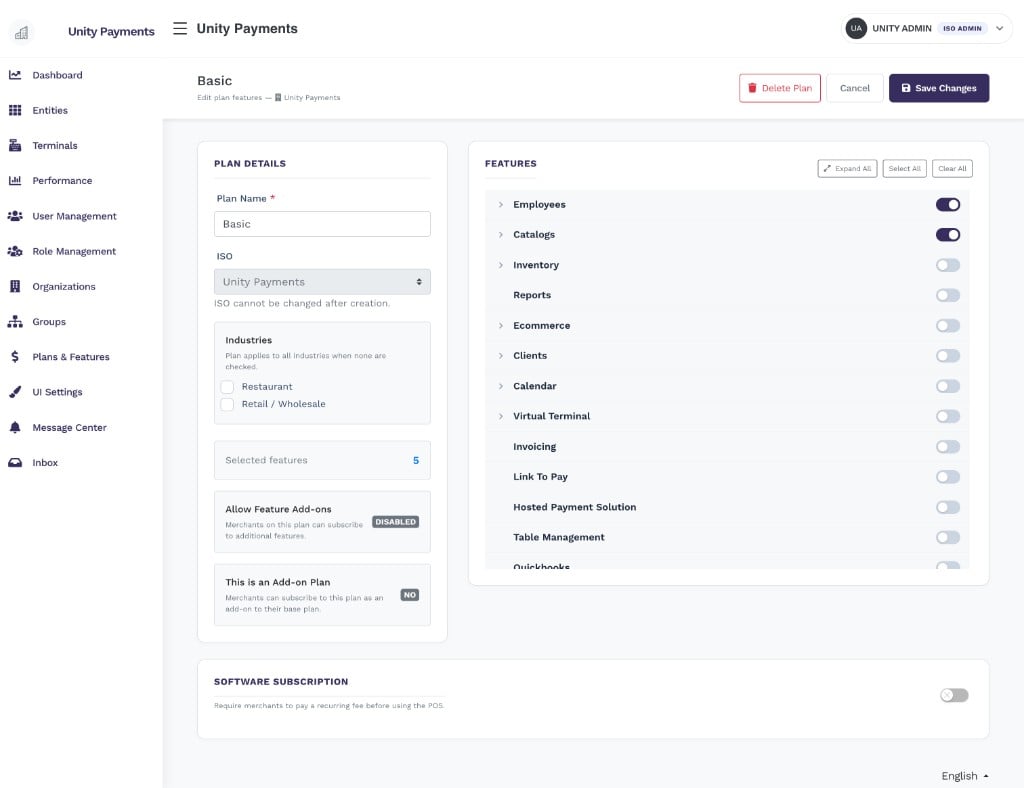
The Edit Plan page for the Basic plan showing 5 selected features (Employees and Catalogs toggled on), with Plan Details on the left and the Features panel on the right. A Delete Plan button and Save Changes button appear in the header.
- The ISO field is read-only — it cannot be changed after creation
- Allow Feature Add-ons and Is Add-on Plan show their current state as a badge rather than a toggle
- A Delete Plan button appears in the page header
Copying a plan
Click the Copy icon on any plan card to open the Copy Plan modal. Select one or more target ISOs from the hierarchical list (hold Ctrl/Cmd to multi-select) and click Copy. The copy is a deep clone — it duplicates the plan name, type, industries, all feature assignments, and price. If a plan with the same name already exists in the target ISO, the copy is renamed with a(copy) or (copy 2) suffix automatically.
Deleting a plan
Click the Delete icon on a plan card to open the Delete Plan confirmation modal.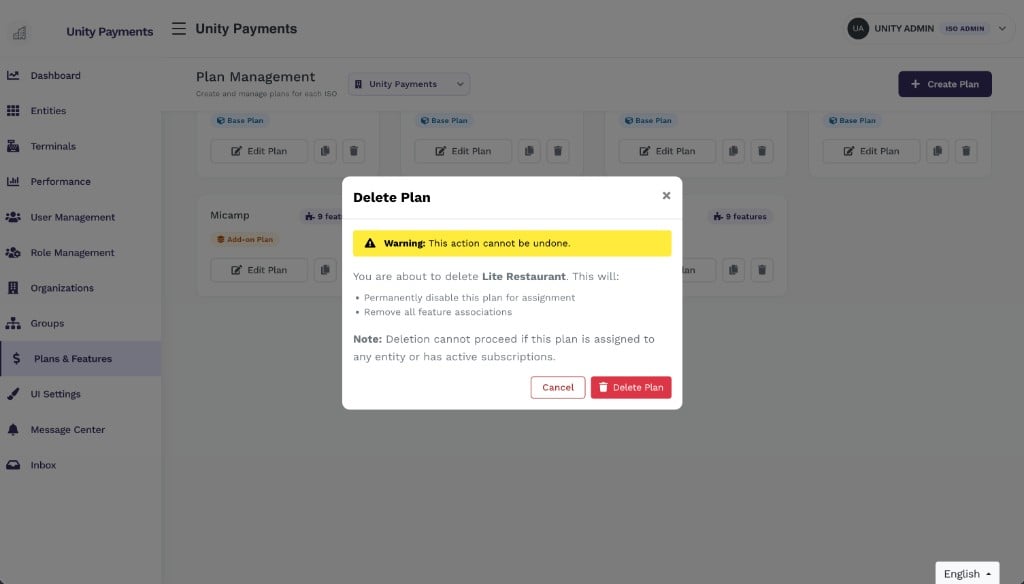
The Delete Plan confirmation modal with a yellow warning banner, a description of what will be deleted, and a note that deletion is blocked if the plan is assigned to any entity or has active subscriptions.