Create and manage sub-organizations (child ISOs) under your ISO — including provider access, location, Open Sale configuration, and administrator setup.
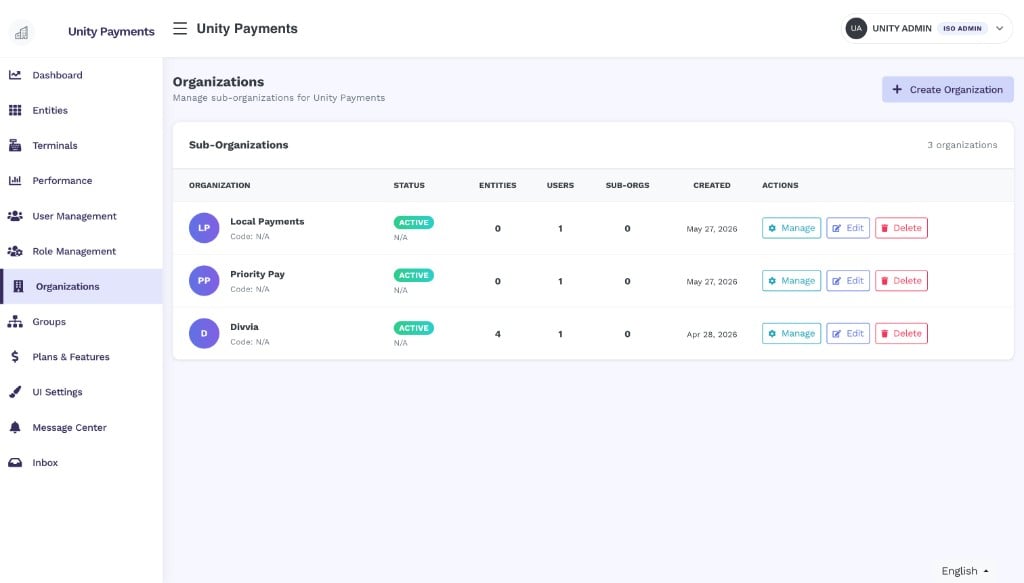
The Organizations page lets ISO admins create and manage sub-organizations (child ISOs) within their hierarchy. Each sub-organization is an independent ISO with its own users, entities, provider access, and admin role — all nested under your parent ISO.
The Organizations page showing the Sub-Organizations list with three active child ISOs.
This page requires the Organizations permission. This permission must be granted to your role by your Super Admin at Taliup HQ. Without it, the Organizations section is not accessible.
Click + Create Organization to open the creation form. The form is divided into five sections completed top to bottom.
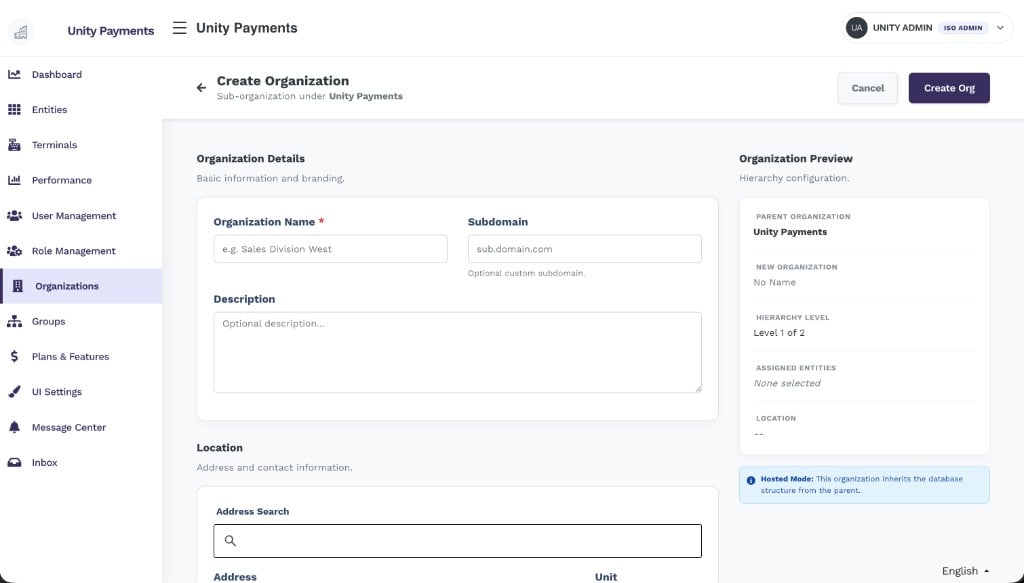
The Create Organization page showing the Organization Details and Organization Preview panels.
A live Organization Preview panel on the right updates in real time as you fill in the form, showing the parent organization, hierarchy level, assigned entities, and location.
1
Organization details
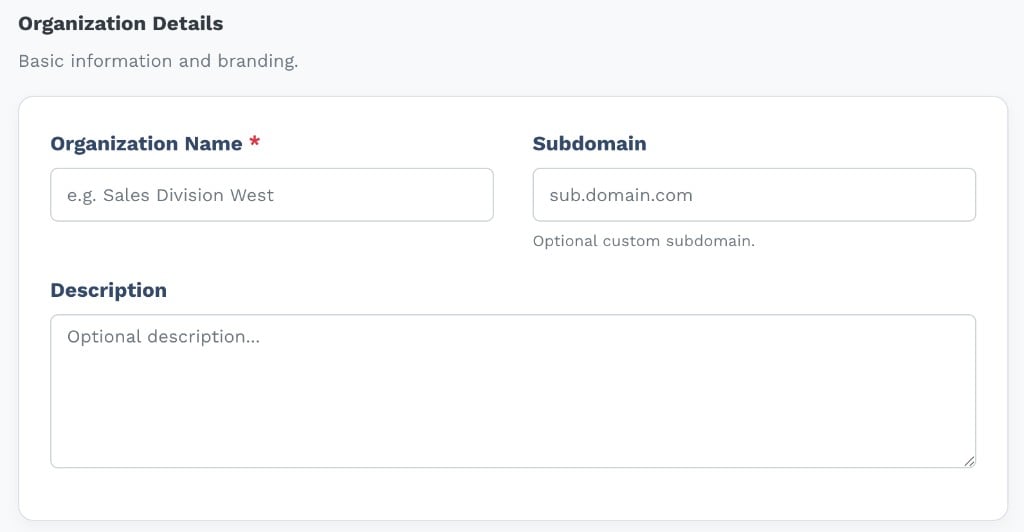
The Organization Details section showing the Name, Subdomain, and Description fields.
Field
Notes
Organization Name
Required. Must be unique within your ISO.
Subdomain
Optional. A custom subdomain for this organization’s Taliup HQ login page. Must be unique across the platform.
Description
Optional. Internal notes about this organization.
2
Location
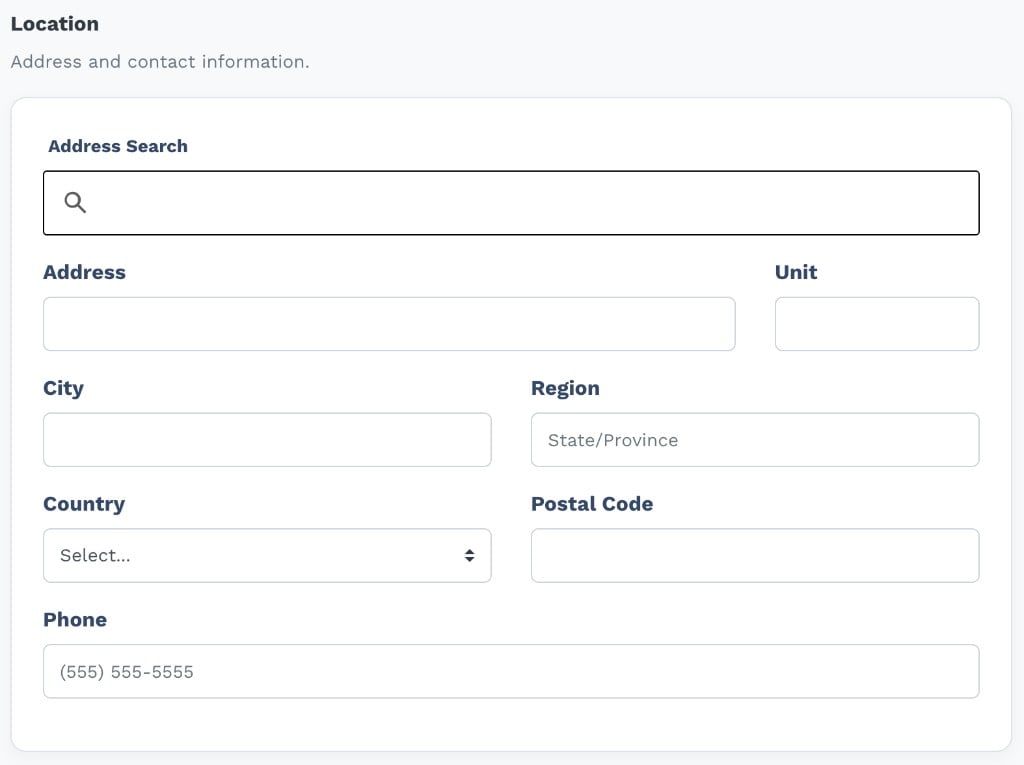
The Location section with Address Search and individual address fields.
Use Address Search to auto-fill the address fields, or enter them manually. All location fields are optional at creation time.
Field
Notes
Address / Unit
Street address and optional unit number.
City / Region
City and state or province.
Country
Two-letter ISO country code (e.g. CA, US).
Postal Code
ZIP or postal code.
Phone
Organization contact phone number.
3
Open Sale (conditional)
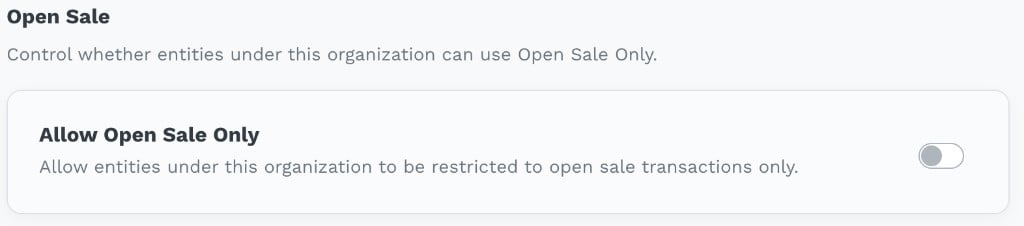
The Open Sale section showing the Allow Open Sale Only toggle.
The Open Sale section only appears when your parent ISO has the Open Sale Only feature enabled. This feature must be turned on by Taliup HQ for your ISO. When enabled, toggling Allow Open Sale Only restricts all entities under this organization to open-sale transactions exclusively.
4
Configuration — provider access
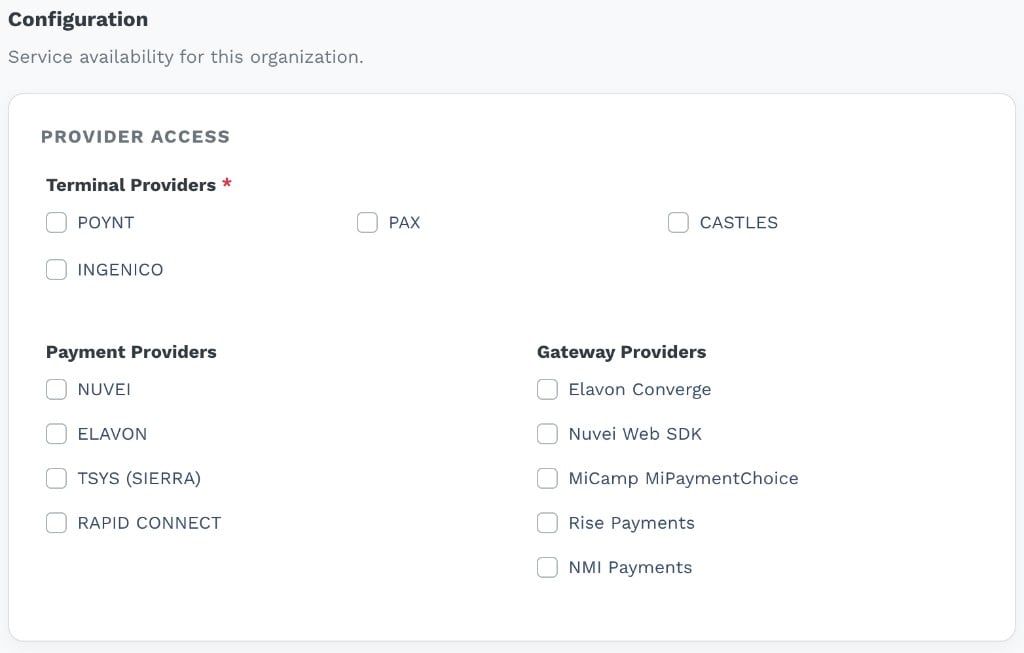
The Configuration section showing Terminal Providers, Payment Providers, and Gateway Providers checkboxes.
Select which providers this organization can use. You can only grant access to providers that are already enabled on your own ISO — the list is constrained to your parent’s configuration.
Provider type
Description
Terminal Providers
Required. At least one must be selected. Controls which POS terminal hardware the organization’s merchants can use.
Payment Providers
Required. At least one must be selected. Controls which payment processors are available.
Gateway Providers
Optional. Online payment gateway access for hosted payment flows.
5
Organization administrator
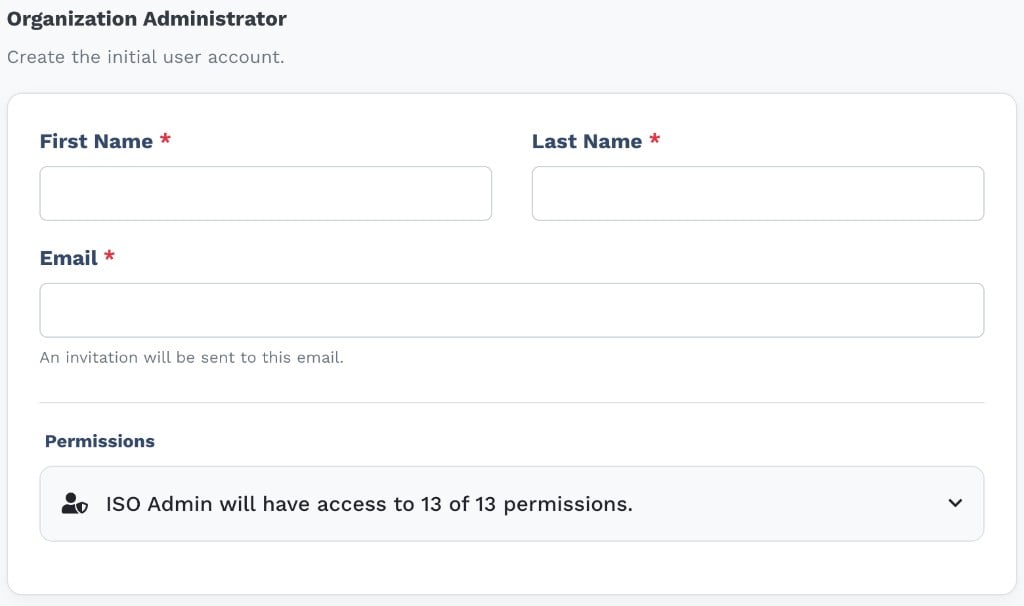
The Organization Administrator section for creating the initial admin user and selecting their permissions.
This section creates the first admin user for the new organization and sends them an invitation email.
Field
Notes
First Name / Last Name
Required.
Email
Required. Must be unique across the platform. An invitation email is sent to this address.
Permissions
Select which permissions the ISO Admin role for this organization will have. Only permissions held by your own admin role are available — you cannot grant more than you have. At least one permission must be selected.
The new organization is created in Hosted mode, inheriting the database structure from the parent ISO. The administrator account starts in Pending status until the invitation is accepted.
Click Create Org to submit. On success you are returned to the Organizations list.
A maximum of 2 levels of sub-organizations are supported. If your ISO already has child organizations that themselves have children, the Create Organization button will be unavailable and an error is shown.
Click Manage on any row to open the organization detail page.
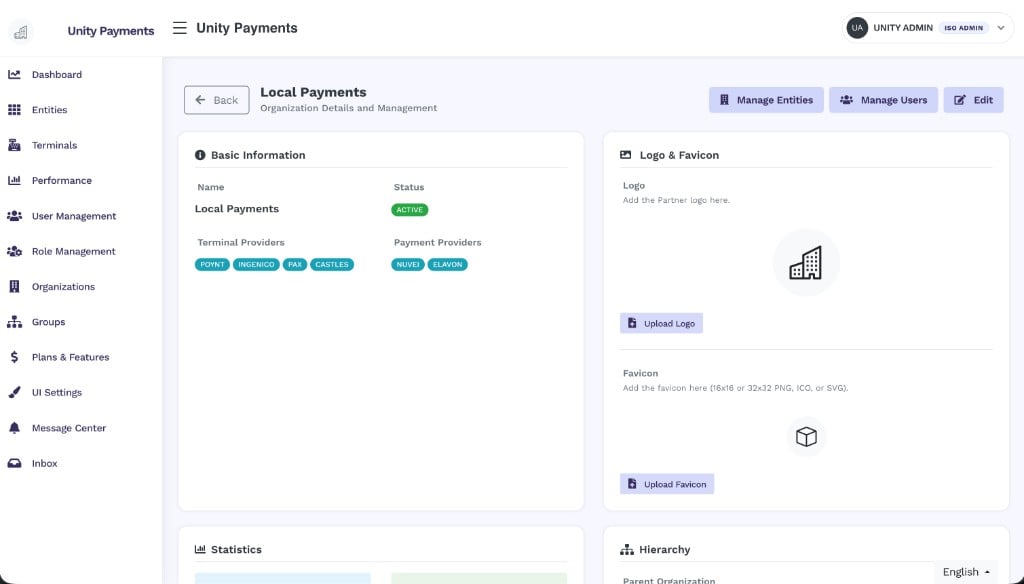
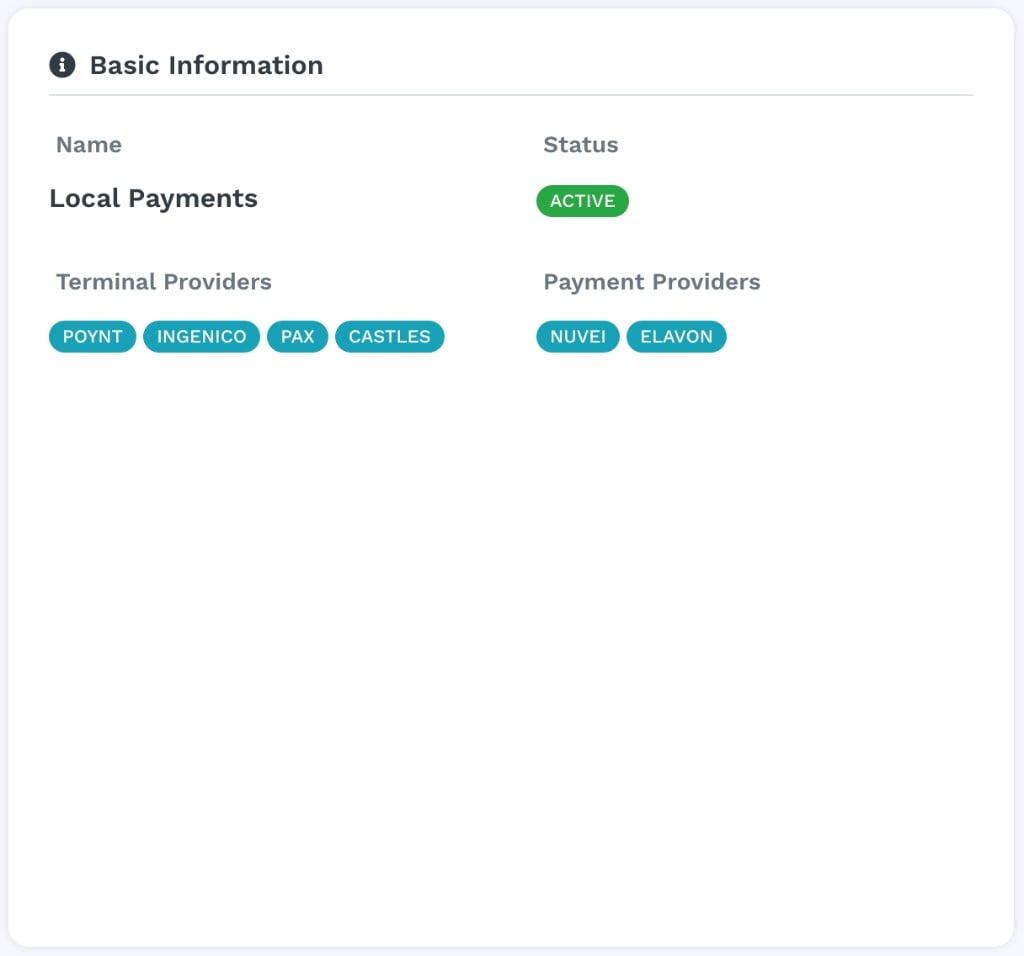
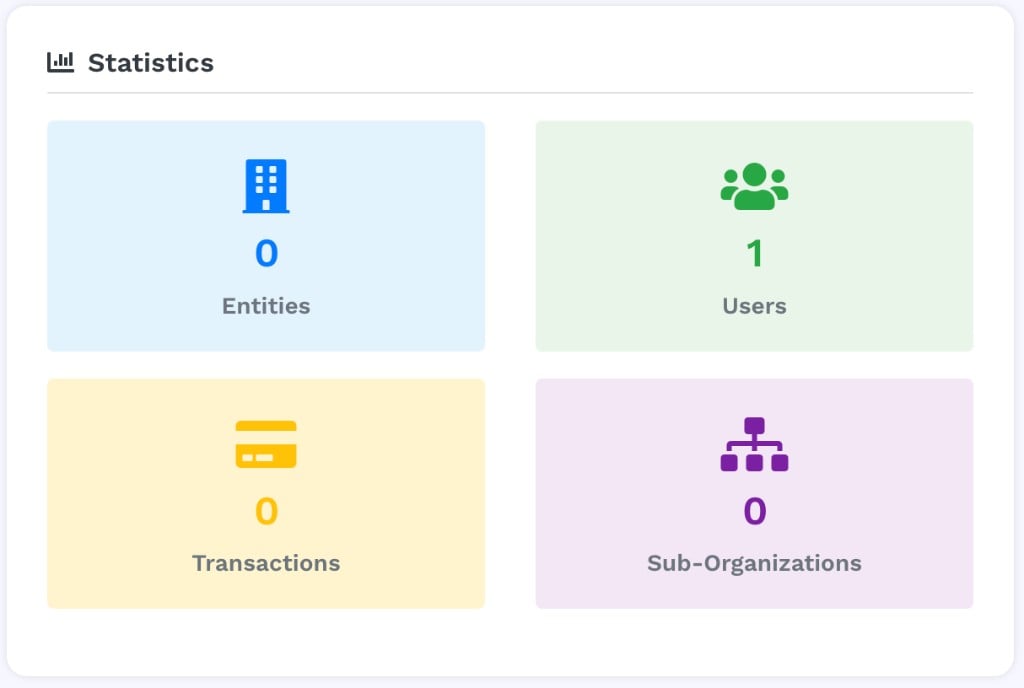
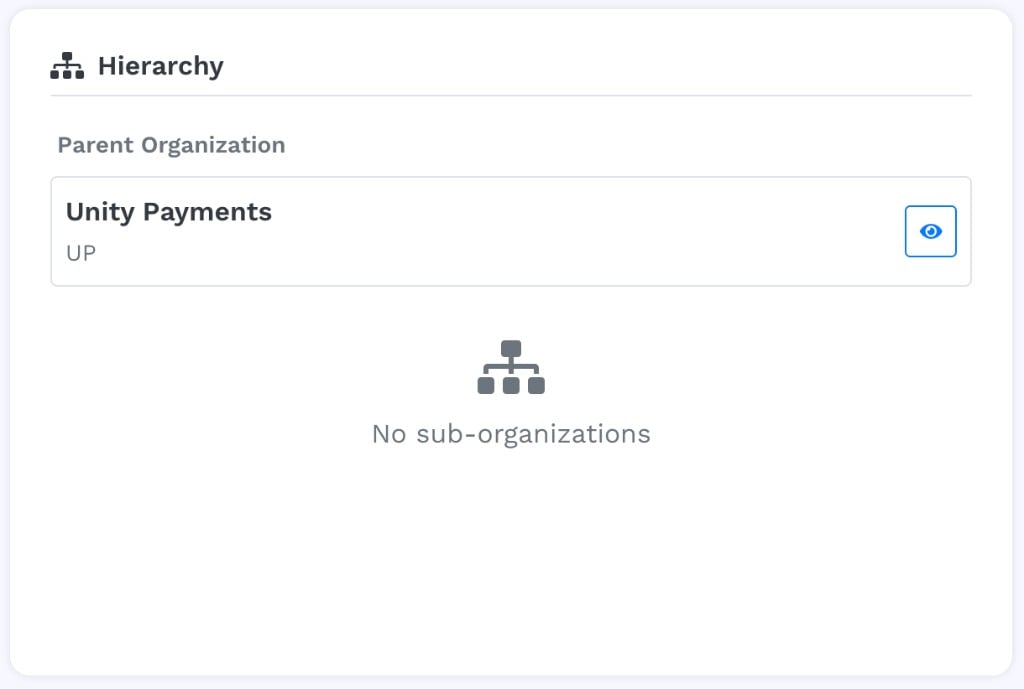
The Manage page for Local Payments showing Basic Information, Logo & Favicon, Statistics, and Hierarchy panels, with Manage Entities, Manage Users, and Edit buttons in the header.
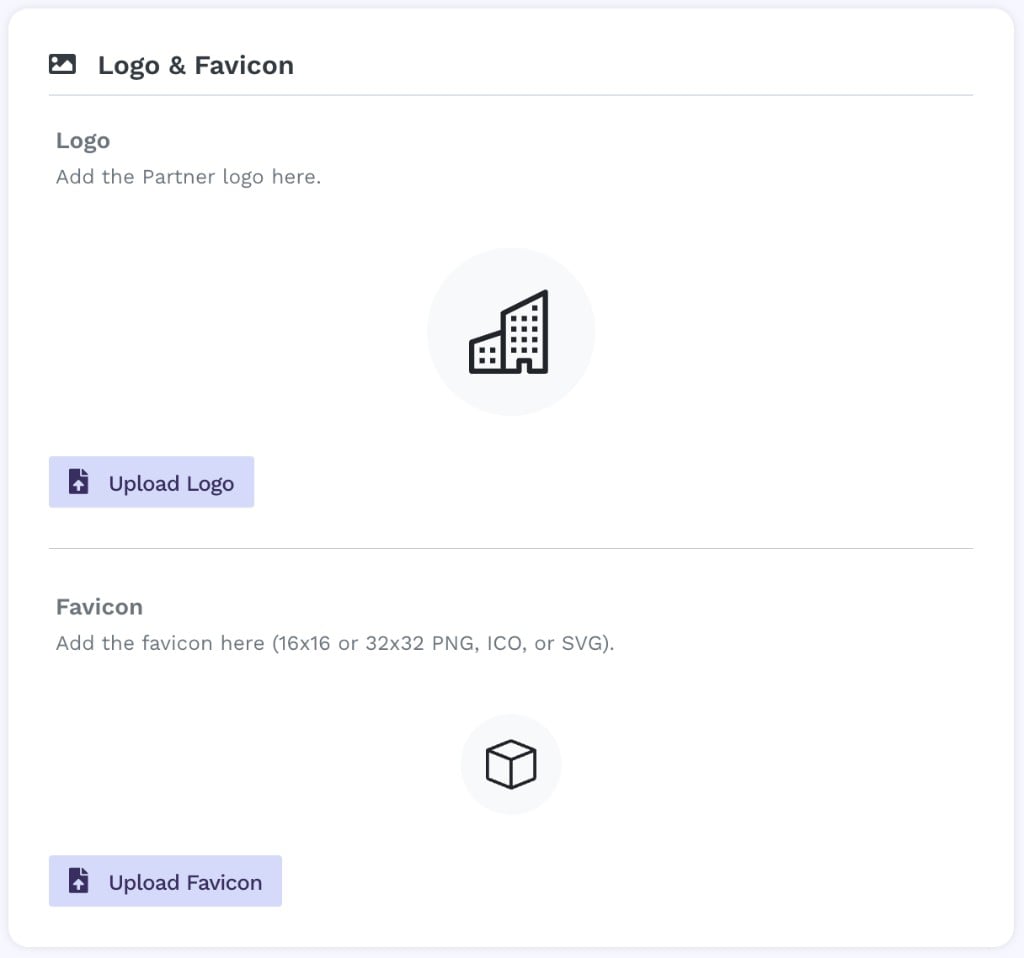
The Logo & Favicon panel showing upload areas for the partner logo and favicon.
Upload a white-label logo and favicon for this organization’s Taliup HQ instance. The logo appears in the navigation bar; the favicon appears in the browser tab.
Logo — any standard image format; replaces the default Taliup logo
Favicon — PNG, ICO, or SVG at 16×16 or 32×32 pixels
Click Edit from either the list row or the manage page header to open the Edit Organization form.
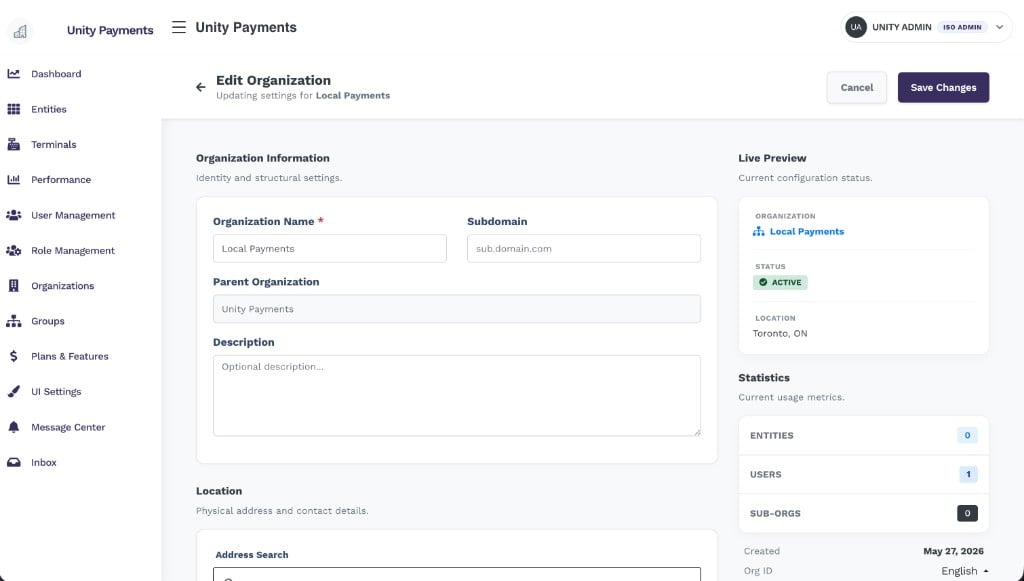
The Edit Organization page showing the Organization Information form on the left and the Live Preview + Statistics sidebar on the right.
The edit form mirrors the create form with these differences:
The Parent Organization field is read-only — it cannot be changed after creation
A Live Preview sidebar shows the current organization name, status badge, and location in real time as you edit
A Statistics sidebar shows entity, user, and sub-org counts, plus the created date, Org ID, and Mode
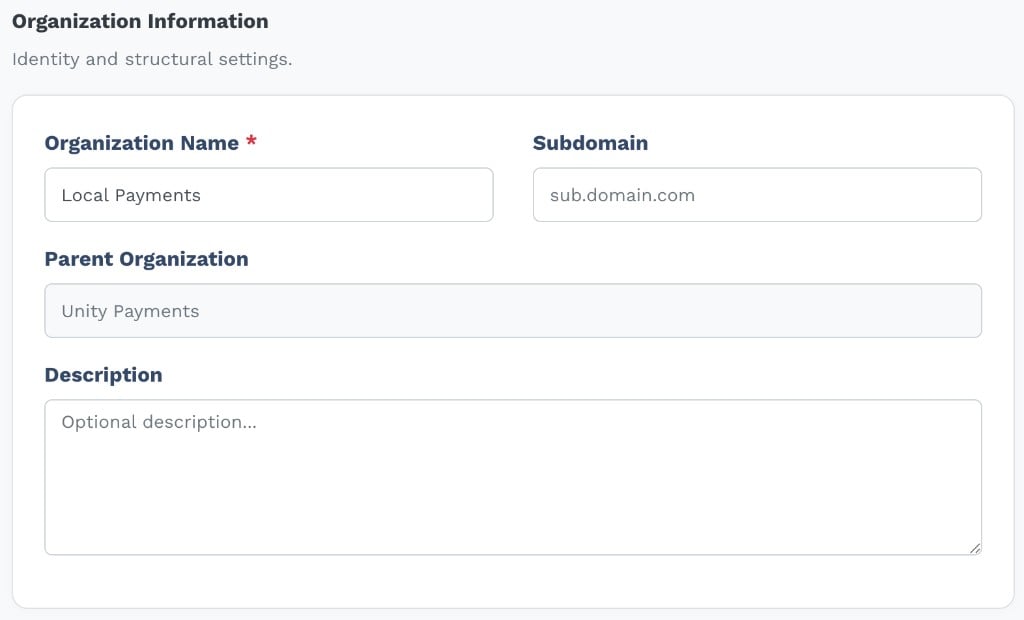
Organization Information fields on the edit form showing the current name and subdomain.
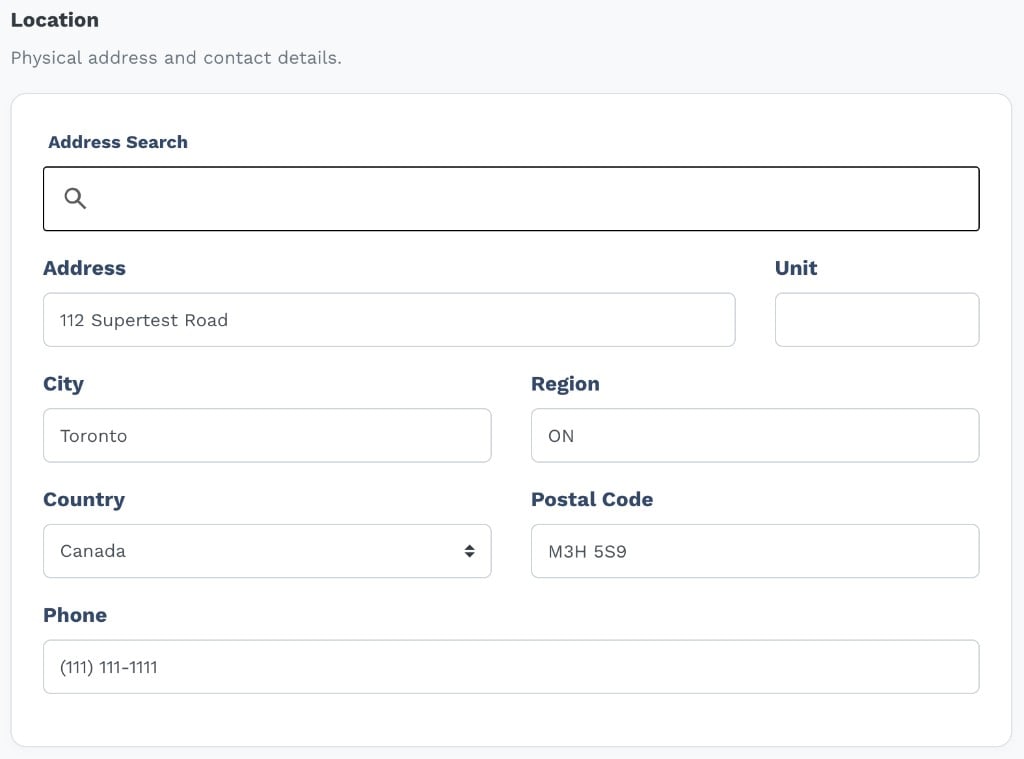
The Location section on the edit form showing a fully populated address.
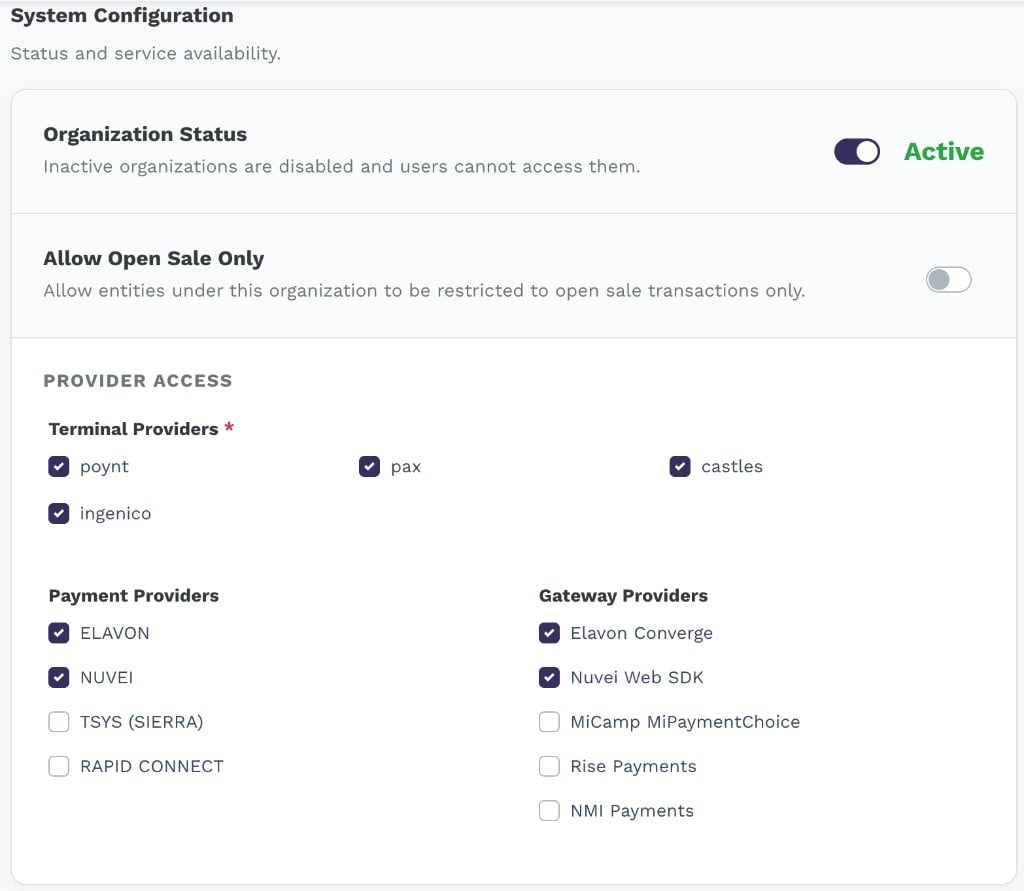
The System Configuration section showing the Organization Status toggle, Allow Open Sale Only toggle, and provider access checkboxes.
The System Configuration section adds two controls not present in the create form:
Control
Notes
Organization Status
Toggle between Active and Inactive. Inactive organizations are disabled and their users cannot log in.
Allow Open Sale Only
Only shown when the parent ISO has this feature enabled. Editable only by the parent ISO admin or a Super Admin. Disabling it after it was previously enabled requires a confirmation that existing Open Sale Only locations will be turned off.
Click Save Changes to apply. You are returned to the Organizations list on success.
Click Delete on any organization row. A browser confirmation dialog appears asking you to confirm. Click OK to proceed.
Deletion is permanent and cannot be undone. It removes the organization record, all users belonging to it, all roles assigned to it, and all entity access grants. The following conditions will block deletion:
The organization has one or more entities assigned to it — remove all entities first
The organization has one or more child sub-organizations — delete those first