Generate and download Excel performance reports for merchants in your ISO scope — covering gross sales, refunds, payment mix, taxes, and per-merchant breakdowns.
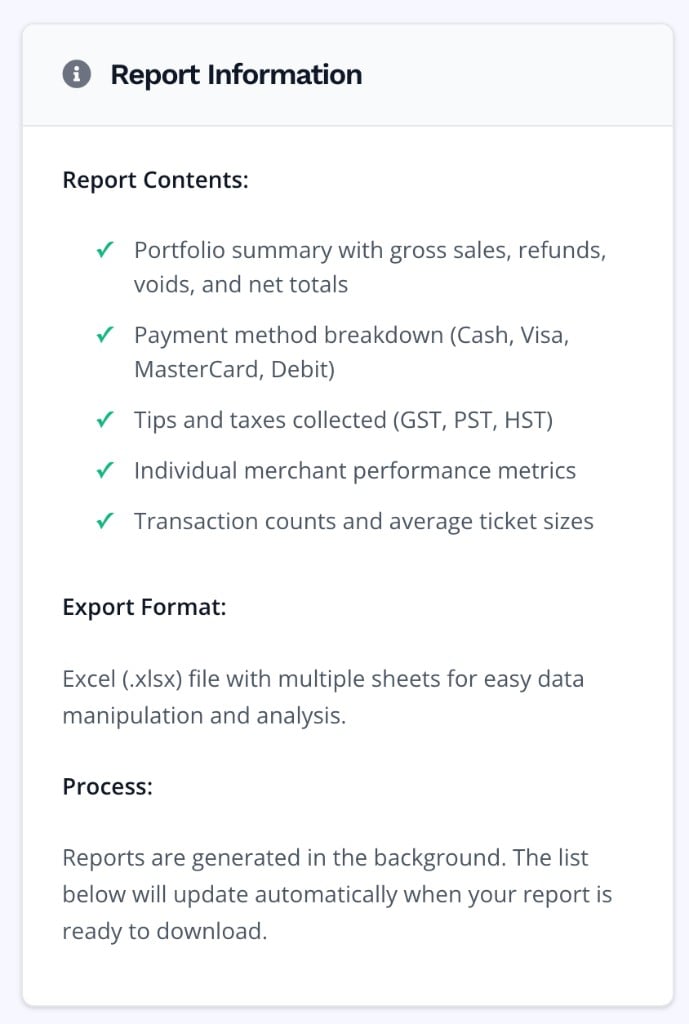
The Performance Reports page lets ISO admins generate merchant performance reports for any date range and merchant scope within their ISO. Reports are processed as background jobs and exported as multi-sheet Excel (.xlsx) files ready for download.
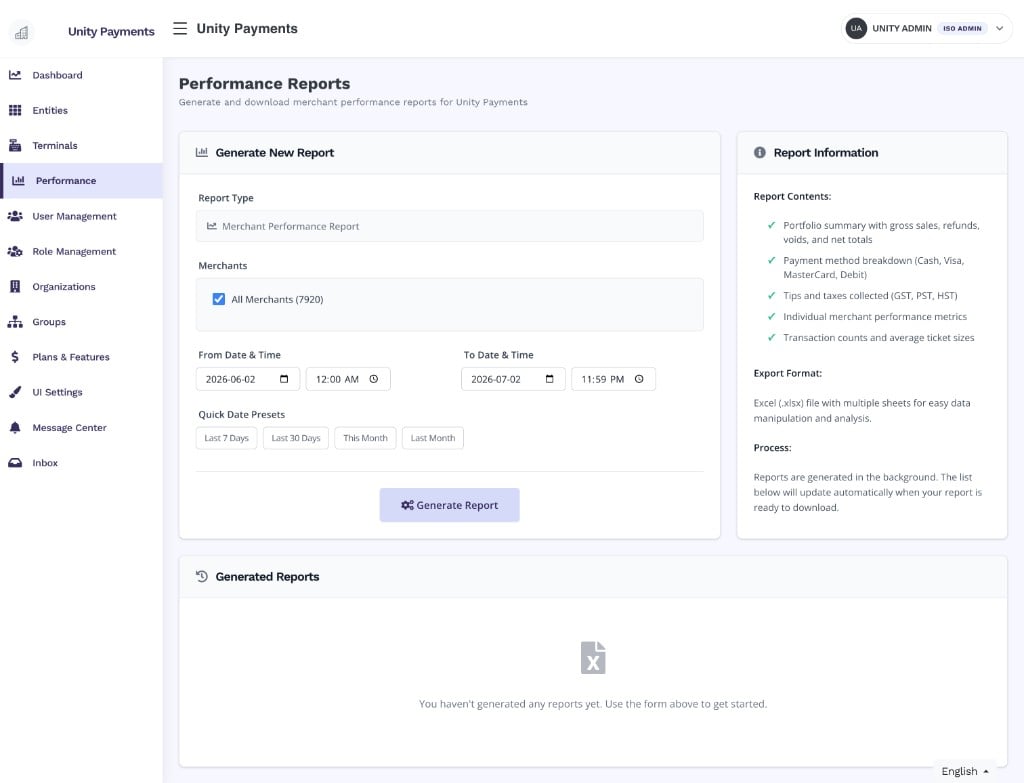
The Performance Reports page showing the report generation form, Report Information panel, and the Generated Reports list.
This page is only accessible to users with an ISO associated with their account. Users without an ISO assignment receive a 403 error. Reports are scoped to your ISO — you can only generate and view reports for merchants within your accessible ISO hierarchy.
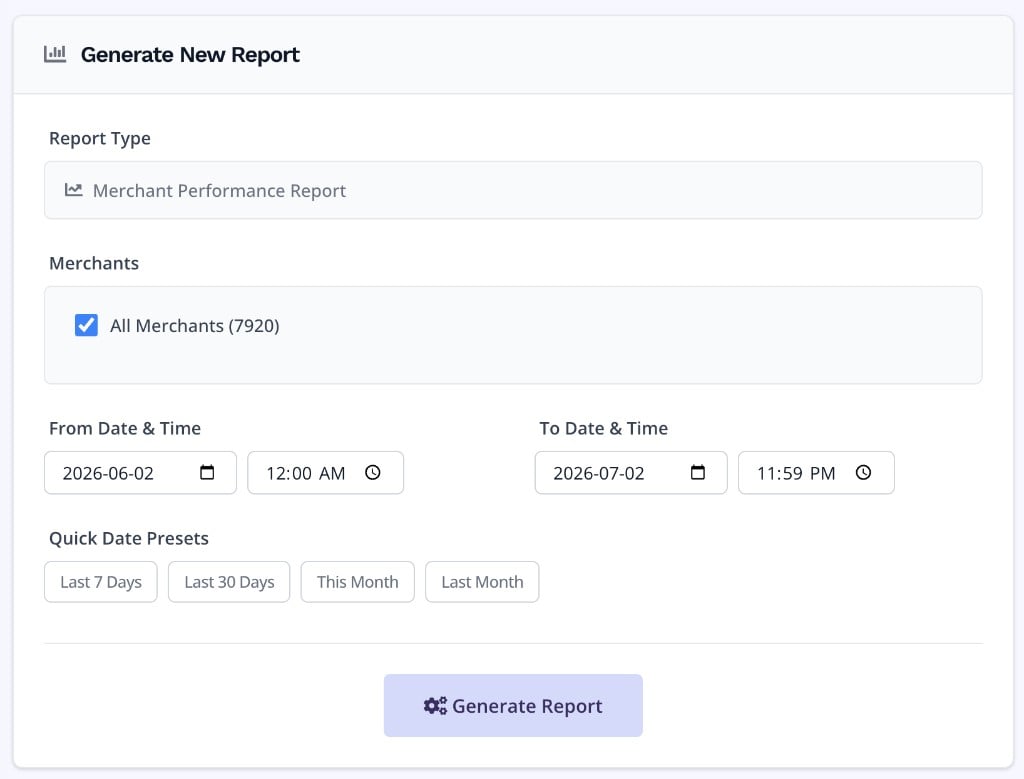
The Generate New Report form showing Report Type, Merchants, date range inputs, and Quick Date Presets.
Field
Description
Report Type
Fixed to Merchant Performance Report — the only report type currently available.
Merchants
Check All Merchants (default) to include every merchant in your ISO scope. Uncheck to reveal a searchable multi-select for targeting specific merchants by name or city.
From Date & Time
Start of the reporting window. Defaults to the current date at 12:00 AM.
To Date & Time
End of the reporting window. Defaults to the current date at 11:59 PM. Must be on or after the From date.
Quick Date Presets
One-click shortcuts to fill the date range: Last 7 Days, Last 30 Days, This Month, or Last Month.
Click Generate Report to open the confirmation modal before the job is submitted.
Select your merchant scope (all or specific merchants) and set the From and To date range. Use a Quick Date Preset to fill the range automatically.
2
Click Generate Report
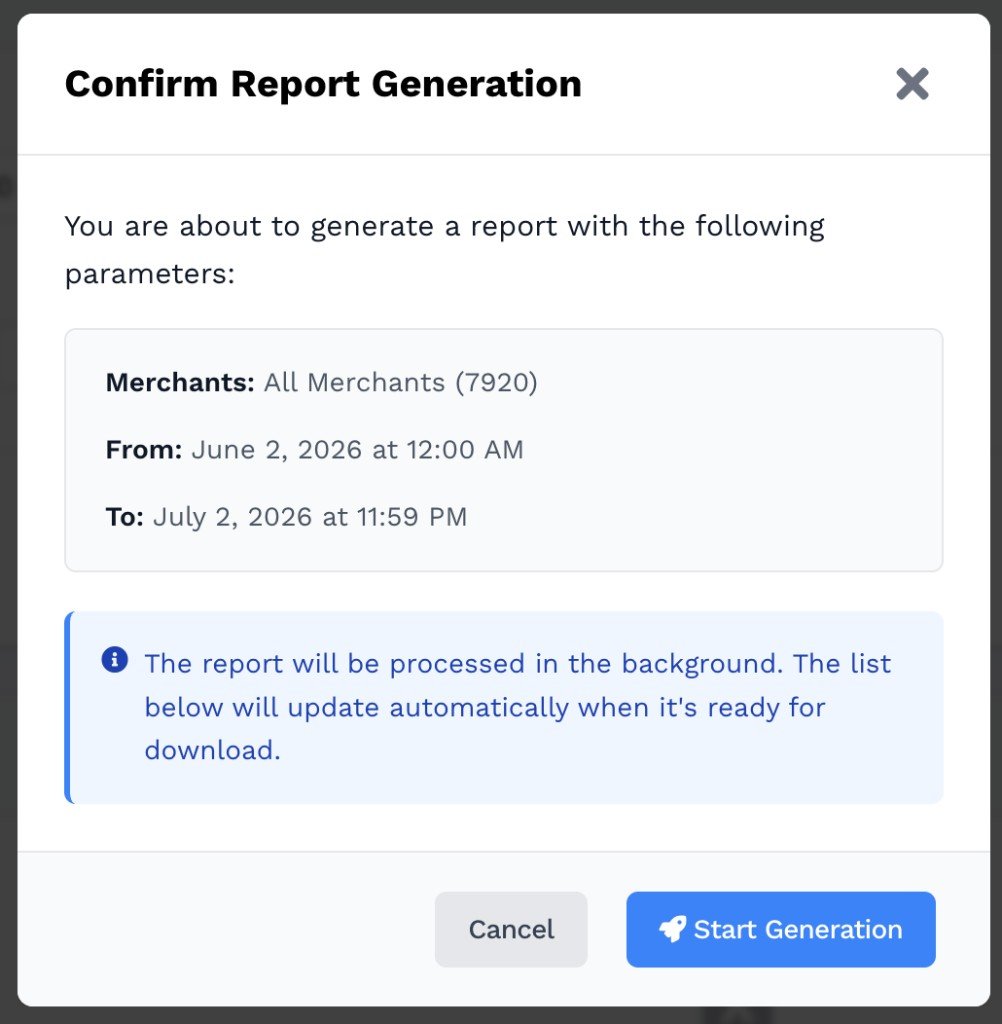
The form validates your inputs and opens a confirmation modal showing the exact parameters — Merchants scope, From date/time, and To date/time.
3
Confirm in the modal
Review the parameters and click Start Generation. The job is submitted to the background queue immediately.
The Confirm Report Generation modal summarising the report parameters before submission.
4
Monitor status in the list
The new report appears in the Generated Reports list immediately with a Pending status. The list updates automatically as the job progresses — no page reload needed.
The Generated Reports list below the form shows every report generated by your ISO, newest first. Each row shows the report type, merchant scope, date range, current status, generation timestamp, and available actions.
Downloads the Excel file via a temporary signed URL. The link is valid for approximately 23 hours from the time the report was generated.
Delete
Permanently removes the report record and its associated Excel file from storage.
Deleting a report is permanent. The Excel file is removed from storage and cannot be recovered. Download the file before deleting if you need to retain it.