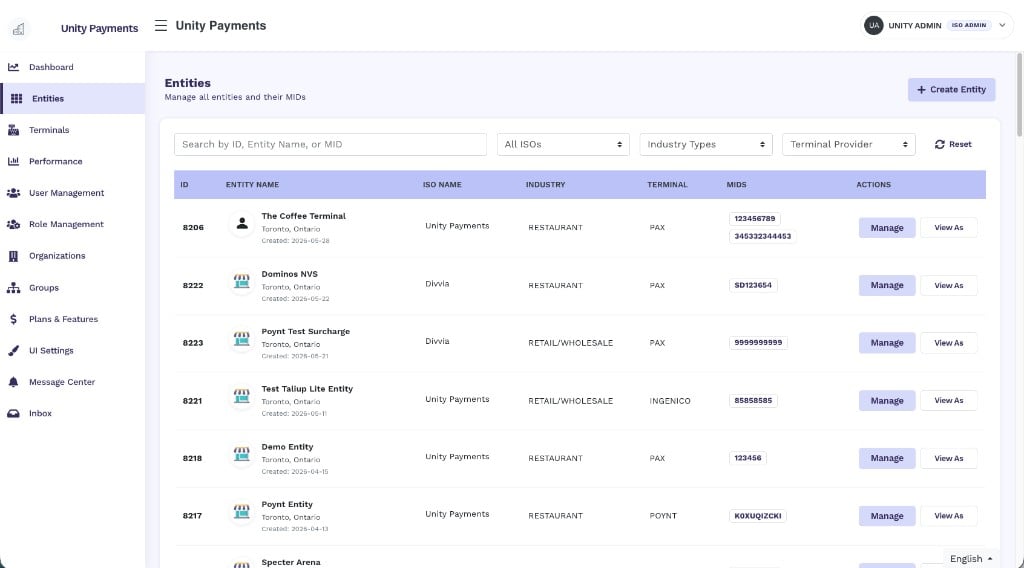
The Taliup HQ Entities page showing the filter bar, entity list, and action buttons.
Access and visibility
The list is automatically scoped to what you are permitted to see based on your role. No additional configuration is required.Filters
The filter bar at the top of the list lets you narrow results by search term, ISO, industry type, and terminal provider. Filters apply immediately — the search field waits 500 ms after your last keystroke before applying; dropdowns apply as soon as you make a selection.
The Entities filter bar showing the search field, ISO dropdown, Industry Types dropdown, Terminal Provider dropdown, and Reset button.
Active filters are saved to your browser’s local storage. When you navigate away and return — or use the browser’s back button — your previous filter state is restored automatically. Click Reset to clear all filters and remove the saved state.
Search
The search field matches across three fields simultaneously:
Press Enter to apply immediately, or wait 500 ms after your last keystroke and the search applies automatically.
All ISOs
Narrows the list to entities belonging to a specific ISO. When you select an ISO, entities from all of that ISO’s descendant ISOs are also included — not just the direct children.The ISO dropdown is only shown when you have more than one ISO in your scope. Super Admins see all active ISOs. ISO Admins see their own ISO and any child ISOs beneath them.
Industry Types
Filters by merchant industry category. The available options are derived from the industry types present in the current result set:- Restaurant
- Retail/Wholesale
Terminal Provider
Filters by the terminal hardware provider assigned to the entity. Options are derived from the terminal providers present in the current result set (for example, PAX, Ingenico, Poynt).Reset
Clears all active filters, removes the saved filter state from local storage, and reloads the complete unfiltered entity list.Entity list
Results are sorted by creation date, newest first, and paginated at 50 entities per page.
A single entity row showing the logo, name, location, ISO, industry, terminal, MIDs, and action buttons.
Actions
Each entity row has two action buttons.Manage
Opens the entity’s full management page. From there you can:- Edit the entity’s details (name, address, industry, currency, terminal provider)
- Manage devices and terminals
- Configure tips, locations, virtual terminal, dual pricing, and surcharge
- View orders and transactions
- Manage staff users and roles
View As
Switches your session to view Taliup HQ as the entity’s owner — this is called impersonation. Use it to troubleshoot issues, verify configuration, or demonstrate features from the merchant’s perspective without sharing credentials.Pagination
The bar below the entity list shows how many records are currently displayed and provides navigation controls:- “Showing X to Y of Z entries” — the total count of matching records across all pages.
- ← Previous and Next → arrows to move between pages.
- Numbered page links to jump directly to a specific page.