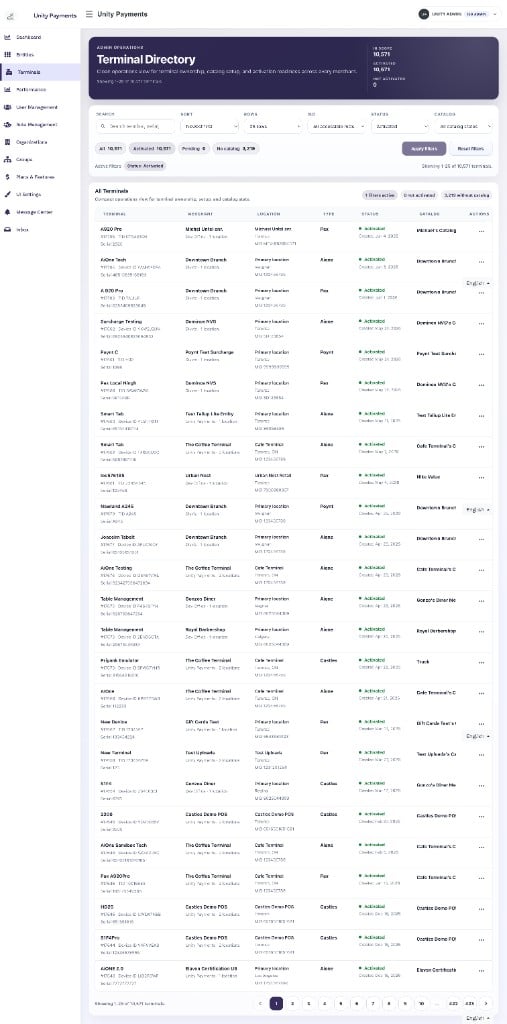
The Terminal Directory showing 10,571 terminals across all merchants, filtered to Activated status.
Access to this page requires an admin role. Super Admins see terminals across all ISOs. ISO users see only the terminals belonging to merchants within their ISO hierarchy.
Summary metrics
The hero panel at the top of the page shows three live counters that reflect the currently active filter scope:Filters

The filter toolbar with Search, Sort, Rows, ISO, Status, and Catalog controls.
After adjusting one or more controls, click Apply filters to fetch results. Click Reset filters to clear all controls back to their defaults and reload.
Active filters appear as labeled pills below the toolbar so you can see what is currently applied at a glance.

Active filter pills and result count shown below the toolbar.
Quick views
Four preset buttons let you jump to common views without manually adjusting individual controls:
Each button displays a live count from the current summary. Clicking a quick view stages the filter change; Apply filters still runs the query.
Terminal table
The table lists one terminal per row. Each row shows the following columns:
A single terminal row showing all seven columns.
The primary identifier label in the Terminal column switches automatically: PAX and Poynt terminals show TID, while AiOne and Castles terminals show Device ID.
Row actions
Click the ··· button on any terminal row to open its actions menu.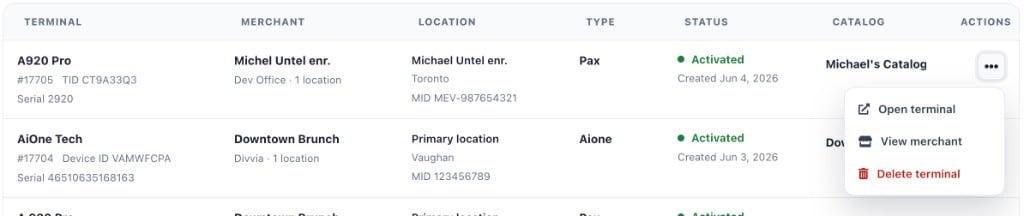
The actions menu for a terminal row, showing Open terminal, View merchant, and Delete terminal options.
Deleting a terminal
Deleting a terminal archives it from active use while preserving all historical references. The operation is not reversible from the directory — contact engineering if a deletion was made in error.1
Open the actions menu
Click the ··· button on the terminal row you want to remove.
2
Select Delete terminal
Click Delete terminal in the actions menu. A confirmation modal opens showing the terminal name, its primary identifier, merchant, and location.
3
Review what will be removed
The modal lists what the deletion clears:
- Staff assignments to this terminal are removed.
- Catalog mappings and reader configuration are cleared.
- If the terminal is Factor4-enabled, it is marked as Suspended in Factor4 before deletion proceeds (see note below).
4
Confirm
Click Delete terminal to proceed. The button shows “Deleting…” while the request is in flight. The modal closes and the row is removed from the table on success.