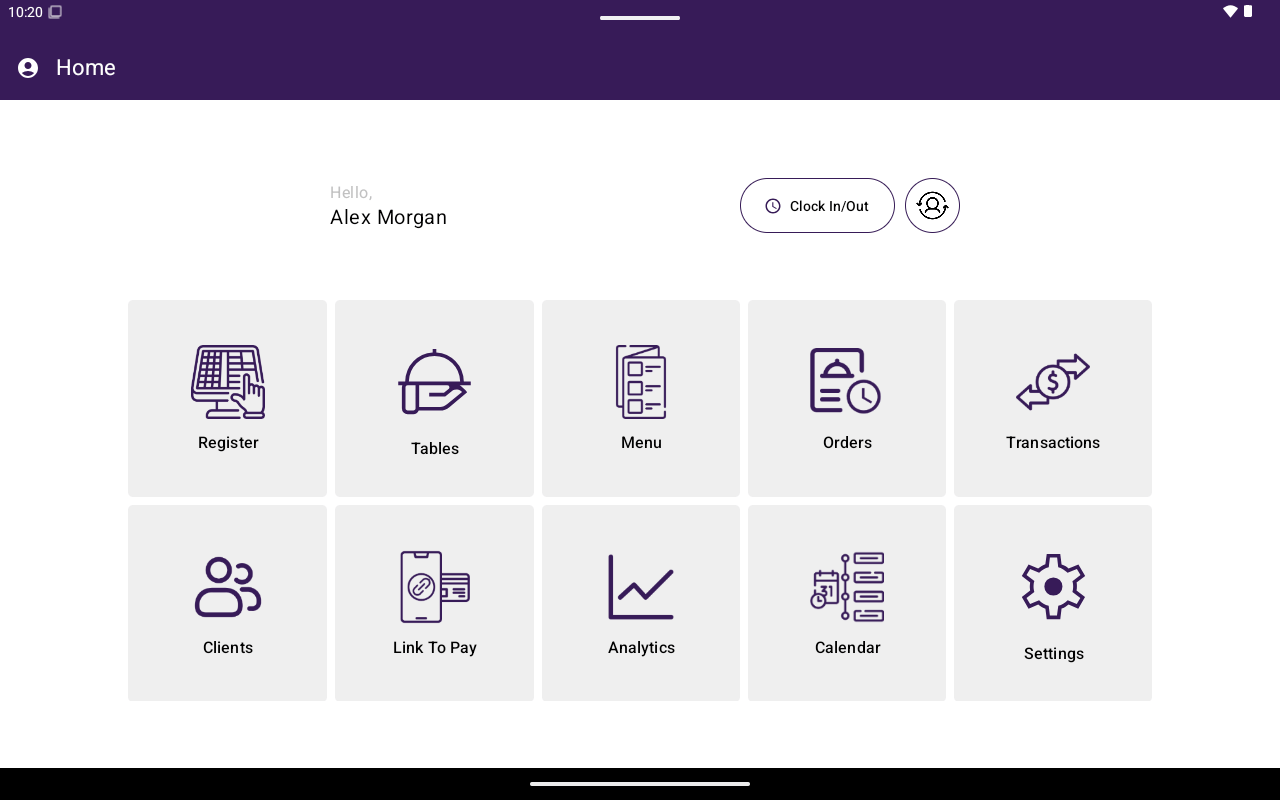
The Home screen is the main hub after login. Each tile opens a section of the app. Availability can depend on your plan, industry type, and role permissions.
Home screen tile grid

Home screen tile grid.

Sections

Restaurants see Menu; other industry types see Catalog.

Permission denials

If you tap Transactions or Analytics without the right role permission, Taliup POS shows a permission denied message for that section. Ask a manager or update the role in Taliup HQ.
Clock in / clock out

When time sheets are enabled, Home includes Clock In / Clock Out. Use it to record staff time. It does not replace app login.

Version banner

If a newer app version is available (but not forced), a yellow banner can appear at the top of Home with the latest version number.

Next

Open the tile you need — start with Register for sales, or Settings to configure this terminal.