> ## Documentation Index
> Fetch the complete documentation index at: https://docs.taliuphq.com/llms.txt
> Use this file to discover all available pages before exploring further.
# Refund a transaction
> Issue a full refund or partial return from Transaction Details using Return.
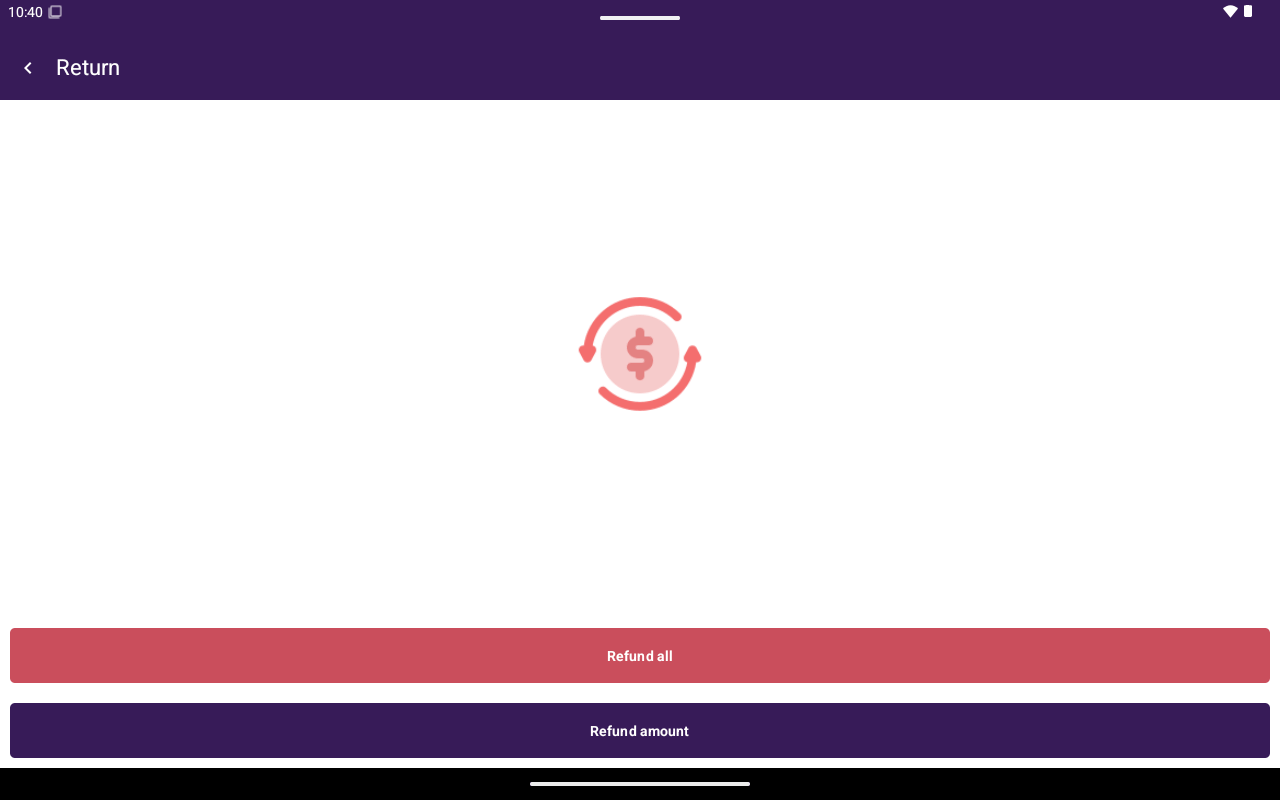
In Transaction Details, refunds start with **Return**. You can refund the full amount, selected items, or a custom amount — depending on the original order.
 ## Before you start
* You need permission to manage transactions.
* **Return** appears when the payment is eligible (for example settled/captured with a remaining refundable amount, or partially refunded already).
* Partial refund options are hidden for table orders — use **Full Refund** in that case.
* If **Return** is missing, the payment may already be fully refunded/voided, or your role cannot manage transactions.
## Start a return
Go to Home → **Transactions** and open **Transaction Details**.
Tap **Return**.
On **Please select a refund option:** choose one of the paths below.
## Full refund
1. Tap **Full Refund**.
2. On the **Customer** screen, enter the customer’s name when prompted.
3. Tap **Refund** and complete any terminal prompts.
4. Taliup POS processes the return and typically reprints a merchant copy before returning to the list.
## Partial refund (itemized)
Available when the linked order has line items (and is not a table order).
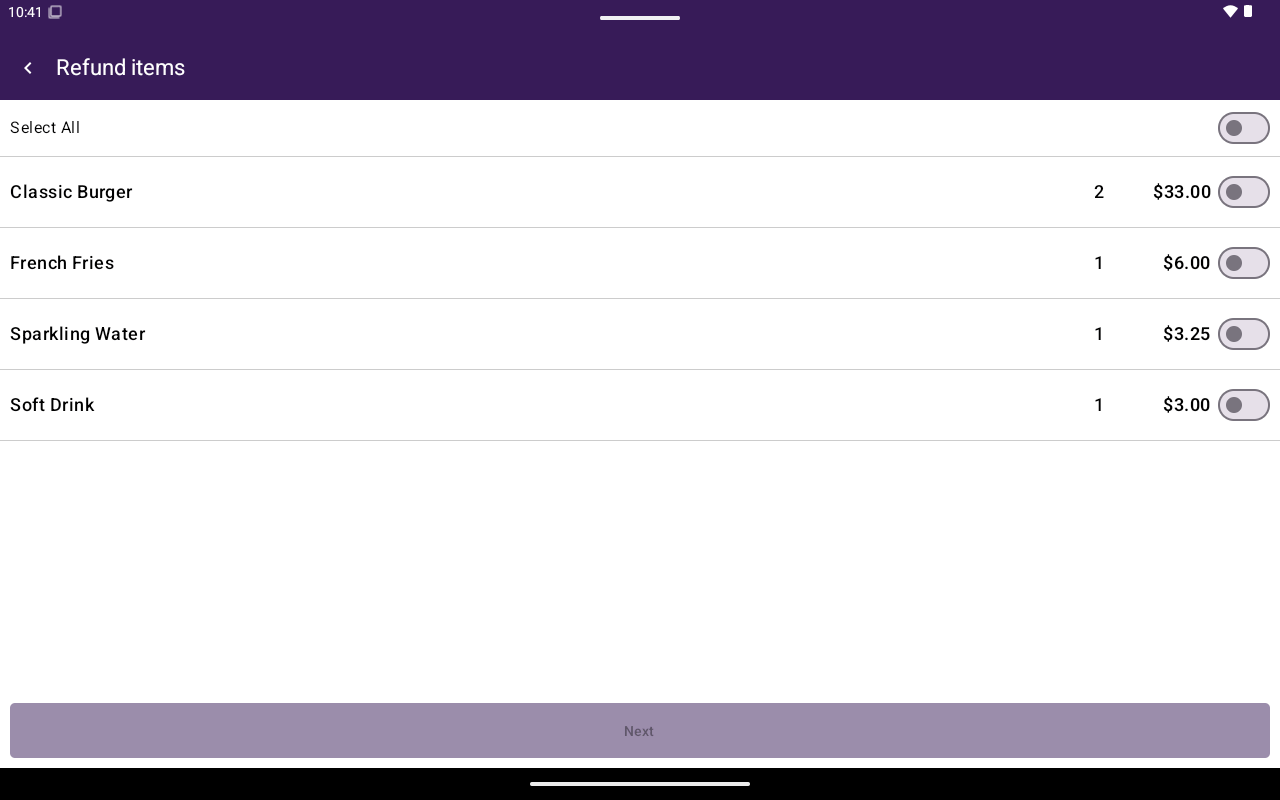
Tap **Partial Refund(Itemized)**.
Use **Select All** or select individual items, then tap **Next**.
Enter the customer name on the **Customer** screen, then tap **Refund**.
## Before you start
* You need permission to manage transactions.
* **Return** appears when the payment is eligible (for example settled/captured with a remaining refundable amount, or partially refunded already).
* Partial refund options are hidden for table orders — use **Full Refund** in that case.
* If **Return** is missing, the payment may already be fully refunded/voided, or your role cannot manage transactions.
## Start a return
Go to Home → **Transactions** and open **Transaction Details**.
Tap **Return**.
On **Please select a refund option:** choose one of the paths below.
## Full refund
1. Tap **Full Refund**.
2. On the **Customer** screen, enter the customer’s name when prompted.
3. Tap **Refund** and complete any terminal prompts.
4. Taliup POS processes the return and typically reprints a merchant copy before returning to the list.
## Partial refund (itemized)
Available when the linked order has line items (and is not a table order).
Tap **Partial Refund(Itemized)**.
Use **Select All** or select individual items, then tap **Next**.
Enter the customer name on the **Customer** screen, then tap **Refund**.
 ## Partial refund (enter amount)
Shown when itemized refund is not available (for example no line items).
Tap **Partial Refund(Enter Amount)**.
Enter an amount greater than zero and not more than the remaining refundable total. The helper shows **Transaction Amount**; the amount turns red if it is too high. Tap **Next**.
Enter the customer name, then tap **Refund**.
## Troubleshooting
| Situation | What to check |
| --------------------------------- | ------------------------------------------------------------------------------- |
| Only **Full Refund** is available | Table orders do not offer partial return options in this flow |
| **Next** disabled on amount entry | Amount must be > 0 and ≤ remaining refundable amount |
| No **Return** button | Not eligible, already fully returned, or missing manage-transactions permission |
| Permission message | Ask a manager or update the role in Taliup HQ |
## Related
* [Void](/taliup-pos/transactions/void) — for unsettled cancellations
* [Transaction details](/taliup-pos/transactions/details)
* [Reprint](/taliup-pos/transactions/reprint)
## Partial refund (enter amount)
Shown when itemized refund is not available (for example no line items).
Tap **Partial Refund(Enter Amount)**.
Enter an amount greater than zero and not more than the remaining refundable total. The helper shows **Transaction Amount**; the amount turns red if it is too high. Tap **Next**.
Enter the customer name, then tap **Refund**.
## Troubleshooting
| Situation | What to check |
| --------------------------------- | ------------------------------------------------------------------------------- |
| Only **Full Refund** is available | Table orders do not offer partial return options in this flow |
| **Next** disabled on amount entry | Amount must be > 0 and ≤ remaining refundable amount |
| No **Return** button | Not eligible, already fully returned, or missing manage-transactions permission |
| Permission message | Ask a manager or update the role in Taliup HQ |
## Related
* [Void](/taliup-pos/transactions/void) — for unsettled cancellations
* [Transaction details](/taliup-pos/transactions/details)
* [Reprint](/taliup-pos/transactions/reprint)