> ## Documentation Index
> Fetch the complete documentation index at: https://docs.taliuphq.com/llms.txt
> Use this file to discover all available pages before exploring further.
# Tables
> Seat guests, start table orders, and manage occupied tables in Taliup POS.
**Tables** appears on Home when table management is enabled for the merchant. Use it to see the floor, start orders, and continue seating work in Register.
If table management is not enabled, the screen shows that table management is not enabled for this entity.
 ## How to get here
From Home, tap **Tables**.
## Floor overview
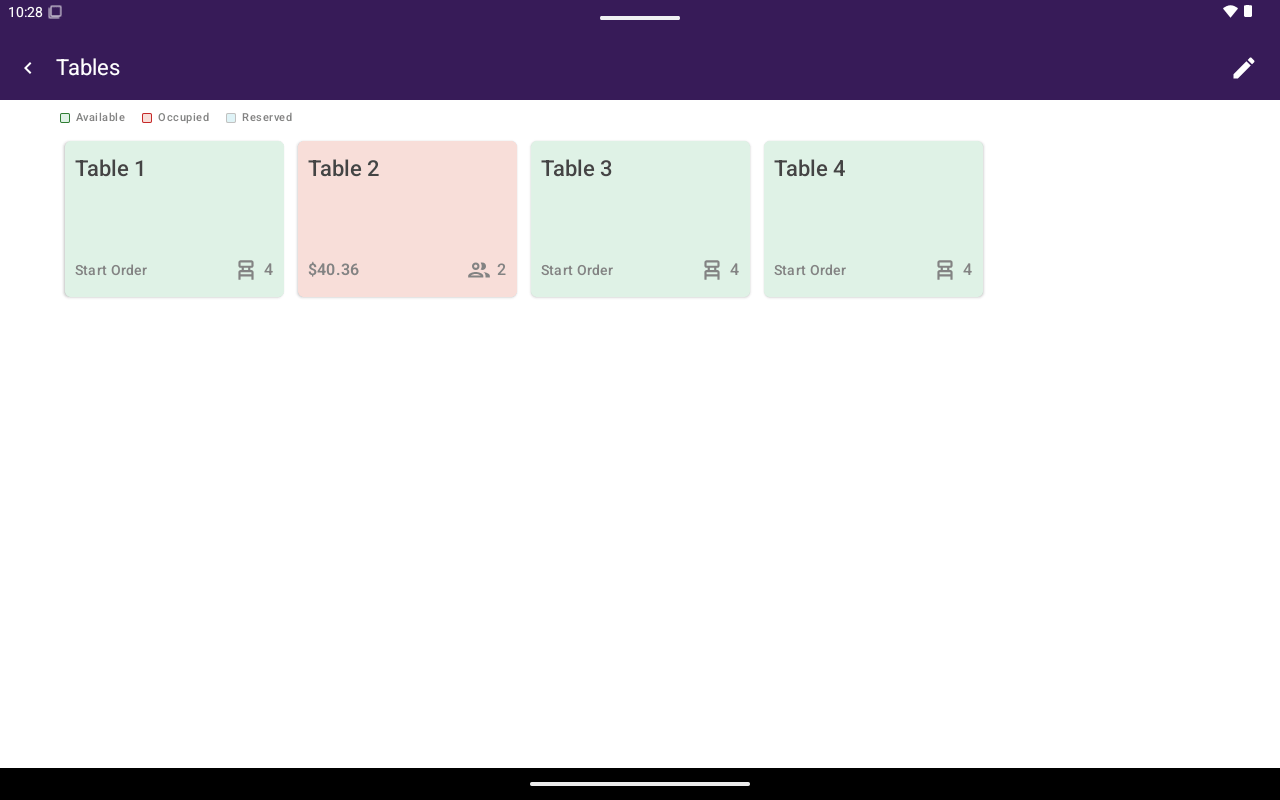
Each table card shows the table name, status, and capacity or party size.
| Status | What you typically do |
| ------------- | ----------------------------------------------------------------- |
| **Available** | Tap **Start Order**, or open actions to reserve / rename |
| **Reserved** | Tap **Check In**, or cancel the reservation |
| **Occupied** | Open the linked order in Register, or view orders / start another |
Pull down to refresh the floor. Empty state: **No tables found.**
## Start a table order
Tap **Start Order** (Available) or **Check In** (Reserved). You can also use **New Order** from the table actions dialog.
In **Enter Party Size**, enter the number of guests and confirm.
Taliup POS opens [Register](/taliup-pos/register) for that table so you can add items and take payment.
## Table actions
Long-press a table (or use the card actions) to open status-specific options:
| Status | Actions |
| ------------- | ------------------------------------------------------------------- |
| **Available** | **Reserve Table**, **New Order**, **Change Table Name** |
| **Reserved** | **Check In**, **Cancel Reservation**, **Change Table Name** |
| **Occupied** | **View Orders**, **New Order** — renaming is blocked while occupied |
Occupied cards with a linked order open that order in Register when tapped. Occupied cards may also show remaining balance and server / seated-at details in dialogs.
## Orders on a table
From an occupied table you can open that table’s orders screen (**Orders** with the table name). Overflow options can include:
* **New Order**
* **Group by Guest**
* **Split Order**
* **Merge Orders**
* **Open In Register**
* **Move Order**
* **Cancel Order**
Per-order shortcuts can include **Add**, **More**, and **Cancel**. From **More** you can **Add Item**, split/merge/move, or cancel.
### Move, split, merge
| Action | What happens |
| --------------------------------- | ------------------------------------------------ |
| **Move Order** / **Change Table** | Pick another table (shows seats, status, server) |
| **Split Order** | Split items or guests into additional checks |
| **Merge Orders** | Combine orders and optionally **Set as primary** |
| **Group by Guest** | Organize items by guest |
Canceling an open order asks you to confirm: **Please confirm you want to cancel this open order?**
Many of the same table tools also appear in Register under [Options](/taliup-pos/register/options) while a table order is open.
## Edit the floor plan
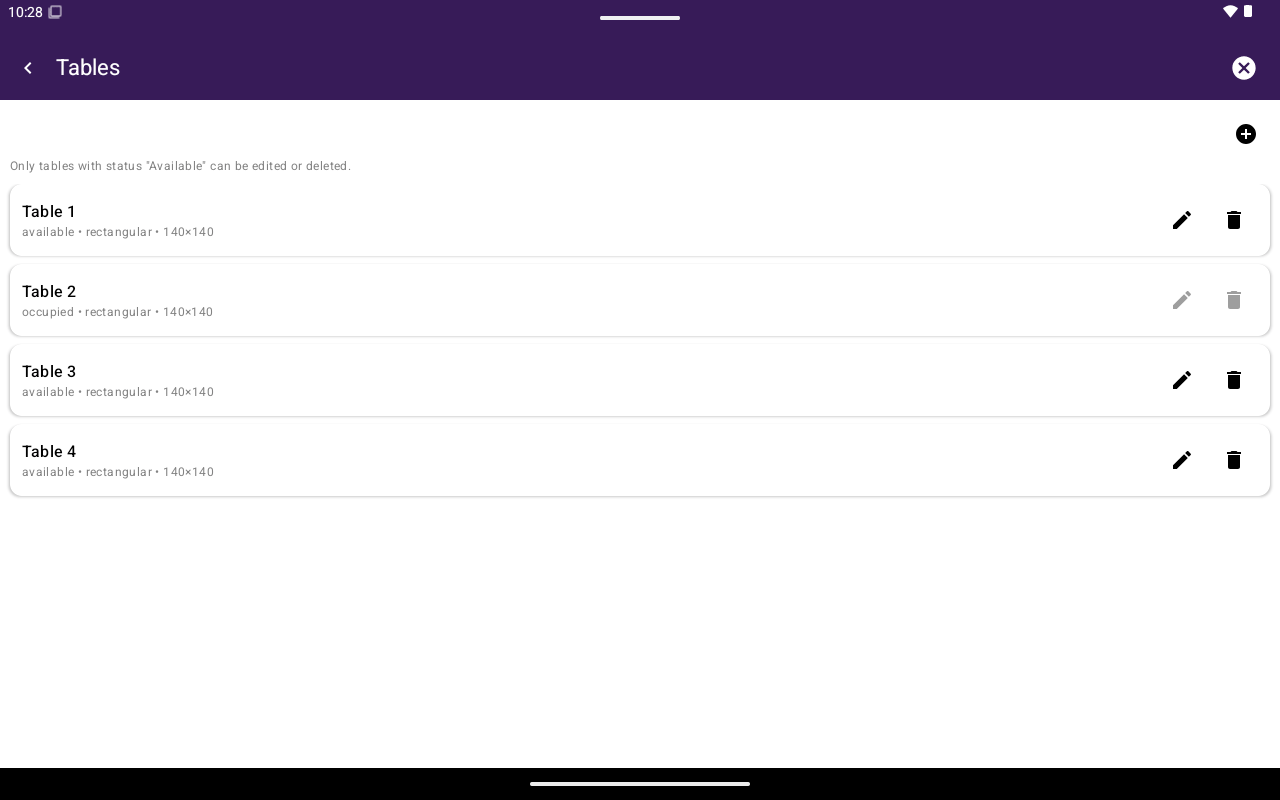
Use the edit (pencil) control on **Tables** to manage the layout.
* **Create Table** / **Edit Table**
* Fields: **Table name**, **Capacity (optional)**, **Width**, **Height**, **Shape** (**Rectangle** / **Square** / **Circle**), size presets (**Small** / **Medium** / **Large**), **Description (optional)**
* **Delete Table** — only **Available** tables can be edited or deleted
## How to get here
From Home, tap **Tables**.
## Floor overview
Each table card shows the table name, status, and capacity or party size.
| Status | What you typically do |
| ------------- | ----------------------------------------------------------------- |
| **Available** | Tap **Start Order**, or open actions to reserve / rename |
| **Reserved** | Tap **Check In**, or cancel the reservation |
| **Occupied** | Open the linked order in Register, or view orders / start another |
Pull down to refresh the floor. Empty state: **No tables found.**
## Start a table order
Tap **Start Order** (Available) or **Check In** (Reserved). You can also use **New Order** from the table actions dialog.
In **Enter Party Size**, enter the number of guests and confirm.
Taliup POS opens [Register](/taliup-pos/register) for that table so you can add items and take payment.
## Table actions
Long-press a table (or use the card actions) to open status-specific options:
| Status | Actions |
| ------------- | ------------------------------------------------------------------- |
| **Available** | **Reserve Table**, **New Order**, **Change Table Name** |
| **Reserved** | **Check In**, **Cancel Reservation**, **Change Table Name** |
| **Occupied** | **View Orders**, **New Order** — renaming is blocked while occupied |
Occupied cards with a linked order open that order in Register when tapped. Occupied cards may also show remaining balance and server / seated-at details in dialogs.
## Orders on a table
From an occupied table you can open that table’s orders screen (**Orders** with the table name). Overflow options can include:
* **New Order**
* **Group by Guest**
* **Split Order**
* **Merge Orders**
* **Open In Register**
* **Move Order**
* **Cancel Order**
Per-order shortcuts can include **Add**, **More**, and **Cancel**. From **More** you can **Add Item**, split/merge/move, or cancel.
### Move, split, merge
| Action | What happens |
| --------------------------------- | ------------------------------------------------ |
| **Move Order** / **Change Table** | Pick another table (shows seats, status, server) |
| **Split Order** | Split items or guests into additional checks |
| **Merge Orders** | Combine orders and optionally **Set as primary** |
| **Group by Guest** | Organize items by guest |
Canceling an open order asks you to confirm: **Please confirm you want to cancel this open order?**
Many of the same table tools also appear in Register under [Options](/taliup-pos/register/options) while a table order is open.
## Edit the floor plan
Use the edit (pencil) control on **Tables** to manage the layout.
* **Create Table** / **Edit Table**
* Fields: **Table name**, **Capacity (optional)**, **Width**, **Height**, **Shape** (**Rectangle** / **Square** / **Circle**), size presets (**Small** / **Medium** / **Large**), **Description (optional)**
* **Delete Table** — only **Available** tables can be edited or deleted
 ## Related
* [Register](/taliup-pos/register)
* [Orders](/taliup-pos/orders)
## Related
* [Register](/taliup-pos/register)
* [Orders](/taliup-pos/orders)