> ## Documentation Index
> Fetch the complete documentation index at: https://docs.taliuphq.com/llms.txt
> Use this file to discover all available pages before exploring further.
# Printers
> Add a Bluetooth printer, choose where receipts print, and connect a kitchen or other external printer in Taliup POS.
Use **Printer Settings** to add Bluetooth printers and choose where receipts and kitchen tickets print.
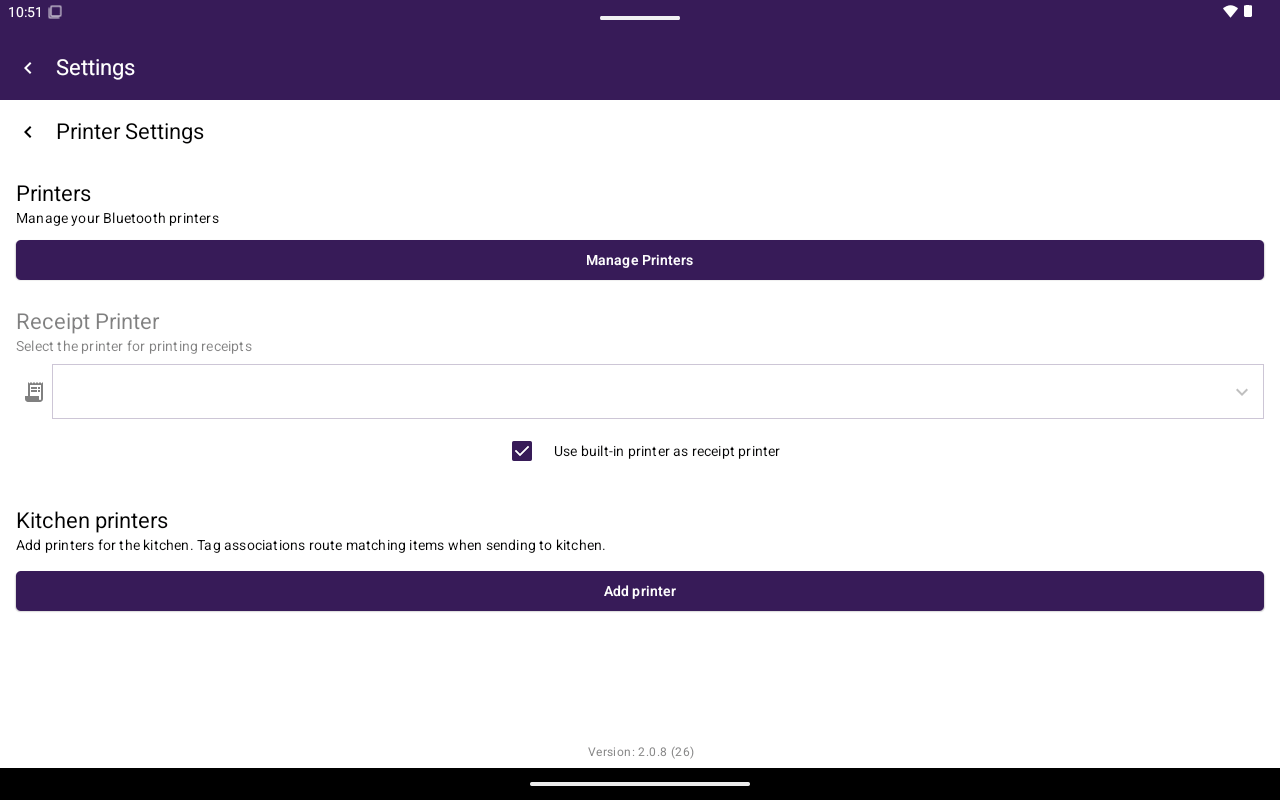 ## How to get here
Home → **Settings** → **General** → **Printer Settings**.
If you open this screen from Register with items in the cart, Taliup POS may ask **Continue to printer settings?** The cart is cleared if you continue.
## Before you start
1. Turn the printer on and keep it near the terminal.
2. If the printer has a pairing or discoverable mode, turn it on.
3. Turn Bluetooth on for the terminal.
Add the printer under **My Printers** before you assign it as a receipt printer or an external (kitchen) printer.
## Add a Bluetooth printer
On **Printer Settings**, tap **Manage Printers**.
Tap **Add Paired Printer**. Select the printer in the list, then tap **Save**.
The printer appears under **My Printers**. Use **Rename** if you want a clearer name, such as Kitchen or Front counter.
The list can include printers that are already paired and printers nearby that are not paired yet. You do not need to pair the printer in the terminal’s Android settings first.
If the list is empty, tap **Search again**. Keep the printer on and in range.
Most terminals do not show a permission prompt during this step. If the terminal asks to find nearby devices or use Bluetooth, tap **Allow**. Search cannot find printers if that request is denied.
## Choose the receipt printer
On **Printer Settings**, use the **Receipt Printer** section.
| Option | Result |
| -------------------------------------------------- | ----------------------------------------------------------------------------------------------------------------------- |
| **Use built-in printer as receipt printer** is on | Receipts and reports print on the terminal’s built-in printer. This is the usual setup when the terminal has a printer. |
| **Use built-in printer as receipt printer** is off | Receipts print on the Bluetooth printer selected under **Receipt Printer**. |
To use a Bluetooth receipt printer:
1. Turn off **Use built-in printer as receipt printer**.
2. Select a printer from **My Printers**, or add one with **Add Paired Printer**.
3. Print a test receipt from a cash sale, or reprint from [Transactions](/taliup-pos/transactions/reprint).
## Add a kitchen or external printer
Use **External printers** for a kitchen printer or another station printer.
On **Printer Settings**, under **External printers**, tap **Add printer**.
Enter a **Name**, such as Kitchen or Bar.
Under **Paired printer**, choose the printer. If it is not listed, choose **Add paired printer**, select the device, then return to this screen.
Leave **Product tags** empty if this printer should receive the full kitchen ticket. To send only some items here, select those **Product tags**. Turn on **Print non-tagged items to this printer** if this station should also receive items that have no tag. If more than one printer has that option on, untagged items print on all of them.
Tap **Save**. In Register, add an item and tap **Options** → **Send To Kitchen**, or complete a sale and send the kitchen ticket when prompted.
Each saved station shows **Paired:** and either **Tags: none (default routing)** or the number of tags selected. Tap **Manage** to edit the station, or **Remove** to delete that station only.
A Bluetooth printer can be assigned to only one external printer. If you see **This printer is already used by another external printer**, choose a different printer or remove the other station first.
## Rename or remove a printer
On **My Printers**:
| Action | What happens |
| ---------- | -------------------------------------------------------------------------------------------------------------------------------------------------------------- |
| **Rename** | Changes the display name. Receipt and kitchen assignments stay in place. |
| **Remove** | Deletes the printer from **My Printers**. If it was the receipt printer or an external printer, Taliup POS clears that assignment and disconnects the printer. |
**Remove** under **External printers** deletes only that kitchen or station assignment. The printer can remain in **My Printers**.
## Related settings
| Setting | Location |
| ----------------------------------------------- | ------------------------------------------------------------------------------------------------------ |
| **Send order to kitchen printer after payment** | [General](/taliup-pos/settings/general) |
| **Send To Kitchen** | [Register → Options](/taliup-pos/register/options). Available for restaurants. Not shown on Open Sale. |
| Reprint a receipt | [Transactions → Reprint](/taliup-pos/transactions/reprint) |
## Troubleshooting
| Situation | What to check |
| --------------------------------------------- | ------------------------------------------------------------------------------------------------------------------------------------------------------------------------------------------------------------------------------------------------------- |
| The printer is not in the list | Confirm the printer is on, in range, and discoverable. Tap **Search again**. |
| A nearby-devices or Bluetooth prompt appeared | Tap **Allow**. If it was denied earlier, allow Taliup POS in the terminal’s app permissions, then open **Add Paired Printer** again. Most terminals never show this prompt. |
| Receipts print on the wrong printer | Check **Use built-in printer as receipt printer**. When it is on, receipts go to the terminal. When it is off, confirm the selected **Receipt Printer**. |
| Kitchen tickets do not print | Confirm an **External printers** row exists and **Paired:** shows the correct printer. Send a ticket from **Options** → **Send To Kitchen**. If tags are used, confirm the item’s tag matches or that **Print non-tagged items to this printer** is on. |
| Print fails or a connect message appears | Open **Printer Settings** and confirm the printer is still assigned. Remove the printer from **My Printers** and add it again if it will not reconnect. |
## Related
* [General settings](/taliup-pos/settings/general)
* [Register → Options → Send To Kitchen](/taliup-pos/register/options)
* [Orders → past order actions](/taliup-pos/orders/past-order-actions)
* [Transactions → Reprint](/taliup-pos/transactions/reprint)
## How to get here
Home → **Settings** → **General** → **Printer Settings**.
If you open this screen from Register with items in the cart, Taliup POS may ask **Continue to printer settings?** The cart is cleared if you continue.
## Before you start
1. Turn the printer on and keep it near the terminal.
2. If the printer has a pairing or discoverable mode, turn it on.
3. Turn Bluetooth on for the terminal.
Add the printer under **My Printers** before you assign it as a receipt printer or an external (kitchen) printer.
## Add a Bluetooth printer
On **Printer Settings**, tap **Manage Printers**.
Tap **Add Paired Printer**. Select the printer in the list, then tap **Save**.
The printer appears under **My Printers**. Use **Rename** if you want a clearer name, such as Kitchen or Front counter.
The list can include printers that are already paired and printers nearby that are not paired yet. You do not need to pair the printer in the terminal’s Android settings first.
If the list is empty, tap **Search again**. Keep the printer on and in range.
Most terminals do not show a permission prompt during this step. If the terminal asks to find nearby devices or use Bluetooth, tap **Allow**. Search cannot find printers if that request is denied.
## Choose the receipt printer
On **Printer Settings**, use the **Receipt Printer** section.
| Option | Result |
| -------------------------------------------------- | ----------------------------------------------------------------------------------------------------------------------- |
| **Use built-in printer as receipt printer** is on | Receipts and reports print on the terminal’s built-in printer. This is the usual setup when the terminal has a printer. |
| **Use built-in printer as receipt printer** is off | Receipts print on the Bluetooth printer selected under **Receipt Printer**. |
To use a Bluetooth receipt printer:
1. Turn off **Use built-in printer as receipt printer**.
2. Select a printer from **My Printers**, or add one with **Add Paired Printer**.
3. Print a test receipt from a cash sale, or reprint from [Transactions](/taliup-pos/transactions/reprint).
## Add a kitchen or external printer
Use **External printers** for a kitchen printer or another station printer.
On **Printer Settings**, under **External printers**, tap **Add printer**.
Enter a **Name**, such as Kitchen or Bar.
Under **Paired printer**, choose the printer. If it is not listed, choose **Add paired printer**, select the device, then return to this screen.
Leave **Product tags** empty if this printer should receive the full kitchen ticket. To send only some items here, select those **Product tags**. Turn on **Print non-tagged items to this printer** if this station should also receive items that have no tag. If more than one printer has that option on, untagged items print on all of them.
Tap **Save**. In Register, add an item and tap **Options** → **Send To Kitchen**, or complete a sale and send the kitchen ticket when prompted.
Each saved station shows **Paired:** and either **Tags: none (default routing)** or the number of tags selected. Tap **Manage** to edit the station, or **Remove** to delete that station only.
A Bluetooth printer can be assigned to only one external printer. If you see **This printer is already used by another external printer**, choose a different printer or remove the other station first.
## Rename or remove a printer
On **My Printers**:
| Action | What happens |
| ---------- | -------------------------------------------------------------------------------------------------------------------------------------------------------------- |
| **Rename** | Changes the display name. Receipt and kitchen assignments stay in place. |
| **Remove** | Deletes the printer from **My Printers**. If it was the receipt printer or an external printer, Taliup POS clears that assignment and disconnects the printer. |
**Remove** under **External printers** deletes only that kitchen or station assignment. The printer can remain in **My Printers**.
## Related settings
| Setting | Location |
| ----------------------------------------------- | ------------------------------------------------------------------------------------------------------ |
| **Send order to kitchen printer after payment** | [General](/taliup-pos/settings/general) |
| **Send To Kitchen** | [Register → Options](/taliup-pos/register/options). Available for restaurants. Not shown on Open Sale. |
| Reprint a receipt | [Transactions → Reprint](/taliup-pos/transactions/reprint) |
## Troubleshooting
| Situation | What to check |
| --------------------------------------------- | ------------------------------------------------------------------------------------------------------------------------------------------------------------------------------------------------------------------------------------------------------- |
| The printer is not in the list | Confirm the printer is on, in range, and discoverable. Tap **Search again**. |
| A nearby-devices or Bluetooth prompt appeared | Tap **Allow**. If it was denied earlier, allow Taliup POS in the terminal’s app permissions, then open **Add Paired Printer** again. Most terminals never show this prompt. |
| Receipts print on the wrong printer | Check **Use built-in printer as receipt printer**. When it is on, receipts go to the terminal. When it is off, confirm the selected **Receipt Printer**. |
| Kitchen tickets do not print | Confirm an **External printers** row exists and **Paired:** shows the correct printer. Send a ticket from **Options** → **Send To Kitchen**. If tags are used, confirm the item’s tag matches or that **Print non-tagged items to this printer** is on. |
| Print fails or a connect message appears | Open **Printer Settings** and confirm the printer is still assigned. Remove the printer from **My Printers** and add it again if it will not reconnect. |
## Related
* [General settings](/taliup-pos/settings/general)
* [Register → Options → Send To Kitchen](/taliup-pos/register/options)
* [Orders → past order actions](/taliup-pos/orders/past-order-actions)
* [Transactions → Reprint](/taliup-pos/transactions/reprint)