> ## Documentation Index
> Fetch the complete documentation index at: https://docs.taliuphq.com/llms.txt
> Use this file to discover all available pages before exploring further.
# Scale barcodes
> Scan price or weight labels from a counter scale into the Register cart.
Use a barcode-printing scale (deli, butcher, produce) and scan the sticker in **Register**. Taliup reads the product and the printed price or weight. You do not pair the scale to the terminal.
The product **SKU** in Taliup must match the 5-digit PLU programmed on the scale. The item must be in the catalog this terminal uses.
## Two kinds of labels
| Label | What the scale prints | What Register does |
| ---------- | --------------------------- | -------------------------------------------------------------------------------- |
| **Price** | Product + a dollar amount | Adds the item with quantity 1 and uses the **printed price** |
| **Weight** | Product + a measured weight | Adds the item with that **weight as quantity**, times the catalog price per unit |
Weight labels need the product marked **Weighable** with a unit of **kg**, **g**, **lb**, or **oz**. Set that in Taliup HQ on the product, or on POS under **Menu / Catalog → Inventory** when you manage the product.
## Scan in Register
From Home, tap **Register**, then **Menu** or **Catalog**.
Use the hardware scanner, or **Options → Open Scanner** for the camera. Scanning is not available on Open Sale.
If the item has attributes or modifiers, the add-to-cart screen opens with the scanned price or weight already filled in. Complete required groups, then tap **Apply**. That selection is what inventory deducts from.
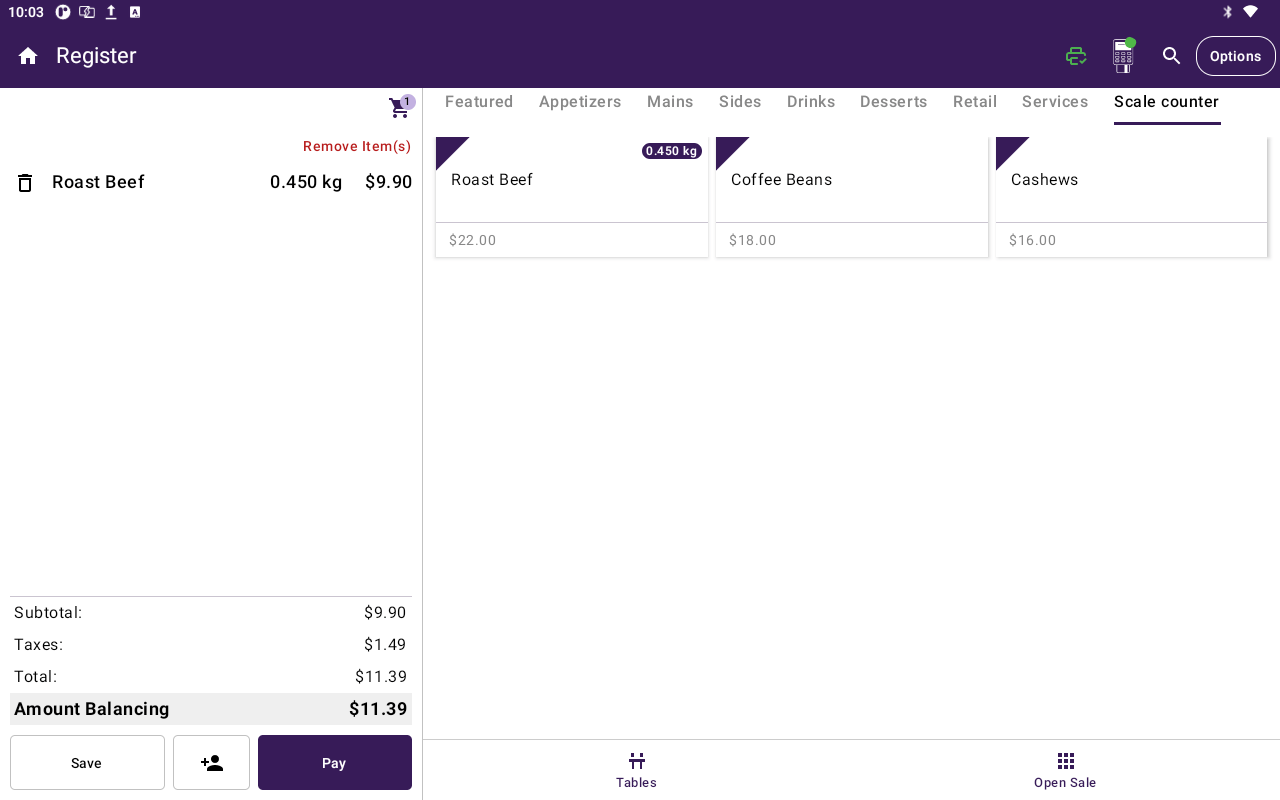
Weight lines show the decoded amount with the unit (for example `0.450 kg`). Then tap **Pay**. See [Cart](/taliup-pos/register/cart) and [Take payment](/taliup-pos/register/take-payment).
 If several products share the same SKU, pick the correct one from the list.
## If the scale does not print labels
Some counters have a scale that only shows the weight. **Enter weight** is the default on a new terminal. If this one was switched to **Scale labels**, open **Settings → General** and set **Weighable items** back to **Enter weight**.
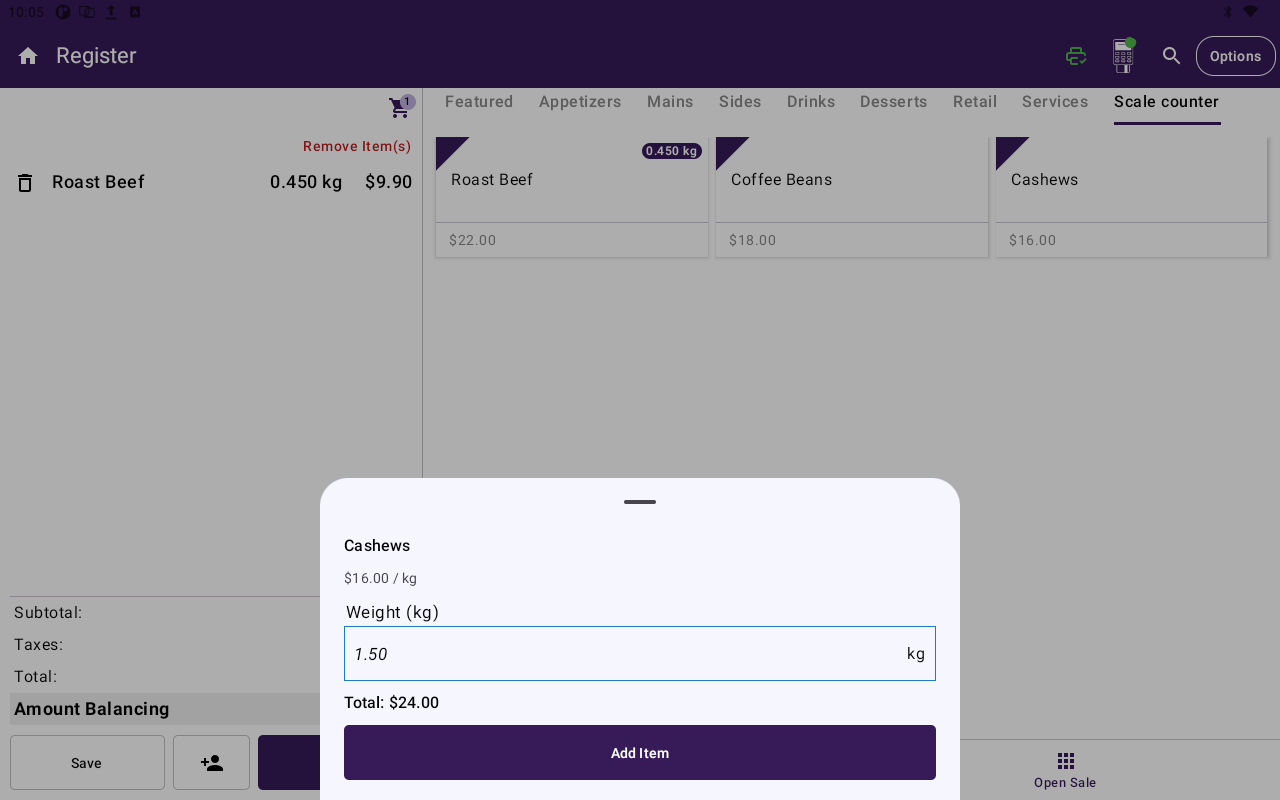
Then tap the weighable item in Register, type the weight, and confirm. Register multiplies the catalog price per unit by that weight. If the item has attributes or modifiers, choose those next.
If several products share the same SKU, pick the correct one from the list.
## If the scale does not print labels
Some counters have a scale that only shows the weight. **Enter weight** is the default on a new terminal. If this one was switched to **Scale labels**, open **Settings → General** and set **Weighable items** back to **Enter weight**.
Then tap the weighable item in Register, type the weight, and confirm. Register multiplies the catalog price per unit by that weight. If the item has attributes or modifiers, choose those next.
 You can still scan a scale sticker in **Enter weight** — useful for a one-off printed label.
This setting stays on this terminal. It does not sync to Taliup HQ.
In **Scale labels** mode, tapping a weighable item does **not** add quantity 1. Scan the sticker, or switch the setting if cashiers type weight.
Weighable items need a catalog price per unit. Custom price and Weighable cannot be on together.
## Set up the product
Do this once per scale item. Full HQ steps are in [Scale items](/taliup-hq/features/scale-items). You can also set **Weighable** and **Unit** on POS under **Menu / Catalog → Inventory**.
Set **SKU** to the exact 5-digit PLU on the scale. No extra characters.
Add the product to the catalog this device is signed in to.
Leave **Weighable** off. Catalog price is a fallback only — the sticker price wins at scan.
Turn **Weighable** on and choose a unit whose abbreviation is **kg**, **g**, **lb**, or **oz**. The unit tells Register where the decimal goes in the printed weight.
In Taliup HQ you can also set **Weighable** and **SKU** when you create an item from a catalog or category, or on a Products bulk-upload sheet. See [Scale items](/taliup-hq/features/scale-items).
## Labels we read
Register only treats **12-digit** (UPC-A) and **13-digit** (EAN-13) numeric barcodes in the GS1 in-store `2` family. That is the layout most counter scales print (Hobart, Mettler Toledo, Bizerba, DIGI, CAS, and similar).
| Length | Starts with | We treat the amount as |
| --------- | ------------ | ---------------------- |
| 12 digits | `2` | Price (cents) |
| 13 digits | `02` or `20` | Price (cents) |
| 13 digits | `21`–`29` | Weight |
The 5 digits after the prefix are the **PLU**. The last digit is a standard check digit. Bad check digits are ignored as scale labels and searched as a normal barcode instead.
Price labels may encode 4 or 5 digits of cents. Amounts under $100 read the same either way. A printed price of $100 or more on a 5-digit field can be read as a 4-digit price — confirm the scale mask with your ISO or partner if high-value stickers look wrong.
We do not read QR codes, Code 128 / GS1-128, or a scale plugged into the terminal. Only the printed UPC-A or EAN-13 sticker.
## If a scan fails
| What you see | What to check |
| ---------------------------------------- | -------------------------------------------------------------------------- |
| Product not found | **SKU** equals the 5-digit PLU, and the item is on this terminal's catalog |
| Line uses catalog price, not the sticker | The barcode is not a supported 12- or 13-digit `2…` label |
| Weighable not configured | Turn **Weighable** on and assign **kg**, **g**, **lb**, or **oz** |
| Wrong variant stock after sale | Choose the modifier on add-to-cart before **Apply** |
## Related
* [Scale items](/taliup-hq/features/scale-items) — SKU, Weighable, units, and bulk upload in Taliup HQ
* [Add items](/taliup-pos/register/add-items)
* [Cart](/taliup-pos/register/cart)
* [Inventory](/taliup-pos/catalog/inventory)
* [Products / Items](/taliup-pos/catalog/products)
You can still scan a scale sticker in **Enter weight** — useful for a one-off printed label.
This setting stays on this terminal. It does not sync to Taliup HQ.
In **Scale labels** mode, tapping a weighable item does **not** add quantity 1. Scan the sticker, or switch the setting if cashiers type weight.
Weighable items need a catalog price per unit. Custom price and Weighable cannot be on together.
## Set up the product
Do this once per scale item. Full HQ steps are in [Scale items](/taliup-hq/features/scale-items). You can also set **Weighable** and **Unit** on POS under **Menu / Catalog → Inventory**.
Set **SKU** to the exact 5-digit PLU on the scale. No extra characters.
Add the product to the catalog this device is signed in to.
Leave **Weighable** off. Catalog price is a fallback only — the sticker price wins at scan.
Turn **Weighable** on and choose a unit whose abbreviation is **kg**, **g**, **lb**, or **oz**. The unit tells Register where the decimal goes in the printed weight.
In Taliup HQ you can also set **Weighable** and **SKU** when you create an item from a catalog or category, or on a Products bulk-upload sheet. See [Scale items](/taliup-hq/features/scale-items).
## Labels we read
Register only treats **12-digit** (UPC-A) and **13-digit** (EAN-13) numeric barcodes in the GS1 in-store `2` family. That is the layout most counter scales print (Hobart, Mettler Toledo, Bizerba, DIGI, CAS, and similar).
| Length | Starts with | We treat the amount as |
| --------- | ------------ | ---------------------- |
| 12 digits | `2` | Price (cents) |
| 13 digits | `02` or `20` | Price (cents) |
| 13 digits | `21`–`29` | Weight |
The 5 digits after the prefix are the **PLU**. The last digit is a standard check digit. Bad check digits are ignored as scale labels and searched as a normal barcode instead.
Price labels may encode 4 or 5 digits of cents. Amounts under $100 read the same either way. A printed price of $100 or more on a 5-digit field can be read as a 4-digit price — confirm the scale mask with your ISO or partner if high-value stickers look wrong.
We do not read QR codes, Code 128 / GS1-128, or a scale plugged into the terminal. Only the printed UPC-A or EAN-13 sticker.
## If a scan fails
| What you see | What to check |
| ---------------------------------------- | -------------------------------------------------------------------------- |
| Product not found | **SKU** equals the 5-digit PLU, and the item is on this terminal's catalog |
| Line uses catalog price, not the sticker | The barcode is not a supported 12- or 13-digit `2…` label |
| Weighable not configured | Turn **Weighable** on and assign **kg**, **g**, **lb**, or **oz** |
| Wrong variant stock after sale | Choose the modifier on add-to-cart before **Apply** |
## Related
* [Scale items](/taliup-hq/features/scale-items) — SKU, Weighable, units, and bulk upload in Taliup HQ
* [Add items](/taliup-pos/register/add-items)
* [Cart](/taliup-pos/register/cart)
* [Inventory](/taliup-pos/catalog/inventory)
* [Products / Items](/taliup-pos/catalog/products)