> ## Documentation Index
> Fetch the complete documentation index at: https://docs.taliuphq.com/llms.txt
> Use this file to discover all available pages before exploring further.
# Open a sale
> Start a sale by entering a custom amount on the Register Open Sale keypad.
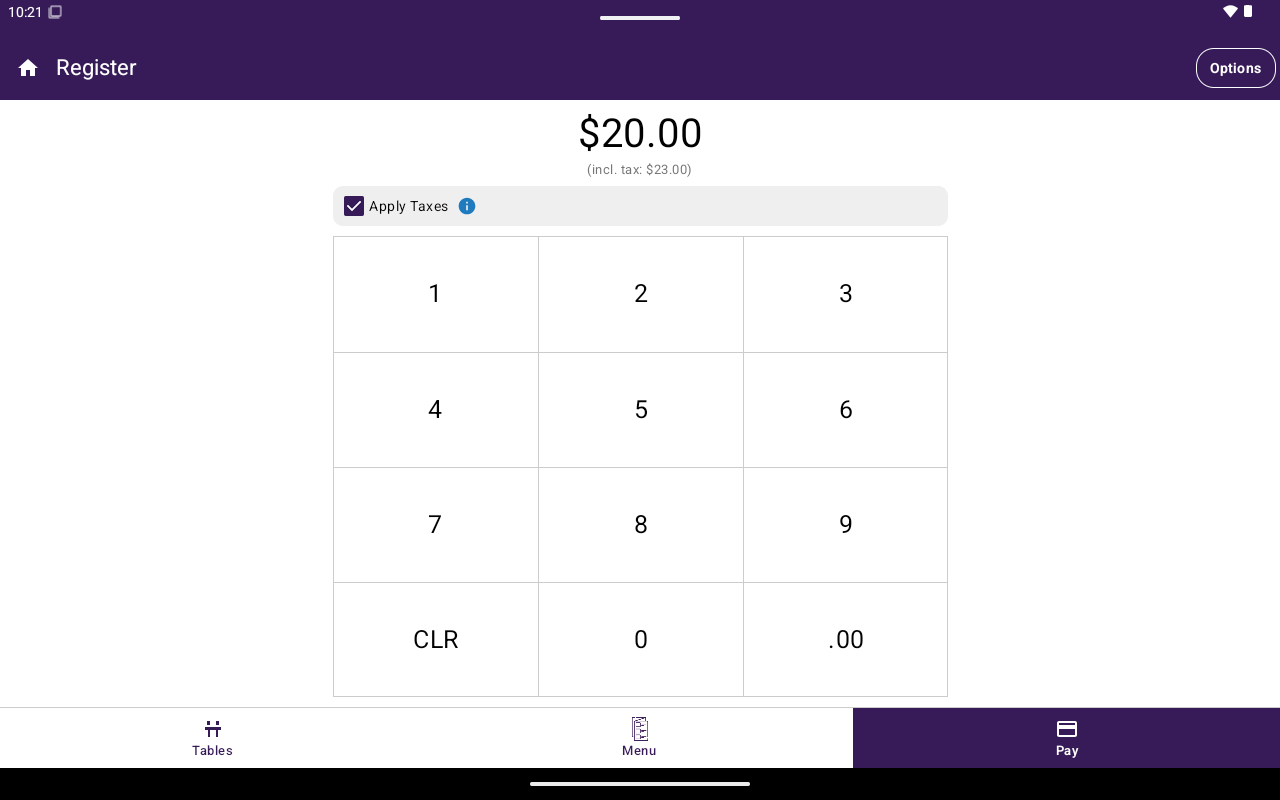
Use **Open Sale** when you want to charge a custom amount without picking catalog items. The amount is added as a **Custom Item** when you continue to payment.
 ## How to get here
1. From Home, tap **Register**.
2. Select **Open Sale** in the bottom navigation (or use it as your [default Register view](/taliup-pos/settings/general)).
## Charge an amount
Use the number pad to enter the sale amount. Use **CLR** to clear. You can append `.00` with the decimal shortcut when available.
In payment mode, turn on **Apply Taxes** if the amount should include tax. When enabled, the keypad shows the amount including tax.
Tap **Pay**. Taliup POS adds the amount to the cart as a **Custom Item** and opens the payment screen.
Choose card, cash, or another available method. See [Take payment](/taliup-pos/register/take-payment).
## Table orders on Open Sale
If you opened Register from a table:
* Guest chips appear (for example **Whole Table** and individual guests).
* Use **Save** to keep the open order without taking payment yet.
## What Open Sale does not show
Many [Options side menu](/taliup-pos/register/options) actions are hidden while you are on the Open Sale tab (for example print entire bill, add custom item, save order, send to kitchen, open scanner). Switch to Menu/Catalog or work from a saved order when you need those tools.
## Related
* [Add items](/taliup-pos/register/add-items)
* [Take payment](/taliup-pos/register/take-payment)
* [Settings → General](/taliup-pos/settings/general) — default Register view
## How to get here
1. From Home, tap **Register**.
2. Select **Open Sale** in the bottom navigation (or use it as your [default Register view](/taliup-pos/settings/general)).
## Charge an amount
Use the number pad to enter the sale amount. Use **CLR** to clear. You can append `.00` with the decimal shortcut when available.
In payment mode, turn on **Apply Taxes** if the amount should include tax. When enabled, the keypad shows the amount including tax.
Tap **Pay**. Taliup POS adds the amount to the cart as a **Custom Item** and opens the payment screen.
Choose card, cash, or another available method. See [Take payment](/taliup-pos/register/take-payment).
## Table orders on Open Sale
If you opened Register from a table:
* Guest chips appear (for example **Whole Table** and individual guests).
* Use **Save** to keep the open order without taking payment yet.
## What Open Sale does not show
Many [Options side menu](/taliup-pos/register/options) actions are hidden while you are on the Open Sale tab (for example print entire bill, add custom item, save order, send to kitchen, open scanner). Switch to Menu/Catalog or work from a saved order when you need those tools.
## Related
* [Add items](/taliup-pos/register/add-items)
* [Take payment](/taliup-pos/register/take-payment)
* [Settings → General](/taliup-pos/settings/general) — default Register view