> ## Documentation Index
> Fetch the complete documentation index at: https://docs.taliuphq.com/llms.txt
> Use this file to discover all available pages before exploring further.
# Cart
> Review line items, guests, discounts, fees, and totals in the Register cart before payment.
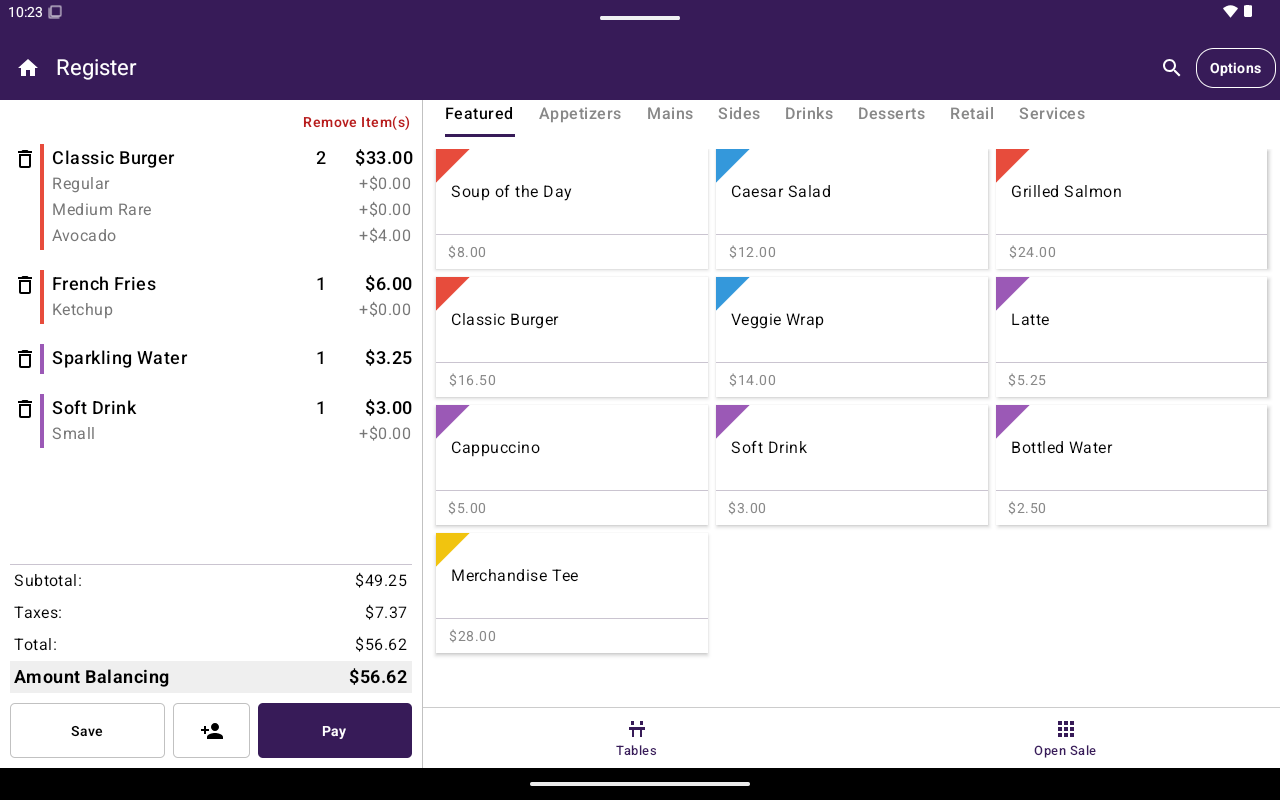
The **Cart** shows everything on the current order before you take payment.
 ## How to get here
* Portrait: tap **Cart** in the Register bottom navigation (badge shows item count).
* Landscape: the cart panel is often already visible beside Open Sale or Menu/Catalog.
* After adding items, review the cart before tapping **Pay**.
## What the cart shows
Typical summary rows include:
* Subtotal
* Taxes
* Discounts
* Fees
* Surcharge (when configured for the merchant)
* Total
Line items can show status labels such as **Paid** or **Printed** when relevant.
## Edit the cart
| Action | How |
| -------------------- | ----------------------------------------------------------------------- |
| Edit an unpaid item | Tap the item to reopen the add-to-cart / edit screen |
| Remove one item | Use the delete control on the line, then confirm |
| Remove several items | Tap **Remove Item(s)**, select lines, then **Remove (N)** or **Cancel** |
## Table guests
On table orders, use the guest header to open guest options:
| Scope | Options |
| ---------------- | -------------------------------------------------------- |
| **Whole Table** | **Move Items**, **Split Items** |
| Individual guest | **Print Bill**, **Pay**, **Move Items**, **Split Items** |
If you try to act on a guest with no items, Taliup POS shows that the guest has no items.
Paying a single guest opens the same payment screen scoped to that guest’s balance. See [Take payment](/taliup-pos/register/take-payment).
## Bottom actions
| Control | Purpose |
| --------------------------- | ----------------------------------------------------- |
| **Save** | Save the open order without taking payment |
| Attach client (person icon) | Attach a client when the Clients feature is available |
| **Pay** | Continue to payment (enabled when the cart has items) |
For print, discounts, kitchen, cancel, and other tools, open **Options**. See [Options side menu](/taliup-pos/register/options).
## Related
* [Add items](/taliup-pos/register/add-items)
* [Take payment](/taliup-pos/register/take-payment)
* [Tables](/taliup-pos/tables)
## How to get here
* Portrait: tap **Cart** in the Register bottom navigation (badge shows item count).
* Landscape: the cart panel is often already visible beside Open Sale or Menu/Catalog.
* After adding items, review the cart before tapping **Pay**.
## What the cart shows
Typical summary rows include:
* Subtotal
* Taxes
* Discounts
* Fees
* Surcharge (when configured for the merchant)
* Total
Line items can show status labels such as **Paid** or **Printed** when relevant.
## Edit the cart
| Action | How |
| -------------------- | ----------------------------------------------------------------------- |
| Edit an unpaid item | Tap the item to reopen the add-to-cart / edit screen |
| Remove one item | Use the delete control on the line, then confirm |
| Remove several items | Tap **Remove Item(s)**, select lines, then **Remove (N)** or **Cancel** |
## Table guests
On table orders, use the guest header to open guest options:
| Scope | Options |
| ---------------- | -------------------------------------------------------- |
| **Whole Table** | **Move Items**, **Split Items** |
| Individual guest | **Print Bill**, **Pay**, **Move Items**, **Split Items** |
If you try to act on a guest with no items, Taliup POS shows that the guest has no items.
Paying a single guest opens the same payment screen scoped to that guest’s balance. See [Take payment](/taliup-pos/register/take-payment).
## Bottom actions
| Control | Purpose |
| --------------------------- | ----------------------------------------------------- |
| **Save** | Save the open order without taking payment |
| Attach client (person icon) | Attach a client when the Clients feature is available |
| **Pay** | Continue to payment (enabled when the cart has items) |
For print, discounts, kitchen, cancel, and other tools, open **Options**. See [Options side menu](/taliup-pos/register/options).
## Related
* [Add items](/taliup-pos/register/add-items)
* [Take payment](/taliup-pos/register/take-payment)
* [Tables](/taliup-pos/tables)