> ## Documentation Index
> Fetch the complete documentation index at: https://docs.taliuphq.com/llms.txt
> Use this file to discover all available pages before exploring further.
# Add items from menu or catalog
> Add products or menu items to the Register cart from the Menu or Catalog tab.
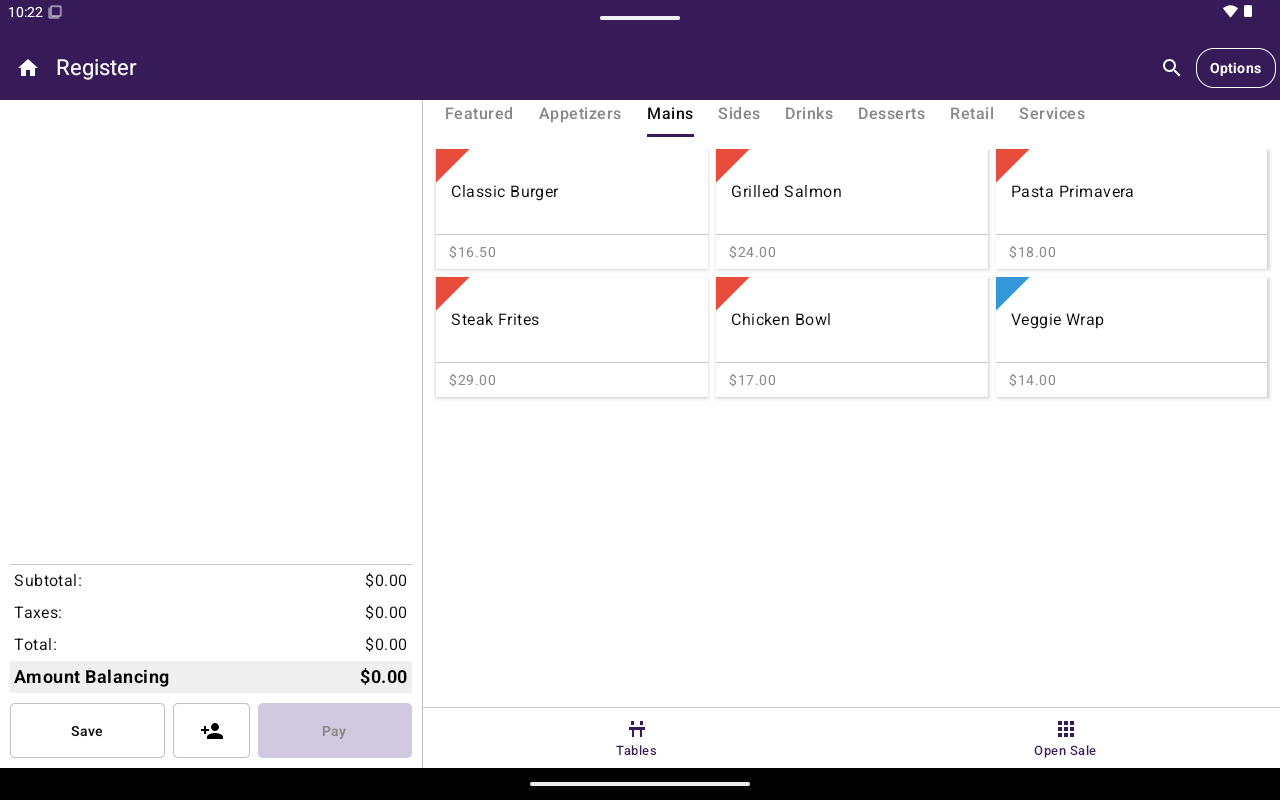
In Register, use the **Menu** or **Catalog** tab to browse sellable items and add them to the cart. Restaurants see **Menu**; other industry types see **Catalog**.
 ## How to get here
1. From Home, tap **Register**.
2. Select **Menu** or **Catalog** in the bottom navigation.
If this tab is missing, the merchant does not have catalog selling enabled in Register. Use [Open a sale](/taliup-pos/register/open-sale) instead, or ask your ISO/partner to enable catalog features.
Switching between Open Sale and Menu/Catalog while the cart already has items shows a warning that the **cart will be cleared**.
## Browse and add items
Use **Categories** to browse by group, or **Featured** for highlighted items.
Tap the search icon in the app bar, type a name, then select a result.
What happens next depends on the item:
* Fixed price, no modifiers → added to the cart immediately
* Open price → a custom price popup appears
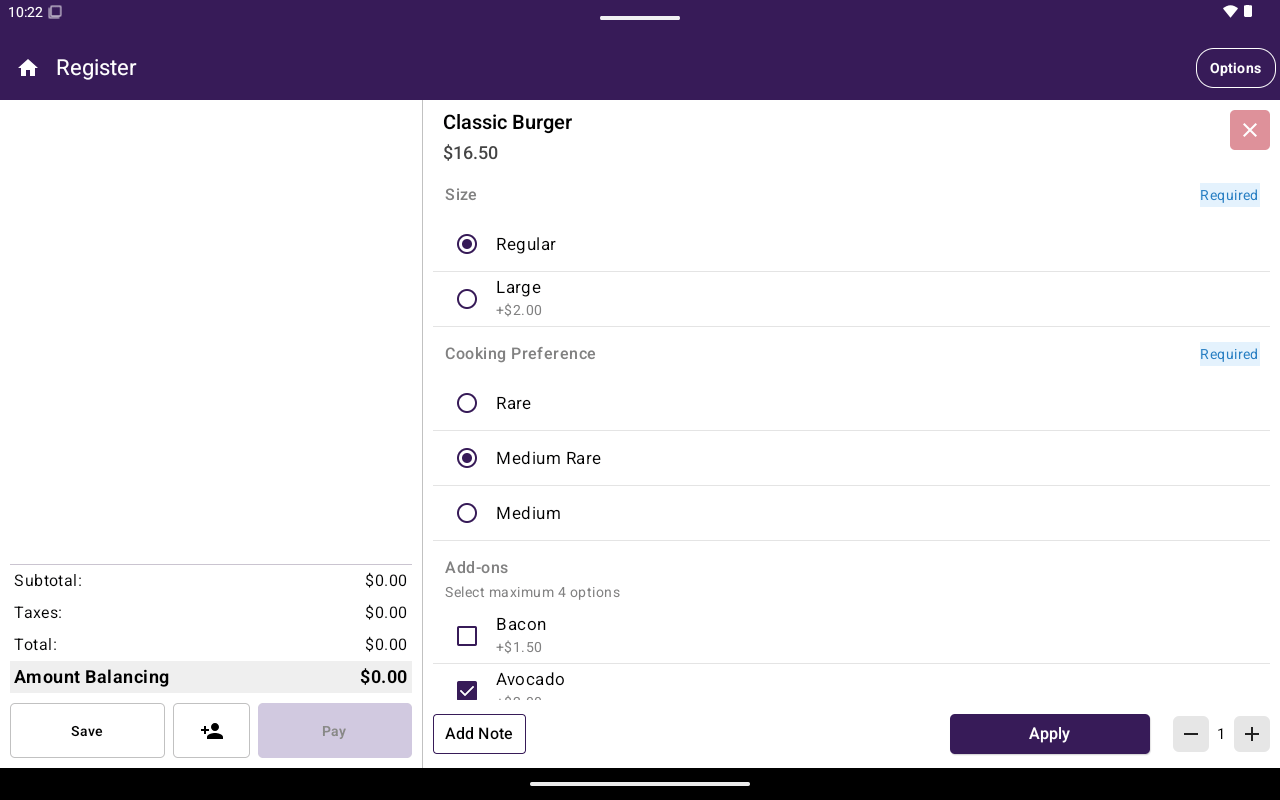
* Has modifiers → the add-to-cart screen opens
Choose required modifiers, optional modifiers, quantity, and an optional note. Required modifier groups must be completed before you can continue. Tap **Apply** to add the item.
Open the [cart](/taliup-pos/register/cart), then tap **Pay**. See [Take payment](/taliup-pos/register/take-payment).
## How to get here
1. From Home, tap **Register**.
2. Select **Menu** or **Catalog** in the bottom navigation.
If this tab is missing, the merchant does not have catalog selling enabled in Register. Use [Open a sale](/taliup-pos/register/open-sale) instead, or ask your ISO/partner to enable catalog features.
Switching between Open Sale and Menu/Catalog while the cart already has items shows a warning that the **cart will be cleared**.
## Browse and add items
Use **Categories** to browse by group, or **Featured** for highlighted items.
Tap the search icon in the app bar, type a name, then select a result.
What happens next depends on the item:
* Fixed price, no modifiers → added to the cart immediately
* Open price → a custom price popup appears
* Has modifiers → the add-to-cart screen opens
Choose required modifiers, optional modifiers, quantity, and an optional note. Required modifier groups must be completed before you can continue. Tap **Apply** to add the item.
Open the [cart](/taliup-pos/register/cart), then tap **Pay**. See [Take payment](/taliup-pos/register/take-payment).
 ## Table orders
On table orders, guest chips (**Whole Table** / guests) appear while you add items. Use **Save** to keep the open order without paying yet.
## Manage the catalog itself
Creating categories, products/items, taxes, discounts, and fees is done from Home → **Menu / Catalog**, not inside the Register picker. See [Menu / Catalog](/taliup-pos/catalog).
## Related
* [Cart](/taliup-pos/register/cart)
* [Options side menu](/taliup-pos/register/options) — **Add Custom Item**, discounts, fees
## Table orders
On table orders, guest chips (**Whole Table** / guests) appear while you add items. Use **Save** to keep the open order without paying yet.
## Manage the catalog itself
Creating categories, products/items, taxes, discounts, and fees is done from Home → **Menu / Catalog**, not inside the Register picker. See [Menu / Catalog](/taliup-pos/catalog).
## Related
* [Cart](/taliup-pos/register/cart)
* [Options side menu](/taliup-pos/register/options) — **Add Custom Item**, discounts, fees