> ## Documentation Index
> Fetch the complete documentation index at: https://docs.taliuphq.com/llms.txt
> Use this file to discover all available pages before exploring further.
# First login
> Log in to Taliup POS after your merchant and devices are set up in Taliup HQ.
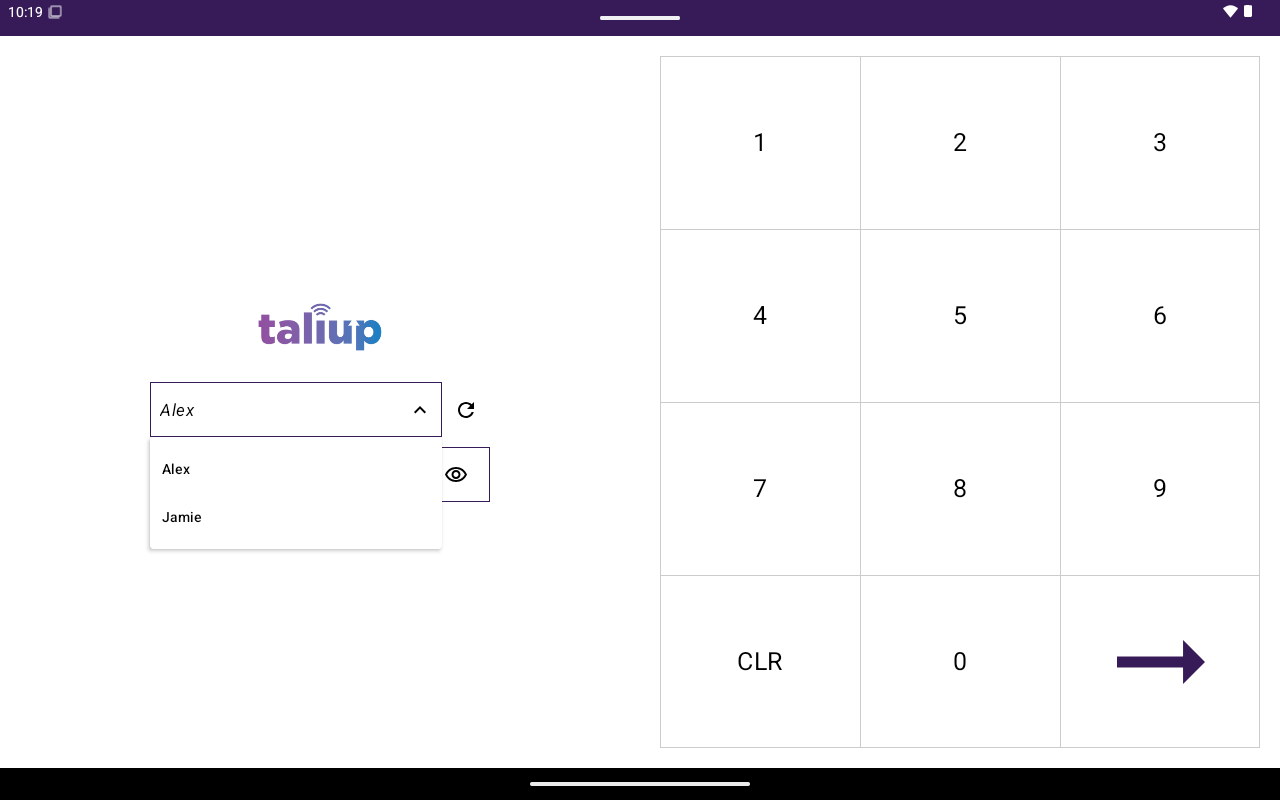
After your merchant (Entity) and devices are registered in Taliup HQ, open Taliup POS on the terminal and sign in with a staff user.
 ## Before you start
* Device registration and merchant setup in Taliup HQ are complete. See [PAX device setup in Taliup HQ](/taliup-hq/devices/pax/index).
* At least one employee user exists for the merchant.
* The terminal is online.
Do not open Taliup POS for the first time until the device is registered in Taliup HQ. An unregistered device shows an empty login list.
## Sign in
Launch the Taliup POS app on the terminal.
Choose your name from the login list. If no users appear, the device is not registered correctly in Taliup HQ — finish device setup there first.
Enter the staff passcode on the keypad. Subscription or demo plans may require a demo passcode from your ISO or partner.
After a successful login you land on the [Home screen](/taliup-pos/home-screen).
## Clock in
If time sheets are enabled for the merchant, staff may also use clock in / clock out from Home after login. That control is separate from signing into the app.
## Troubleshooting
| Situation | What to check |
| ---------------------- | -------------------------------------------------------------------------------- |
| Empty user list | Device TID not registered, or no employees on the Entity in Taliup HQ |
| Passcode rejected | Confirm the user’s passcode in HQ, or ask your ISO/partner for the demo passcode |
| App asks for an update | Install the required version before continuing |
## Next
* [Home screen](/taliup-pos/home-screen)
* [Register](/taliup-pos/register)
## Before you start
* Device registration and merchant setup in Taliup HQ are complete. See [PAX device setup in Taliup HQ](/taliup-hq/devices/pax/index).
* At least one employee user exists for the merchant.
* The terminal is online.
Do not open Taliup POS for the first time until the device is registered in Taliup HQ. An unregistered device shows an empty login list.
## Sign in
Launch the Taliup POS app on the terminal.
Choose your name from the login list. If no users appear, the device is not registered correctly in Taliup HQ — finish device setup there first.
Enter the staff passcode on the keypad. Subscription or demo plans may require a demo passcode from your ISO or partner.
After a successful login you land on the [Home screen](/taliup-pos/home-screen).
## Clock in
If time sheets are enabled for the merchant, staff may also use clock in / clock out from Home after login. That control is separate from signing into the app.
## Troubleshooting
| Situation | What to check |
| ---------------------- | -------------------------------------------------------------------------------- |
| Empty user list | Device TID not registered, or no employees on the Entity in Taliup HQ |
| Passcode rejected | Confirm the user’s passcode in HQ, or ask your ISO/partner for the demo passcode |
| App asks for an update | Install the required version before continuing |
## Next
* [Home screen](/taliup-pos/home-screen)
* [Register](/taliup-pos/register)