> ## Documentation Index
> Fetch the complete documentation index at: https://docs.taliuphq.com/llms.txt
> Use this file to discover all available pages before exploring further.
# Attributes / Modifiers
> Manage attributes (retail) or modifiers (restaurant) for products and items.
Labeled **Attributes** or **Modifiers** depending on industry type. These are option groups staff select when adding an item in Register (for example size, toppings, or add-ons).
 ## How to get here
Home → **Menu** / **Catalog** → **Attributes** or **Modifiers**.
## Add an attribute or modifier group
Open the create form.
Enter **Name** and **Max.** Choose **Exactly One** or **Combination**, and **Required** or **Not Required**.
Under **Values**, add each option with **Value**, **Price**, quantity +/- controls, and **Single** / **Not Single** as needed. Tap **Add** for more values.
Confirm to create the group.
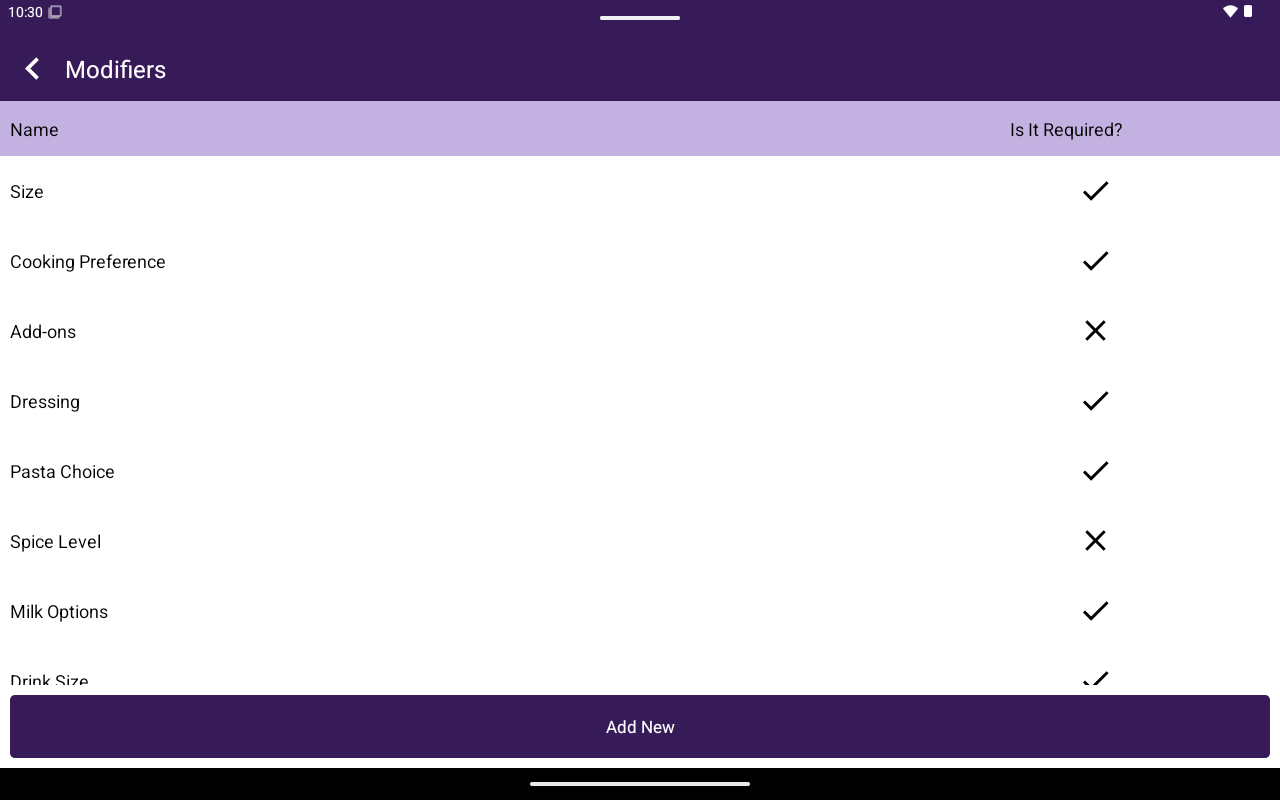
List columns: **Name**, **Is It Required?**
Open a row to edit, save, or delete. Attach groups to products from the product editor’s **Attributes** / **Modifiers** tab.
## How to get here
Home → **Menu** / **Catalog** → **Attributes** or **Modifiers**.
## Add an attribute or modifier group
Open the create form.
Enter **Name** and **Max.** Choose **Exactly One** or **Combination**, and **Required** or **Not Required**.
Under **Values**, add each option with **Value**, **Price**, quantity +/- controls, and **Single** / **Not Single** as needed. Tap **Add** for more values.
Confirm to create the group.
List columns: **Name**, **Is It Required?**
Open a row to edit, save, or delete. Attach groups to products from the product editor’s **Attributes** / **Modifiers** tab.