> ## Documentation Index
> Fetch the complete documentation index at: https://docs.taliuphq.com/llms.txt
> Use this file to discover all available pages before exploring further.
# Recurring Payments
> Create agreements, send a hosted checkout link, and collect scheduled customer payments from the merchant portal.
Recurring Payments lets you bill a customer on a schedule. You create an agreement in Taliup HQ, send a hosted checkout link, and the customer authorizes their card. After that, Elavon Converge charges the card on the schedule you set.
Open **Recurring Payments** in the merchant sidebar.
 ***
## Prerequisites
The **Recurring Payments** feature must be enabled on the entity plan. Enabling it also turns on **Hosted Payment Solution** and **Clients**. Ask your ISO admin to enable it in [Plans & Features](/taliup-hq/onboarding/plans-features) if you do not see **Recurring Payments** in the sidebar.
At least one location must have an active **Elavon Converge** online payment gateway. Locations on other processors stay available for everything else. See [Locations](/taliup-hq/onboarding/locations).
Each agreement needs a [client](/taliup-hq/features/clients) with a valid email so Taliup can send the checkout invitation.
If Converge is missing, the list shows **Elavon Converge required** and you cannot create agreements.
***
## How it works
```mermaid theme={null}
flowchart LR
create["You create an agreement"]
invite["Customer gets a checkout link"]
enroll["Customer authorizes the card"]
bill["Converge charges on the schedule"]
manage["You manage the agreement in HQ"]
create --> invite --> enroll --> bill --> manage
```
* If the first charge is today and there is no trial, checkout charges that cycle and starts the schedule.
* If the first charge is later, or you offer a free trial, checkout saves the card only. Charging starts on the first-charge date.
* Later cycles are collected by Converge. Taliup HQ syncs status, next date, and charge history.
***
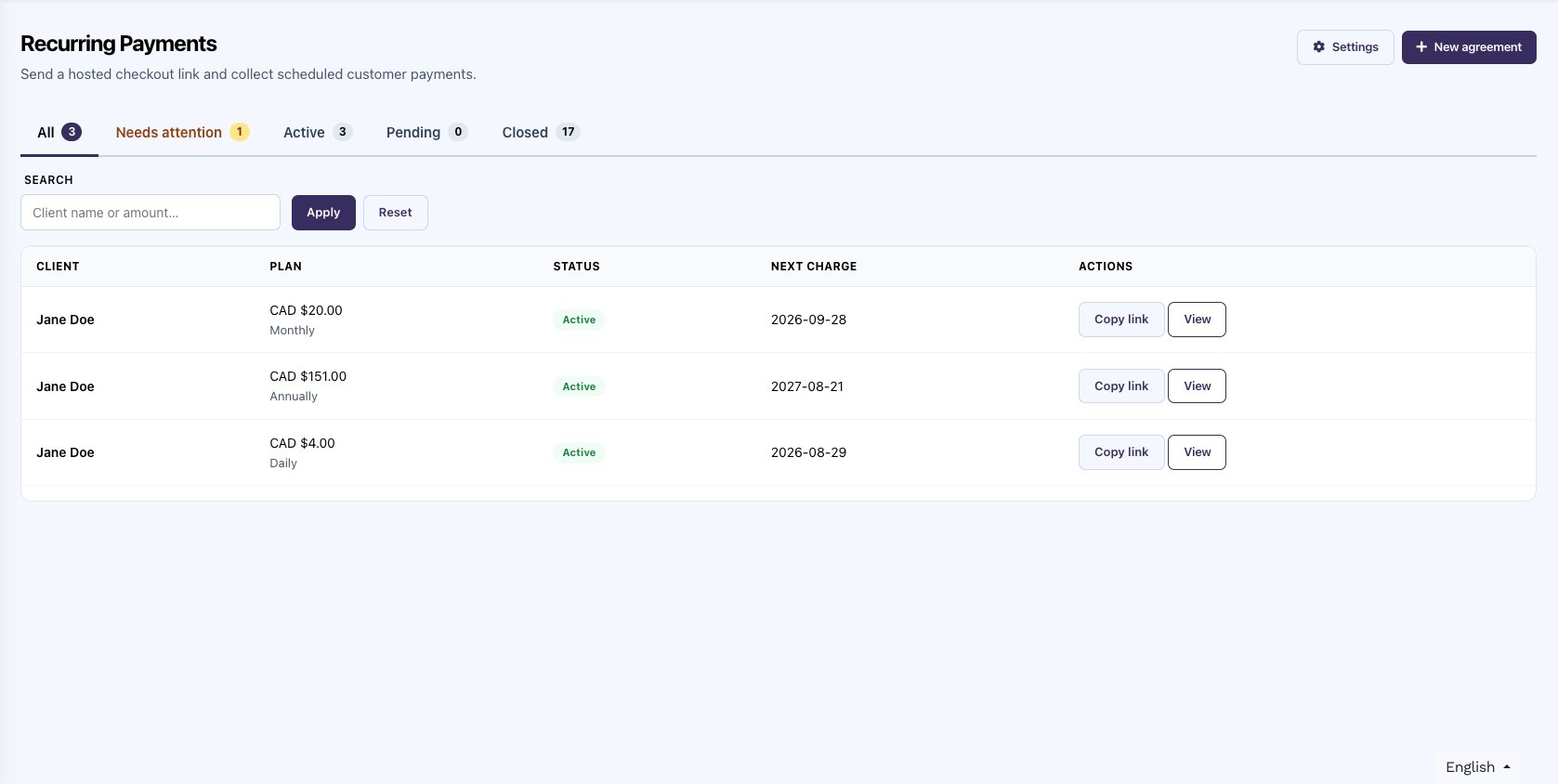
## Agreements list
When you have no agreements yet, the page shows **No recurring agreements yet** and **Create your first agreement**.
Use **+ New agreement** once Converge is available. Use **Settings** for defaults that apply to new agreements.
Tabs:
| Tab | What it includes |
| ------------------- | ----------------------------------------------------------------------------------- |
| **All** | Active and pending agreements |
| **Needs attention** | Past due, grace period, paused, expired checkout, or a card that is about to expire |
| **Active** | Agreements that are billing |
| **Pending** | Waiting for the customer to complete checkout |
| **Closed** | Completed, cancelled, or failed setup |
Search by client name, email, or amount (`100` or `$100`), then **Apply**. Newest agreements appear first. **Reset** clears the search and keeps the tab you are on.
Click a row to open the agreement. **Copy link** copies the checkout link (pending) or the customer manage link (enrolled).
If anything needs a click, the list opens on **Needs attention**.
***
## Create an agreement
***
## Prerequisites
The **Recurring Payments** feature must be enabled on the entity plan. Enabling it also turns on **Hosted Payment Solution** and **Clients**. Ask your ISO admin to enable it in [Plans & Features](/taliup-hq/onboarding/plans-features) if you do not see **Recurring Payments** in the sidebar.
At least one location must have an active **Elavon Converge** online payment gateway. Locations on other processors stay available for everything else. See [Locations](/taliup-hq/onboarding/locations).
Each agreement needs a [client](/taliup-hq/features/clients) with a valid email so Taliup can send the checkout invitation.
If Converge is missing, the list shows **Elavon Converge required** and you cannot create agreements.
***
## How it works
```mermaid theme={null}
flowchart LR
create["You create an agreement"]
invite["Customer gets a checkout link"]
enroll["Customer authorizes the card"]
bill["Converge charges on the schedule"]
manage["You manage the agreement in HQ"]
create --> invite --> enroll --> bill --> manage
```
* If the first charge is today and there is no trial, checkout charges that cycle and starts the schedule.
* If the first charge is later, or you offer a free trial, checkout saves the card only. Charging starts on the first-charge date.
* Later cycles are collected by Converge. Taliup HQ syncs status, next date, and charge history.
***
## Agreements list
When you have no agreements yet, the page shows **No recurring agreements yet** and **Create your first agreement**.
Use **+ New agreement** once Converge is available. Use **Settings** for defaults that apply to new agreements.
Tabs:
| Tab | What it includes |
| ------------------- | ----------------------------------------------------------------------------------- |
| **All** | Active and pending agreements |
| **Needs attention** | Past due, grace period, paused, expired checkout, or a card that is about to expire |
| **Active** | Agreements that are billing |
| **Pending** | Waiting for the customer to complete checkout |
| **Closed** | Completed, cancelled, or failed setup |
Search by client name, email, or amount (`100` or `$100`), then **Apply**. Newest agreements appear first. **Reset** clears the search and keeps the tab you are on.
Click a row to open the agreement. **Copy link** copies the checkout link (pending) or the customer manage link (enrolled).
If anything needs a click, the list opens on **Needs attention**.
***
## Create an agreement
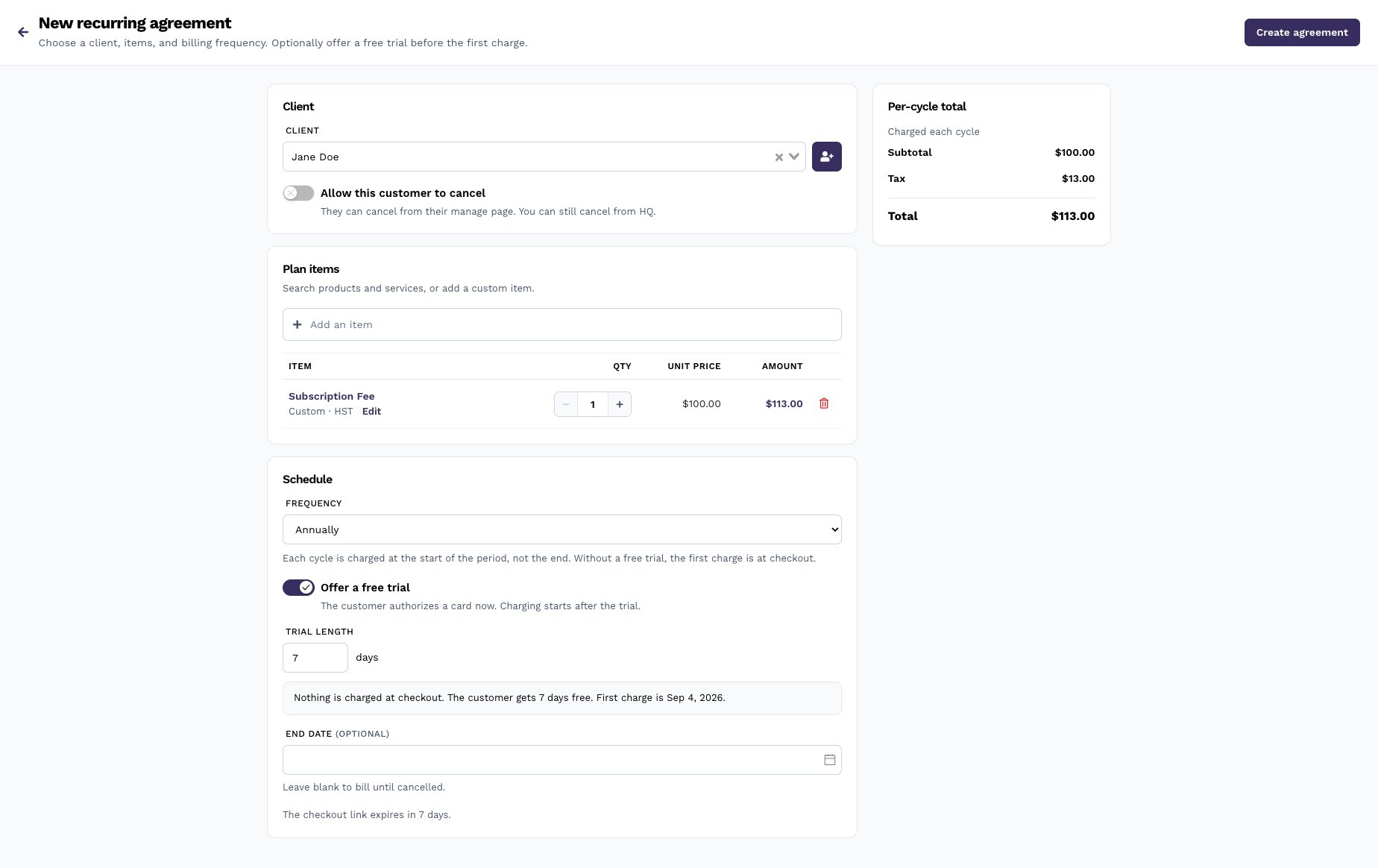 From **Recurring Payments**, click **+ New agreement**.
Search for a client or use the person-plus button to add one. If that email belongs to a deleted client, Taliup asks **Restore previous client?** See [Restore a deleted client](/taliup-hq/features/clients#restore-a-deleted-client).
Search products and services, or **Add custom item**. Set quantity and options. Taxes follow the selected location.
Choose frequency, then set the first charge or offer a free trial. Optionally add an end date.
Confirm the **Per-cycle total**, then click **Create agreement**. Taliup emails the checkout link to the client.
### Client
| Setting | Description |
| --------------------------------- | --------------------------------------------------------------------------------------------------------------- |
| **Client** | Required. Must have an email. |
| **Location** | The location whose Converge gateway collects the charges. Hidden when the entity has only one location. |
| **Allow this customer to cancel** | When on, the customer can cancel from their manage page. You can always cancel from HQ. Defaults from Settings. |
### Plan items
Search the catalog or add a one-off custom item. Catalog items with options open the options picker. Custom items can have their own taxes.
You cannot change catalog items or the schedule after the agreement is created. Create a new agreement if the plan needs to change.
### Schedule
| Setting | Description |
| ---------------------- | -------------------------------------------------------------------------------------------------------------------------------------------------------- |
| **Frequency** | **Daily**, **Weekly**, **Biweekly**, **Monthly**, or **Annually**. Each cycle is charged at the start of the period. The Settings default prefills this. |
| **Offer a free trial** | The customer authorizes a card now. Charging starts after the trial. Hides **First charge**. |
| **Trial length** | 1–90 days. The form shows the first-charge date. |
| **First charge** | Shown when the trial is off. Today charges the card at checkout. A later date saves the card and charges then. |
| **End date** | Optional. Leave blank to bill until cancelled. |
The checkout link expiry (default 7 days) is shown on this form. Change it in Settings.
### Per-cycle total
The sidebar shows subtotal, tax, and total for each billing cycle. This is the amount Converge charges after enrollment (and at checkout when the first charge is today and there is no trial).
***
## After you create
The agreement starts as **Pending**.
From **Recurring Payments**, click **+ New agreement**.
Search for a client or use the person-plus button to add one. If that email belongs to a deleted client, Taliup asks **Restore previous client?** See [Restore a deleted client](/taliup-hq/features/clients#restore-a-deleted-client).
Search products and services, or **Add custom item**. Set quantity and options. Taxes follow the selected location.
Choose frequency, then set the first charge or offer a free trial. Optionally add an end date.
Confirm the **Per-cycle total**, then click **Create agreement**. Taliup emails the checkout link to the client.
### Client
| Setting | Description |
| --------------------------------- | --------------------------------------------------------------------------------------------------------------- |
| **Client** | Required. Must have an email. |
| **Location** | The location whose Converge gateway collects the charges. Hidden when the entity has only one location. |
| **Allow this customer to cancel** | When on, the customer can cancel from their manage page. You can always cancel from HQ. Defaults from Settings. |
### Plan items
Search the catalog or add a one-off custom item. Catalog items with options open the options picker. Custom items can have their own taxes.
You cannot change catalog items or the schedule after the agreement is created. Create a new agreement if the plan needs to change.
### Schedule
| Setting | Description |
| ---------------------- | -------------------------------------------------------------------------------------------------------------------------------------------------------- |
| **Frequency** | **Daily**, **Weekly**, **Biweekly**, **Monthly**, or **Annually**. Each cycle is charged at the start of the period. The Settings default prefills this. |
| **Offer a free trial** | The customer authorizes a card now. Charging starts after the trial. Hides **First charge**. |
| **Trial length** | 1–90 days. The form shows the first-charge date. |
| **First charge** | Shown when the trial is off. Today charges the card at checkout. A later date saves the card and charges then. |
| **End date** | Optional. Leave blank to bill until cancelled. |
The checkout link expiry (default 7 days) is shown on this form. Change it in Settings.
### Per-cycle total
The sidebar shows subtotal, tax, and total for each billing cycle. This is the amount Converge charges after enrollment (and at checkout when the first charge is today and there is no trial).
***
## After you create
The agreement starts as **Pending**.
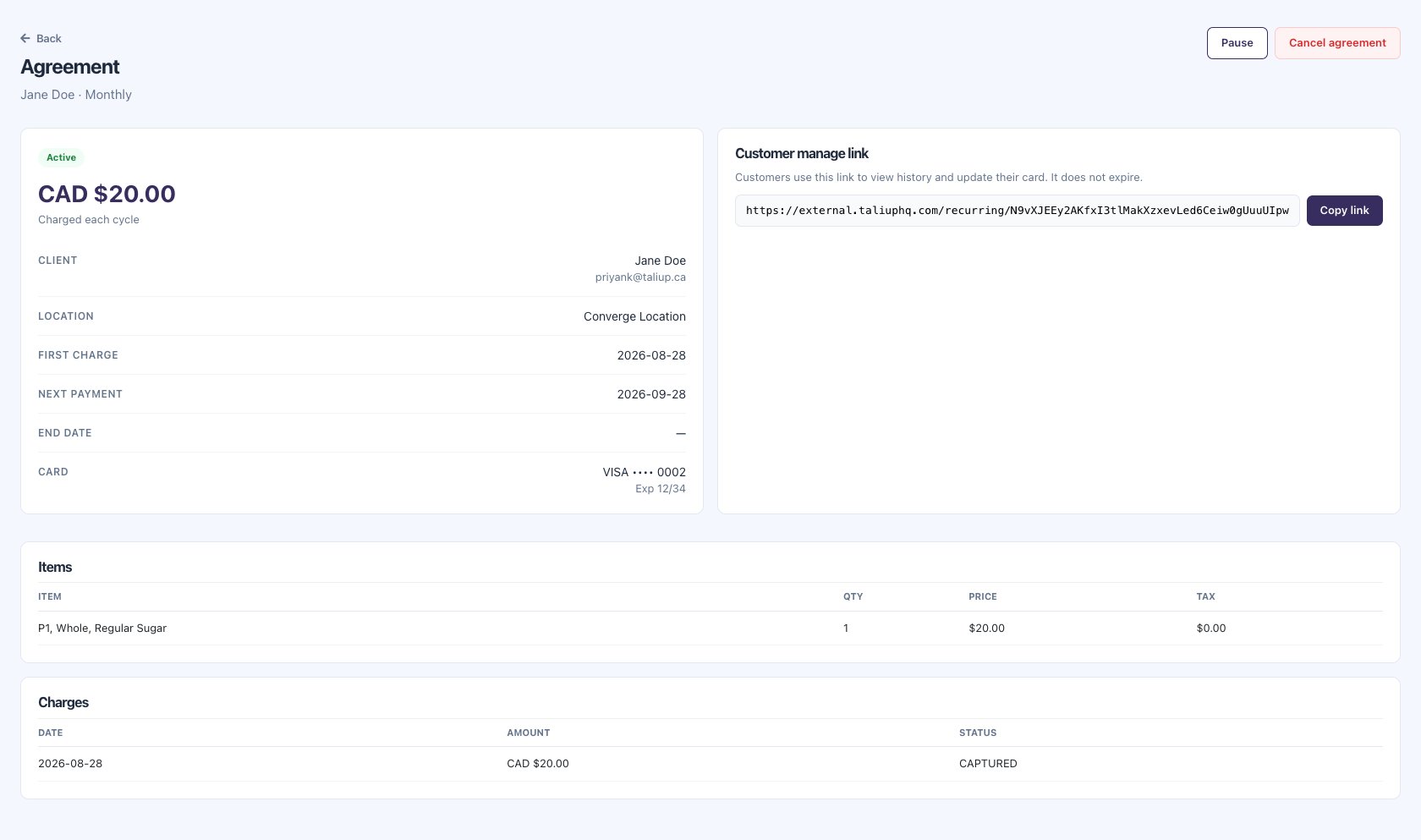 | Action | When it appears |
| -------------------- | -------------------------------------------------------------------------- |
| **Resend email** | Pending, and the checkout link is still valid |
| **Copy link** | Pending checkout link, or the customer manage link after enrollment |
| **Cancel agreement** | Stops a pending checkout, or stops future charges on an enrolled agreement |
The checkout link expires after the invitation window and can be used once. An expired link cannot be resent. Create a new agreement if the customer still needs to enroll.
After checkout:
* A charge appears under **Charges** when the first charge is today. If the first charge is later, or this is a free trial, the card is saved and nothing is charged yet.
* Status moves to **Active**.
* The **Customer manage link** appears. It does not expire. Customers use it to see history, update their card, and cancel if you allowed it.
If the customer cancels, or you cancel from HQ, the agreement shows **Cancelled** plus who cancelled: **Customer**, the merchant name, or **Automatically**.
***
## Statuses
| Status | Meaning |
| ---------------- | ---------------------------------------------------------------- |
| **Pending** | Waiting for checkout |
| **Active** | Schedule is running |
| **Past due** | A scheduled charge failed. The schedule is still on file |
| **Grace period** | Converge is in its retry window after a failed charge |
| **Suspended** | You paused the agreement. Future charges are stopped |
| **Completed** | The end date was reached |
| **Cancelled** | You or the customer cancelled. Past charges stay captured |
| **Failed** | Enrollment did not finish. The customer may need a new agreement |
***
## Charge now
**Charge now** appears only on **Past due** or **Grace period** agreements that already have a Converge schedule.
It collects one missed payment today. It does not wait for the next scheduled date. It is not available on **Active**.
Open a **Past due** or **Grace period** agreement.
Click **Charge now**. Confirm the amount and the card last four.
The switch **Skip the next scheduled charge on {date}** is on by default when that date is today or tomorrow. Leave it on if you do not want Converge to charge again on that date. Turn it off if you still want the regular cycle to run.
If the card approves, Taliup shows **The missed payment was collected.** Status returns to **Active** when the next Converge date is in the future. It can stay **Past due** if that next date is still today or in the past.
If the card declines, the agreement stays past due. The customer and merchant get decline emails. Try again after the customer updates the card, or on the next scheduled attempt.
The Charge now receipt tells the customer this is a missed payment collected today. Regular cycle receipts name the billing period instead.
***
## When a charge declines
A red banner on the agreement reads **The latest charge was declined.** It can include the processor response.
Taliup emails you and the customer. The customer can open the manage link and click **Update payment method**. Updating the card does not collect the missed payment by itself.
| Action | When it appears |
| -------------------- | -------------------------------------------------------------------------- |
| **Resend email** | Pending, and the checkout link is still valid |
| **Copy link** | Pending checkout link, or the customer manage link after enrollment |
| **Cancel agreement** | Stops a pending checkout, or stops future charges on an enrolled agreement |
The checkout link expires after the invitation window and can be used once. An expired link cannot be resent. Create a new agreement if the customer still needs to enroll.
After checkout:
* A charge appears under **Charges** when the first charge is today. If the first charge is later, or this is a free trial, the card is saved and nothing is charged yet.
* Status moves to **Active**.
* The **Customer manage link** appears. It does not expire. Customers use it to see history, update their card, and cancel if you allowed it.
If the customer cancels, or you cancel from HQ, the agreement shows **Cancelled** plus who cancelled: **Customer**, the merchant name, or **Automatically**.
***
## Statuses
| Status | Meaning |
| ---------------- | ---------------------------------------------------------------- |
| **Pending** | Waiting for checkout |
| **Active** | Schedule is running |
| **Past due** | A scheduled charge failed. The schedule is still on file |
| **Grace period** | Converge is in its retry window after a failed charge |
| **Suspended** | You paused the agreement. Future charges are stopped |
| **Completed** | The end date was reached |
| **Cancelled** | You or the customer cancelled. Past charges stay captured |
| **Failed** | Enrollment did not finish. The customer may need a new agreement |
***
## Charge now
**Charge now** appears only on **Past due** or **Grace period** agreements that already have a Converge schedule.
It collects one missed payment today. It does not wait for the next scheduled date. It is not available on **Active**.
Open a **Past due** or **Grace period** agreement.
Click **Charge now**. Confirm the amount and the card last four.
The switch **Skip the next scheduled charge on {date}** is on by default when that date is today or tomorrow. Leave it on if you do not want Converge to charge again on that date. Turn it off if you still want the regular cycle to run.
If the card approves, Taliup shows **The missed payment was collected.** Status returns to **Active** when the next Converge date is in the future. It can stay **Past due** if that next date is still today or in the past.
If the card declines, the agreement stays past due. The customer and merchant get decline emails. Try again after the customer updates the card, or on the next scheduled attempt.
The Charge now receipt tells the customer this is a missed payment collected today. Regular cycle receipts name the billing period instead.
***
## When a charge declines
A red banner on the agreement reads **The latest charge was declined.** It can include the processor response.
Taliup emails you and the customer. The customer can open the manage link and click **Update payment method**. Updating the card does not collect the missed payment by itself.
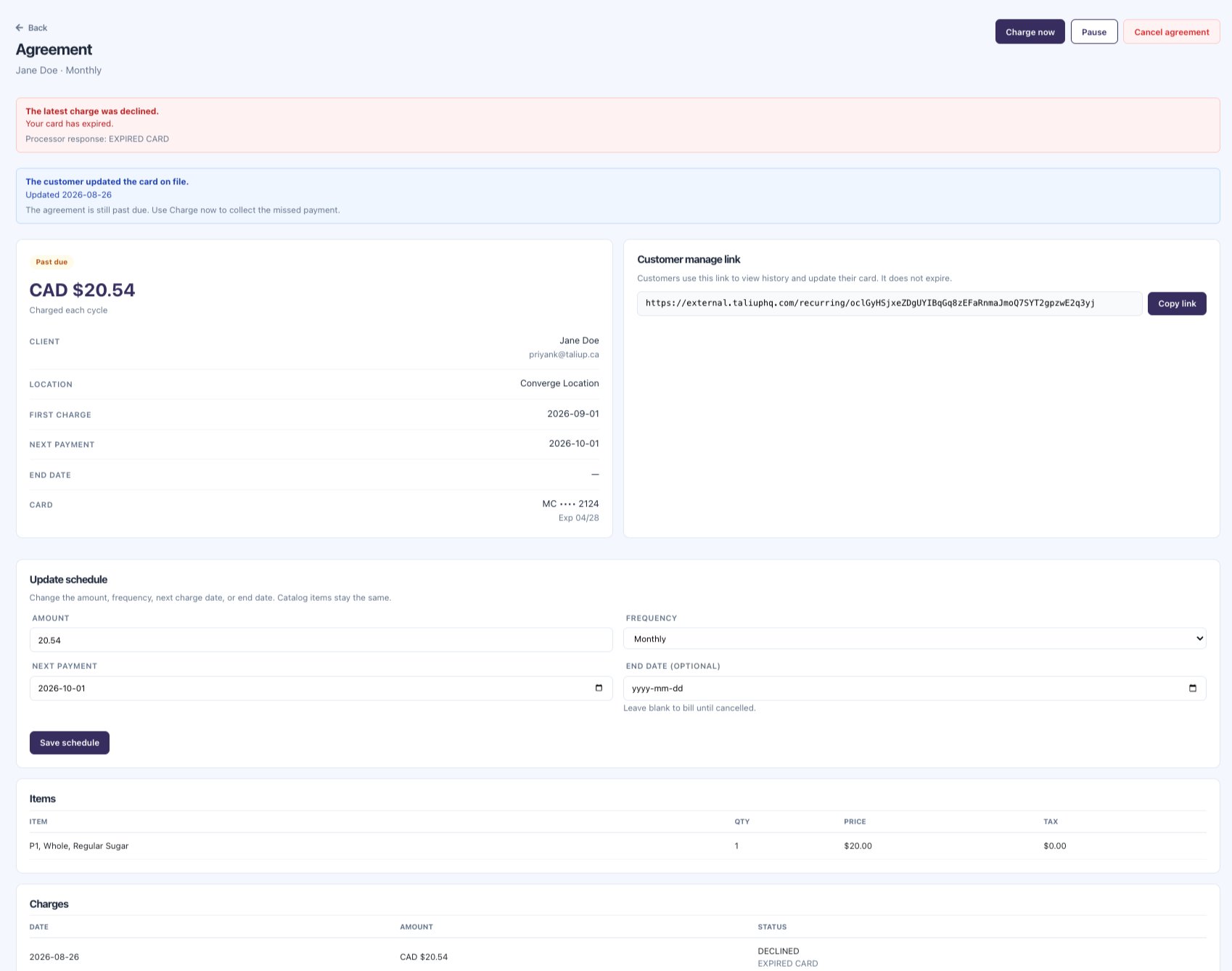 After the customer updates the card, a blue banner shows **The customer updated the card on file** and the update date. If the agreement is still past due, it reminds you to use **Charge now**.
The banner stays until either:
* Status is **Active** again, or
* A successful charge is collected at or after the card update (Charge now or the next scheduled sale)
***
## Pause, resume, and cancel
| Action | What it does |
| -------------------- | --------------------------------------------------------------------------------------------------- |
| **Pause** | Available on Active, Past due, and Grace period. Converge stops future charges until you resume. |
| **Resume** | Available on Suspended. Scheduled charges start again. |
| **Cancel agreement** | Stops future charges. Past charges stay captured. A pending cancel only disables the checkout link. |
Customers can cancel from the manage page only when **Allow this customer to cancel** is on for that agreement. They confirm in a sheet, then the page shows who cancelled.
You cannot change the amount, frequency, or dates after enrollment. That needs a new customer authorization. Create a new agreement if the plan must change.
***
## Settings
From the Recurring Payments list, click **Settings**.
After the customer updates the card, a blue banner shows **The customer updated the card on file** and the update date. If the agreement is still past due, it reminds you to use **Charge now**.
The banner stays until either:
* Status is **Active** again, or
* A successful charge is collected at or after the card update (Charge now or the next scheduled sale)
***
## Pause, resume, and cancel
| Action | What it does |
| -------------------- | --------------------------------------------------------------------------------------------------- |
| **Pause** | Available on Active, Past due, and Grace period. Converge stops future charges until you resume. |
| **Resume** | Available on Suspended. Scheduled charges start again. |
| **Cancel agreement** | Stops future charges. Past charges stay captured. A pending cancel only disables the checkout link. |
Customers can cancel from the manage page only when **Allow this customer to cancel** is on for that agreement. They confirm in a sheet, then the page shows who cancelled.
You cannot change the amount, frequency, or dates after enrollment. That needs a new customer authorization. Create a new agreement if the plan must change.
***
## Settings
From the Recurring Payments list, click **Settings**.
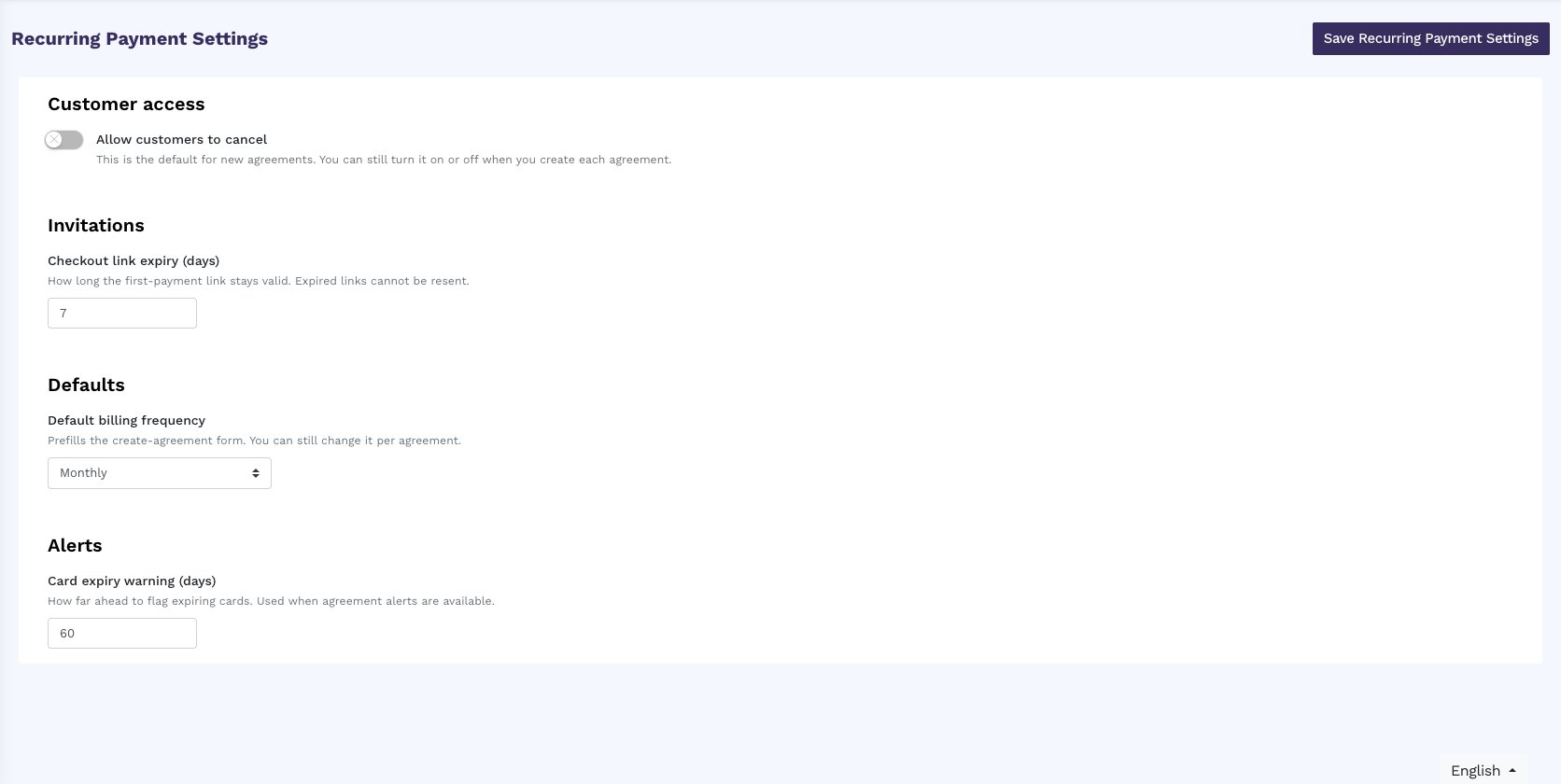 | Setting | Description |
| ------------------------------- | ---------------------------------------------------------------------------------------------- |
| **Allow customers to cancel** | Default for new agreements. You can still override it on each create form. Off by default. |
| **Checkout link expiry (days)** | How long the first-payment link stays valid (1–90, default 7). Expired links cannot be resent. |
| **Default billing frequency** | Prefills **New agreement**. |
| **Card expiry warning (days)** | How far ahead **Needs attention** flags an expiring card (default 60). |
Click **Save Recurring Payment Settings**.
***
## What customers see
Customers do not log in to Taliup HQ.
* **Checkout link** — one-time page to pay today, or to save a card when the first charge is later or a trial is on. The page follows the entity language. Customers can switch to English, French, or Mexican Spanish. They must check **I authorize {merchant} to charge my card…**
* **Customer manage link** — does not expire. Customers can view the schedule, charge history, and **Update payment method**. **Cancel recurring payment** appears only if you allowed it. They confirm in a sheet, then can go back. The page uses the same language dropdown.
Share either link from the agreement page. The manage link is also in customer emails after enrollment.
***
## Emails
| Email | When it sends |
| ------------------- | --------------------------------------------------------------------------------------------------------------------------- |
| Checkout invitation | When you create an agreement, and when you click **Resend email**. It says whether they pay today or only authorize a card. |
| Receipt | After a successful cycle or Charge now |
| Payment declined | After the latest charge fails — sent to you and the customer |
Ask the customer to check junk if an invitation is missing. Confirm the client email on the agreement before you resend.
***
## Troubleshooting
### Recurring Payments is not in the sidebar
Ask your ISO to enable **Recurring Payments** on the entity plan. It requires **Hosted Payment Solution** and **Clients**.
### You cannot create an agreement
Add an active Elavon Converge gateway to at least one location.
### Customer did not get the checkout email
1. Confirm the client email on the agreement.
2. Ask them to check junk.
3. Use **Resend email** if the link is still valid, or **Copy link** and send it yourself.
4. If the link expired, create a new agreement.
### Checkout expired or is no longer available
The first-payment link is single-use and expires after the invitation window. Create a new agreement for a fresh link.
### Latest charge was declined
Send the customer the manage link so they can update the card. Then use **Charge now** if you need the missed payment today. The next scheduled attempt still runs unless you skip it from Charge now.
### Charge now is missing
The agreement must be **Past due** or **Grace period**, and checkout must have already enrolled the Converge schedule. Pending and Active agreements do not show Charge now.
### Card was updated but the agreement is still past due
Updating the card does not collect the missed payment. Use **Charge now**, or wait for the next scheduled charge.
### Enrollment failed
**Failed** agreements sit under **Closed**. The customer may need a new agreement and a new checkout link.
### Customer wants a different amount or frequency
You cannot change the schedule after enrollment. Cancel the current agreement if needed, then create a new one.
### Customer wants to stop billing
Use **Cancel agreement**, or ask them to tap **Cancel recurring payment** on the manage page if you allowed it. Pause if you only need to stop charges temporarily.
***
## Related
* [Clients](/taliup-hq/features/clients)
* [Hosted Payments](/taliup-hq/features/hosted-payments)
* [Locations](/taliup-hq/onboarding/locations)
* [Plans & Features](/taliup-hq/onboarding/plans-features)
| Setting | Description |
| ------------------------------- | ---------------------------------------------------------------------------------------------- |
| **Allow customers to cancel** | Default for new agreements. You can still override it on each create form. Off by default. |
| **Checkout link expiry (days)** | How long the first-payment link stays valid (1–90, default 7). Expired links cannot be resent. |
| **Default billing frequency** | Prefills **New agreement**. |
| **Card expiry warning (days)** | How far ahead **Needs attention** flags an expiring card (default 60). |
Click **Save Recurring Payment Settings**.
***
## What customers see
Customers do not log in to Taliup HQ.
* **Checkout link** — one-time page to pay today, or to save a card when the first charge is later or a trial is on. The page follows the entity language. Customers can switch to English, French, or Mexican Spanish. They must check **I authorize {merchant} to charge my card…**
* **Customer manage link** — does not expire. Customers can view the schedule, charge history, and **Update payment method**. **Cancel recurring payment** appears only if you allowed it. They confirm in a sheet, then can go back. The page uses the same language dropdown.
Share either link from the agreement page. The manage link is also in customer emails after enrollment.
***
## Emails
| Email | When it sends |
| ------------------- | --------------------------------------------------------------------------------------------------------------------------- |
| Checkout invitation | When you create an agreement, and when you click **Resend email**. It says whether they pay today or only authorize a card. |
| Receipt | After a successful cycle or Charge now |
| Payment declined | After the latest charge fails — sent to you and the customer |
Ask the customer to check junk if an invitation is missing. Confirm the client email on the agreement before you resend.
***
## Troubleshooting
### Recurring Payments is not in the sidebar
Ask your ISO to enable **Recurring Payments** on the entity plan. It requires **Hosted Payment Solution** and **Clients**.
### You cannot create an agreement
Add an active Elavon Converge gateway to at least one location.
### Customer did not get the checkout email
1. Confirm the client email on the agreement.
2. Ask them to check junk.
3. Use **Resend email** if the link is still valid, or **Copy link** and send it yourself.
4. If the link expired, create a new agreement.
### Checkout expired or is no longer available
The first-payment link is single-use and expires after the invitation window. Create a new agreement for a fresh link.
### Latest charge was declined
Send the customer the manage link so they can update the card. Then use **Charge now** if you need the missed payment today. The next scheduled attempt still runs unless you skip it from Charge now.
### Charge now is missing
The agreement must be **Past due** or **Grace period**, and checkout must have already enrolled the Converge schedule. Pending and Active agreements do not show Charge now.
### Card was updated but the agreement is still past due
Updating the card does not collect the missed payment. Use **Charge now**, or wait for the next scheduled charge.
### Enrollment failed
**Failed** agreements sit under **Closed**. The customer may need a new agreement and a new checkout link.
### Customer wants a different amount or frequency
You cannot change the schedule after enrollment. Cancel the current agreement if needed, then create a new one.
### Customer wants to stop billing
Use **Cancel agreement**, or ask them to tap **Cancel recurring payment** on the manage page if you allowed it. Pause if you only need to stop charges temporarily.
***
## Related
* [Clients](/taliup-hq/features/clients)
* [Hosted Payments](/taliup-hq/features/hosted-payments)
* [Locations](/taliup-hq/onboarding/locations)
* [Plans & Features](/taliup-hq/onboarding/plans-features)