> ## Documentation Index
> Fetch the complete documentation index at: https://docs.taliuphq.com/llms.txt
> Use this file to discover all available pages before exploring further.
# Invoicing
> Create, send, update, and manage invoices from the merchant portal — including restore-client, update and resend, inventory on delete, and email troubleshooting.
Invoicing lets you create professional invoices, email them to clients, optionally include an online payment link, and track payment from Taliup HQ.
Open **Invoices** in the merchant sidebar to get started.
***
## Prerequisites
The `Invoicing` feature must be enabled on your entity plan. Ask your ISO admin to enable it in [Plans & Features](/taliup-hq/onboarding/plans-features) if you do not see **Invoices** in the sidebar.
Email delivery requires a selected client with a valid email address. You can add or update clients from the invoice form or from **Clients**.
To include a **Pay** link on the invoice, enable **Link To Pay** / online payments for your entity and configure an online payment gateway on the location. If Online Payment shows as **Disabled**, customers can still receive the invoice but cannot pay online from the email.
***
## Invoices list
When you have not created any invoices yet, the Invoices page shows an empty state with a clear call to action.
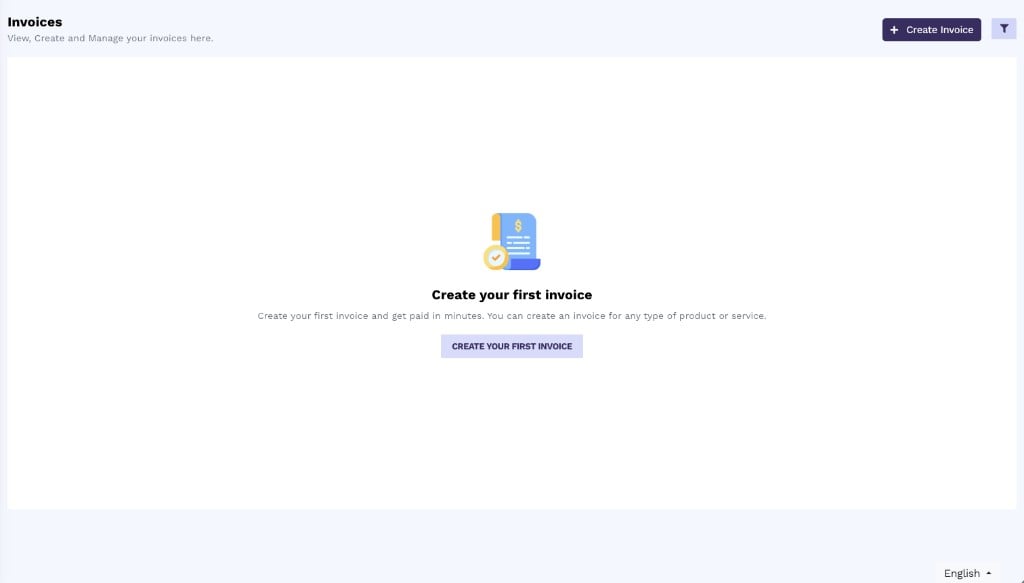 From here you can:
* Click **+ Create Invoice** (or **Create your first invoice**) to open the create form
* Use the filter control once you have invoices to narrow the list
* Sent invoices show **Due in X days** or **Due today** as whole days. Overdue invoices show **Overdue by X days**.
***
## Create an invoice
The create form has a main editor on the left and a live **Invoice Preview** on the right.
From here you can:
* Click **+ Create Invoice** (or **Create your first invoice**) to open the create form
* Use the filter control once you have invoices to narrow the list
* Sent invoices show **Due in X days** or **Due today** as whole days. Overdue invoices show **Overdue by X days**.
***
## Create an invoice
The create form has a main editor on the left and a live **Invoice Preview** on the right.
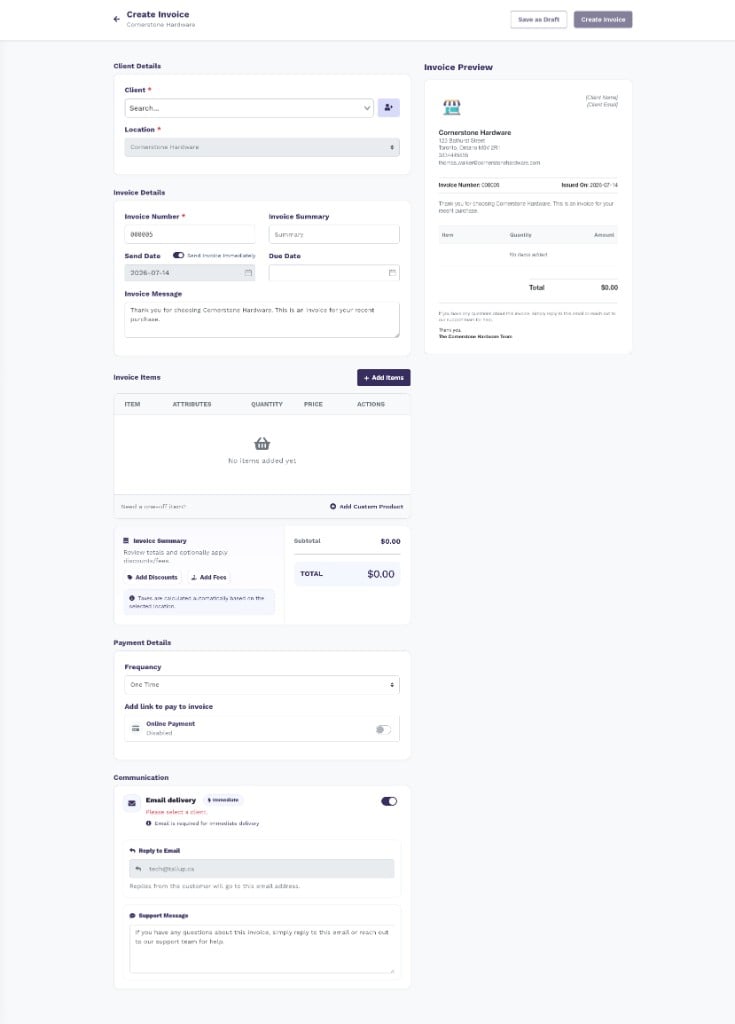 Use **Save as Draft** to store the invoice without sending it, or **Create Invoice** when you are ready to finalize (and send, if email delivery is enabled).
### Client Details
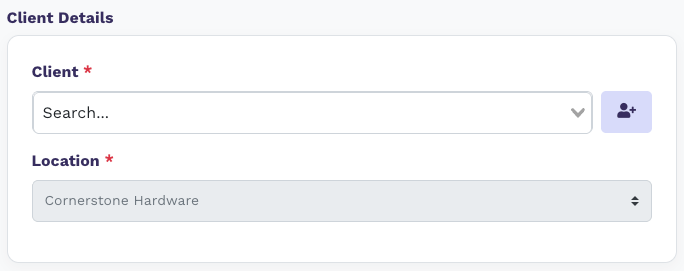
Select who the invoice is for and which location it belongs to.
Use **Save as Draft** to store the invoice without sending it, or **Create Invoice** when you are ready to finalize (and send, if email delivery is enabled).
### Client Details
Select who the invoice is for and which location it belongs to.
 | Field | Description |
| -------------- | --------------------------------------------------------------------------------------- |
| **Client** | Search and select an existing client. Required for email delivery. |
| **Add client** | Use the person-plus button to open **Add Client** without leaving the page. |
| **Location** | The business location for the invoice. Taxes are calculated from the selected location. |
| Field | Description |
| -------------- | --------------------------------------------------------------------------------------- |
| **Client** | Search and select an existing client. Required for email delivery. |
| **Add client** | Use the person-plus button to open **Add Client** without leaving the page. |
| **Location** | The business location for the invoice. Taxes are calculated from the selected location. |
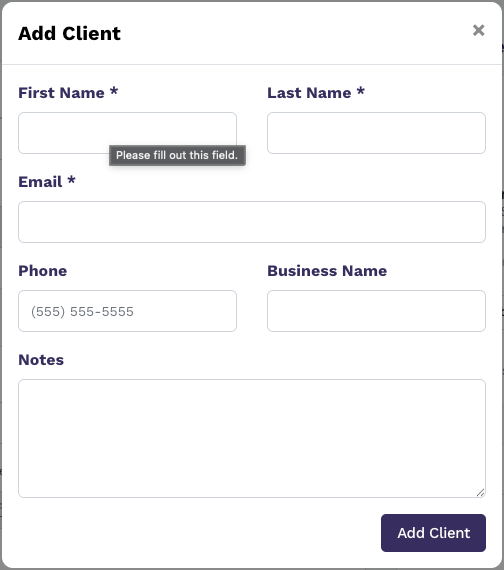 **Email** is required when you create a client who should receive invoices by email.
If that email belongs to a client you already deleted, Taliup asks **Restore previous client?** instead of creating a duplicate. Click **Restore** to reuse the existing record and their invoice history. See [Restore a deleted client](/taliup-hq/features/clients#restore-a-deleted-client).
### Invoice Details
Set the invoice identity, timing, and customer-facing message.
**Email** is required when you create a client who should receive invoices by email.
If that email belongs to a client you already deleted, Taliup asks **Restore previous client?** instead of creating a duplicate. Click **Restore** to reuse the existing record and their invoice history. See [Restore a deleted client](/taliup-hq/features/clients#restore-a-deleted-client).
### Invoice Details
Set the invoice identity, timing, and customer-facing message.
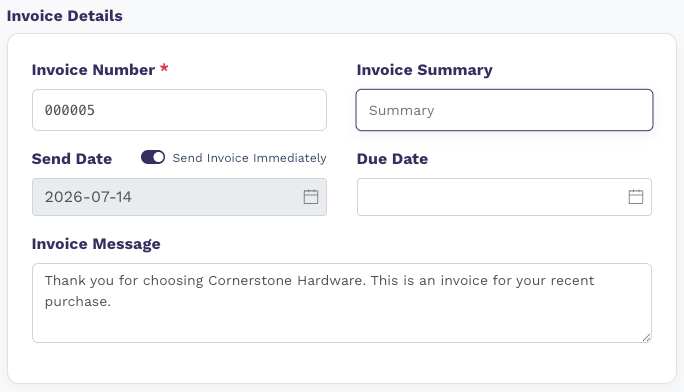 | Field | Description |
| ---------------------------- | --------------------------------------------------------------------------------------- |
| **Invoice Number** | Unique invoice identifier (for example `000005`). |
| **Invoice Summary** | Optional short description. |
| **Send Date** | When the invoice is scheduled to send. |
| **Send Invoice Immediately** | When on, Taliup sends as soon as the invoice is created (if email delivery is enabled). |
| **Due Date** | Optional payment due date shown on the invoice. |
| **Invoice Message** | Body copy that appears on the invoice and in the email. |
### Invoice Items
Add catalog products or one-off custom products, then optionally apply discounts and fees.
| Field | Description |
| ---------------------------- | --------------------------------------------------------------------------------------- |
| **Invoice Number** | Unique invoice identifier (for example `000005`). |
| **Invoice Summary** | Optional short description. |
| **Send Date** | When the invoice is scheduled to send. |
| **Send Invoice Immediately** | When on, Taliup sends as soon as the invoice is created (if email delivery is enabled). |
| **Due Date** | Optional payment due date shown on the invoice. |
| **Invoice Message** | Body copy that appears on the invoice and in the email. |
### Invoice Items
Add catalog products or one-off custom products, then optionally apply discounts and fees.
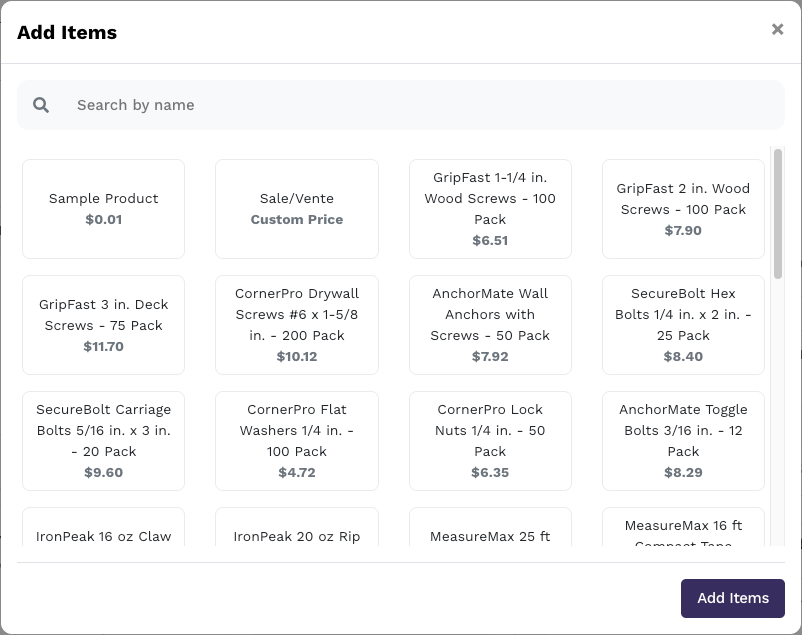
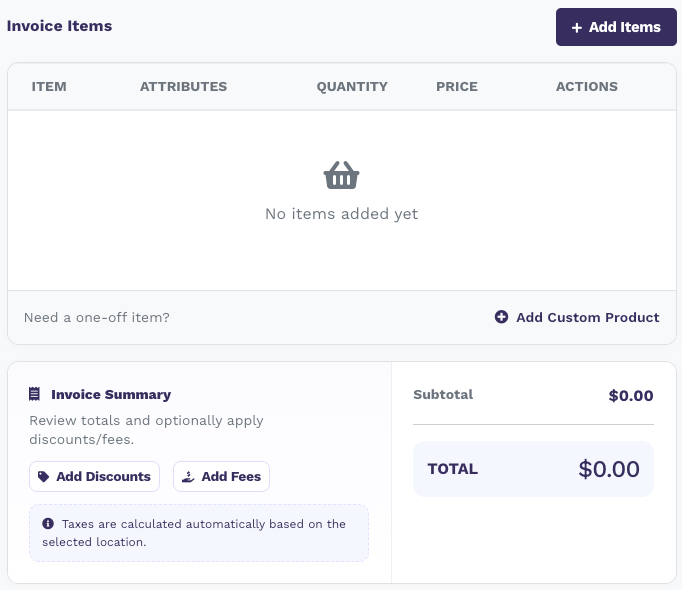 * **+ Add Items** opens your product catalog so you can search and select line items.
* **+ Add Custom Product** adds a one-off item that is not in the catalog.
* **Add Discounts** / **Add Fees** adjust the invoice total.
* Taxes are calculated automatically based on the selected location.
* **+ Add Items** opens your product catalog so you can search and select line items.
* **+ Add Custom Product** adds a one-off item that is not in the catalog.
* **Add Discounts** / **Add Fees** adjust the invoice total.
* Taxes are calculated automatically based on the selected location.
 ### Payment Details
Choose payment frequency and whether customers can pay online from the invoice.
### Payment Details
Choose payment frequency and whether customers can pay online from the invoice.
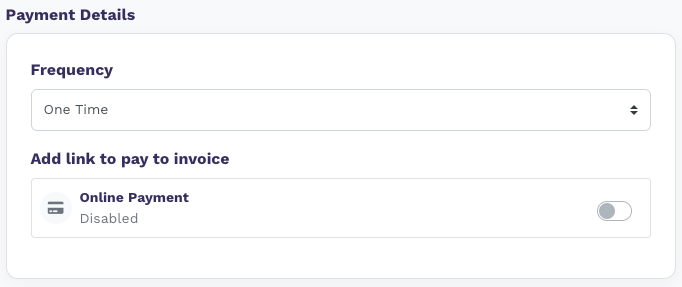 | Setting | Description |
| ------------------------------------ | ----------------------------------------------------------------------------------------------------------------------------------------------------- |
| **Frequency** | Typically **One Time** for a single invoice. |
| **Add link to pay / Online Payment** | When enabled, the invoice email and payment page include a pay link. When **Disabled**, the invoice is still deliverable but without online checkout. |
### Communication
Control whether and how the invoice is emailed.
| Setting | Description |
| ------------------------------------ | ----------------------------------------------------------------------------------------------------------------------------------------------------- |
| **Frequency** | Typically **One Time** for a single invoice. |
| **Add link to pay / Online Payment** | When enabled, the invoice email and payment page include a pay link. When **Disabled**, the invoice is still deliverable but without online checkout. |
### Communication
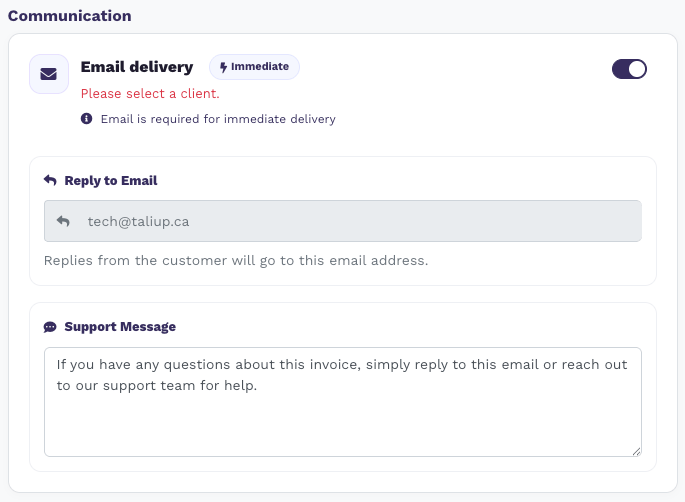
Control whether and how the invoice is emailed.
 | Setting | Description |
| ------------------- | ---------------------------------------------------------------------------------------------------------------- |
| **Email delivery** | Master toggle for sending the invoice by email. The **Immediate** badge appears when send-immediately is active. |
| **Reply to Email** | Where customer replies are directed. Configured in Invoice Settings when available. |
| **Support Message** | Footer text on the invoice email (for example how to contact your team). |
If email delivery is on but no client is selected, Taliup shows validation such as **Please select a client** and notes that email is required for immediate delivery.
### Invoice Preview
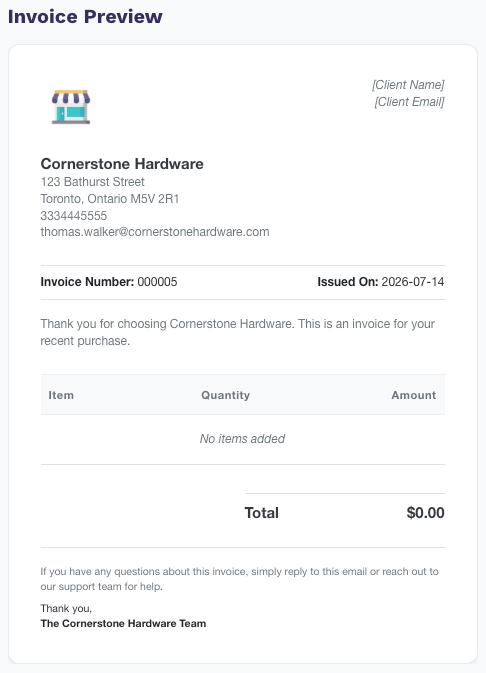
The right-hand preview updates as you edit so you can confirm branding, message, line items, and totals before you create the invoice.
If the entity has a logo in **Settings → Business**, that logo appears on the preview and on downloaded invoice and receipt PDFs.
| Setting | Description |
| ------------------- | ---------------------------------------------------------------------------------------------------------------- |
| **Email delivery** | Master toggle for sending the invoice by email. The **Immediate** badge appears when send-immediately is active. |
| **Reply to Email** | Where customer replies are directed. Configured in Invoice Settings when available. |
| **Support Message** | Footer text on the invoice email (for example how to contact your team). |
If email delivery is on but no client is selected, Taliup shows validation such as **Please select a client** and notes that email is required for immediate delivery.
### Invoice Preview
The right-hand preview updates as you edit so you can confirm branding, message, line items, and totals before you create the invoice.
If the entity has a logo in **Settings → Business**, that logo appears on the preview and on downloaded invoice and receipt PDFs.
 ***
## Edit a sent invoice
You can edit an invoice after it has been sent, as long as it is not paid.
| Status | What you can do |
| -------------------------------------- | ---------------------------------------------------------------------------------------------------------------------------------------------------------------------- |
| **Draft** | Edit all fields, including client, location, and invoice number. Click **Update Invoice**. |
| **Sent**, **Overdue**, or **Canceled** | Edit message, items, dates, and payment settings. Client, location, and invoice number stay locked. Click **Update and Resend** to save and email the updated invoice. |
| **Paid** | Editing is blocked. Taliup shows that the invoice can no longer be edited because it has been paid or is otherwise locked. |
***
## Edit a sent invoice
You can edit an invoice after it has been sent, as long as it is not paid.
| Status | What you can do |
| -------------------------------------- | ---------------------------------------------------------------------------------------------------------------------------------------------------------------------- |
| **Draft** | Edit all fields, including client, location, and invoice number. Click **Update Invoice**. |
| **Sent**, **Overdue**, or **Canceled** | Edit message, items, dates, and payment settings. Client, location, and invoice number stay locked. Click **Update and Resend** to save and email the updated invoice. |
| **Paid** | Editing is blocked. Taliup shows that the invoice can no longer be edited because it has been paid or is otherwise locked. |
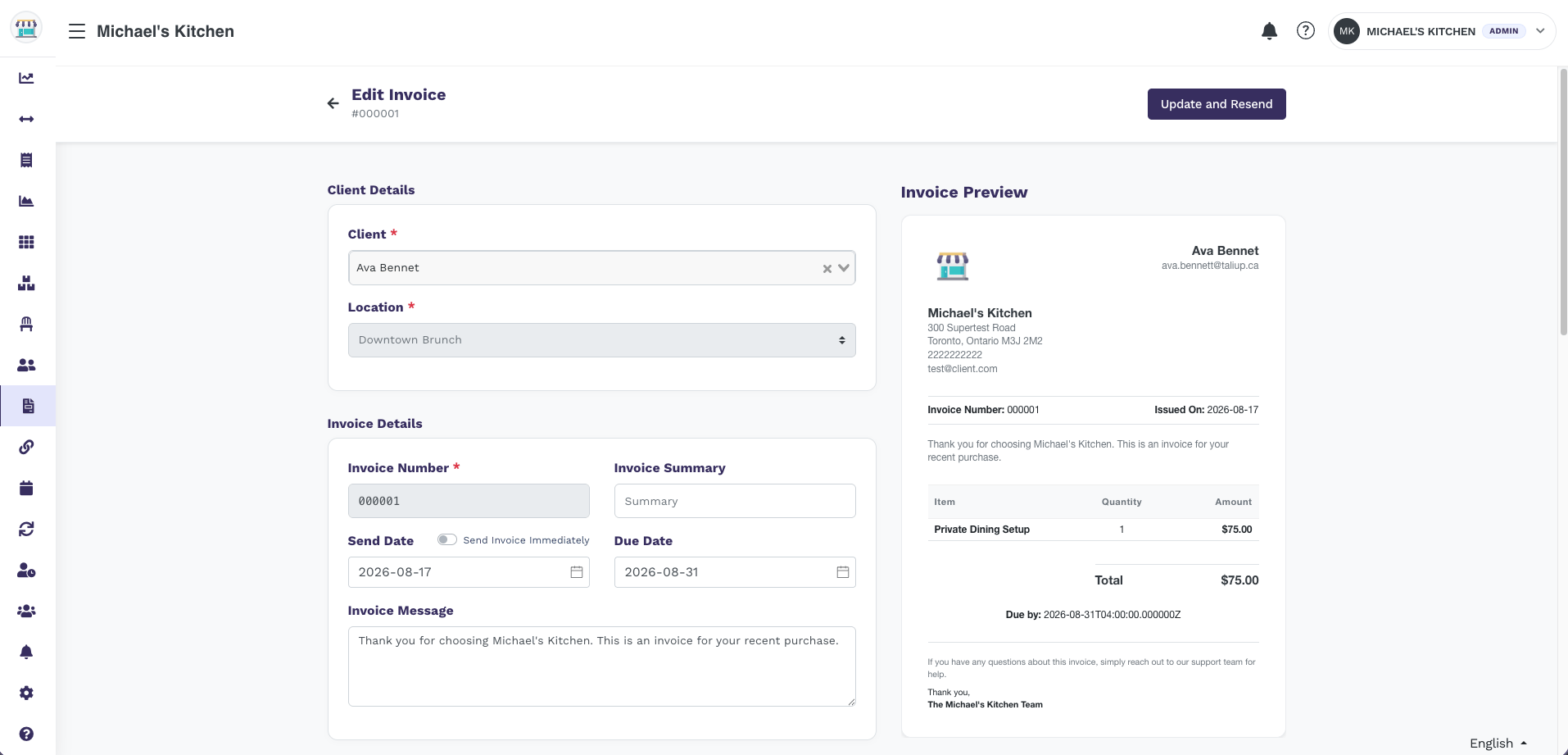 From **Invoices**, open a sent unpaid invoice.
Update the message, line items, due date, or payment settings. You cannot change the client, location, or invoice number after send.
Click **Update and Resend**. Taliup saves the changes and emails the client again when email delivery is on.
***
## Return stock when you delete an invoice
When you delete an unpaid invoice that held inventory, Taliup can put those quantities back into stock.
Set the default in **Settings → Invoice Settings → Inventory**:
| Setting | What happens |
| ----------------------------------- | ------------------------------------------------------------------ |
| **Always return stock** (toggle on) | Stock is returned automatically when you delete an unpaid invoice. |
| **Ask** (toggle off) | Each delete asks whether to **Return stock to inventory**. |
From **Invoices**, open a sent unpaid invoice.
Update the message, line items, due date, or payment settings. You cannot change the client, location, or invoice number after send.
Click **Update and Resend**. Taliup saves the changes and emails the client again when email delivery is on.
***
## Return stock when you delete an invoice
When you delete an unpaid invoice that held inventory, Taliup can put those quantities back into stock.
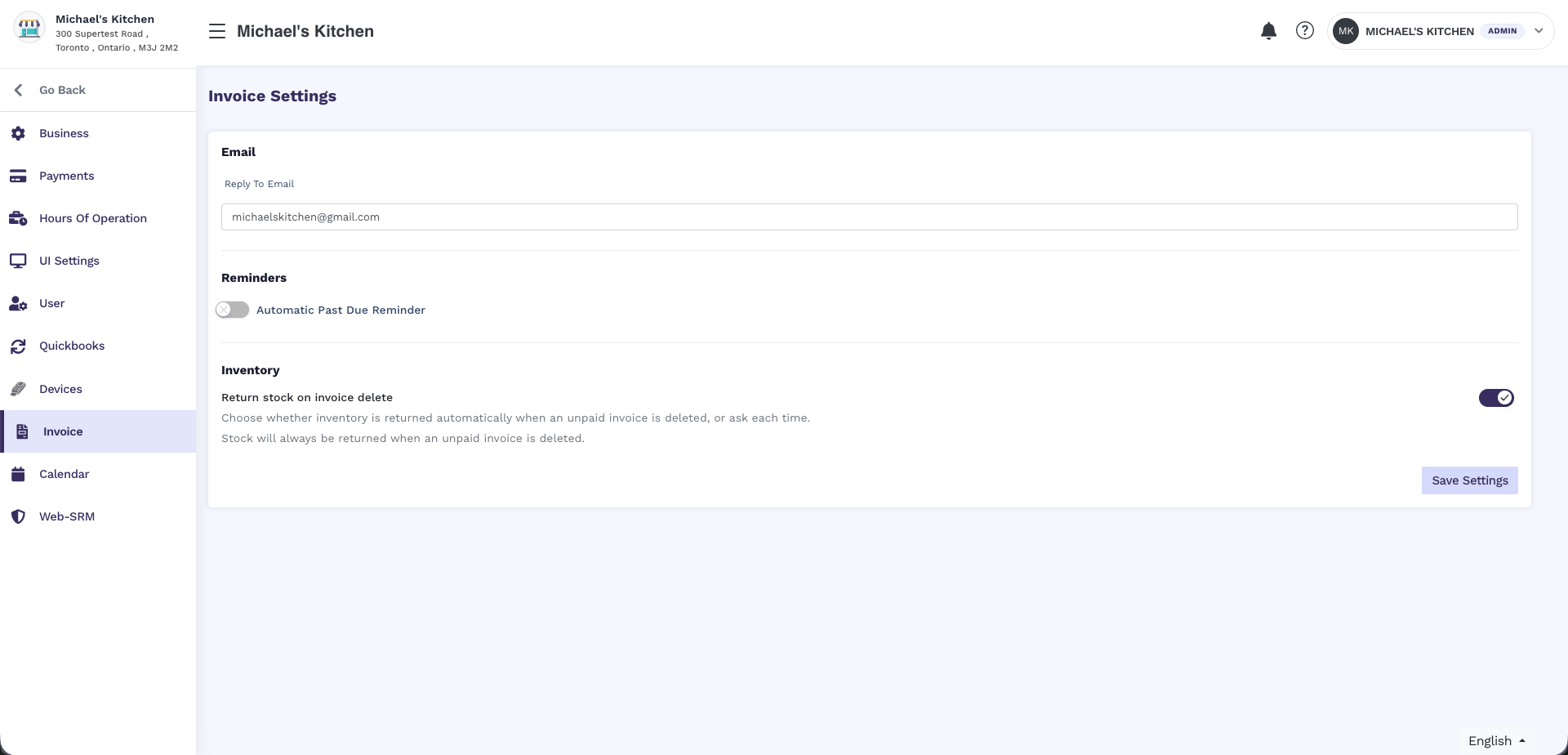
Set the default in **Settings → Invoice Settings → Inventory**:
| Setting | What happens |
| ----------------------------------- | ------------------------------------------------------------------ |
| **Always return stock** (toggle on) | Stock is returned automatically when you delete an unpaid invoice. |
| **Ask** (toggle off) | Each delete asks whether to **Return stock to inventory**. |
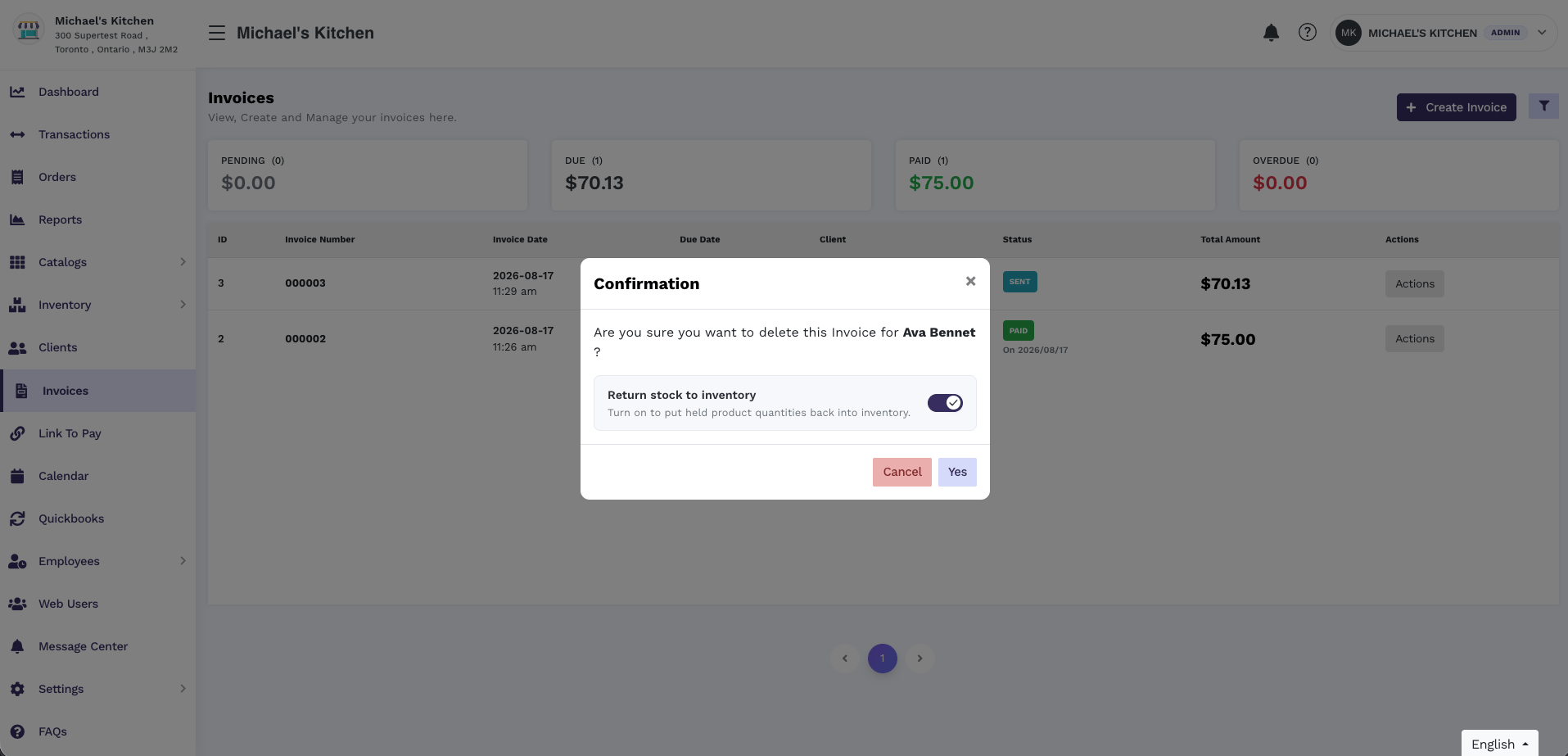 Draft and paid invoice deletes do not return stock.
***
## Customer payment page
When a client opens the invoice (from email or a shared link), they see the issued and due dates, line items, and amount due. They can download a PDF from this page.
Draft and paid invoice deletes do not return stock.
***
## Customer payment page
When a client opens the invoice (from email or a shared link), they see the issued and due dates, line items, and amount due. They can download a PDF from this page.
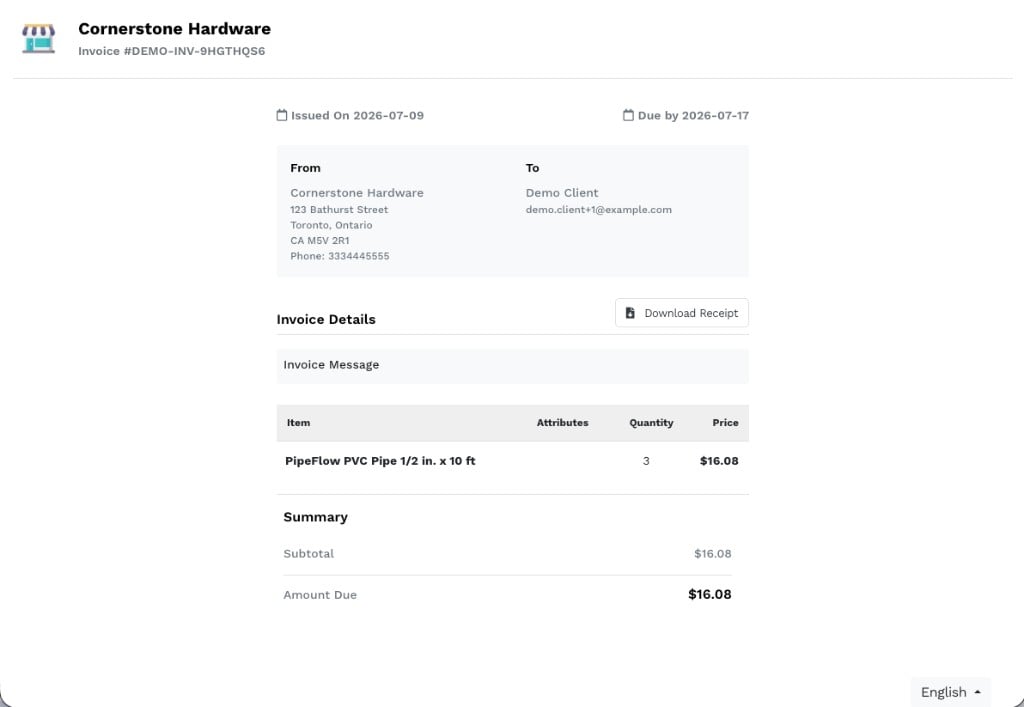 Invoice emails no longer rely on an attached PDF. If a customer needs a file copy, ask them to use **Download Receipt** (or the PDF download) on the payment page.
***
## Refunds
Refunding an invoice opens a confirmation step so you confirm the client and capture a reason.
Invoice emails no longer rely on an attached PDF. If a customer needs a file copy, ask them to use **Download Receipt** (or the PDF download) on the payment page.
***
## Refunds
Refunding an invoice opens a confirmation step so you confirm the client and capture a reason.
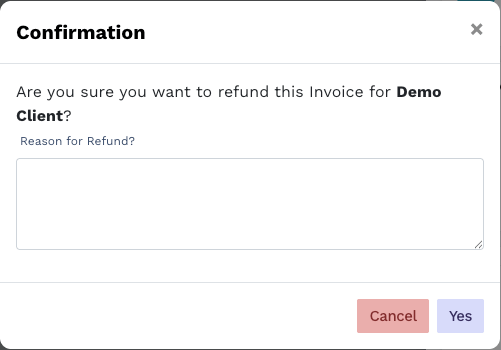 1. Start a refund from the invoice.
2. Confirm the client name in the prompt.
3. Enter a **Reason for Refund**.
4. Choose **Yes** to proceed or **Cancel** to abort.
***
## Invoice email conditions
An invoice email is sent only when all of the following are true:
| Condition | What to check |
| ------------------------- | ------------------------------------------------------------------------------------------------ |
| Email delivery is enabled | Communication → **Email delivery** is on |
| Client has a valid email | Client is selected and the client record includes an email |
| Timing is ready | **Send Invoice Immediately** is on, or the scheduled **Send Date** has been reached |
| Address can receive mail | Taliup is not blocked from delivering to that address (you see a clear error if send is blocked) |
| Reply-To (optional) | If Invoice Settings include a reply-to address, customer replies go there |
Immediate delivery always requires a client email. If you see **Email is required for immediate delivery**, select or create a client with an email before creating the invoice.
***
## Troubleshooting
### Customer says they did not receive the invoice
1. Confirm the client email spelling on the invoice / client record.
2. Ask the customer to check **Junk** / **Spam**.
3. On Outlook / Hotmail, ask whether junk filtering is set to trust only Safe senders. If so, they should mark the message **It's not junk** and add the sender to Safe senders.
4. Confirm Communication **Email delivery** was on and whether send was immediate or scheduled for a later date.
### Merchant sees a delivery / suppressed email error
If Taliup cannot send because the address was previously unreachable or blocked for delivery:
* Update the client to a working email address, or
* Contact Taliup support to review the address before retrying
Do not keep resending to an address that has already failed hard delivery.
### Online pay link is missing
1. On the invoice, open **Payment Details** and confirm **Online Payment** is enabled.
2. Confirm your plan includes Link to Pay / online payment features and that the location has an online payment gateway configured.
### Customer needs a PDF
Use the customer payment page **Download Receipt** / PDF download. The invoice email is designed to stand alone without a PDF attachment.
### Wrong reply destination
Update **Reply to Email** in Invoice Settings so customer replies go to the correct mailbox.
1. Start a refund from the invoice.
2. Confirm the client name in the prompt.
3. Enter a **Reason for Refund**.
4. Choose **Yes** to proceed or **Cancel** to abort.
***
## Invoice email conditions
An invoice email is sent only when all of the following are true:
| Condition | What to check |
| ------------------------- | ------------------------------------------------------------------------------------------------ |
| Email delivery is enabled | Communication → **Email delivery** is on |
| Client has a valid email | Client is selected and the client record includes an email |
| Timing is ready | **Send Invoice Immediately** is on, or the scheduled **Send Date** has been reached |
| Address can receive mail | Taliup is not blocked from delivering to that address (you see a clear error if send is blocked) |
| Reply-To (optional) | If Invoice Settings include a reply-to address, customer replies go there |
Immediate delivery always requires a client email. If you see **Email is required for immediate delivery**, select or create a client with an email before creating the invoice.
***
## Troubleshooting
### Customer says they did not receive the invoice
1. Confirm the client email spelling on the invoice / client record.
2. Ask the customer to check **Junk** / **Spam**.
3. On Outlook / Hotmail, ask whether junk filtering is set to trust only Safe senders. If so, they should mark the message **It's not junk** and add the sender to Safe senders.
4. Confirm Communication **Email delivery** was on and whether send was immediate or scheduled for a later date.
### Merchant sees a delivery / suppressed email error
If Taliup cannot send because the address was previously unreachable or blocked for delivery:
* Update the client to a working email address, or
* Contact Taliup support to review the address before retrying
Do not keep resending to an address that has already failed hard delivery.
### Online pay link is missing
1. On the invoice, open **Payment Details** and confirm **Online Payment** is enabled.
2. Confirm your plan includes Link to Pay / online payment features and that the location has an online payment gateway configured.
### Customer needs a PDF
Use the customer payment page **Download Receipt** / PDF download. The invoice email is designed to stand alone without a PDF attachment.
### Wrong reply destination
Update **Reply to Email** in Invoice Settings so customer replies go to the correct mailbox.