> ## Documentation Index
> Fetch the complete documentation index at: https://docs.taliuphq.com/llms.txt
> Use this file to discover all available pages before exploring further.
# Hosted Payments
> Accept payments on any website, app, or platform — no checkout page to build.
Hosted Payments lets merchants accept payments on any website, app, or platform without building a checkout page. The merchant's backend generates a secure, one-time checkout URL; the customer completes payment on a Taliup-hosted page and is returned to the merchant's site.
The feature is accessed via **Hosted Payments** in the merchant sidebar.
***
## Prerequisites
Three conditions must be met before credentials appear and the feature is usable:
The entity must be configured with **Elavon** as its payment provider. This is set during entity creation or can be updated in the [Entity Profile](/taliup-hq/manage/profile).
The `Hosted Payment Solution` feature must be enabled for the entity. Enable it in [Plans & Features](/taliup-hq/onboarding/plans-features).
At least one location must have an active **Online Payment Gateway** (Converge / Elavon) set up. See [Locations](/taliup-hq/onboarding/locations) for setup instructions.
***
## API Credentials
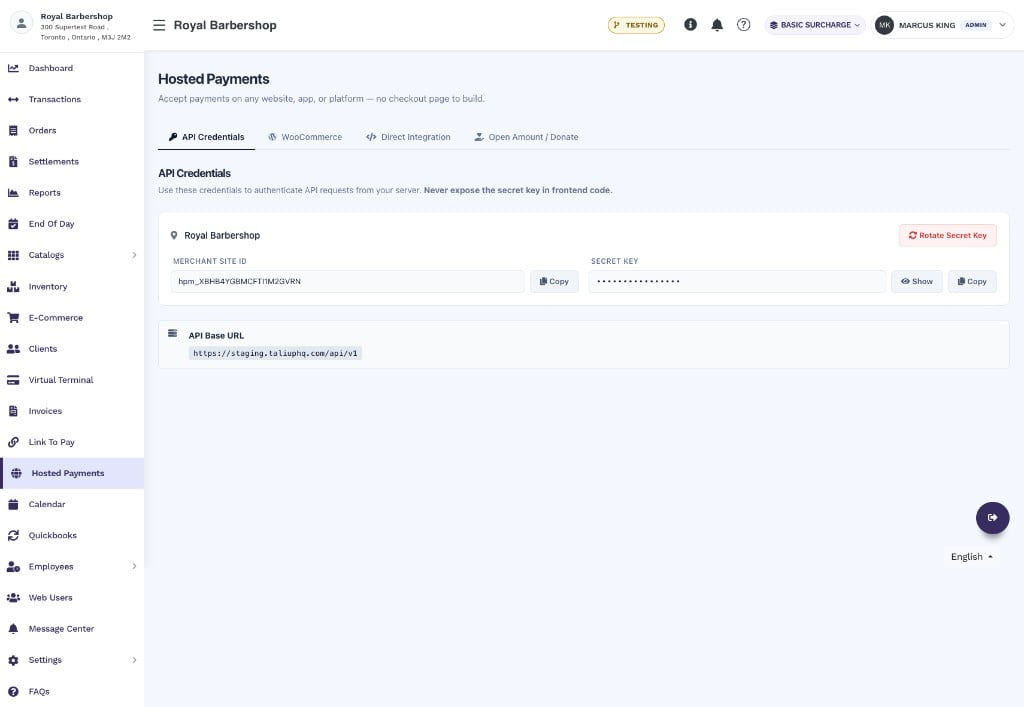 Credentials are generated **per location**. When an entity has multiple locations, a location selector appears at the top of the card.
| Field | Description |
| --------------------- | --------------------------------------------------------------------------------------------------------------------------------------- |
| **Merchant Site ID** | Unique identifier for this location (`hpm_...`). Passed as the `X-Merchant-Site-Id` header in every API request. Copy button available. |
| **Secret Key** | Masked by default. Use the **Show** button to reveal it or **Copy** to copy without revealing. |
| **Rotate Secret Key** | Generates a new secret key immediately. Any existing integration using the old key will fail until updated with the new value. |
| **API Base URL** | The base URL for all API requests. |
**API Base URLs:**
| Environment | URL |
| ----------- | ------------------------------------- |
| Production | `https://taliuphq.com/api/v1` |
| Staging | `https://staging.taliuphq.com/api/v1` |
Never expose the Secret Key in frontend code. All API requests must be made from your server.
***
## WooCommerce Integration
Credentials are generated **per location**. When an entity has multiple locations, a location selector appears at the top of the card.
| Field | Description |
| --------------------- | --------------------------------------------------------------------------------------------------------------------------------------- |
| **Merchant Site ID** | Unique identifier for this location (`hpm_...`). Passed as the `X-Merchant-Site-Id` header in every API request. Copy button available. |
| **Secret Key** | Masked by default. Use the **Show** button to reveal it or **Copy** to copy without revealing. |
| **Rotate Secret Key** | Generates a new secret key immediately. Any existing integration using the old key will fail until updated with the new value. |
| **API Base URL** | The base URL for all API requests. |
**API Base URLs:**
| Environment | URL |
| ----------- | ------------------------------------- |
| Production | `https://taliuphq.com/api/v1` |
| Staging | `https://staging.taliuphq.com/api/v1` |
Never expose the Secret Key in frontend code. All API requests must be made from your server.
***
## WooCommerce Integration
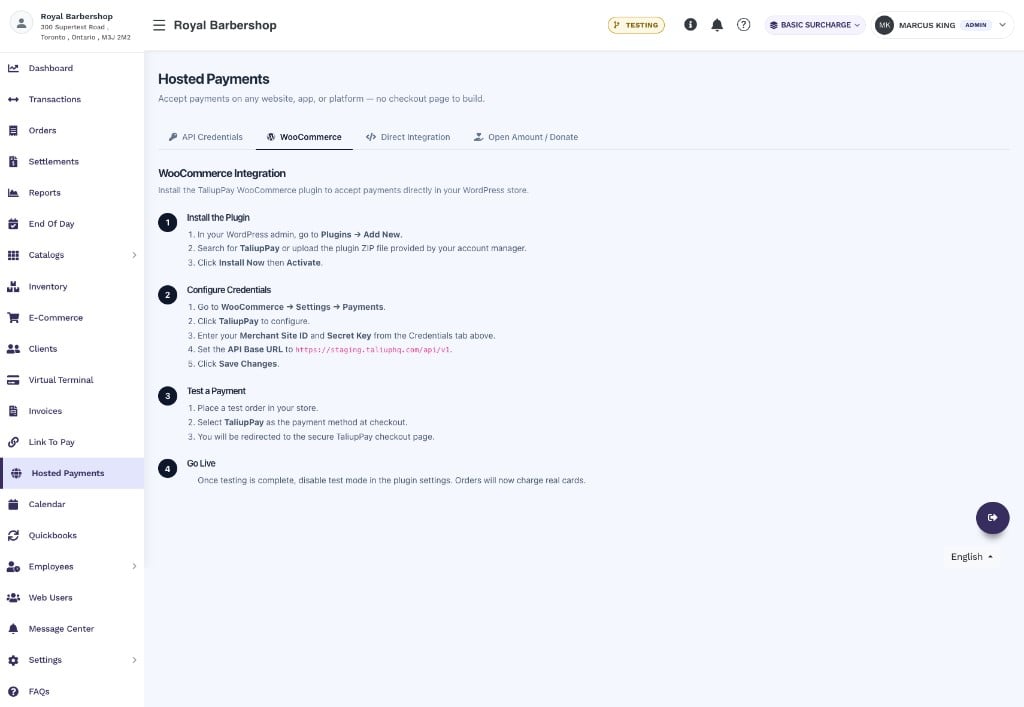 The WooCommerce tab provides a guided setup for WordPress stores using the TaliupPay WooCommerce plugin.
In your WordPress admin, go to **Plugins → Add New**. Search for **TaliupPay**, or upload the plugin ZIP file provided by your account manager. Click **Install Now** then **Activate**.
Go to **WooCommerce → Settings → Payments**. Click **TaliupPay** to configure. Enter your **Merchant Site ID** and **Secret Key** from the API Credentials tab. Set the **API Base URL** to `https://taliuphq.com/api/v1`. Click **Save Changes**.
Place a test order in your store. Select **TaliupPay** as the payment method at checkout. You will be redirected to the secure TaliupPay checkout page to complete the test.
Once testing is complete, disable test mode in the plugin settings. Orders will now charge real cards.
***
## Direct Integration
The WooCommerce tab provides a guided setup for WordPress stores using the TaliupPay WooCommerce plugin.
In your WordPress admin, go to **Plugins → Add New**. Search for **TaliupPay**, or upload the plugin ZIP file provided by your account manager. Click **Install Now** then **Activate**.
Go to **WooCommerce → Settings → Payments**. Click **TaliupPay** to configure. Enter your **Merchant Site ID** and **Secret Key** from the API Credentials tab. Set the **API Base URL** to `https://taliuphq.com/api/v1`. Click **Save Changes**.
Place a test order in your store. Select **TaliupPay** as the payment method at checkout. You will be redirected to the secure TaliupPay checkout page to complete the test.
Once testing is complete, disable test mode in the plugin settings. Orders will now charge real cards.
***
## Direct Integration
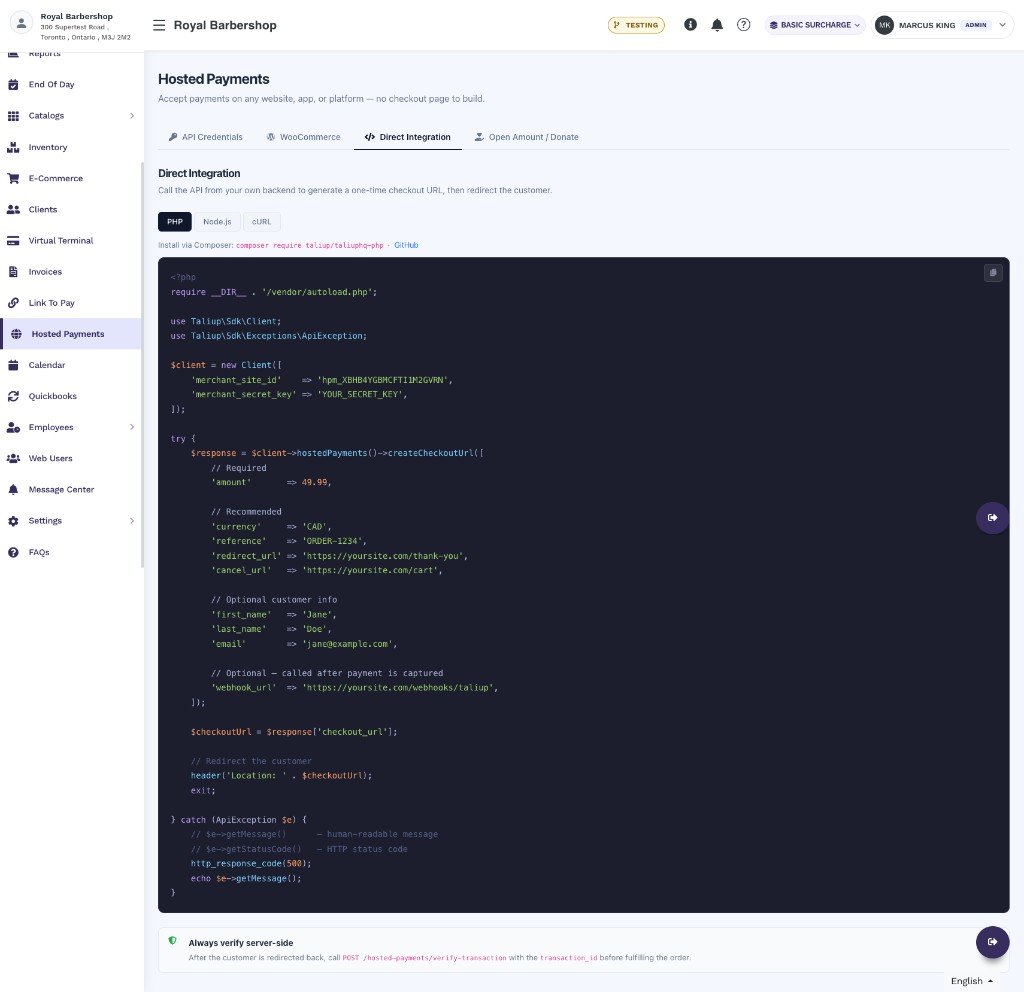 The Direct Integration tab is for developers who want to call the Taliup API directly from their backend. The page provides code examples for PHP, Node.js, and cURL.
### Install the PHP SDK
```bash theme={null}
composer require taliup/taliuphq-php
```
The source is also available on [GitHub](https://github.com/Taliup/taliuphq-php).
### Integration flow
```mermaid theme={null}
flowchart LR
customerCheckout["Customer clicks Checkout"]
yourBackend["Your server calls\nPOST /hosted-payments/checkout-url"]
taliupReturns["Taliup returns checkout_url"]
redirect["Redirect customer to checkout_url"]
customerPays["Customer completes payment\non Taliup-hosted page"]
returnUrl["Customer redirected to\nyour redirect_url"]
verify["Your server verifies transaction\nPOST /hosted-payments/verify-transaction"]
fulfill["Order fulfilled"]
customerCheckout --> yourBackend --> taliupReturns --> redirect --> customerPays --> returnUrl --> verify --> fulfill
```
### Request fields
| Field | Required | Notes |
| ------------------------------------ | ----------- | ------------------------------------------------------------------------------------------ |
| `amount` | Yes | Number, minimum `0.01`. |
| `currency` | Recommended | `CAD` or `USD`. |
| `reference` | Recommended | Your order or invoice ID — passed through to the transaction record. |
| `redirect_url` | Recommended | Where to send the customer after a successful payment. Max 2048 chars. |
| `cancel_url` | Recommended | Where to send the customer if they cancel. Max 2048 chars. |
| `first_name` / `last_name` / `email` | Optional | Pre-fills the checkout form for a smoother customer experience. |
| `webhook_url` | Optional | Receive a signed POST to your server when the payment captures. See [Webhooks](#webhooks). |
| `expires_in_minutes` | Optional | 5–60. Defaults vary by configuration. |
### Return URL query parameters
After checkout, Taliup redirects the customer to your `redirect_url` (or `cancel_url`) and appends these query parameters:
| Parameter | Notes |
| ---------------- | -------------------------------------------------- |
| `status` | `approved`, `declined`, `cancelled`, or `error`. |
| `amount` | The amount processed. |
| `currency` | The currency used. |
| `reference` | Your reference value, if provided. |
| `transaction_id` | The Taliup transaction ID. Present when available. |
| `host_response` | Host transaction response details. |
| `message` | Human-readable result message, when available. |
Always verify the transaction server-side before fulfilling an order. After the customer is redirected back, call `POST /hosted-payments/verify-transaction` with the `transaction_id`. Do not rely on the redirect URL parameters alone.
### Verify transaction
```bash theme={null}
curl -X POST "https://taliuphq.com/api/v1/hosted-payments/verify-transaction" \
-H "Content-Type: application/json" \
-H "X-Merchant-Site-Id: hpm_xxxxxxxxx" \
-H "X-Merchant-Secret-Key: hpsk_xxxxxxxxx" \
-d '{"transaction_id":"1234567890"}'
```
Success response:
```json theme={null}
{
"success": true,
"approved": true,
"transaction_id": "1234567890",
"result_code": "0",
"result_message": "APPROVAL"
}
```
For the full API reference, authentication details, and error handling see the [Taliup PHP SDK documentation](/php-sdk/concepts/hosted-payments).
***
## Open Amount & Donation Page
The Open Amount & Donation Page lets customers pay any amount they choose — no server-side code required. It is ideal for donations, memberships, tips, or any use case with flexible pricing.
### How it works
A customer visits a Taliup-hosted landing page (or clicks an embedded button on your site), enters their amount and details, and completes payment. On success:
* A **Taliup Order** is created with status `complete`.
* A **Client record** is found by email or created automatically.
* An optional **email receipt** is sent to the customer.
### Charity donation tax receipts
If the entity industry is **Charity**, the open-amount donation page can send a tax-compliant electronic receipt (English, French, or Spanish).
Before the donation page works, complete **Charity Details** on the entity:
* **Charity / Registration Number** (required)
* **Tax ID** (optional)
* A complete registered address on the [entity profile](/taliup-hq/manage/profile)
The Direct Integration tab is for developers who want to call the Taliup API directly from their backend. The page provides code examples for PHP, Node.js, and cURL.
### Install the PHP SDK
```bash theme={null}
composer require taliup/taliuphq-php
```
The source is also available on [GitHub](https://github.com/Taliup/taliuphq-php).
### Integration flow
```mermaid theme={null}
flowchart LR
customerCheckout["Customer clicks Checkout"]
yourBackend["Your server calls\nPOST /hosted-payments/checkout-url"]
taliupReturns["Taliup returns checkout_url"]
redirect["Redirect customer to checkout_url"]
customerPays["Customer completes payment\non Taliup-hosted page"]
returnUrl["Customer redirected to\nyour redirect_url"]
verify["Your server verifies transaction\nPOST /hosted-payments/verify-transaction"]
fulfill["Order fulfilled"]
customerCheckout --> yourBackend --> taliupReturns --> redirect --> customerPays --> returnUrl --> verify --> fulfill
```
### Request fields
| Field | Required | Notes |
| ------------------------------------ | ----------- | ------------------------------------------------------------------------------------------ |
| `amount` | Yes | Number, minimum `0.01`. |
| `currency` | Recommended | `CAD` or `USD`. |
| `reference` | Recommended | Your order or invoice ID — passed through to the transaction record. |
| `redirect_url` | Recommended | Where to send the customer after a successful payment. Max 2048 chars. |
| `cancel_url` | Recommended | Where to send the customer if they cancel. Max 2048 chars. |
| `first_name` / `last_name` / `email` | Optional | Pre-fills the checkout form for a smoother customer experience. |
| `webhook_url` | Optional | Receive a signed POST to your server when the payment captures. See [Webhooks](#webhooks). |
| `expires_in_minutes` | Optional | 5–60. Defaults vary by configuration. |
### Return URL query parameters
After checkout, Taliup redirects the customer to your `redirect_url` (or `cancel_url`) and appends these query parameters:
| Parameter | Notes |
| ---------------- | -------------------------------------------------- |
| `status` | `approved`, `declined`, `cancelled`, or `error`. |
| `amount` | The amount processed. |
| `currency` | The currency used. |
| `reference` | Your reference value, if provided. |
| `transaction_id` | The Taliup transaction ID. Present when available. |
| `host_response` | Host transaction response details. |
| `message` | Human-readable result message, when available. |
Always verify the transaction server-side before fulfilling an order. After the customer is redirected back, call `POST /hosted-payments/verify-transaction` with the `transaction_id`. Do not rely on the redirect URL parameters alone.
### Verify transaction
```bash theme={null}
curl -X POST "https://taliuphq.com/api/v1/hosted-payments/verify-transaction" \
-H "Content-Type: application/json" \
-H "X-Merchant-Site-Id: hpm_xxxxxxxxx" \
-H "X-Merchant-Secret-Key: hpsk_xxxxxxxxx" \
-d '{"transaction_id":"1234567890"}'
```
Success response:
```json theme={null}
{
"success": true,
"approved": true,
"transaction_id": "1234567890",
"result_code": "0",
"result_message": "APPROVAL"
}
```
For the full API reference, authentication details, and error handling see the [Taliup PHP SDK documentation](/php-sdk/concepts/hosted-payments).
***
## Open Amount & Donation Page
The Open Amount & Donation Page lets customers pay any amount they choose — no server-side code required. It is ideal for donations, memberships, tips, or any use case with flexible pricing.
### How it works
A customer visits a Taliup-hosted landing page (or clicks an embedded button on your site), enters their amount and details, and completes payment. On success:
* A **Taliup Order** is created with status `complete`.
* A **Client record** is found by email or created automatically.
* An optional **email receipt** is sent to the customer.
### Charity donation tax receipts
If the entity industry is **Charity**, the open-amount donation page can send a tax-compliant electronic receipt (English, French, or Spanish).
Before the donation page works, complete **Charity Details** on the entity:
* **Charity / Registration Number** (required)
* **Tax ID** (optional)
* A complete registered address on the [entity profile](/taliup-hq/manage/profile)
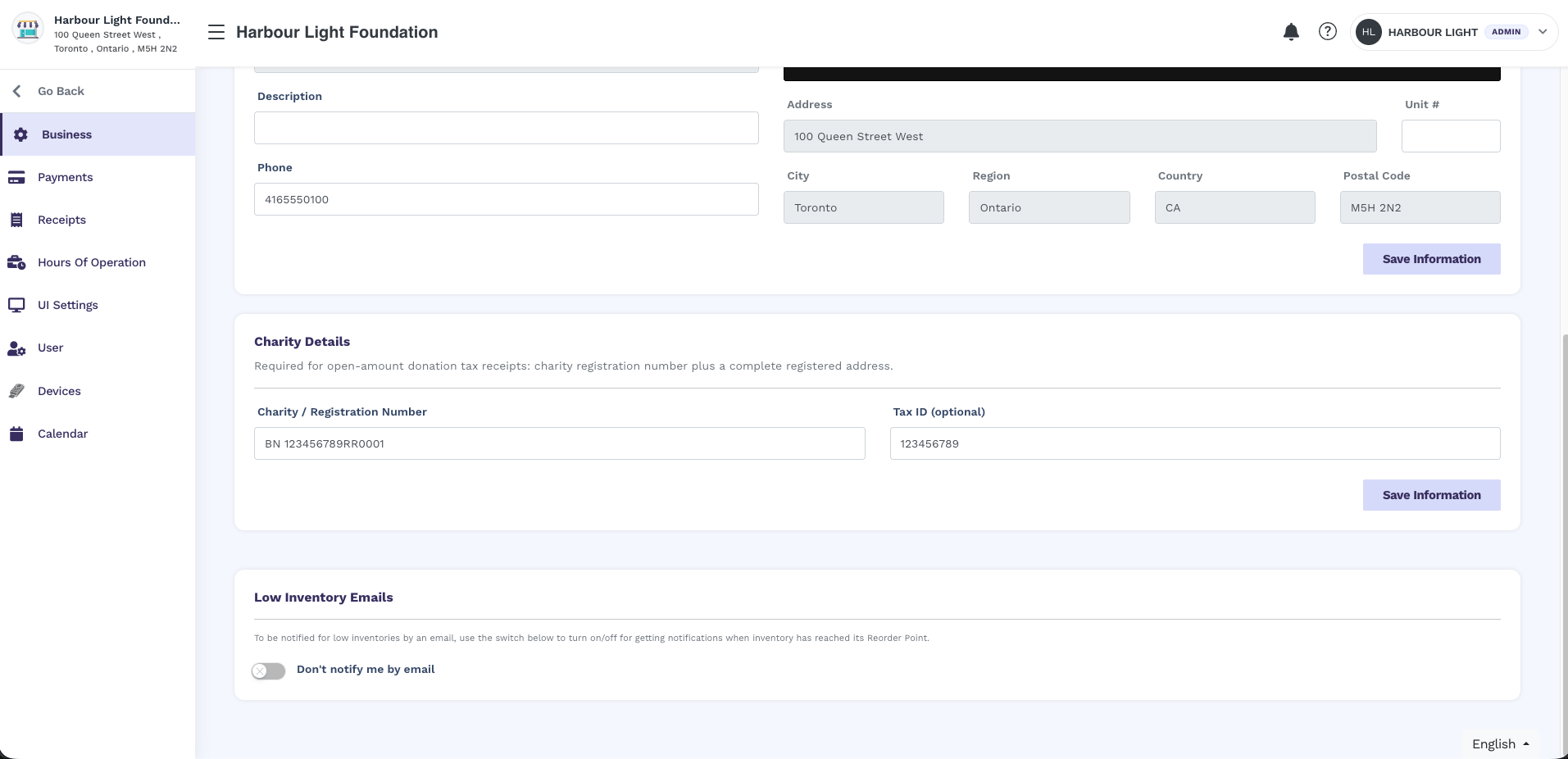 Incomplete charity details block the open-amount donation landing page and initiate call. Fixed-amount checkout and Direct Integration still work.
Do not enable Charity and share the open-amount `/pay/{merchant_site_id}` URL until **Charity Details** and the profile address are complete. Donors will otherwise see an error instead of the payment page.
### View and resend a receipt
After a charity donation is captured, you can open the same tax receipt from **Transactions**.
Go to **Transactions** and select the **Online** tab.
Click the donation to open the transaction details.
Click **View Receipt** to open the receipt the donor received. Click **Send Receipt** to email it again. The address defaults to the client on the order. You can change it before sending.
If sending fails, the dialog stays open and shows an error so you can retry. The receipt number on the preview may be blank.
**View Receipt** and **Send Receipt** appear only for Charity donations taken on the open-amount hosted page. Older donations do not show these actions.
### Embed Snippet
Incomplete charity details block the open-amount donation landing page and initiate call. Fixed-amount checkout and Direct Integration still work.
Do not enable Charity and share the open-amount `/pay/{merchant_site_id}` URL until **Charity Details** and the profile address are complete. Donors will otherwise see an error instead of the payment page.
### View and resend a receipt
After a charity donation is captured, you can open the same tax receipt from **Transactions**.
Go to **Transactions** and select the **Online** tab.
Click the donation to open the transaction details.
Click **View Receipt** to open the receipt the donor received. Click **Send Receipt** to email it again. The address defaults to the client on the order. You can change it before sending.
If sending fails, the dialog stays open and shows an error so you can retry. The receipt number on the preview may be blank.
**View Receipt** and **Send Receipt** appear only for Charity donations taken on the open-amount hosted page. Older donations do not show these actions.
### Embed Snippet
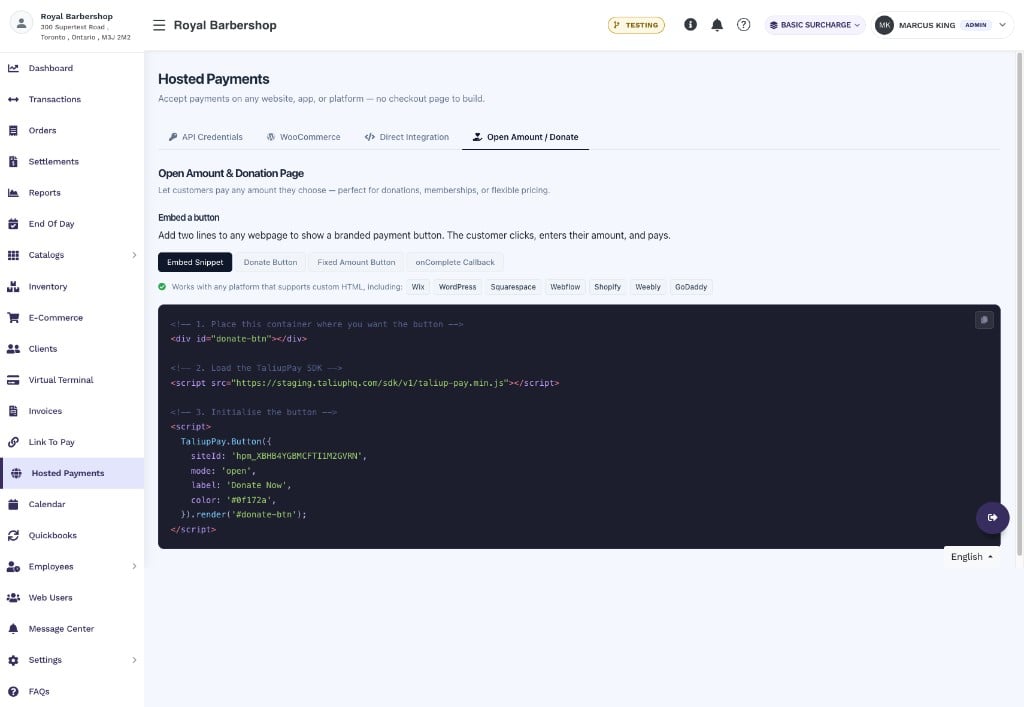 The quickest way to add a payment button to any webpage. Load the SDK and initialise the button:
```html theme={null}
```
Works on any platform that supports custom HTML, including Wix, WordPress, Squarespace, Webflow, Shopify, Weebly, and GoDaddy.
### Donate Button
The quickest way to add a payment button to any webpage. Load the SDK and initialise the button:
```html theme={null}
```
Works on any platform that supports custom HTML, including Wix, WordPress, Squarespace, Webflow, Shopify, Weebly, and GoDaddy.
### Donate Button
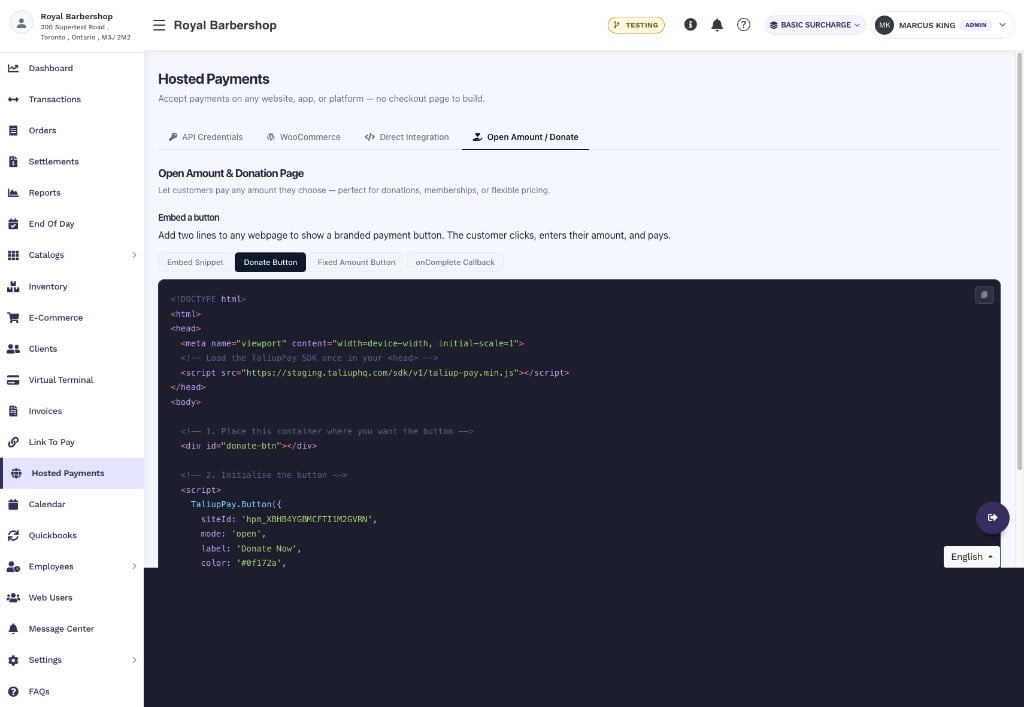 A complete HTML page example showing the SDK loaded in `` and an open-amount button initialised in ``. The customer clicks the button, is taken to the Taliup landing page, enters their amount, and completes payment.
### Fixed Amount Button
A complete HTML page example showing the SDK loaded in `` and an open-amount button initialised in ``. The customer clicks the button, is taken to the Taliup landing page, enters their amount, and completes payment.
### Fixed Amount Button
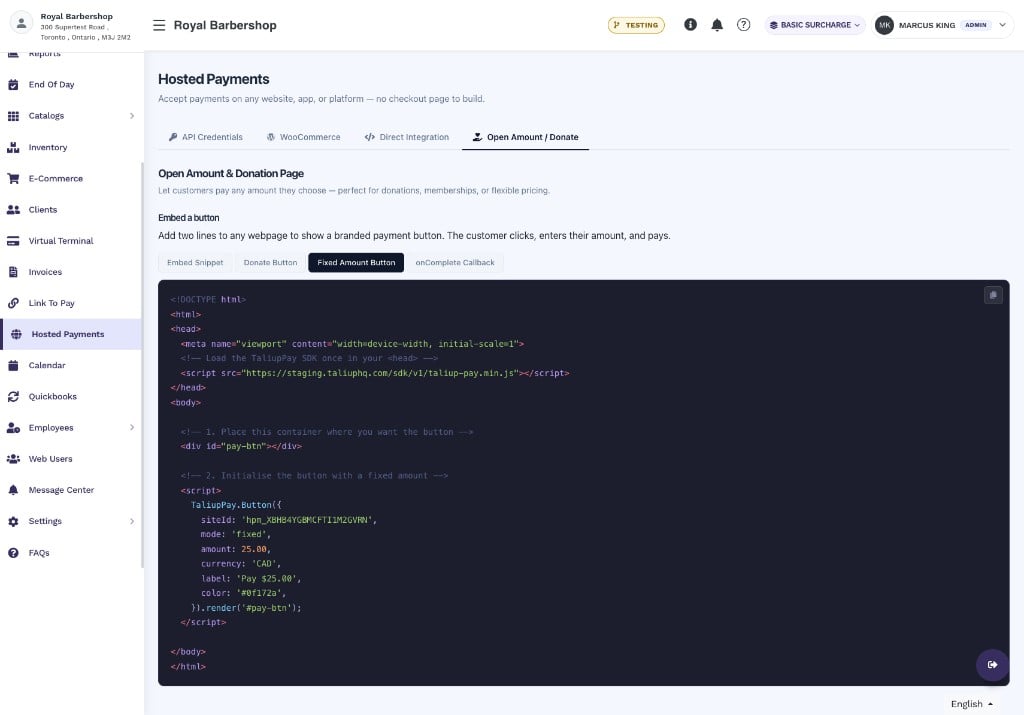 Use `mode: 'fixed'` to charge a specific amount without requiring the customer to enter one:
```javascript theme={null}
TaliupPay.Button({
siteId: 'hpm_YOUR_MERCHANT_SITE_ID',
mode: 'fixed',
amount: 25.00,
currency: 'CAD',
label: 'Pay $25.00',
color: '#0f172a',
}).render('#pay-btn');
```
### onComplete Callback
Use `mode: 'fixed'` to charge a specific amount without requiring the customer to enter one:
```javascript theme={null}
TaliupPay.Button({
siteId: 'hpm_YOUR_MERCHANT_SITE_ID',
mode: 'fixed',
amount: 25.00,
currency: 'CAD',
label: 'Pay $25.00',
color: '#0f172a',
}).render('#pay-btn');
```
### onComplete Callback
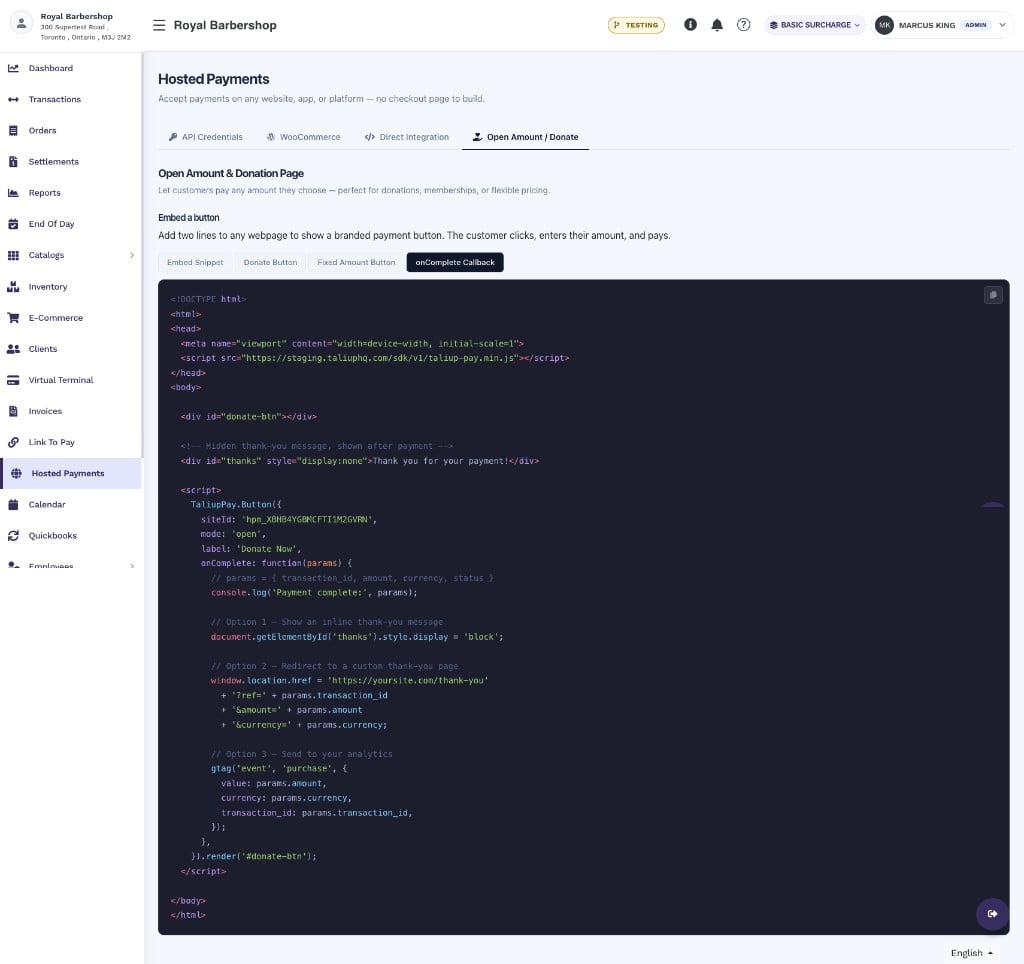 Both `open` and `fixed` mode buttons fire an `onComplete` callback when payment succeeds. The callback receives `{ transaction_id, amount, currency, status }`:
```javascript theme={null}
TaliupPay.Button({
siteId: 'hpm_YOUR_MERCHANT_SITE_ID',
mode: 'open',
label: 'Donate Now',
onComplete: function(params) {
// params = { transaction_id, amount, currency, status }
// Option 1 — Show an inline thank-you message
document.getElementById('thanks').style.display = 'block';
// Option 2 — Redirect to a custom thank-you page
window.location.href = 'https://yoursite.com/thank-you'
+ '?ref=' + params.transaction_id
+ '&amount=' + params.amount
+ '¤cy=' + params.currency;
// Option 3 — Send to your analytics
gtag('event', 'purchase', {
value: params.amount,
currency: params.currency,
transaction_id: params.transaction_id,
});
},
}).render('#donate-btn');
```
### Direct landing page URL
No embed required. Share this URL directly in an email, social post, or QR code — customers land on your branded Taliup payment page and enter their own amount:
```
https://taliuphq.com/pay/{merchant_site_id}
```
***
## Webhooks
Webhooks deliver a signed server-to-server notification when a payment captures. They apply to the **Direct Integration** flow — pass `webhook_url` in your `createCheckoutUrl` request.
### Webhook payload
```json theme={null}
{
"event": "payment.captured",
"merchant_site_id": "hpm_...",
"transaction_id": "...",
"amount": 49.99,
"currency": "USD",
"status": "captured",
"card_type": "VISA",
"card_number_masked": "411111XXXXXX1111",
"reference": "ORDER-123",
"timestamp": "2026-06-16T18:00:00Z"
}
```
### Verify the signature
Every webhook includes an `X-Taliup-Signature` header. Always verify it before processing the payload:
```php theme={null}
$payload = file_get_contents('php://input');
$signature = $_SERVER['HTTP_X_TALIUP_SIGNATURE'] ?? '';
$secret = 'your_merchant_secret_key';
$expected = 'sha256=' . hash_hmac('sha256', $payload, $secret);
if (!hash_equals($expected, $signature)) {
http_response_code(401);
exit;
}
```
The signature is an HMAC-SHA256 of the raw request body, signed with your **Secret Key**.
Reject any webhook request where the signature does not match. Do not use the payload for order fulfillment until the signature is verified.
Both `open` and `fixed` mode buttons fire an `onComplete` callback when payment succeeds. The callback receives `{ transaction_id, amount, currency, status }`:
```javascript theme={null}
TaliupPay.Button({
siteId: 'hpm_YOUR_MERCHANT_SITE_ID',
mode: 'open',
label: 'Donate Now',
onComplete: function(params) {
// params = { transaction_id, amount, currency, status }
// Option 1 — Show an inline thank-you message
document.getElementById('thanks').style.display = 'block';
// Option 2 — Redirect to a custom thank-you page
window.location.href = 'https://yoursite.com/thank-you'
+ '?ref=' + params.transaction_id
+ '&amount=' + params.amount
+ '¤cy=' + params.currency;
// Option 3 — Send to your analytics
gtag('event', 'purchase', {
value: params.amount,
currency: params.currency,
transaction_id: params.transaction_id,
});
},
}).render('#donate-btn');
```
### Direct landing page URL
No embed required. Share this URL directly in an email, social post, or QR code — customers land on your branded Taliup payment page and enter their own amount:
```
https://taliuphq.com/pay/{merchant_site_id}
```
***
## Webhooks
Webhooks deliver a signed server-to-server notification when a payment captures. They apply to the **Direct Integration** flow — pass `webhook_url` in your `createCheckoutUrl` request.
### Webhook payload
```json theme={null}
{
"event": "payment.captured",
"merchant_site_id": "hpm_...",
"transaction_id": "...",
"amount": 49.99,
"currency": "USD",
"status": "captured",
"card_type": "VISA",
"card_number_masked": "411111XXXXXX1111",
"reference": "ORDER-123",
"timestamp": "2026-06-16T18:00:00Z"
}
```
### Verify the signature
Every webhook includes an `X-Taliup-Signature` header. Always verify it before processing the payload:
```php theme={null}
$payload = file_get_contents('php://input');
$signature = $_SERVER['HTTP_X_TALIUP_SIGNATURE'] ?? '';
$secret = 'your_merchant_secret_key';
$expected = 'sha256=' . hash_hmac('sha256', $payload, $secret);
if (!hash_equals($expected, $signature)) {
http_response_code(401);
exit;
}
```
The signature is an HMAC-SHA256 of the raw request body, signed with your **Secret Key**.
Reject any webhook request where the signature does not match. Do not use the payload for order fulfillment until the signature is verified.