> ## Documentation Index
> Fetch the complete documentation index at: https://docs.taliuphq.com/llms.txt
> Use this file to discover all available pages before exploring further.
# Clients
> Create and manage customer records in Taliup HQ, including restoring a deleted client when you reuse the same email.
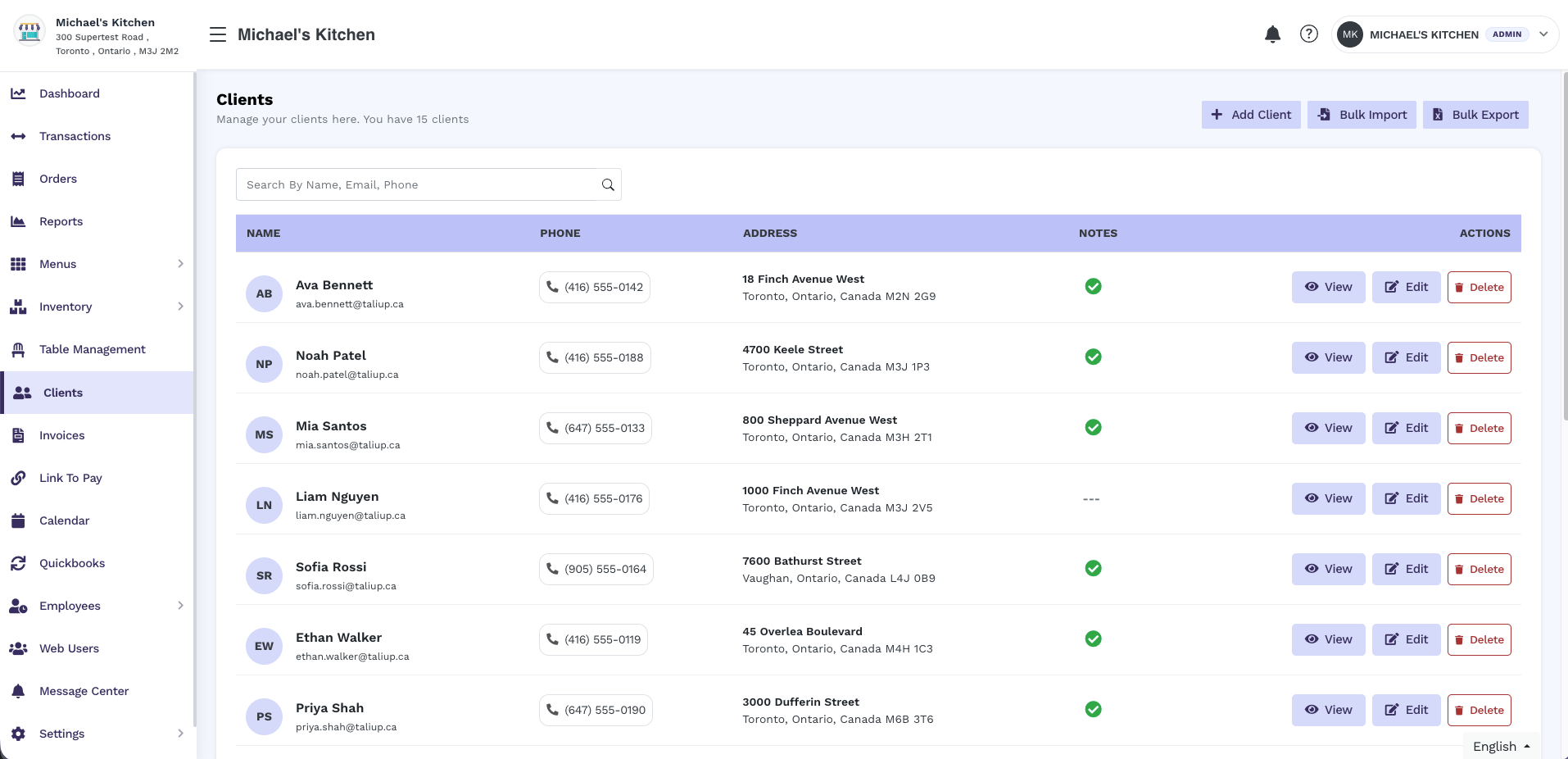
**Clients** stores customer records you can attach to invoices, Link to Pay, Calendar appointments, and Virtual Terminal payments.
Open **Clients** in the merchant sidebar to get started.
 ***
## Prerequisites
The **Clients** feature must be enabled on the entity plan. Ask your ISO admin to enable it in [Plans & Features](/taliup-hq/onboarding/plans-features) if you do not see **Clients** in the sidebar.
***
## Create a client
In the merchant sidebar, click **Clients**, then **Create** (or **Add Client**).
Fill in **First Name**, **Last Name**, and **Email**. Phone, address, business name, and notes are optional.
Click **Add Client**.
You can also add a client without leaving **Create Invoice**, **Link to Pay**, **Calendar**, or **Virtual Terminal**. Use the person-plus control next to the client search.
**Email** is required. Taliup uses it to find the customer later and to send invoices or receipts.
***
## Restore a deleted client
Deleting a client hides the record. It does not permanently remove their history.
If you create a client again with the **same email** on the same entity, Taliup finds the previous record and asks you to restore it.
***
## Prerequisites
The **Clients** feature must be enabled on the entity plan. Ask your ISO admin to enable it in [Plans & Features](/taliup-hq/onboarding/plans-features) if you do not see **Clients** in the sidebar.
***
## Create a client
In the merchant sidebar, click **Clients**, then **Create** (or **Add Client**).
Fill in **First Name**, **Last Name**, and **Email**. Phone, address, business name, and notes are optional.
Click **Add Client**.
You can also add a client without leaving **Create Invoice**, **Link to Pay**, **Calendar**, or **Virtual Terminal**. Use the person-plus control next to the client search.
**Email** is required. Taliup uses it to find the customer later and to send invoices or receipts.
***
## Restore a deleted client
Deleting a client hides the record. It does not permanently remove their history.
If you create a client again with the **same email** on the same entity, Taliup finds the previous record and asks you to restore it.
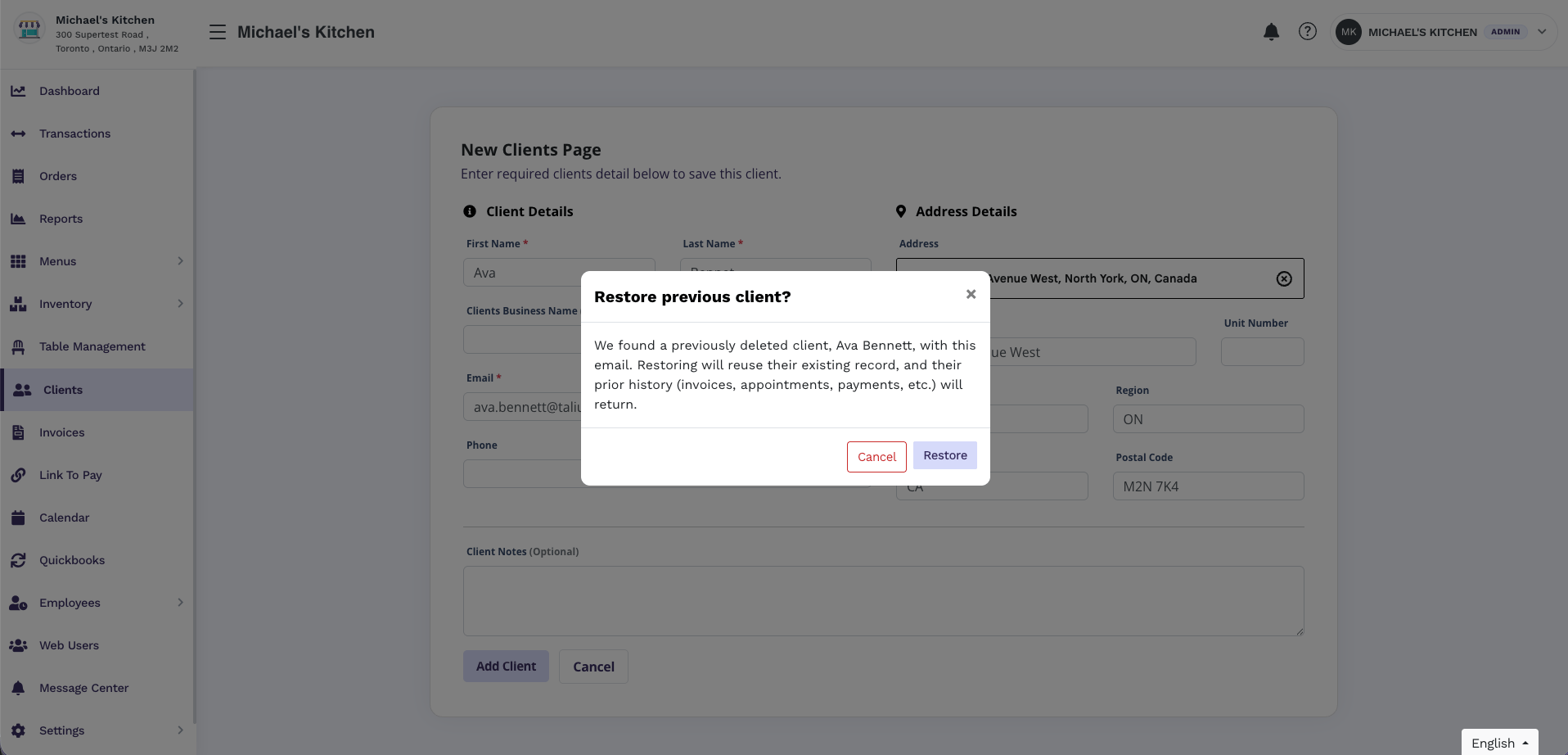 Use **Clients → Create**, or **Add Client** from an invoice, Link to Pay, Calendar, or Virtual Terminal. Enter the same email as the deleted client.
When Taliup finds a match, it shows **Restore previous client?** The message names the previous client and explains that restoring reuses their record and brings back invoices, appointments, payments, and other history.
Click **Restore** to reuse that client. Click **Cancel** to leave them deleted and stay on the form.
After you restore:
* The client keeps the same record (not a second copy of the same email).
* Name and phone from the new form replace the old values.
* Prior invoices, appointments, and payments stay attached.
An **active** client with that email still cannot be duplicated. Taliup shows a unique-email error instead of the restore prompt.
Restore is the right path when a merchant deleted a customer by mistake and wants their history back. Do not create a second client with a different email if you need the old invoices.
***
## Delete a client
From the Clients list or the client detail page, click **Delete** and confirm the warning.
The client disappears from the list. Recreating them with the same email starts the restore flow above.
***
## Related
* [Invoicing](/taliup-hq/features/invoicing)
* [Hosted Payments](/taliup-hq/features/hosted-payments)
* [Clients on Taliup POS](/taliup-pos/clients)
Use **Clients → Create**, or **Add Client** from an invoice, Link to Pay, Calendar, or Virtual Terminal. Enter the same email as the deleted client.
When Taliup finds a match, it shows **Restore previous client?** The message names the previous client and explains that restoring reuses their record and brings back invoices, appointments, payments, and other history.
Click **Restore** to reuse that client. Click **Cancel** to leave them deleted and stay on the form.
After you restore:
* The client keeps the same record (not a second copy of the same email).
* Name and phone from the new form replace the old values.
* Prior invoices, appointments, and payments stay attached.
An **active** client with that email still cannot be duplicated. Taliup shows a unique-email error instead of the restore prompt.
Restore is the right path when a merchant deleted a customer by mistake and wants their history back. Do not create a second client with a different email if you need the old invoices.
***
## Delete a client
From the Clients list or the client detail page, click **Delete** and confirm the warning.
The client disappears from the list. Recreating them with the same email starts the restore flow above.
***
## Related
* [Invoicing](/taliup-hq/features/invoicing)
* [Hosted Payments](/taliup-hq/features/hosted-payments)
* [Clients on Taliup POS](/taliup-pos/clients)