> ## Documentation Index
> Fetch the complete documentation index at: https://docs.taliuphq.com/llms.txt
> Use this file to discover all available pages before exploring further.
# Create a Merchant (Entity)
> Step-by-step reference for the Create Entity form — all six sections, conditional fields, and smart behaviours.
In Taliup HQ, a merchant account is called an **Entity**. Creating an Entity provisions the merchant's account, assigns a subscription plan, and creates their initial administrator login. Once an Entity exists, you can register devices, configure payment settings, and grant staff access.
To create an Entity navigate to the Admin **[Entities](/taliup-hq/admin/entities)** section and click on **Create Entity**.
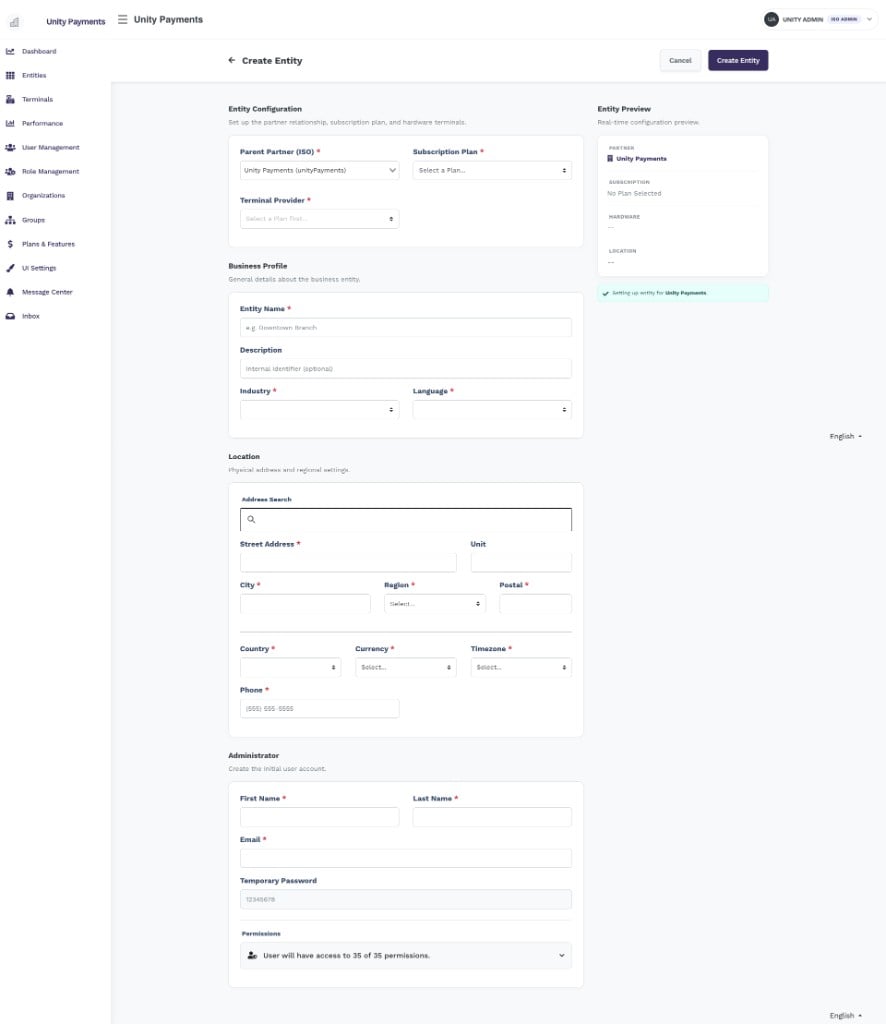 The form is split into five configuration sections on the left and a live **Entity Preview** sidebar on the right that reflects your selections in real time.
***
## Entity Preview sidebar
The form is split into five configuration sections on the left and a live **Entity Preview** sidebar on the right that reflects your selections in real time.
***
## Entity Preview sidebar
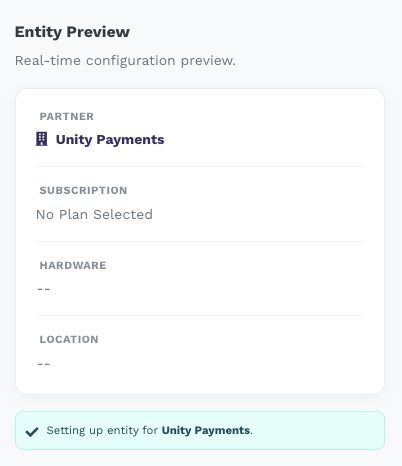 The sticky right-column preview card gives you a running summary of the entity you are building before you submit. It displays five sections:
| Preview section | What it shows |
| ---------------- | --------------------------------------------------- |
| **Partner** | The selected Parent Partner (ISO) name. |
| **Subscription** | The selected Subscription Plan name. |
| **Hardware** | The selected Terminal Provider. |
| **Location** | The entered business name and address. |
| **Credentials** | The administrator first name, last name, and email. |
The preview updates with a **700 ms debounce** after any configuration change, so it does not flicker while you are actively typing. When a partner is selected, the preview header reads *"Setting up entity for \[Partner name]"*.
If Poynt is the selected Terminal Provider, a Poynt-specific tip appears in the preview reminding you to have your Poynt HQ credentials ready before submitting.
***
## Section 1 — Entity Configuration
The sticky right-column preview card gives you a running summary of the entity you are building before you submit. It displays five sections:
| Preview section | What it shows |
| ---------------- | --------------------------------------------------- |
| **Partner** | The selected Parent Partner (ISO) name. |
| **Subscription** | The selected Subscription Plan name. |
| **Hardware** | The selected Terminal Provider. |
| **Location** | The entered business name and address. |
| **Credentials** | The administrator first name, last name, and email. |
The preview updates with a **700 ms debounce** after any configuration change, so it does not flicker while you are actively typing. When a partner is selected, the preview header reads *"Setting up entity for \[Partner name]"*.
If Poynt is the selected Terminal Provider, a Poynt-specific tip appears in the preview reminding you to have your Poynt HQ credentials ready before submitting.
***
## Section 1 — Entity Configuration
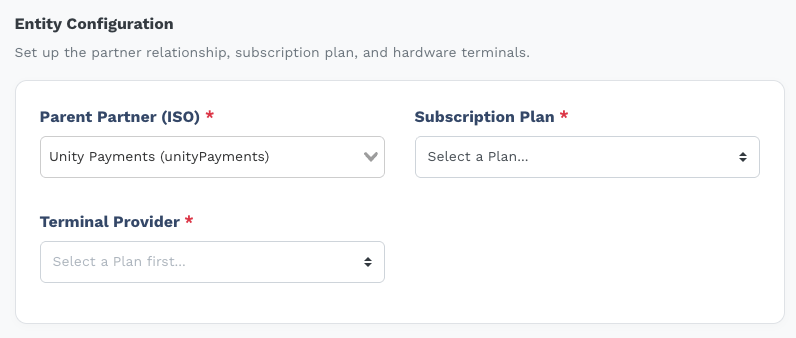 This section defines the commercial and technical setup of the entity.
| Field | Required | Notes |
| ------------------------- | ----------- | ----------------------------------------------------------------------------------------------------------------------------------------------------------------------------------------------------------------------------------------------------------------------------------------------- |
| **Parent Partner (ISO)** | Yes | Searchable dropdown listing the ISOs available to your role. Selecting a partner triggers an async fetch of that partner's available plans, terminal providers, and payment providers. ISO Admins are pre-selected and the field is locked — they can only create entities under their own ISO. |
| **Subscription Plan** | Yes | Populated after a partner is selected. Disabled until a partner is chosen. If the partner has exactly one plan it is auto-selected. If the partner has no active plans, a **Missing Configuration** modal appears — see below. |
| **Terminal Provider** | Yes | Populated from the partner's configuration. Disabled until a plan is selected. |
| **Payment Provider** | Conditional | Shown for all terminal providers **except Express**. For Poynt, automatically set to Elavon and cannot be changed. |
| **Offered Payment Types** | Conditional | Shown only when Terminal Provider is **PAX** and Payment Provider is **TSYS Sierra** or **Rapid Connect**. Toggles for Cash, Credit, Debit, and EBT. |
| **Open Sale Only** | Conditional | Shown only if the parent ISO has Open Sale Only enabled at the ISO level. Restricts the entity to open-sale transactions only. |
### No plans found — Missing Configuration modal
If the selected partner has no active subscription plans, a modal appears explaining the issue and offering two options:
* **Go to Plans & Features** — navigates away to create a plan. Before leaving, the form state (including the selected partner) is saved to browser local storage and restored automatically when you return to the Create Entity page.
* **Select a different partner** — closes the modal so you can choose a different ISO.
***
## Section 2 — Business Profile
This section defines the commercial and technical setup of the entity.
| Field | Required | Notes |
| ------------------------- | ----------- | ----------------------------------------------------------------------------------------------------------------------------------------------------------------------------------------------------------------------------------------------------------------------------------------------- |
| **Parent Partner (ISO)** | Yes | Searchable dropdown listing the ISOs available to your role. Selecting a partner triggers an async fetch of that partner's available plans, terminal providers, and payment providers. ISO Admins are pre-selected and the field is locked — they can only create entities under their own ISO. |
| **Subscription Plan** | Yes | Populated after a partner is selected. Disabled until a partner is chosen. If the partner has exactly one plan it is auto-selected. If the partner has no active plans, a **Missing Configuration** modal appears — see below. |
| **Terminal Provider** | Yes | Populated from the partner's configuration. Disabled until a plan is selected. |
| **Payment Provider** | Conditional | Shown for all terminal providers **except Express**. For Poynt, automatically set to Elavon and cannot be changed. |
| **Offered Payment Types** | Conditional | Shown only when Terminal Provider is **PAX** and Payment Provider is **TSYS Sierra** or **Rapid Connect**. Toggles for Cash, Credit, Debit, and EBT. |
| **Open Sale Only** | Conditional | Shown only if the parent ISO has Open Sale Only enabled at the ISO level. Restricts the entity to open-sale transactions only. |
### No plans found — Missing Configuration modal
If the selected partner has no active subscription plans, a modal appears explaining the issue and offering two options:
* **Go to Plans & Features** — navigates away to create a plan. Before leaving, the form state (including the selected partner) is saved to browser local storage and restored automatically when you return to the Create Entity page.
* **Select a different partner** — closes the modal so you can choose a different ISO.
***
## Section 2 — Business Profile
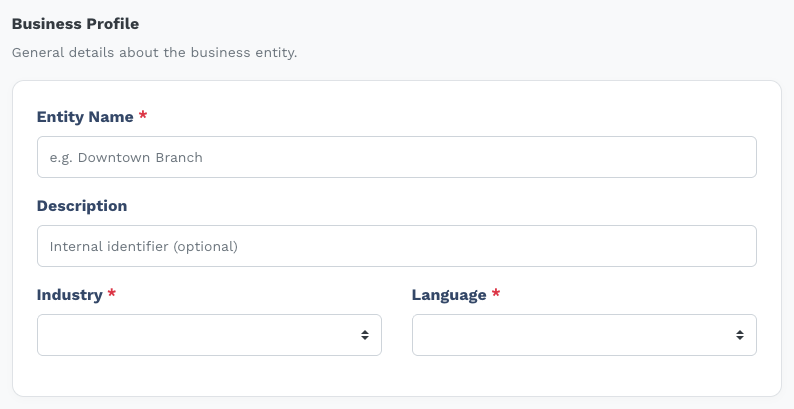 Recapture this screenshot if you want **Charity** visible in the Industry list. The current image predates that option.
| Field | Required | Notes |
| --------------- | -------- | ---------------------------------------------------------------------------------------------------------------------------------------------------------------------------------------------------------------------------------------------------------------------------------------------------------------------------------- |
| **Entity Name** | Yes | The merchant's trading name as it will appear throughout Taliup HQ and on receipts. |
| **Description** | No | Internal note — not visible to the merchant's staff or customers. Useful for distinguishing similarly named entities. |
| **Industry** | Yes | **Restaurant**, **Retail/Wholesale**, or **Charity**. Controls which features, plans, and reporting categories are enabled for the entity. Charity entities can send tax-compliant donation receipts from [Hosted Payments](/taliup-hq/features/hosted-payments#charity-donation-tax-receipts) after you complete Charity Details. |
| **Language** | Yes | **English** or **French**. Controls the language of automated merchant communications (e.g., onboarding emails). |
***
## Section 3 — Location
Recapture this screenshot if you want **Charity** visible in the Industry list. The current image predates that option.
| Field | Required | Notes |
| --------------- | -------- | ---------------------------------------------------------------------------------------------------------------------------------------------------------------------------------------------------------------------------------------------------------------------------------------------------------------------------------- |
| **Entity Name** | Yes | The merchant's trading name as it will appear throughout Taliup HQ and on receipts. |
| **Description** | No | Internal note — not visible to the merchant's staff or customers. Useful for distinguishing similarly named entities. |
| **Industry** | Yes | **Restaurant**, **Retail/Wholesale**, or **Charity**. Controls which features, plans, and reporting categories are enabled for the entity. Charity entities can send tax-compliant donation receipts from [Hosted Payments](/taliup-hq/features/hosted-payments#charity-donation-tax-receipts) after you complete Charity Details. |
| **Language** | Yes | **English** or **French**. Controls the language of automated merchant communications (e.g., onboarding emails). |
***
## Section 3 — Location
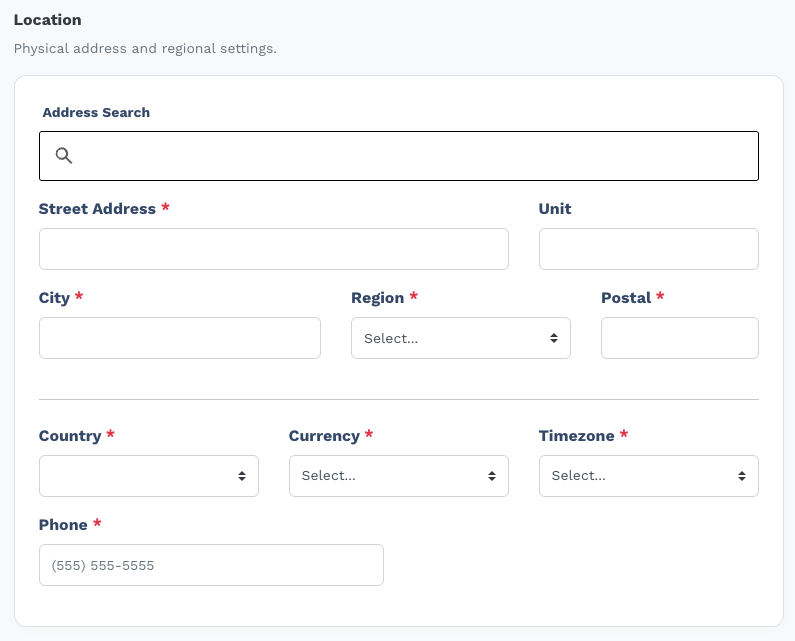 ### Address Search (Google Maps autocomplete)
Type a partial address in the **Address Search** field and select a result from the dropdown. Selecting a result auto-fills the following fields:
* Street Address
* City
* Country
* Postal code (formatted for the detected country)
* Latitude / Longitude (stored internally for mapping)
* Timezone
Region is resolved after Country is determined.
### Location fields
| Field | Required | Notes |
| ------------------ | -------- | --------------------------------------------------------------------------------------------------------------------------------------- |
| **Street Address** | Yes | Auto-filled by Address Search; can be edited manually. |
| **Unit** | No | Suite or unit number appended to the street address. |
| **City** | Yes | Auto-filled by Address Search. |
| **Region** | Yes | Province, state, or Mexican state. Options are dynamically populated based on the selected Country. |
| **Postal** | Yes | Formatted automatically: `A1A 1A1` for Canada · `12345` or `12345-6789` for the US · 5-digit for Mexico. |
| **Country** | Yes | **Canada**, **United States**, or **Mexico**. Selecting Country automatically sets the Currency field. |
| **Currency** | Yes | Set automatically when Country is chosen — **CAD** for Canada, **USD** for the US, **MXN** for Mexico. Cannot be changed independently. |
| **Timezone** | Yes | Auto-filled by Address Search. Can be overridden manually if the business operates in a different timezone than their address suggests. |
| **Phone** | Yes | Formatted as `(555) 555-5555` as you type. |
***
## Section 4 — Technical Configuration
This section appears **only when the selected Terminal Provider requires credentials**. The fields differ by provider.
No screenshot is provided for this section because it only appears after a Terminal Provider is selected and its layout changes per provider.
### PAX · Castles · Ingenico · None
| Field | Required |
| --------------------- | -------- |
| **Merchant ID (MID)** | Yes |
### Poynt
| Field | Required | Notes |
| ------------------- | -------- | -------------------------------------------------------------------------------------------------------------------------------------------- |
| **Business ID** | Yes | UUID from the Poynt HQ portal. |
| **Application ID** | Yes | App identifier from the Poynt HQ portal. |
| **Publishable Key** | No | Optional Poynt publishable key. |
| **Private Key** | Yes | PEM-formatted RSA private key downloaded from Poynt HQ. A **Paste from Clipboard** button is available. Toggle visibility with the eye icon. |
### Express
| Field | Required |
| ----------------- | -------- |
| **Restaurant ID** | Yes |
| **MID** | Yes |
***
## Section 5 — Administrator
### Address Search (Google Maps autocomplete)
Type a partial address in the **Address Search** field and select a result from the dropdown. Selecting a result auto-fills the following fields:
* Street Address
* City
* Country
* Postal code (formatted for the detected country)
* Latitude / Longitude (stored internally for mapping)
* Timezone
Region is resolved after Country is determined.
### Location fields
| Field | Required | Notes |
| ------------------ | -------- | --------------------------------------------------------------------------------------------------------------------------------------- |
| **Street Address** | Yes | Auto-filled by Address Search; can be edited manually. |
| **Unit** | No | Suite or unit number appended to the street address. |
| **City** | Yes | Auto-filled by Address Search. |
| **Region** | Yes | Province, state, or Mexican state. Options are dynamically populated based on the selected Country. |
| **Postal** | Yes | Formatted automatically: `A1A 1A1` for Canada · `12345` or `12345-6789` for the US · 5-digit for Mexico. |
| **Country** | Yes | **Canada**, **United States**, or **Mexico**. Selecting Country automatically sets the Currency field. |
| **Currency** | Yes | Set automatically when Country is chosen — **CAD** for Canada, **USD** for the US, **MXN** for Mexico. Cannot be changed independently. |
| **Timezone** | Yes | Auto-filled by Address Search. Can be overridden manually if the business operates in a different timezone than their address suggests. |
| **Phone** | Yes | Formatted as `(555) 555-5555` as you type. |
***
## Section 4 — Technical Configuration
This section appears **only when the selected Terminal Provider requires credentials**. The fields differ by provider.
No screenshot is provided for this section because it only appears after a Terminal Provider is selected and its layout changes per provider.
### PAX · Castles · Ingenico · None
| Field | Required |
| --------------------- | -------- |
| **Merchant ID (MID)** | Yes |
### Poynt
| Field | Required | Notes |
| ------------------- | -------- | -------------------------------------------------------------------------------------------------------------------------------------------- |
| **Business ID** | Yes | UUID from the Poynt HQ portal. |
| **Application ID** | Yes | App identifier from the Poynt HQ portal. |
| **Publishable Key** | No | Optional Poynt publishable key. |
| **Private Key** | Yes | PEM-formatted RSA private key downloaded from Poynt HQ. A **Paste from Clipboard** button is available. Toggle visibility with the eye icon. |
### Express
| Field | Required |
| ----------------- | -------- |
| **Restaurant ID** | Yes |
| **MID** | Yes |
***
## Section 5 — Administrator
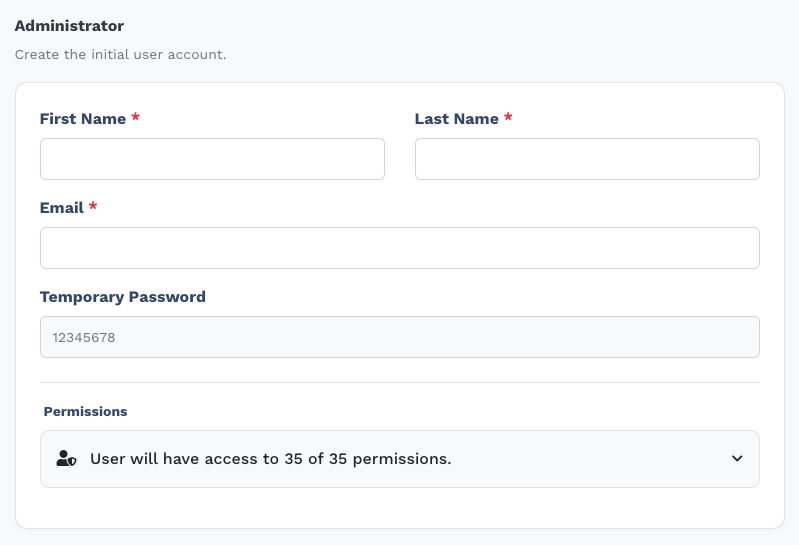 This section creates the initial Taliup HQ web user account for the merchant. The administrator can log in to Taliup HQ and manage the entity's settings after onboarding.
| Field | Required | Notes |
| ---------------------- | -------- | ---------------------------------------------------------------------------------------------------------------------------------------- |
| **First Name** | Yes | |
| **Last Name** | Yes | |
| **Email** | Yes | Used as the login username for Taliup HQ. Must be unique across all users. |
| **Temporary Password** | No | Pre-filled as `12345678`. Read-only — the merchant should change this on first login. |
| **Permissions** | — | Defaults to all 35 permissions granted. Expand the permissions list before submitting to restrict access to specific features if needed. |
***
## Submitting the form
Click **Create Entity** in the top-right header bar to submit the form.
| State | What you see |
| --------------------- | --------------------------------------------------------------------------------------------------------------------------------------------------- |
| **Processing** | The button shows "Processing…" while the request is in flight. |
| **Success** | The button briefly shows a checkmark and "Created", then returns to normal after 3 seconds. You are redirected to the new entity's management page. |
| **Validation errors** | A "Check errors" indicator appears in the header bar next to the Cancel button. Scroll down to find the highlighted fields. |
Clicking **Cancel** triggers a **Discard Changes?** confirmation modal before navigating back to the Entities list. Any unsaved form data is discarded.
***
## What's next
Add the merchant's payment terminals to Taliup HQ using their TIDs.
Review or adjust the merchant's subscription plan and enabled features.
Set up tip prompts and tip types for payment terminals.
Manage the merchant's physical sites and online payment gateway.
This section creates the initial Taliup HQ web user account for the merchant. The administrator can log in to Taliup HQ and manage the entity's settings after onboarding.
| Field | Required | Notes |
| ---------------------- | -------- | ---------------------------------------------------------------------------------------------------------------------------------------- |
| **First Name** | Yes | |
| **Last Name** | Yes | |
| **Email** | Yes | Used as the login username for Taliup HQ. Must be unique across all users. |
| **Temporary Password** | No | Pre-filled as `12345678`. Read-only — the merchant should change this on first login. |
| **Permissions** | — | Defaults to all 35 permissions granted. Expand the permissions list before submitting to restrict access to specific features if needed. |
***
## Submitting the form
Click **Create Entity** in the top-right header bar to submit the form.
| State | What you see |
| --------------------- | --------------------------------------------------------------------------------------------------------------------------------------------------- |
| **Processing** | The button shows "Processing…" while the request is in flight. |
| **Success** | The button briefly shows a checkmark and "Created", then returns to normal after 3 seconds. You are redirected to the new entity's management page. |
| **Validation errors** | A "Check errors" indicator appears in the header bar next to the Cancel button. Scroll down to find the highlighted fields. |
Clicking **Cancel** triggers a **Discard Changes?** confirmation modal before navigating back to the Entities list. Any unsaved form data is discarded.
***
## What's next
Add the merchant's payment terminals to Taliup HQ using their TIDs.
Review or adjust the merchant's subscription plan and enabled features.
Set up tip prompts and tip types for payment terminals.
Manage the merchant's physical sites and online payment gateway.