> ## Documentation Index
> Fetch the complete documentation index at: https://docs.taliuphq.com/llms.txt
> Use this file to discover all available pages before exploring further.
# UI Settings
> White-label Taliup HQ with your own platform name, logo, color scheme, and support links through the Brand Hub.
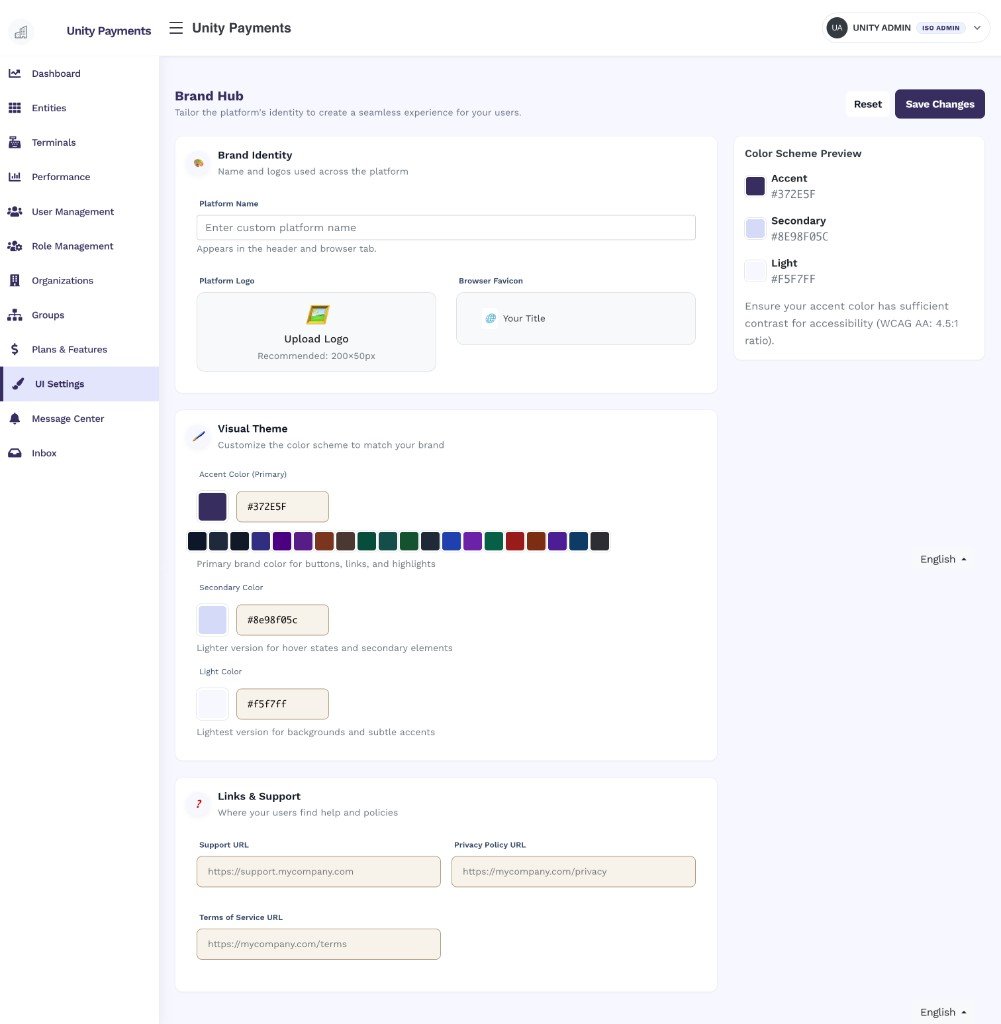
The **Brand Hub** (UI Settings) lets ISO admins customize the visual identity of their Taliup HQ instance. Changes apply immediately across the platform for all users under your ISO — including the navigation logo, button and link colors, browser tab title, and support links surfaced in the POS app.
 ***
## Brand Identity
***
## Brand Identity
 | Field | Notes |
| ------------------- | ----------------------------------------------------------------------------------------------------------------------------------------------- |
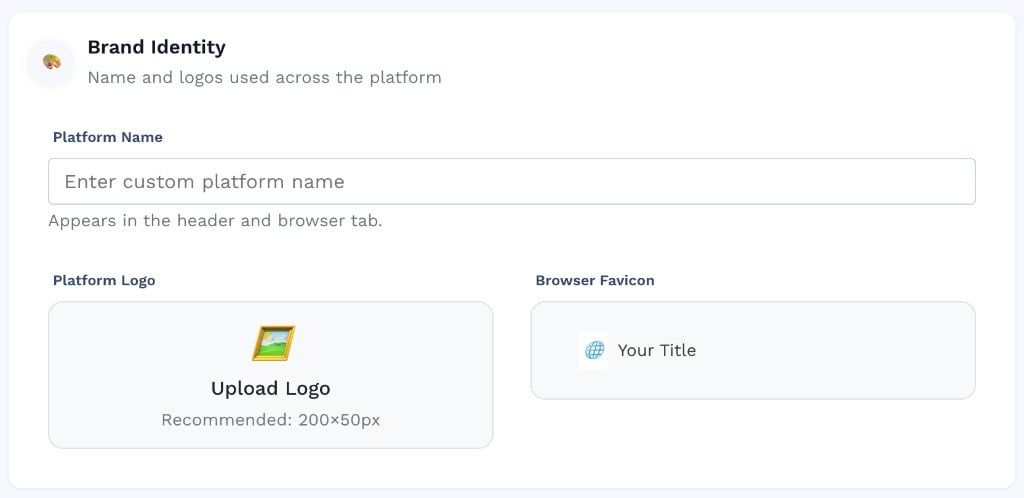
| **Platform Name** | Replaces "Taliup" in the navigation header and browser tab title. Optional — leave blank to keep the default. |
| **Platform Logo** | Replaces the default logo in the navigation bar. Accepted formats: JPEG, PNG, GIF, SVG. Max file size: 2 MB. Recommended dimensions: 200×50 px. |
| **Browser Favicon** | The small icon shown in the browser tab. Accepted formats: PNG, ICO. Max file size: 512 KB. |
**Uploading a file** — click the upload area to open the file picker. A preview appears immediately after selection.
**Removing a file** — hover over the uploaded image and click the red trash icon that slides in from the top-right corner. If the file has already been saved, it is deleted from the server immediately. If the file was just selected but not yet saved, it is cleared from the form without a server request.
***
## Visual Theme
| Field | Notes |
| ------------------- | ----------------------------------------------------------------------------------------------------------------------------------------------- |
| **Platform Name** | Replaces "Taliup" in the navigation header and browser tab title. Optional — leave blank to keep the default. |
| **Platform Logo** | Replaces the default logo in the navigation bar. Accepted formats: JPEG, PNG, GIF, SVG. Max file size: 2 MB. Recommended dimensions: 200×50 px. |
| **Browser Favicon** | The small icon shown in the browser tab. Accepted formats: PNG, ICO. Max file size: 512 KB. |
**Uploading a file** — click the upload area to open the file picker. A preview appears immediately after selection.
**Removing a file** — hover over the uploaded image and click the red trash icon that slides in from the top-right corner. If the file has already been saved, it is deleted from the server immediately. If the file was just selected but not yet saved, it is cleared from the form without a server request.
***
## Visual Theme
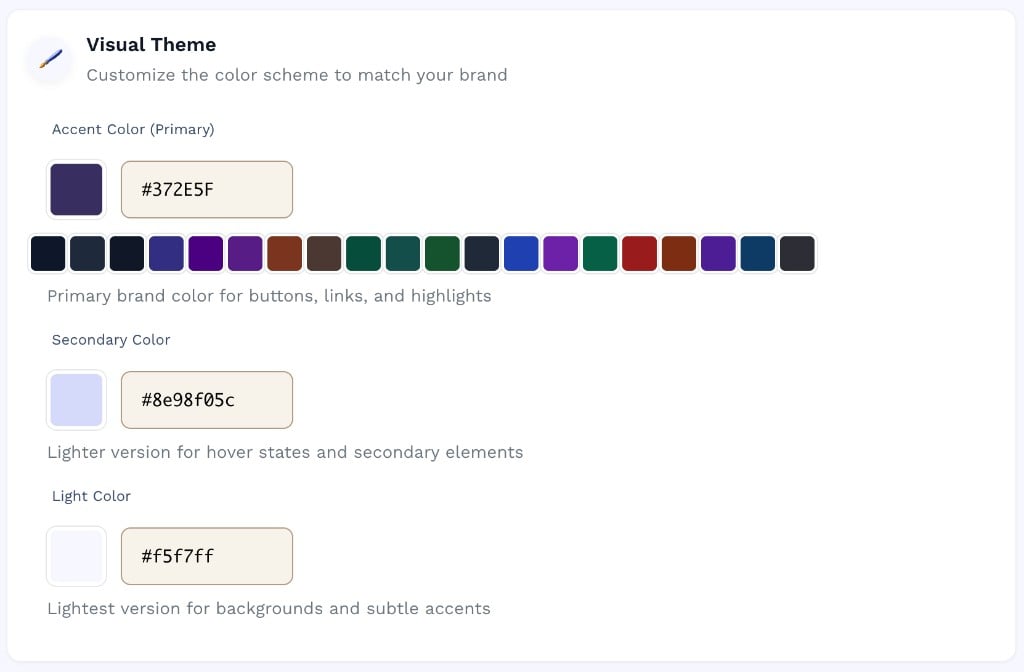 The Visual Theme controls the three-tier color scheme used throughout Taliup HQ:
| Color | Used for |
| -------------------- | --------------------------------------------------------------------------------------------------- |
| **Accent (Primary)** | Buttons, active links, highlights, and the navigation bar accent. This is the dominant brand color. |
| **Secondary** | Hover states, selected navigation items, and secondary UI elements. |
| **Light** | Page backgrounds, subtle card fills, and light accent areas. |
**Setting a color** — click the color swatch to open the native color picker, or type a hex value directly into the text input. Use the row of 20 preset swatches to quickly apply a curated dark or brand-safe color.
**Auto-derived colors** — when you change the Accent color, the Secondary and Light values are automatically recalculated as lighter tints of the accent (75% and 95% lightened, respectively). You can override them manually at any time.
The **Color Scheme Preview** sidebar on the right updates in real time as you change colors, so you can verify the combination before saving.
***
## Links & Support
The Visual Theme controls the three-tier color scheme used throughout Taliup HQ:
| Color | Used for |
| -------------------- | --------------------------------------------------------------------------------------------------- |
| **Accent (Primary)** | Buttons, active links, highlights, and the navigation bar accent. This is the dominant brand color. |
| **Secondary** | Hover states, selected navigation items, and secondary UI elements. |
| **Light** | Page backgrounds, subtle card fills, and light accent areas. |
**Setting a color** — click the color swatch to open the native color picker, or type a hex value directly into the text input. Use the row of 20 preset swatches to quickly apply a curated dark or brand-safe color.
**Auto-derived colors** — when you change the Accent color, the Secondary and Light values are automatically recalculated as lighter tints of the accent (75% and 95% lightened, respectively). You can override them manually at any time.
The **Color Scheme Preview** sidebar on the right updates in real time as you change colors, so you can verify the combination before saving.
***
## Links & Support
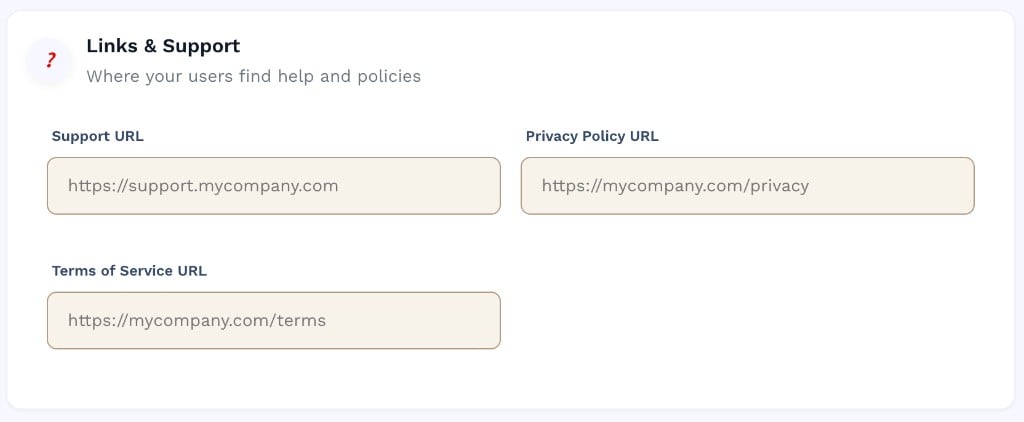 These URLs are shown to merchants and users in the POS app and in platform-generated emails. All fields are optional.
| Field | Where it appears |
| ------------------------ | ------------------------------------------------------------------------ |
| **Support URL** | Help/support link in the POS app footer and merchant portal. |
| **Privacy Policy URL** | Privacy policy link shown during account creation and in the app footer. |
| **Terms of Service URL** | Terms link shown on login and during account setup flows. |
***
## Color Scheme Preview
These URLs are shown to merchants and users in the POS app and in platform-generated emails. All fields are optional.
| Field | Where it appears |
| ------------------------ | ------------------------------------------------------------------------ |
| **Support URL** | Help/support link in the POS app footer and merchant portal. |
| **Privacy Policy URL** | Privacy policy link shown during account creation and in the app footer. |
| **Terms of Service URL** | Terms link shown on login and during account setup flows. |
***
## Color Scheme Preview
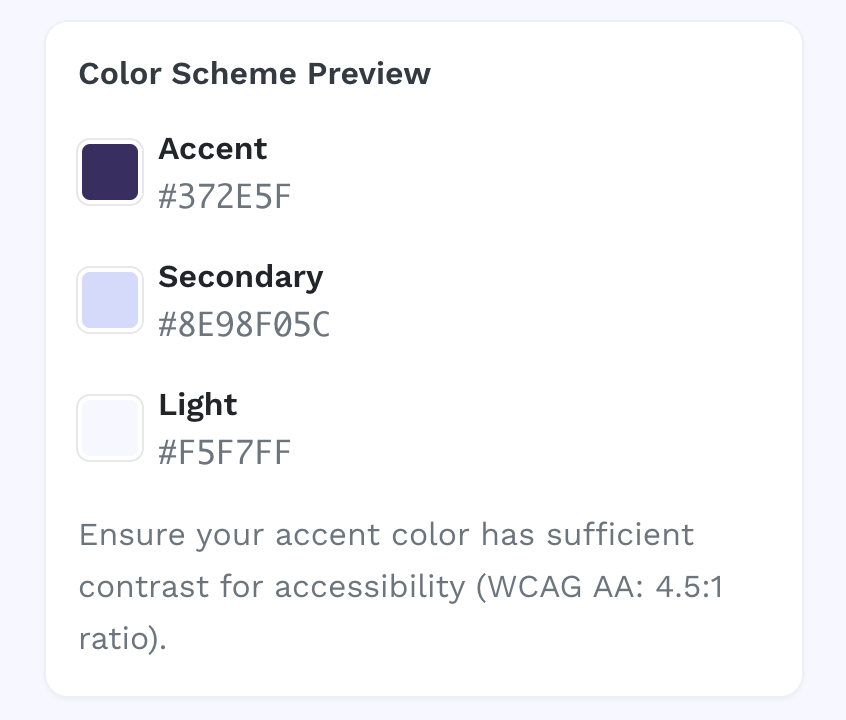 The sidebar displays a live preview of your current color selections with their hex values. Use it to confirm the three colors work together before saving.
Ensure your Accent color provides sufficient contrast against white text to meet the WCAG AA accessibility standard (minimum 4.5:1 contrast ratio). Low-contrast accent colors can make buttons and links difficult to read for users with visual impairments.
***
## Saving and resetting
| Button | Action |
| ---------------- | ------------------------------------------------------------------------------------------------------------------------------------------------------------------------------------------------- |
| **Save Changes** | Saves all settings. If a logo or favicon file is pending, the form submits in two phases: text fields first, then the file upload. A full-page branded saving animation is shown during the save. |
| **Reset** | Discards all unsaved edits and reverts every field to the last saved values. Does not affect the server — no data is changed until you click Save Changes. |
The sidebar displays a live preview of your current color selections with their hex values. Use it to confirm the three colors work together before saving.
Ensure your Accent color provides sufficient contrast against white text to meet the WCAG AA accessibility standard (minimum 4.5:1 contrast ratio). Low-contrast accent colors can make buttons and links difficult to read for users with visual impairments.
***
## Saving and resetting
| Button | Action |
| ---------------- | ------------------------------------------------------------------------------------------------------------------------------------------------------------------------------------------------- |
| **Save Changes** | Saves all settings. If a logo or favicon file is pending, the form submits in two phases: text fields first, then the file upload. A full-page branded saving animation is shown during the save. |
| **Reset** | Discards all unsaved edits and reverts every field to the last saved values. Does not affect the server — no data is changed until you click Save Changes. |