> ## Documentation Index
> Fetch the complete documentation index at: https://docs.taliuphq.com/llms.txt
> Use this file to discover all available pages before exploring further.
# Plans & Features
> Create and manage POS feature plans for your ISO — define which features are available to your merchants and control optional software subscription gates.
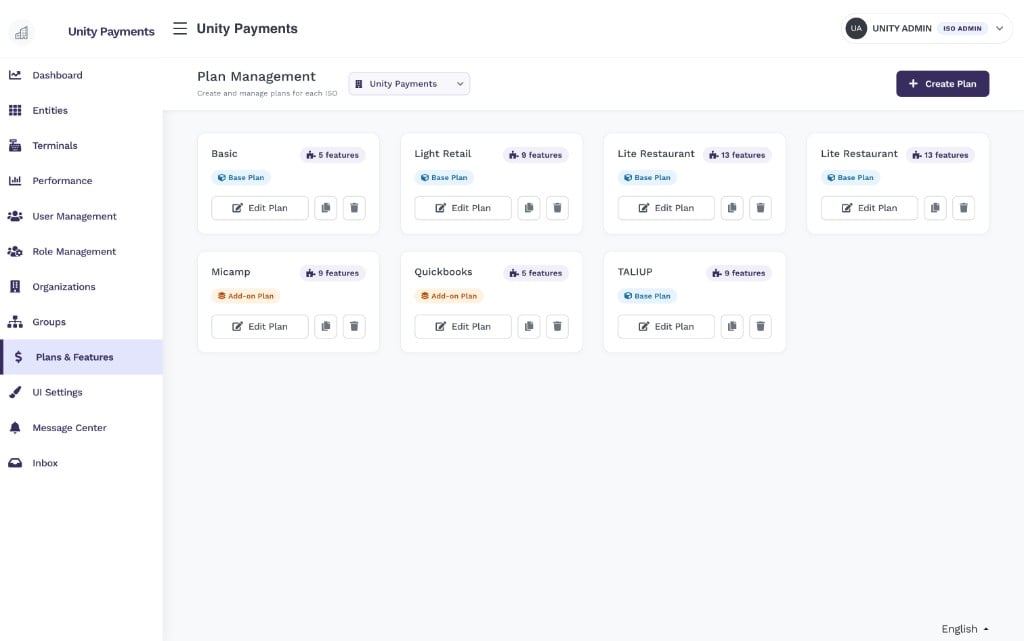
**Plans & Features** lets ISO admins create named plans that bundle POS features together and assign those plans to merchant entities. Each plan acts as the feature entitlement layer for all merchants on it — toggling a feature on a plan instantly updates every entity assigned to that plan.
 Plans & Features is a feature that must be **enabled for your ISO by Taliup HQ**. If this section is not visible in the sidebar, contact Taliup HQ to have it activated for your account.
Additionally, the **Plans and Features** role permission must be granted to your admin role to toggle individual feature switches on plans.
***
## Plan types
| Type | Description |
| --------------- | ------------------------------------------------------------------------------------------------------------------------------------- |
| **Base Plan** | The primary plan assigned to a merchant entity. Defines the core feature set. Each entity can have one base plan at a time. |
| **Add-on Plan** | A supplemental plan that merchants can subscribe to on top of their base plan. Add-on plans cannot have a Software Subscription gate. |
***
## Plan Management list
The index page shows all plans for the selected ISO as a card grid. Each card displays:
* **Plan name** — unique within the ISO
* **Feature count badge** — total number of features enabled on the plan
* **Plan type badge** — Base Plan or Add-on Plan
* **Actions** — Edit Plan, Copy to another ISO, Delete
Use the **ISO dropdown** in the header to switch between your ISO and any child organizations if you manage multiple.
***
## Creating a plan
Click **+ Create Plan** to open the creation form. The form has three sections: Plan Details, Features, and Software Subscription.
Plans & Features is a feature that must be **enabled for your ISO by Taliup HQ**. If this section is not visible in the sidebar, contact Taliup HQ to have it activated for your account.
Additionally, the **Plans and Features** role permission must be granted to your admin role to toggle individual feature switches on plans.
***
## Plan types
| Type | Description |
| --------------- | ------------------------------------------------------------------------------------------------------------------------------------- |
| **Base Plan** | The primary plan assigned to a merchant entity. Defines the core feature set. Each entity can have one base plan at a time. |
| **Add-on Plan** | A supplemental plan that merchants can subscribe to on top of their base plan. Add-on plans cannot have a Software Subscription gate. |
***
## Plan Management list
The index page shows all plans for the selected ISO as a card grid. Each card displays:
* **Plan name** — unique within the ISO
* **Feature count badge** — total number of features enabled on the plan
* **Plan type badge** — Base Plan or Add-on Plan
* **Actions** — Edit Plan, Copy to another ISO, Delete
Use the **ISO dropdown** in the header to switch between your ISO and any child organizations if you manage multiple.
***
## Creating a plan
Click **+ Create Plan** to open the creation form. The form has three sections: Plan Details, Features, and Software Subscription.
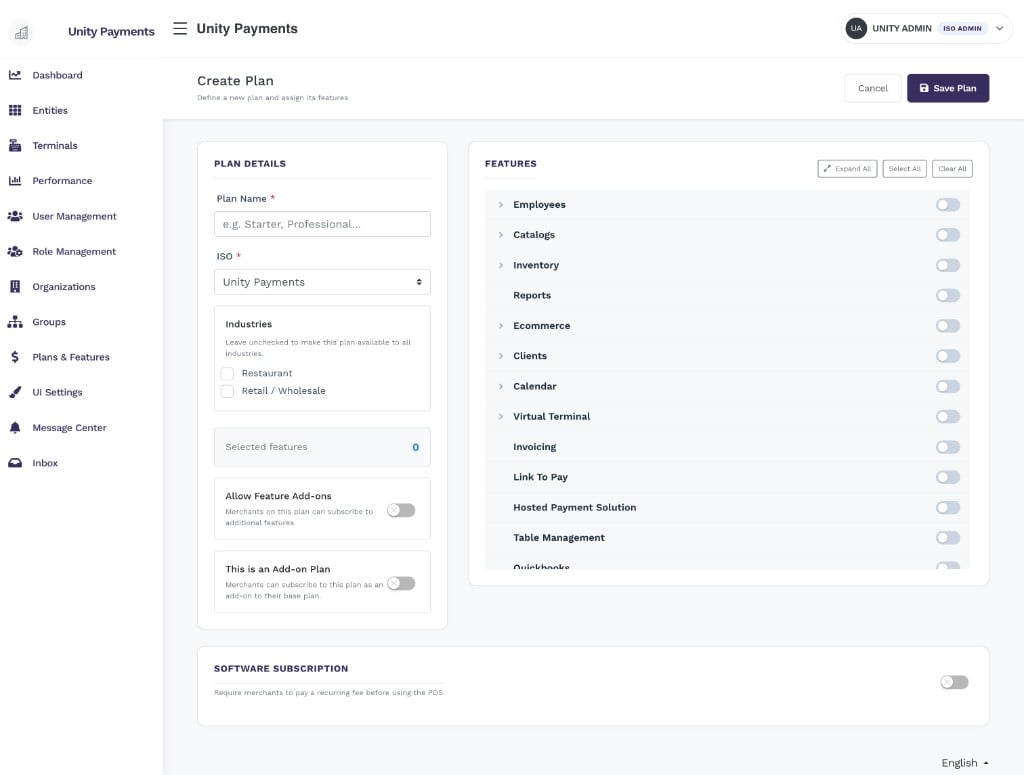 Recapture this screenshot if you want the **Charity** industry checkbox and plan-card industry badges visible. The current image predates those.
### Plan details
| Field | Notes |
| -------------------------- | --------------------------------------------------------------------------------------------------------------------------------------------------------------------------------------------------------------------------------------------------- |
| **Plan Name** | Required. Must be unique within the ISO. |
| **ISO** | Required. The ISO this plan belongs to. Visible only when you have access to multiple ISOs. Cannot be changed after creation. |
| **Industries** | Optional. Check one or more to restrict this plan to specific merchant industries (**Restaurant**, **Retail / Wholesale**, **Charity**). Industry badges appear on the plan card. Leave all unchecked to make the plan available to all industries. |
| **Selected features** | Read-only counter that updates as you toggle features on the right. |
| **Allow Feature Add-ons** | When enabled, merchants on this plan can subscribe to additional Add-on Plans. |
| **This is an Add-on Plan** | Marks the plan as an add-on. Add-on plans cannot have a Software Subscription gate. |
### Features
The Features panel lists all available POS features, organized hierarchically. Use the toolbar controls to manage selections quickly:
* **Expand All** — expand all feature groups to show sub-features
* **Select All** — enable every feature in the list
* **Clear All** — disable every feature in the list
Some features have dependencies. When you enable a feature that requires another, both are automatically enabled. Disabling a parent feature also disables all of its child features.
Available features include:
| Feature | Description |
| ----------------------- | ------------------------------------------------------------------ |
| Employees | Staff management and time tracking. |
| Catalogs | Product catalog management. |
| Inventory | Stock tracking for retail merchants. |
| Reports | Reporting and analytics dashboards. |
| Ecommerce | Online ordering and QR code flows (Pickup, Room Service, Dine-in). |
| Clients | Customer management. |
| Calendar | Appointment and scheduling management. |
| Virtual Terminal | Browser-based card-not-present payments. |
| Invoicing | Invoice creation and sending. |
| Link To Pay | Shareable payment links. |
| Hosted Payment Solution | Embeddable hosted checkout. |
| Table Management | Dine-in table layout and management. |
| Quickbooks | Quickbooks integration. |
### Software subscription
The **Software Subscription** section lets you require merchants to agree to and pay a recurring fee before they can use the POS. This gate is shown to the merchant on first login.
Software Subscription is not available on Add-on Plans.
| Field | Notes |
| ---------------------- | -------------------------------------------------------------------------------------------------------- |
| **Subscription Name** | Required when enabled. Displayed to the merchant. |
| **Amount** | Required. The recurring charge amount. |
| **Frequency** | Required. One of: Daily, Weekly, Bi-weekly, Monthly, Annually. |
| **Demo Passcode** | Optional. A 6-digit code that lets a merchant bypass the subscription gate for demo purposes. |
| **Terms & Conditions** | Optional. Upload an HTML file with the subscription terms. Displayed to the merchant before they accept. |
Click **Save Plan** to create the plan.
***
## Editing a plan
Click **Edit Plan** on any plan card to open the edit form.
Recapture this screenshot if you want the **Charity** industry checkbox and plan-card industry badges visible. The current image predates those.
### Plan details
| Field | Notes |
| -------------------------- | --------------------------------------------------------------------------------------------------------------------------------------------------------------------------------------------------------------------------------------------------- |
| **Plan Name** | Required. Must be unique within the ISO. |
| **ISO** | Required. The ISO this plan belongs to. Visible only when you have access to multiple ISOs. Cannot be changed after creation. |
| **Industries** | Optional. Check one or more to restrict this plan to specific merchant industries (**Restaurant**, **Retail / Wholesale**, **Charity**). Industry badges appear on the plan card. Leave all unchecked to make the plan available to all industries. |
| **Selected features** | Read-only counter that updates as you toggle features on the right. |
| **Allow Feature Add-ons** | When enabled, merchants on this plan can subscribe to additional Add-on Plans. |
| **This is an Add-on Plan** | Marks the plan as an add-on. Add-on plans cannot have a Software Subscription gate. |
### Features
The Features panel lists all available POS features, organized hierarchically. Use the toolbar controls to manage selections quickly:
* **Expand All** — expand all feature groups to show sub-features
* **Select All** — enable every feature in the list
* **Clear All** — disable every feature in the list
Some features have dependencies. When you enable a feature that requires another, both are automatically enabled. Disabling a parent feature also disables all of its child features.
Available features include:
| Feature | Description |
| ----------------------- | ------------------------------------------------------------------ |
| Employees | Staff management and time tracking. |
| Catalogs | Product catalog management. |
| Inventory | Stock tracking for retail merchants. |
| Reports | Reporting and analytics dashboards. |
| Ecommerce | Online ordering and QR code flows (Pickup, Room Service, Dine-in). |
| Clients | Customer management. |
| Calendar | Appointment and scheduling management. |
| Virtual Terminal | Browser-based card-not-present payments. |
| Invoicing | Invoice creation and sending. |
| Link To Pay | Shareable payment links. |
| Hosted Payment Solution | Embeddable hosted checkout. |
| Table Management | Dine-in table layout and management. |
| Quickbooks | Quickbooks integration. |
### Software subscription
The **Software Subscription** section lets you require merchants to agree to and pay a recurring fee before they can use the POS. This gate is shown to the merchant on first login.
Software Subscription is not available on Add-on Plans.
| Field | Notes |
| ---------------------- | -------------------------------------------------------------------------------------------------------- |
| **Subscription Name** | Required when enabled. Displayed to the merchant. |
| **Amount** | Required. The recurring charge amount. |
| **Frequency** | Required. One of: Daily, Weekly, Bi-weekly, Monthly, Annually. |
| **Demo Passcode** | Optional. A 6-digit code that lets a merchant bypass the subscription gate for demo purposes. |
| **Terms & Conditions** | Optional. Upload an HTML file with the subscription terms. Displayed to the merchant before they accept. |
Click **Save Plan** to create the plan.
***
## Editing a plan
Click **Edit Plan** on any plan card to open the edit form.
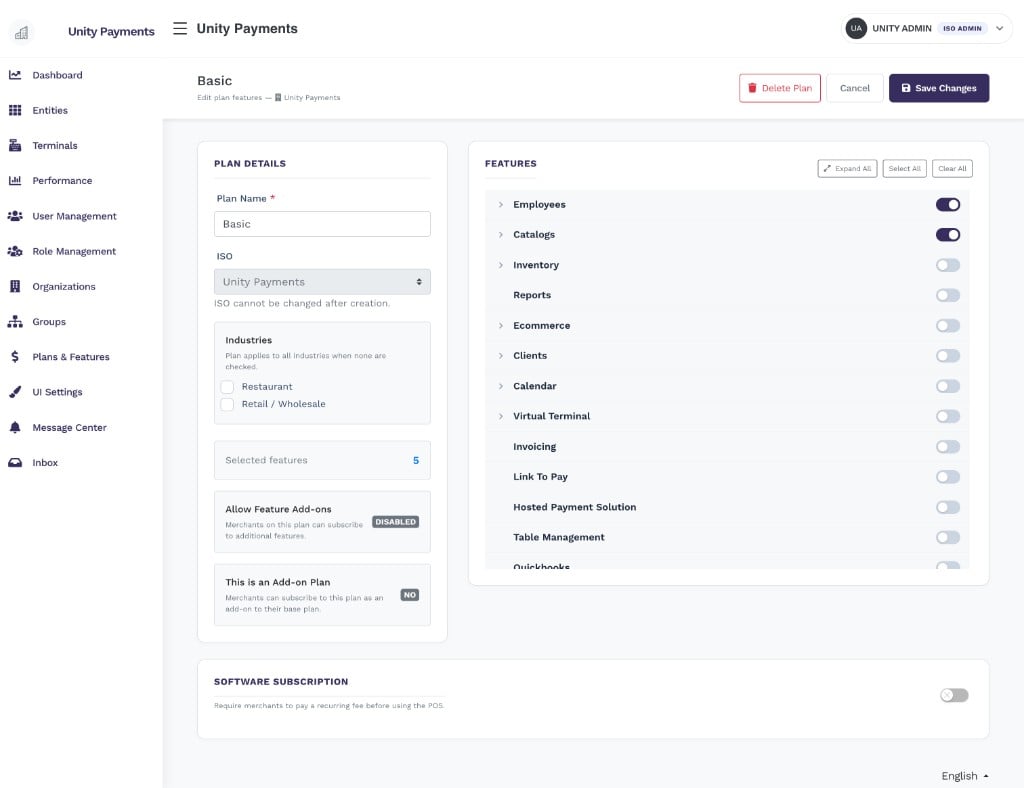 The edit form is identical to the create form with these differences:
* The **ISO** field is read-only — it cannot be changed after creation
* **Allow Feature Add-ons** and **Is Add-on Plan** show their current state as a badge rather than a toggle
* A **Delete Plan** button appears in the page header
Saving feature changes on an edit affects every entity currently assigned to this plan. Added features are immediately granted to all assigned entities; removed features are immediately revoked (except features the entity holds via an add-on subscription, which are left untouched).
Click **Save Changes** to apply.
***
## Copying a plan
Click the **Copy icon** on any plan card to open the Copy Plan modal. Select one or more target ISOs from the hierarchical list (hold Ctrl/Cmd to multi-select) and click **Copy**.
The copy is a deep clone — it duplicates the plan name, type, industries, all feature assignments, and price. If a plan with the same name already exists in the target ISO, the copy is renamed with a `(copy)` or `(copy 2)` suffix automatically.
You can only copy plans to ISOs within your own descendant hierarchy. You cannot copy a plan to a parent ISO or an unrelated ISO.
***
## Deleting a plan
Click the **Delete icon** on a plan card to open the Delete Plan confirmation modal.
The edit form is identical to the create form with these differences:
* The **ISO** field is read-only — it cannot be changed after creation
* **Allow Feature Add-ons** and **Is Add-on Plan** show their current state as a badge rather than a toggle
* A **Delete Plan** button appears in the page header
Saving feature changes on an edit affects every entity currently assigned to this plan. Added features are immediately granted to all assigned entities; removed features are immediately revoked (except features the entity holds via an add-on subscription, which are left untouched).
Click **Save Changes** to apply.
***
## Copying a plan
Click the **Copy icon** on any plan card to open the Copy Plan modal. Select one or more target ISOs from the hierarchical list (hold Ctrl/Cmd to multi-select) and click **Copy**.
The copy is a deep clone — it duplicates the plan name, type, industries, all feature assignments, and price. If a plan with the same name already exists in the target ISO, the copy is renamed with a `(copy)` or `(copy 2)` suffix automatically.
You can only copy plans to ISOs within your own descendant hierarchy. You cannot copy a plan to a parent ISO or an unrelated ISO.
***
## Deleting a plan
Click the **Delete icon** on a plan card to open the Delete Plan confirmation modal.
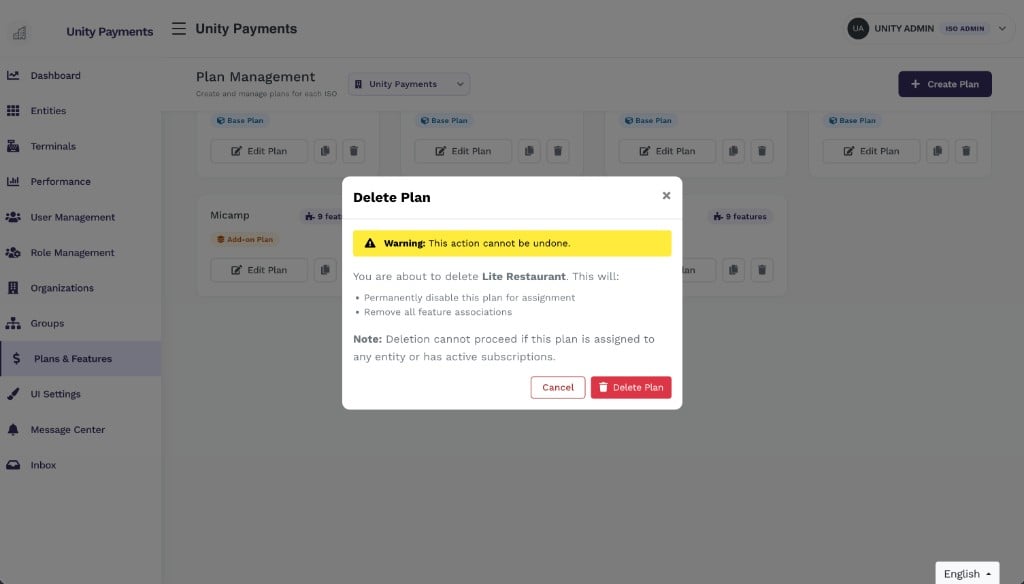 Clicking **Delete Plan** permanently removes the plan record, all its feature associations, and its software subscription settings (if any).
Deletion is blocked in two cases:
* **Plan is assigned to entities** — at least one merchant entity is currently on this plan. Reassign or remove all entities from the plan first. When this error occurs, a **Download CSV** link appears in the error banner so you can export the full list of assigned entities.
* **Plan has active subscriptions** — one or more merchants have an active software subscription tied to this plan. Cancel those subscriptions first.
Clicking **Delete Plan** permanently removes the plan record, all its feature associations, and its software subscription settings (if any).
Deletion is blocked in two cases:
* **Plan is assigned to entities** — at least one merchant entity is currently on this plan. Reassign or remove all entities from the plan first. When this error occurs, a **Download CSV** link appears in the error banner so you can export the full list of assigned entities.
* **Plan has active subscriptions** — one or more merchants have an active software subscription tied to this plan. Cancel those subscriptions first.