> ## Documentation Index
> Fetch the complete documentation index at: https://docs.taliuphq.com/llms.txt
> Use this file to discover all available pages before exploring further.
# Performance Reports
> Generate and download Excel performance reports for merchants in your ISO scope — covering gross sales, refunds, payment mix, taxes, and per-merchant breakdowns.
The **Performance Reports** page lets ISO admins generate merchant performance reports for any date range and merchant scope within their ISO. Reports are processed as background jobs and exported as multi-sheet Excel (.xlsx) files ready for download.
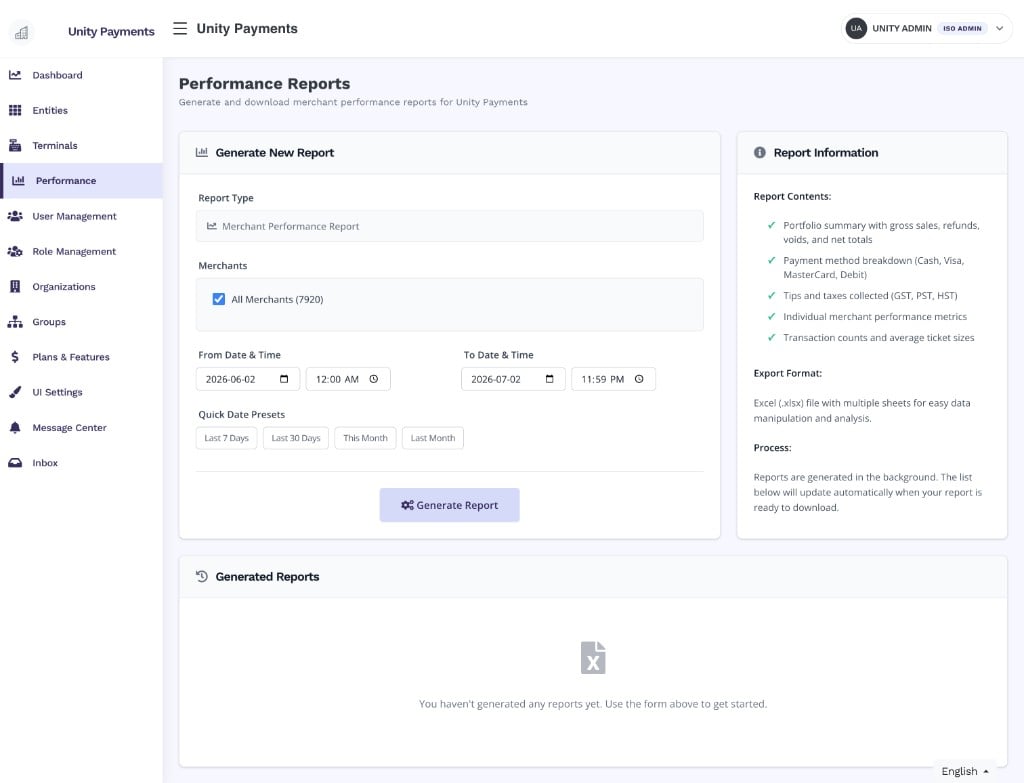 This page is only accessible to users with an ISO associated with their account. Users without an ISO assignment receive a 403 error. Reports are scoped to your ISO — you can only generate and view reports for merchants within your accessible ISO hierarchy.
***
## Generate new report
This page is only accessible to users with an ISO associated with their account. Users without an ISO assignment receive a 403 error. Reports are scoped to your ISO — you can only generate and view reports for merchants within your accessible ISO hierarchy.
***
## Generate new report
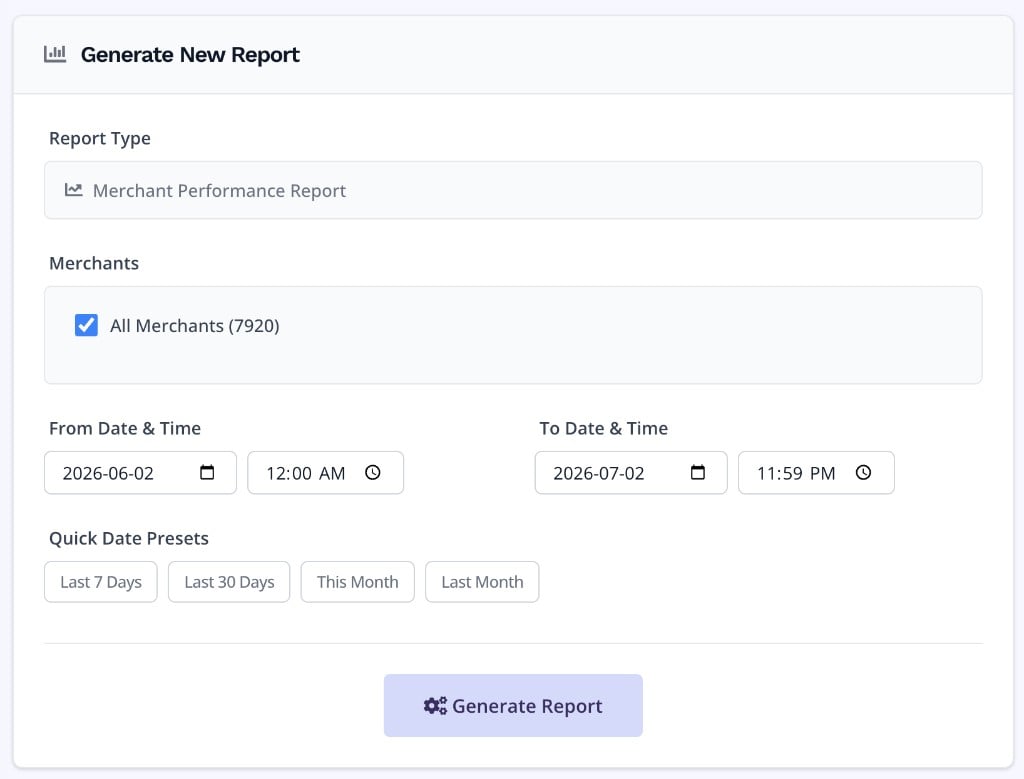 | Field | Description |
| ---------------------- | ---------------------------------------------------------------------------------------------------------------------------------------------------------------------------- |
| **Report Type** | Fixed to **Merchant Performance Report** — the only report type currently available. |
| **Merchants** | Check **All Merchants** (default) to include every merchant in your ISO scope. Uncheck to reveal a searchable multi-select for targeting specific merchants by name or city. |
| **From Date & Time** | Start of the reporting window. Defaults to the current date at 12:00 AM. |
| **To Date & Time** | End of the reporting window. Defaults to the current date at 11:59 PM. Must be on or after the From date. |
| **Quick Date Presets** | One-click shortcuts to fill the date range: **Last 7 Days**, **Last 30 Days**, **This Month**, or **Last Month**. |
Click **Generate Report** to open the confirmation modal before the job is submitted.
***
## Report contents
| Field | Description |
| ---------------------- | ---------------------------------------------------------------------------------------------------------------------------------------------------------------------------- |
| **Report Type** | Fixed to **Merchant Performance Report** — the only report type currently available. |
| **Merchants** | Check **All Merchants** (default) to include every merchant in your ISO scope. Uncheck to reveal a searchable multi-select for targeting specific merchants by name or city. |
| **From Date & Time** | Start of the reporting window. Defaults to the current date at 12:00 AM. |
| **To Date & Time** | End of the reporting window. Defaults to the current date at 11:59 PM. Must be on or after the From date. |
| **Quick Date Presets** | One-click shortcuts to fill the date range: **Last 7 Days**, **Last 30 Days**, **This Month**, or **Last Month**. |
Click **Generate Report** to open the confirmation modal before the job is submitted.
***
## Report contents
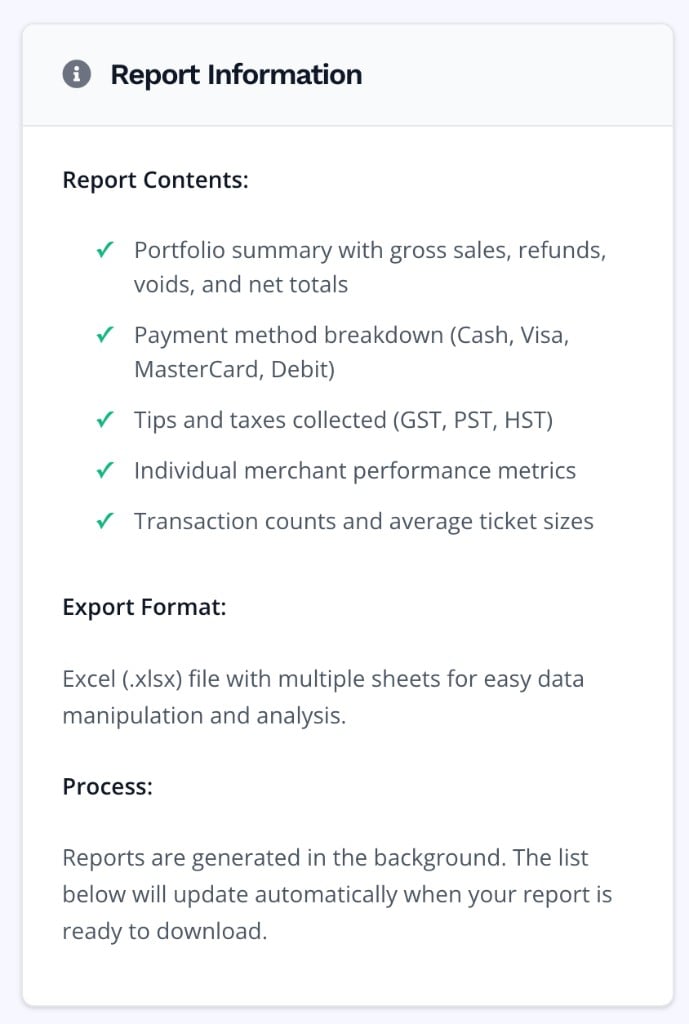 Each generated report is a multi-sheet Excel (.xlsx) file containing:
* Portfolio summary with gross sales, refunds, voids, and net totals
* Payment method breakdown — Cash, Visa, MasterCard, Debit, and other card types
* Tips and taxes collected (GST, PST, HST)
* Individual merchant performance metrics
* Transaction counts and average ticket sizes
The file is structured across multiple sheets for easy manipulation and analysis in Excel or Google Sheets.
***
## Generating a report
Select your merchant scope (all or specific merchants) and set the From and To date range. Use a Quick Date Preset to fill the range automatically.
The form validates your inputs and opens a confirmation modal showing the exact parameters — Merchants scope, From date/time, and To date/time.
Review the parameters and click **Start Generation**. The job is submitted to the background queue immediately.
Each generated report is a multi-sheet Excel (.xlsx) file containing:
* Portfolio summary with gross sales, refunds, voids, and net totals
* Payment method breakdown — Cash, Visa, MasterCard, Debit, and other card types
* Tips and taxes collected (GST, PST, HST)
* Individual merchant performance metrics
* Transaction counts and average ticket sizes
The file is structured across multiple sheets for easy manipulation and analysis in Excel or Google Sheets.
***
## Generating a report
Select your merchant scope (all or specific merchants) and set the From and To date range. Use a Quick Date Preset to fill the range automatically.
The form validates your inputs and opens a confirmation modal showing the exact parameters — Merchants scope, From date/time, and To date/time.
Review the parameters and click **Start Generation**. The job is submitted to the background queue immediately.
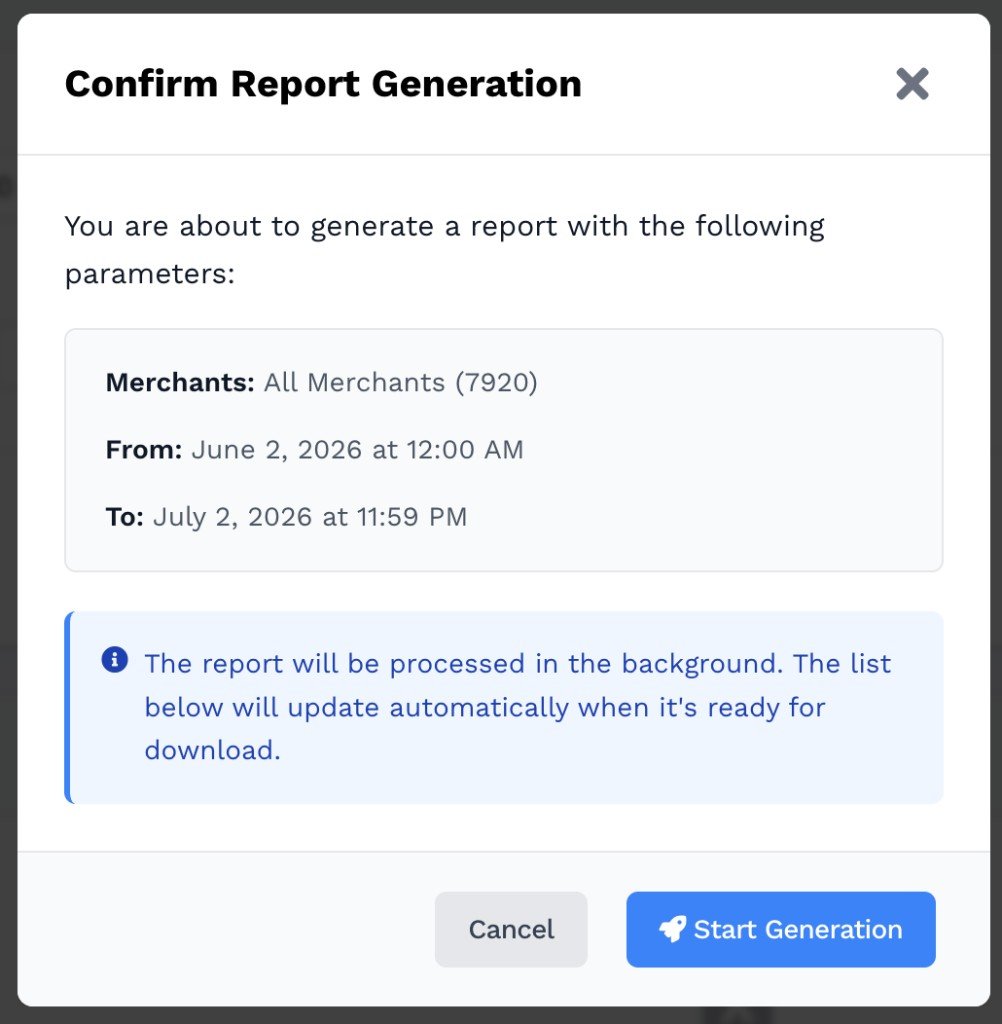 The new report appears in the **Generated Reports** list immediately with a **Pending** status. The list updates automatically as the job progresses — no page reload needed.
***
## Generated reports list
The **Generated Reports** list below the form shows every report generated by your ISO, newest first. Each row shows the report type, merchant scope, date range, current status, generation timestamp, and available actions.
### Report statuses
The new report appears in the **Generated Reports** list immediately with a **Pending** status. The list updates automatically as the job progresses — no page reload needed.
***
## Generated reports list
The **Generated Reports** list below the form shows every report generated by your ISO, newest first. Each row shows the report type, merchant scope, date range, current status, generation timestamp, and available actions.
### Report statuses


 | Status | Meaning |
| -------------- | ----------------------------------------------------------------------- |
| **Pending** | The job has been accepted and is waiting in the processing queue. |
| **Processing** | The job is actively running — the Excel file is being generated. |
| **Completed** | The file is ready. A **Download** button appears in the Actions column. |
### Actions
| Action | Description |
| ------------ | ----------------------------------------------------------------------------------------------------------------------------------------- |
| **Download** | Downloads the Excel file via a temporary signed URL. The link is valid for approximately 23 hours from the time the report was generated. |
| **Delete** | Permanently removes the report record and its associated Excel file from storage. |
Deleting a report is permanent. The Excel file is removed from storage and cannot be recovered. Download the file before deleting if you need to retain it.
| Status | Meaning |
| -------------- | ----------------------------------------------------------------------- |
| **Pending** | The job has been accepted and is waiting in the processing queue. |
| **Processing** | The job is actively running — the Excel file is being generated. |
| **Completed** | The file is ready. A **Download** button appears in the Actions column. |
### Actions
| Action | Description |
| ------------ | ----------------------------------------------------------------------------------------------------------------------------------------- |
| **Download** | Downloads the Excel file via a temporary signed URL. The link is valid for approximately 23 hours from the time the report was generated. |
| **Delete** | Permanently removes the report record and its associated Excel file from storage. |
Deleting a report is permanent. The Excel file is removed from storage and cannot be recovered. Download the file before deleting if you need to retain it.