> ## Documentation Index
> Fetch the complete documentation index at: https://docs.taliuphq.com/llms.txt
> Use this file to discover all available pages before exploring further.
# Message Center
> Send rich-text notifications to merchants — by ISO group, by specific business, or platform-wide — using the Admin Message Composer.
The **Admin Message Composer** lets ISO admins send formatted in-app notifications to merchant entities under their ISO. Messages are delivered directly to the merchant's Inbox in Taliup HQ.
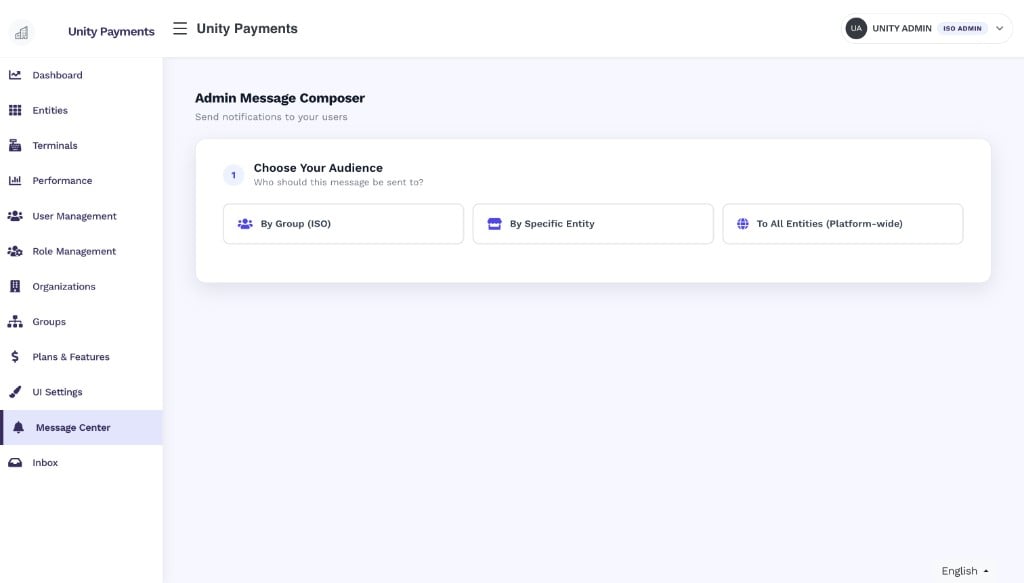
The composer uses a three-step flow: choose your audience, configure it, then write and send your message.
 ***
## Step 1 — Choose your audience
Select one of three audience modes. Switching to a different mode resets all audience and message fields.
| Mode | Who receives the message |
| ----------------------------------- | --------------------------------------------------------------------- |
| **By Group (ISO)** | All merchant entities belonging to one or more ISO groups you select. |
| **By Specific Entity** | One or more individual merchants you search for by name. |
| **To All Entities (Platform-wide)** | Every merchant entity on the platform, across all ISOs. |
***
## Step 2 — Configure your audience
Step 2 adapts to the audience mode you selected.
### By Group (ISO)
***
## Step 1 — Choose your audience
Select one of three audience modes. Switching to a different mode resets all audience and message fields.
| Mode | Who receives the message |
| ----------------------------------- | --------------------------------------------------------------------- |
| **By Group (ISO)** | All merchant entities belonging to one or more ISO groups you select. |
| **By Specific Entity** | One or more individual merchants you search for by name. |
| **To All Entities (Platform-wide)** | Every merchant entity on the platform, across all ISOs. |
***
## Step 2 — Configure your audience
Step 2 adapts to the audience mode you selected.
### By Group (ISO)
 | Field | Notes |
| --------------------------------------------- | ------------------------------------------------------------------------------------------------------------------------------------ |
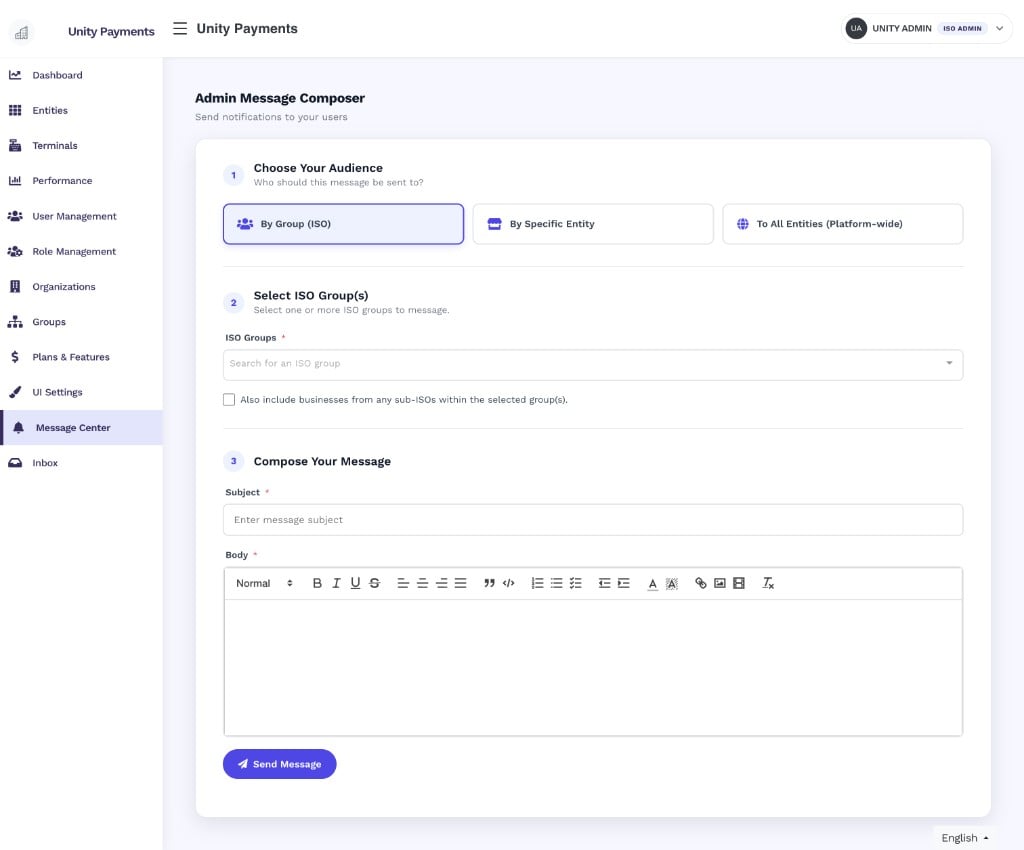
| **ISO Groups** | Required. Search and select one or more ISOs. Multiple ISOs can be selected — messages go to all entities across every selected ISO. |
| **Also include businesses from any sub-ISOs** | Optional. When checked, entities belonging to child ISOs nested under the selected group(s) are also included. |
### By Specific Entity
| Field | Notes |
| --------------------------------------------- | ------------------------------------------------------------------------------------------------------------------------------------ |
| **ISO Groups** | Required. Search and select one or more ISOs. Multiple ISOs can be selected — messages go to all entities across every selected ISO. |
| **Also include businesses from any sub-ISOs** | Optional. When checked, entities belonging to child ISOs nested under the selected group(s) are also included. |
### By Specific Entity
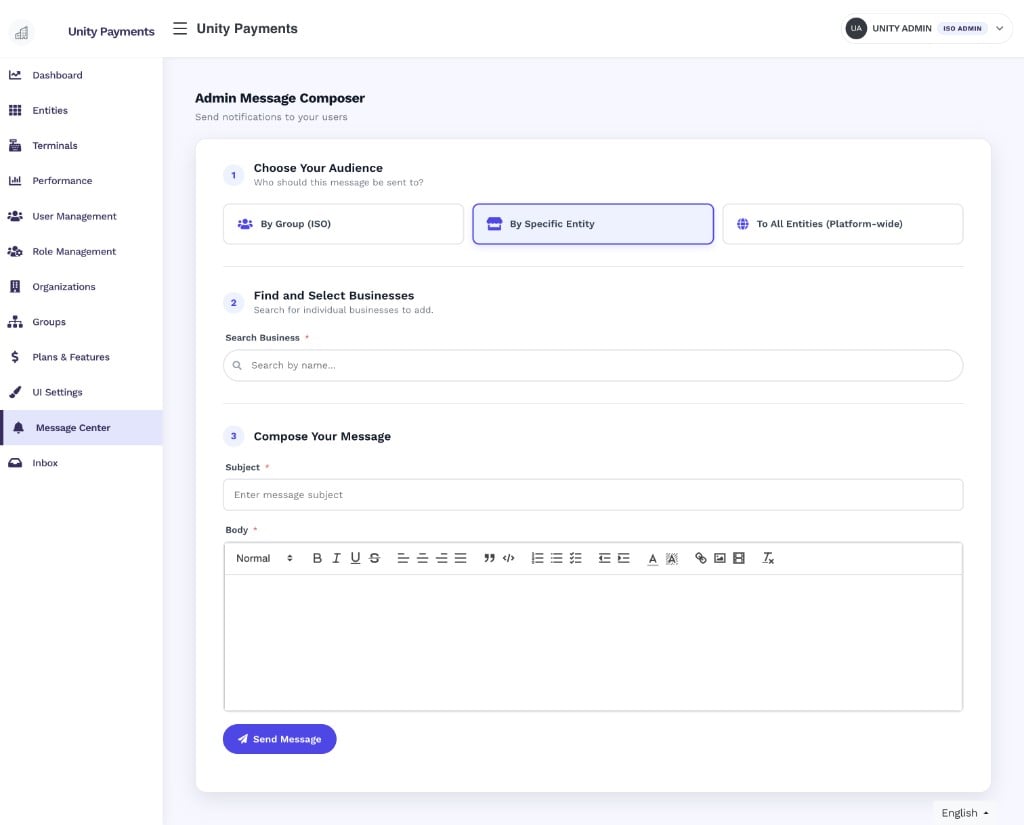 Type at least 2 characters in the **Search Business** field to trigger a live search. Results appear in a dropdown below the input — click any result to add it to the recipient list.
Selected recipients appear as pills beneath the search box. Click the **×** on any pill to remove that business from the recipient list.
### To All Entities (Platform-wide)
Type at least 2 characters in the **Search Business** field to trigger a live search. Results appear in a dropdown below the input — click any result to add it to the recipient list.
Selected recipients appear as pills beneath the search box. Click the **×** on any pill to remove that business from the recipient list.
### To All Entities (Platform-wide)
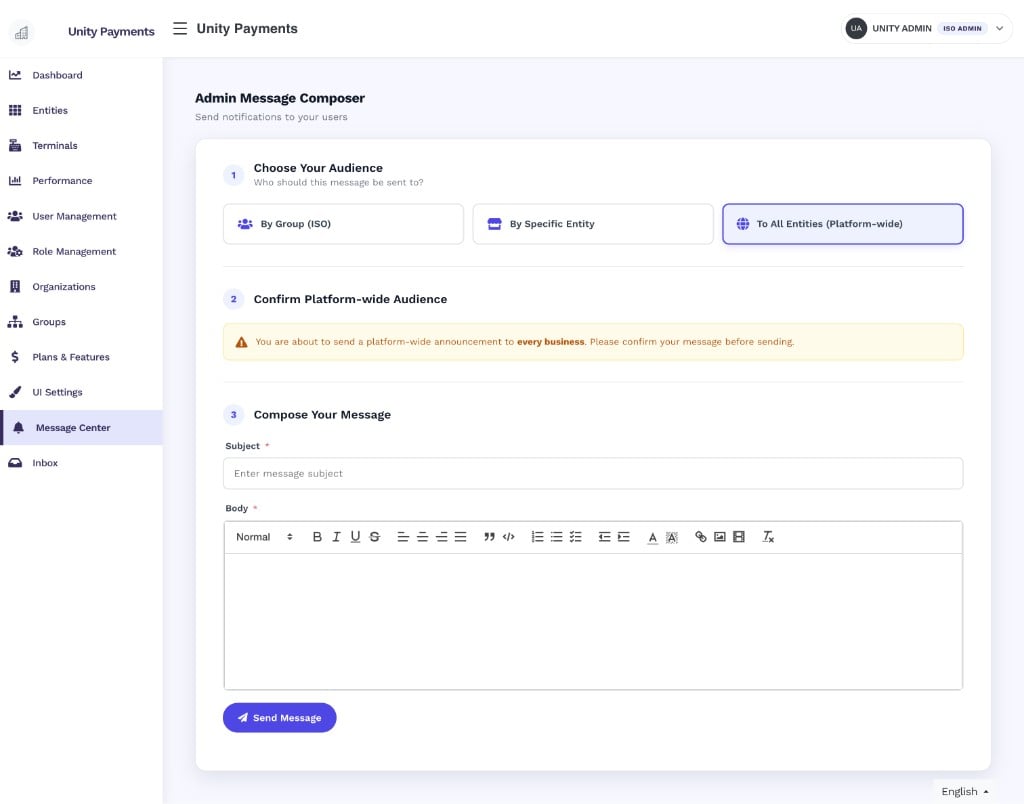 No audience configuration is needed. An amber warning banner appears to confirm that the message will be delivered to **every merchant entity on the platform**. Review your message carefully before sending.
Platform-wide messages cannot be recalled after sending. They are delivered to all merchants regardless of ISO, status, or plan.
***
## Step 3 — Compose your message
| Field | Notes |
| ----------- | --------------------------------------------------------------------------- |
| **Subject** | Required. Plain text. Appears as the message title in the merchant's Inbox. |
| **Body** | Required. Rich-text editor with a full formatting toolbar. |
The rich-text editor supports:
* Text formatting: bold, italic, underline, strikethrough
* Paragraph alignment: left, center, right, justify
* Block types: blockquote, inline code
* Lists: ordered, unordered, indent/outdent
* Text color and background color
* Links, inline images, and tables
* Clear formatting
***
## Sending
Click **Send Message** to deliver the notification. The button shows a spinner and the label changes to **Sending...** while the request is in flight.
On success, the entire form resets to the initial state — the audience selection is cleared and all fields are emptied, ready for the next message.
No audience configuration is needed. An amber warning banner appears to confirm that the message will be delivered to **every merchant entity on the platform**. Review your message carefully before sending.
Platform-wide messages cannot be recalled after sending. They are delivered to all merchants regardless of ISO, status, or plan.
***
## Step 3 — Compose your message
| Field | Notes |
| ----------- | --------------------------------------------------------------------------- |
| **Subject** | Required. Plain text. Appears as the message title in the merchant's Inbox. |
| **Body** | Required. Rich-text editor with a full formatting toolbar. |
The rich-text editor supports:
* Text formatting: bold, italic, underline, strikethrough
* Paragraph alignment: left, center, right, justify
* Block types: blockquote, inline code
* Lists: ordered, unordered, indent/outdent
* Text color and background color
* Links, inline images, and tables
* Clear formatting
***
## Sending
Click **Send Message** to deliver the notification. The button shows a spinner and the label changes to **Sending...** while the request is in flight.
On success, the entire form resets to the initial state — the audience selection is cleared and all fields are emptied, ready for the next message.